|
VOOZH | about |
|
VOOZH | about |
Creating a loan amortization schedule is a crucial step in managing and understanding your loan repayments, whether it's for a home, car, or personal loan. With Excel, you can easily create a detailed loan amortization schedule that helps you track each payment and see how much interest and principal you are paying over time. This article will show you how to make a loan amortization schedule in Excel, providing a clear view of your loan repayment process.
Whether you need a home loan amortization schedule in Excel or a car loan amortization schedule in Excel, we’ve got you covered. Also, we will provide steps to create a comprehensive loan amortization table in Excel and how to set up a loan repayment schedule in Excel download for offline use. By the end of this guide, you’ll have a powerful tool to manage your loans effectively and make informed financial decisions and will learn How to Make a Loan Amortization Schedule in Excel.
Table of Content
A loan amortization schedule is a detailed breakdown of your loan payments over time. It acts like a roadmap, showing you exactly how much of each payment goes towards paying down the loan's principal (the actual borrowed amount) and how much goes towards interest (the cost of borrowing). Here's why understanding your loan amortization schedule is crucial:
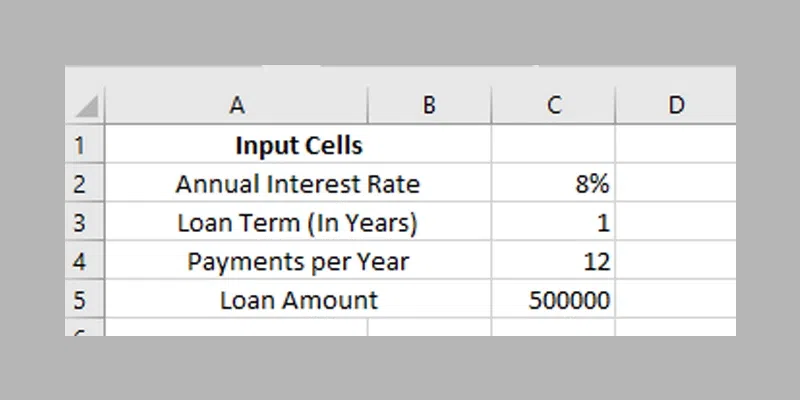
Open a new spreadsheet and add the below components of loans in the mentioned Cells.
Please refer to the below image for easy understanding.
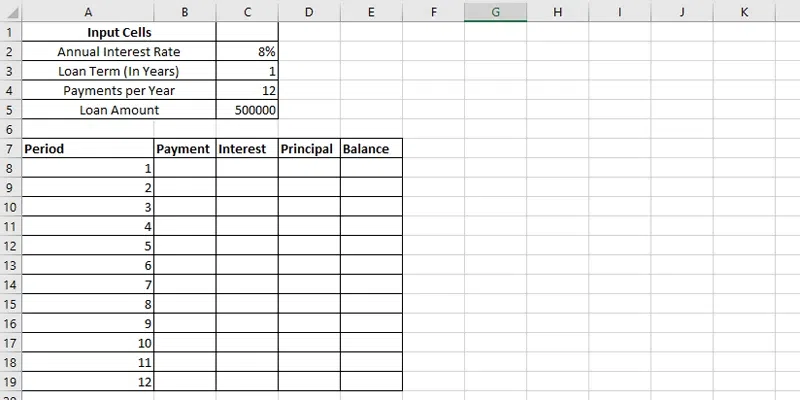
Now create an amortization table with the labels (Period, Payment, Interest, Principal, Balance) in A7:E7. Now enter the series number equal to the total number of payments (1-12), for this simply enter 1,2 & 3 in A8, A9 & A10 and drag the cell until A19.
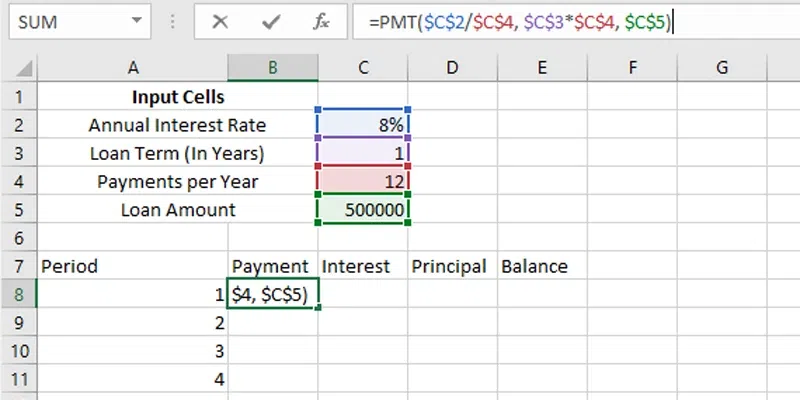
To calculate total payments use PMT Function PMT (rate, nper, pv, [fv], [type])
Rate: Calculate the interest rate per payment period by dividing the annual interest rate by the number of payment periods within a year.
Nper: Determine the total number of payment periods by multiplying the number of years by the number of payment periods per year.
pv: Enter the Total Loan Amount
PMT FORMULAE: =PMT($C$2/$C$4, $C$3*$C$4, $C$5) in B8 and then drag the column until A19.
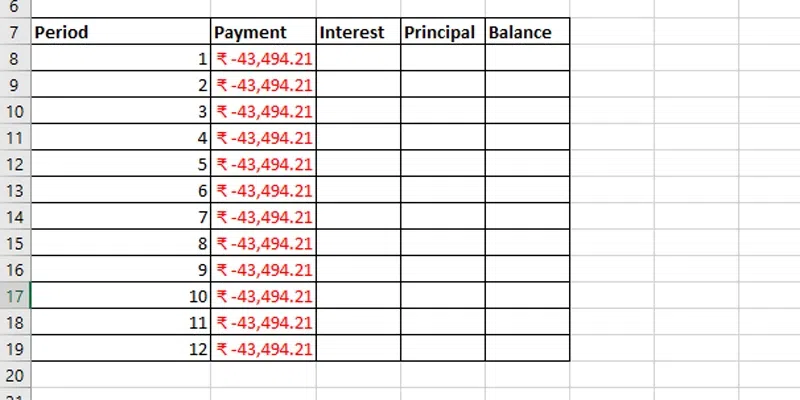
After entering the formulae in B8 and till B19, you will see the same payment amount for all the periods.
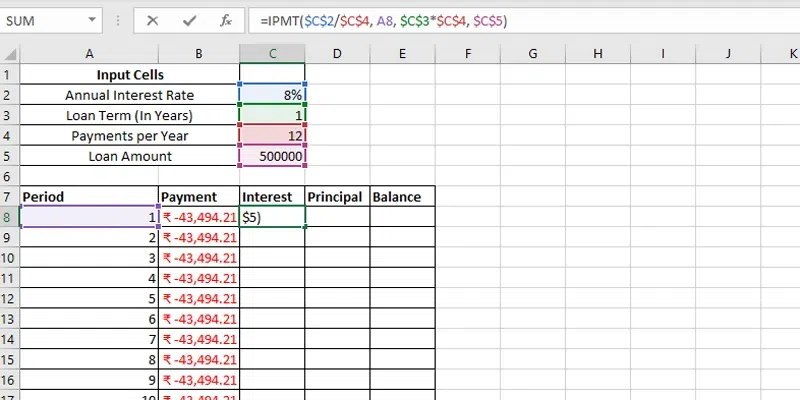
Now find out the interest of each periodic payment by using the IPMT Function formulae in C8.
IPMT Formulae: =IPMT($C$2/$C$4, A8, $C$3*$C$4, $C$5)
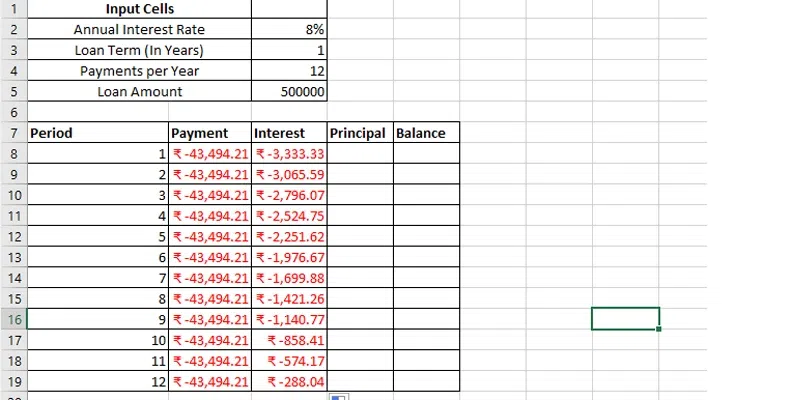
After entering the formulae in C8, drag the column until C19
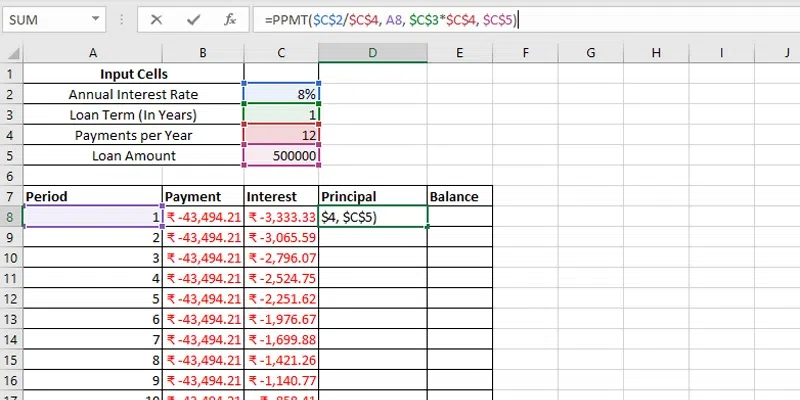
Now calculate the using the PPMT Function in D8.
PPMT Formulae: =PPMT($C$2/$C$4, A8, $C$3*$C$4, $C$5)
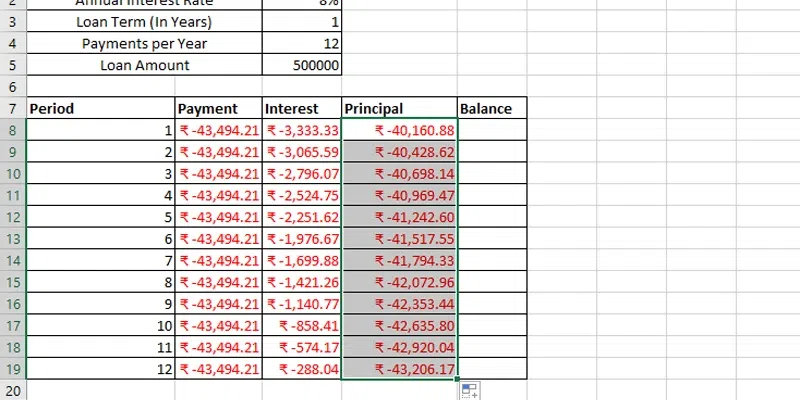
After entering the formulae in D8, drag the column until D19.
Now to calculate the Remaining Balance for each period we'll apply two separate formulas.
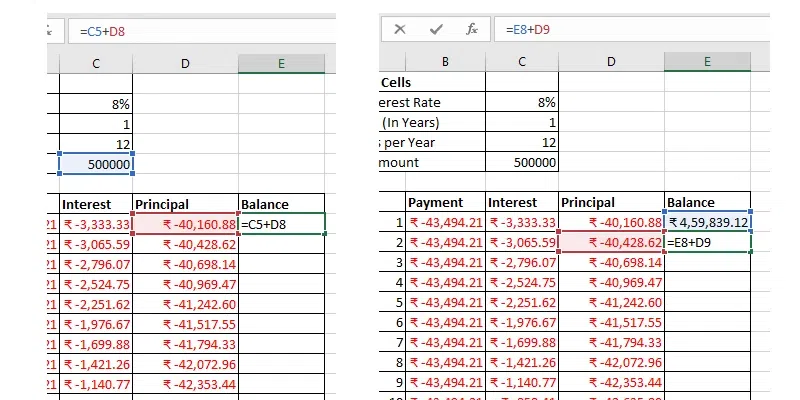
To determine the balance after the initial payment, located in cell E8, sum the loan amount (C5) and the principal of the first period (D8): =E8+C5+D8
Note: since the loan amount is represented as a positive number and the principal as a negative number, the latter is effectively deducted from the former.
For the second period onwards, find the balance by adding the previous balance to the principal for the current period: =E8+D9
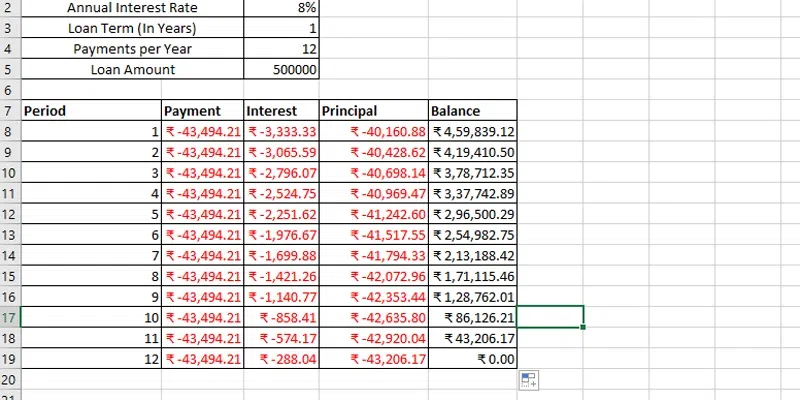
Now drag down the column till E19, and you will get the periodic remaining balance figures.
Important Note: As shown in the image, by default, the values are visually represented with a red font and enclosed within parentheses. However, if you prefer to display all results as positive numbers, you can easily do this by adding a minus sign before using the PMT, IPMT, and PPMT functions.
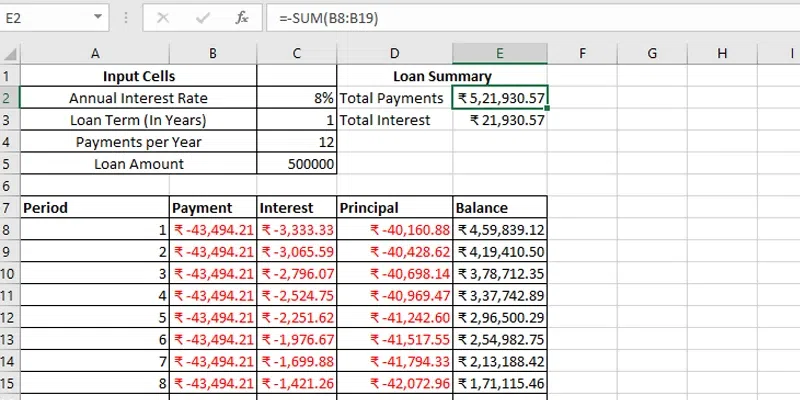
Now create a loan summary to see the exact status of your loan. Create a Loan Summary and Add the Below components in the mentioned Cells.
Amortization schedules, while commonly associated with long-term loans, possess versatility that extends far beyond traditional mortgages. These financial tools find relevance in a range of scenarios, catering to the needs of various entities. Let's explore who can benefit from utilizing amortization schedules:
In conclusion, creating a loan amortization schedule in Excel is a powerful way to manage and understand your loan repayments. Whether you're dealing with a home loan, car loan, or any other type of loan, Excel provides the flexibility to customize your loan amortization table to suit your needs. By following the steps outlined in this article, you can easily create a detailed loan repayment schedule that helps you track each payment, see the breakdown of interest and principal, and plan your finances more effectively. Start today and take control of your loan repayments with a well-structured loan amortization schedule in Excel!