Reduce eye strain and enhance your productivity with Excel's Dark Mode! This guide provides easy-to-follow steps on how to enable Dark Mode in Microsoft Excel for both Windows and Mac. Learn how to customize your Excel experience with a visually appealing and less-distracting interface.
Excel OWA dark mode is a feature that adjusts the application's interface to darker colors, reducing glare and making it easier to work in dimly lit environments. It is available in Microsoft 365, Excel 2019, and later versions.
How to Enable Dark Mode in Microsoft Excel (2025 Updated)
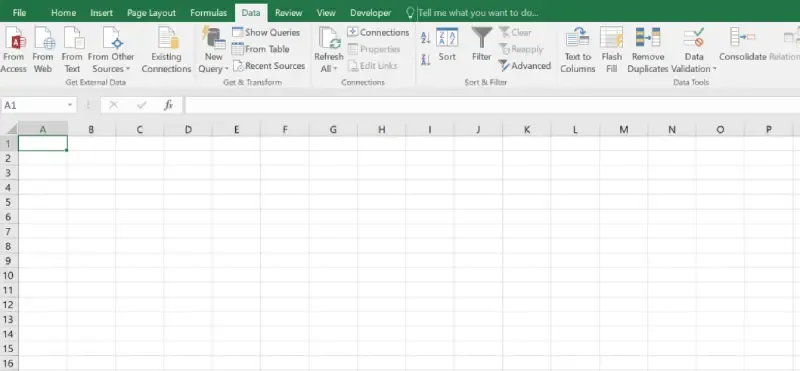
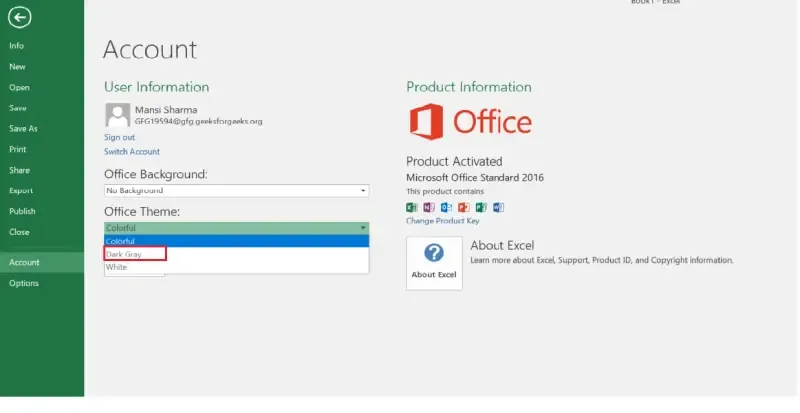
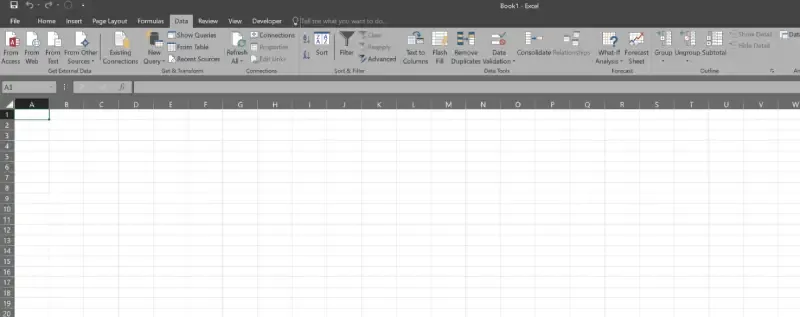
Below are the steps to Switch Excel Spreadsheet from Light view to Night View:
Switch Back to Light Mode: If Dark Mode is not to your liking, you can easily switch back by selecting Colorful or White under the Office Theme menu.
Data Visibility: Adjust your worksheet’s cell colors and font to ensure text is easily readable in Dark Mode.
Compatibility: Ensure your Microsoft Office version supports Dark Mode (Office 365 or Excel 2019 and newer).
Conclusion
Enabling Excel Dark Mode is a simple yet effective way to improve your workflow, especially in low-light environments. By following the steps above, you can activate Dark Mode in Excel and customize your spreadsheets for a more comfortable and visually appealing experience. Whether you're working on simple tables or complex data models, Excel Dark Mode is a game-changer for both productivity and style.