 |
VOOZH | about |
|
VOOZH | about |
How to Retrieve Deleted Excel Files: Quick Steps
- Check Recycle Bin
- Open the Recycle Bin, find your file, right-click, and select Restore.
- Use Recovery Software
- Download tools like Recuva, scan for deleted files and recover your Excel file.
- Check Backups
- Look in OneDrive or system backups and restore the file if available.
Have you ever spent hours perfecting a spreadsheet only to realize you forgot to save it? Excel crashes or unexpected power outages can cause panic, but there’s good news! Microsoft Excel offers robust tools like AutoSave and AutoRecover to help you recover unsaved or accidentally deleted files with ease. Whether you've closed a file without saving, experienced an overwrite, or deleted it entirely, this guide will show you step-by-step methods to retrieve your lost data. Let’s get into these essential techniques and ensure your hard work is always protected!
Features like AutoSave and AutoRecover can be lifesavers in MS Excel (literally for your data!). Here's the explanation of the same,
AutoSave automatically saves your file as you work. It’s especially helpful for new files that haven’t been saved manually yet. If a crash or power outage occurs, Excel will have an automatically saved version of your work ready for recovery when you reopen the program.
AutoRecover works for existing files that have been saved at least once. It allows you to recover files when Excel crashes unexpectedly or when you accidentally close a file without saving. Upon reopening Excel, the Document Recovery pane may appear, listing unsaved files available for recovery.
Important Note: AutoRecover only works for files that have been saved at least once. For completely unsaved documents, Excel might not be able to provide recovery options.
Enabling AutoSave and AutoRecover is essential to ensure your work is automatically saved at regular intervals, reducing the chances of data loss. Follow the below steps to configure AutoSave Feature in excel:
By default, the AutoRecover Feature is set to save changes to your workbook every 10 minutes. However, you can adjust this interval to suit your needs—shorten it for more frequent backups or extend it if necessary. Additionally, you can change the location where AutoRecover files are saved and set specific exceptions for certain files.
Tip: To reduce the risk of data loss in case of a crash or power outage, consider lowering the AutoRecover time interval. The more frequently your document is saved, the more versions will be available, increasing your chances of recovering all changes.
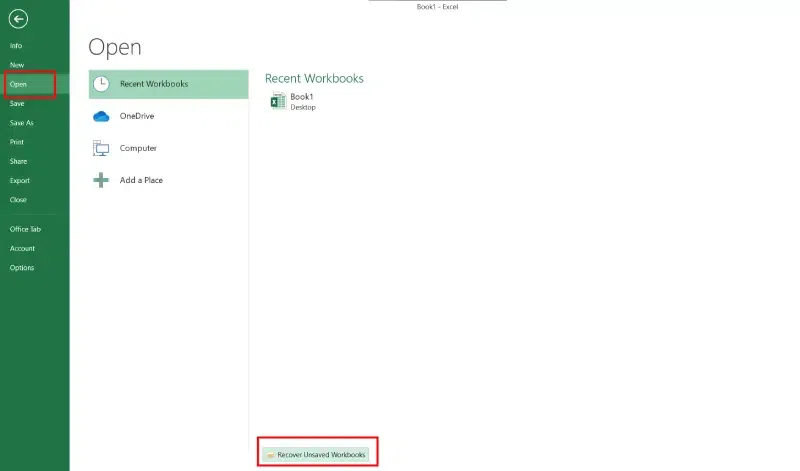
If you've accidentally closed an Excel workbook without saving, follow these steps to retrieve it:
Launch a new workbook in Excel to start the recovery process.
Click on the File tab in the top-left corner of the window to access file options.
This option lets you locate and restore your unsaved files effortlessly.
If you're using Excel 2010 or newer, you can retrieve unsaved workbooks and even access previous versions of your files. This feature is especially useful if you've accidentally overwritten or lost important data. Here's how to do it:
Click on the File tab at the top of the screen and select Info from the sidebar.
Look for the Manage Versions button. Here, you'll see a list of autosaved versions of your file. Excel automatically saves these versions if you've made changes. Each version includes a timestamp and a note like “(autosave).”
Click on a version from the list to open it. If Excel closed unexpectedly or you didn’t save your changes, look for a version labeled (when I closed without saving).
When the file opens, a yellow bar will appear at the top of the sheet. Click the Restore button to recover and replace the existing file with the selected version.
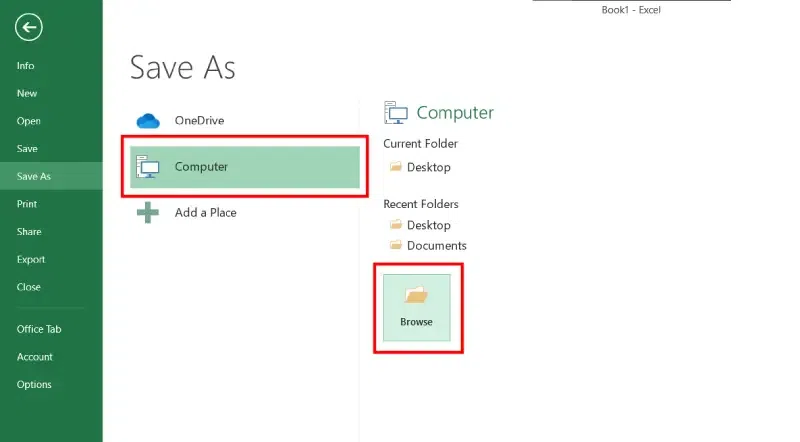
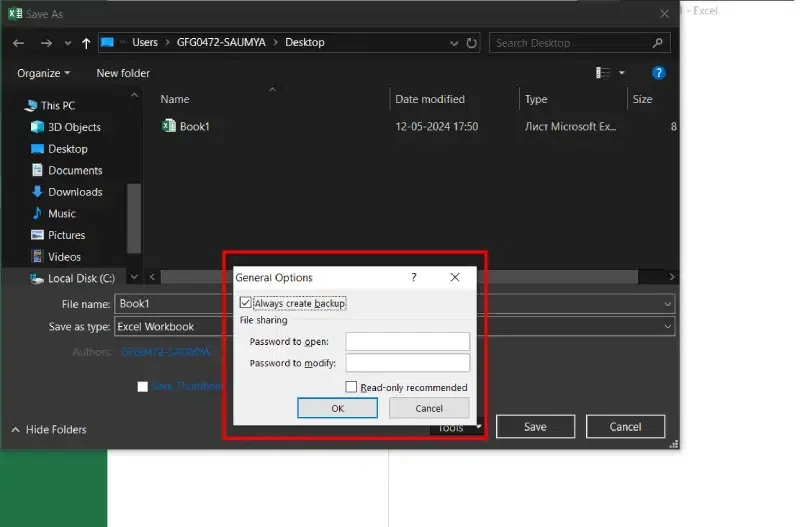
Excel's Auto Backup feature is a reliable way to protect your work by creating a backup copy of your file. This ensures you can retrieve an older version if needed. Follow these steps to enable it:
Now, Excel will automatically create a backup copy of your workbook each time you save it. This backup copy will be saved in the same location as the original file, with the extension .xlk, providing an extra layer of security for your data.
Accidentally deleting an Excel file can be frustrating, but you can often retrieve it using the following methods:
These methods offer a reliable way to recover deleted files, ensuring you can regain access to your important data.
Losing an Excel file doesn't have to be the end of the world. With features like AutoSave, AutoRecover, and backup copies, Excel provides multiple safety nets to safeguard your work. Whether you're recovering an unsaved workbook, an overwritten version, or even a deleted file, these built-in tools and tips can help you regain access to your data quickly and efficiently.
By enabling AutoSave, configuring AutoRecover settings, and using backup copies, you can minimize data loss and focus on your work without worrying about unexpected disruptions. So the next time disaster strikes, you’ll be well-equipped to recover your files and keep moving forward with confidence.





.webp)