|
VOOZH | about |
|
VOOZH | about |
Dealing with messy data in Excel often requires removing text either before or after a specific character. Whether you need to clean up email addresses, extract parts of a URL, or streamline text-based data, Excel offers multiple tools to get the job done efficiently. This guide will explore how to remove text before or after a specific character in Excel using methods like Find & Replace, Flash Fill, and formulas such as the SUBSTITUTE function. With these steps, you can clean data in Excel with precision and ease.
Table of Content
For example, if you have the name and age of people in the data field separated by a comma(,), you may want to remove the age after the comma and only keep the name.
👁 DataAfter removing texts present after the comma(,),
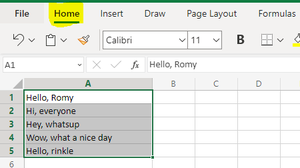
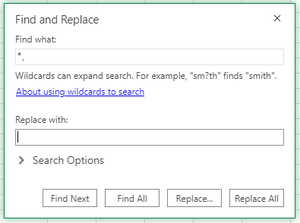
👁 Removing-commaThe Find and Replace tool in Excel is a quick and easy way to remove text before or after a specific character in excel using the wildcard character * (which represents any number of characters). Here’s how you can use it:
👁 Database*,: To remove all text before a specific character (e.g., a comma), type *, in the Find what field and leave the Replace with field blank. This removes all text before the comma, including the comma itself.,*: To remove all text after a specific character (e.g., a comma), type ,* in the Find what field and leave the Replace with field blank.char*char: To remove text between two specific characters, type the starting and ending characters with * in between (e.g., A*C).Click the Replace All button to apply the changes to all the selected cells.
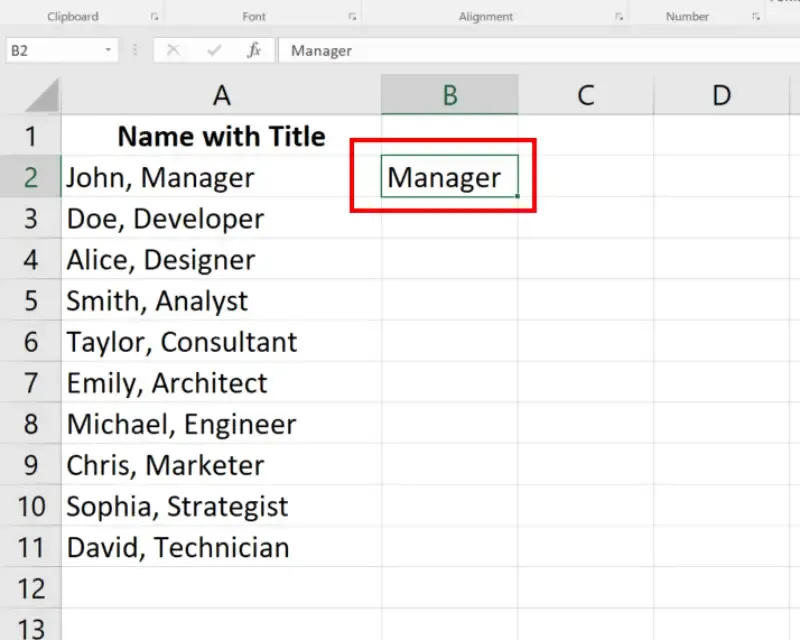
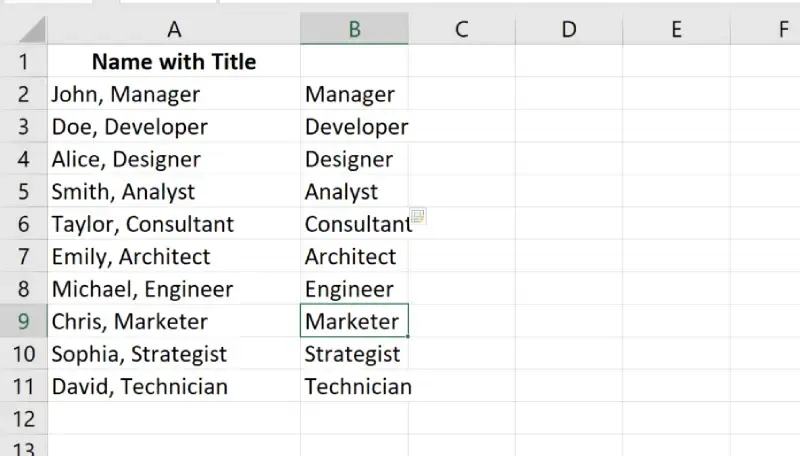
The Flash Fill feature in Excel is a quick and easy way to remove part of the text that precedes or follows a specific character. Flash Fill automatically detects patterns in your data and applies them to the remaining cells. Here's how you can use it:
John, Manager and you want only Manager, type Manager in the adjacent cell.Doe, Developer, type Developer in the adjacent cell.Hit the Enter key to accept the suggestions.
In Microsoft Excel, formulas offer a powerful and flexible way to manipulate data without modifying the original content. Unlike built-in functions that may directly change the data, formulas provide a non-destructive method, giving you control over calculations and transformations.
Here’s a step-by-step guide to remove text using formulas in Excel, with an example for better understanding.
Identify the cell that contains the text you want to modify.
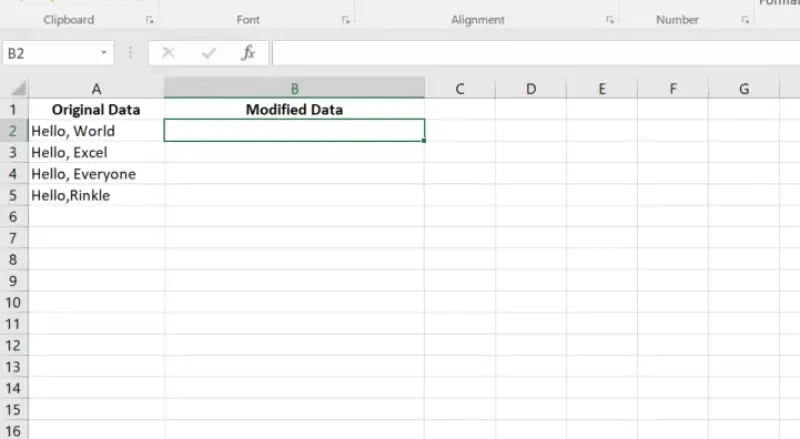
For example:
A2 contains the text Hello, World.B2), click on the Formula Bar to begin entering your formula.The SUBSTITUTE function is used to replace a specific text within a string with another text. To remove the text, replace it with an empty string ("").
Syntax:
=SUBSTITUTE(cell_reference, "text_to_remove", "replacement_text")
Example:
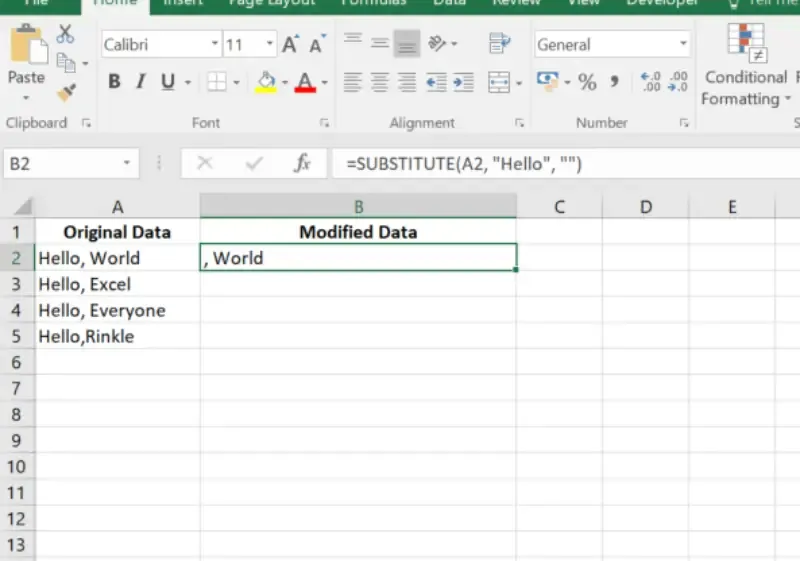
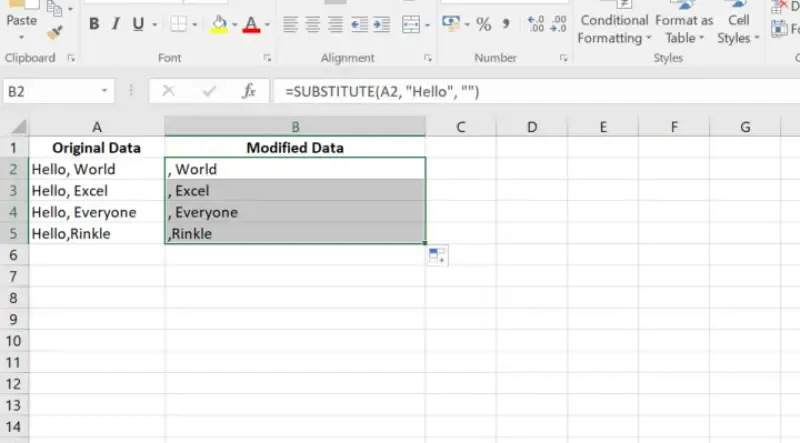
If cell A2 contains Hello, World and you want to remove the word Hello, enter the following formula in cell B2:
=SUBSTITUTE(A1, "Hello", "")
B2).This will erase the specified text from the cell.
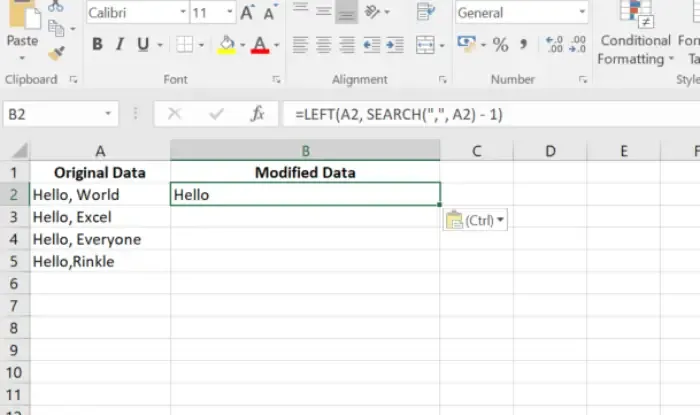
Removing everything after a specific character in Excel, such as a comma, is a common data-cleaning task. You can achieve this using the LEFT and SEARCH functions together. Below is a detailed explanation and example of how this works.
The formula to use is:
=LEFT(cell, SEARCH("character", cell) - 1)
How it Works:
B2).=LEFT(A2, SEARCH(",", A2) - 1)
A2 with the reference to the cell containing the original text."," with the character you want to search for.Key Points to Note
No Character in String:
If the specific character (e.g., comma) is missing in a cell, the formula will return an error (#VALUE!). To avoid this, you can use an IFERROR wrapper:
=IFERROR(LEFT(A2, SEARCH(",", A2) - 1), A2)This will return the original text if the specified character is not found.
Handling Different Characters:
Replace "," in the formula with any character or symbol (e.g., "@", "#", " " for a space).
Non-Destructive Editing:.
This method doesn’t modify the original data. The cleaned result is displayed in a new column.
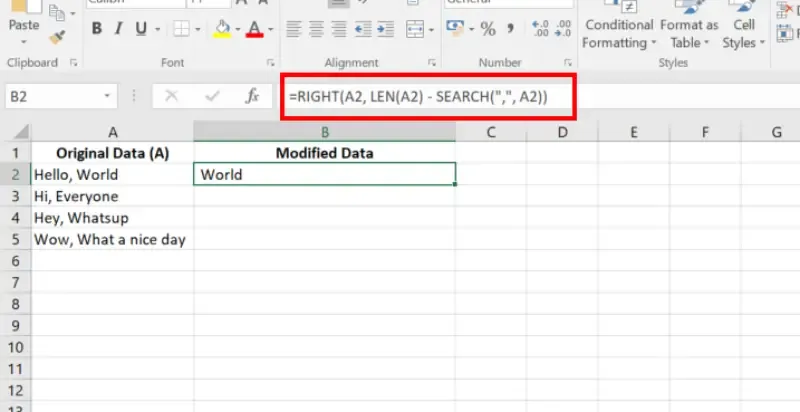
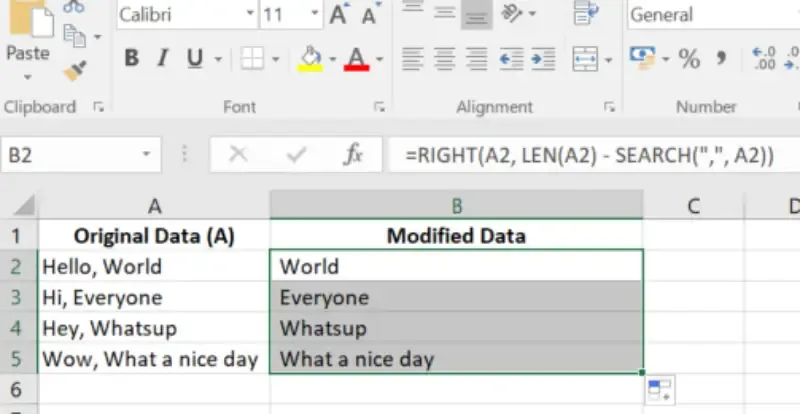
Removing everything before a specific character in Excel can be done using the RIGHT, LEN, and SEARCH functions. This approach is highly flexible and non-destructive, allowing you to clean and organize your data efficiently.
The formula to use is:
=RIGHT(cell, LEN(cell) - SEARCH("character", cell))How it Works:
=RIGHT(cell, LEN(cell) - FIND("character", cell))C2).=RIGHT(A2, LEN(A2) - SEARCH(",", A2))A2 with the reference to the cell containing the original text."," with the character after which you want to keep the text.Drag down the Formula and Preview Results
If there are leading spaces after removing text, wrap the formula in the TRIM function:
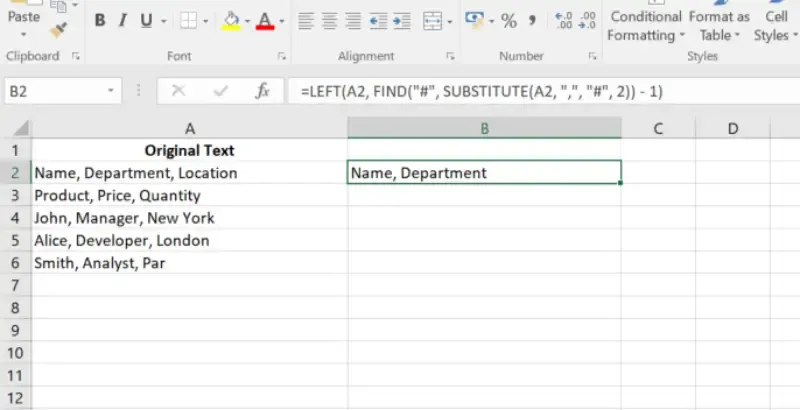
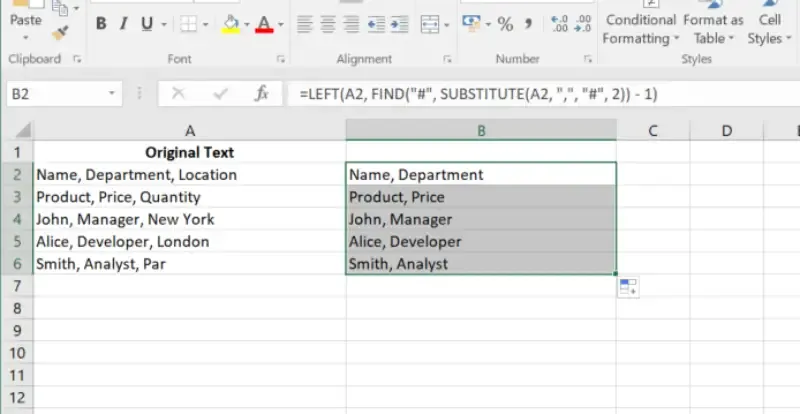
=TRIM(RIGHT(A2, LEN(A2) - SEARCH(",", A2)))When working with data in Excel, you may encounter a situation where a string contains multiple instances of a character (delimiter), and you need to remove all text after a specific occurrence. This can be achieved using a combination of Excel functions like LEFT, FIND, and SUBSTITUTE. Follow the below steps to delete text after the Nth Occurence of a character:
The formula to use is:
=LEFT(cell, FIND("#", SUBSTITUTE(cell, "char", "#", n)) - 1)Explanation of Formula Components:
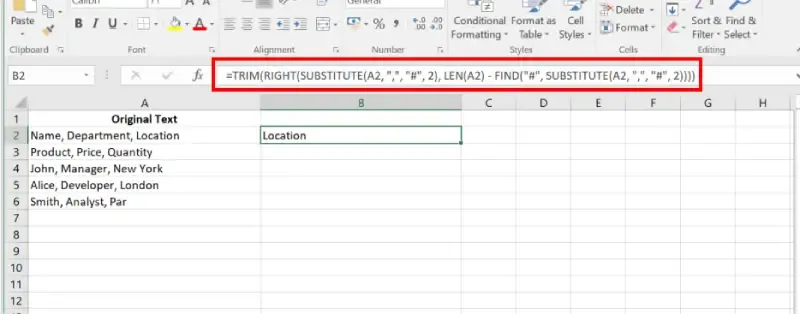
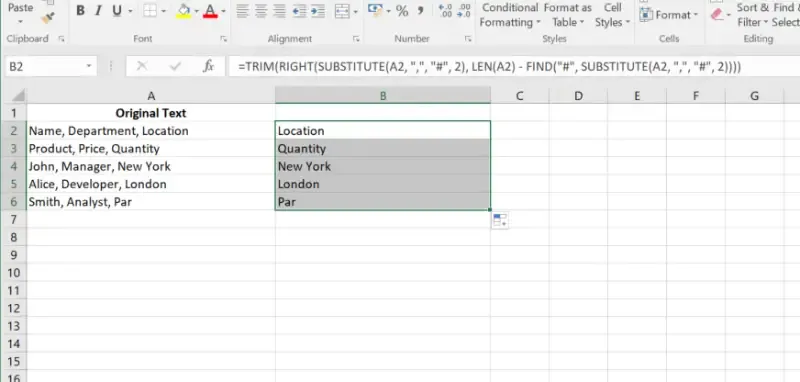
SUBSTITUTE(cell, "char", "#", n): Replaces the nth occurrence of the specified character (char) with a unique symbol (e.g., #)."char" is the character you want to search for (e.g., ,), and n represents the occurrence you want to target.FIND("#", ...): Finds the position of the unique symbol # introduced by the SUBSTITUTE function.LEFT(cell, FIND(...) - 1): Extracts all characters to the left of the unique symbol #, excluding the character itself.B2) where you want the result to appear.=LEFT(A2, FIND("#", SUBSTITUTE(A2, ",", "#", 2)) - 1)2 with the reference to the cell containing the text."," with the character you want to target.2 with the occurrence number (n) after which you want to remove the text.In Excel, you can remove everything before the nth occurrence of a specific character by using a combination of functions like RIGHT, SUBSTITUTE, and FIND. This approach allows for precise manipulation of text in a flexible and non-destructive way.
Determine the column where the original data is located and the character you want to target. Identify the nth occurrence of the character before which you want to remove text.
C2).=RIGHT(SUBSTITUTE(A2, ",", "#", 2), LEN(A2) - FIND("#", SUBSTITUTE(A2, ",", "#", 2)))B2 with the reference to the cell containing the text."," with the character you want to target.2 with the occurrence number (n) after which you want to keep the text.To ensure there are no leading spaces in the result, wrap the formula in the TRIM function:
=TRIM(RIGHT(SUBSTITUTE(A2, ",", "#", 2), LEN(A2) - FIND("#", SUBSTITUTE(A2, ",", "#", 2))))When using formulas to remove text before or after a specific character in Excel, you may encounter common issues. Here's how to resolve them:
Issue: The formula returns an error such as #VALUE!.
Cause: The text you're searching for does not exist in the specified range or cell.
Solution:
IFERROR to handle errors gracefully:Issue: The formula provides unexpected results or wrong outputs.
Cause: Misalignment between the formula parameters and the data structure.
Solution:
Ensure you’re using the correct syntax:
Confirm the range and search text are correctly referenced.
Trim unnecessary spaces in the data using TRIM before applying the formula.
By addressing these common issues, you can resolve errors and achieve accurate results with the SEARCH or FIND functions in Excel.
Also Read
Mastering how to remove text before or after a specific character in Excel can save time and improve your data accuracy. By using methods like Find & Replace, Flash Fill, or advanced formulas, you can tackle text manipulation challenges head-on. Start applying these techniques to clean data in Excel and unlock a more efficient workflow.