|
VOOZH | about |
|
VOOZH | about |
Exploring the art of Excel formulas can turn up your data analysis and reporting capabilities. Whether you’re a financial analyst, digital marketer, or an Excel learner, understanding how to display formulas in Excel is important. This article will make you learn the simple steps to show the formulas of your Excel spreadsheets, enhancing your efficiency and proficiency. By learning how to show formulas in Excel, you’ll learn to ensure accuracy and transparency in your calculations.
When you enter a formula in a cell and press the Enter key, Excel immediately displays the calculated result. To check all the formulas in the cell, follow one of the methods provided below for your reference,
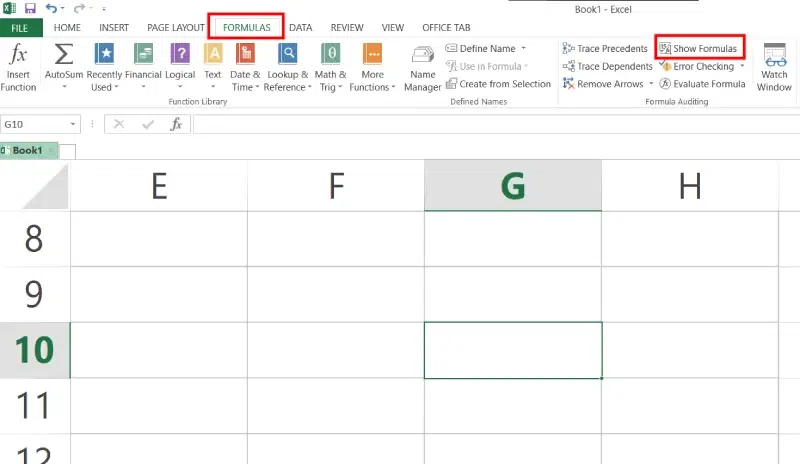
The Ribbon: Head over to the Formulas tab, find the Formula Auditing section, and hit the Show Formulas button. Your formulas will step into the spotlight, replacing the results on stage. To get the calculated values back, click the Show Formulas button again to toggle it off.
In Excel go to File > Options > Select Advanced on the left pane > scroll down to the Display options for this worksheet section and select the option Show formulas in cells instead of their calculated results.
The fastest and easiest way to see every formula in your Excel spreadsheet is pressing the following shortcut: Ctrl + The grave accent key (`). The Show Formulas shortcut between displaying cell values and cell formulas. To get the formula results back, press the shortcut again.
NOTE: Keep this in mind, no matter which method you choose, Excel will reveal the formulas only for the sheet you’re currently on. If you want to see the formulas on different sheets or in other workbooks, you’ll have to do these steps for each one separately.
Step 1: Go to Home Tab
Step 2: Click on Find & Select Button
Step 3: Select Formulas
When it comes to managing formulas in Excel, a few smart practices can make a big difference in maintaining the of your data. Here are some tips and tricks to keep your Excel formulas in top shape,
In the conclusion, exploring the Excel formula display is a vital skill that can enhance your analytical ability to new heights. As you apply these insights, remember that Excel is more than a mere spreadsheet application; it’s a robust tool for strategic decision-making. By learning the formulas that drive your data, you’re not just enhancing your Excel fluency—you’re also making the way for more informed, data-driven decisions. Explore these techniques to show formulas in Excel.
How do you show formulas instead of results in Excel?
Use the Ribbon: Go to the Formulas tab and click on Show Formulas in the Formula Auditing group.
How to display the formula bar in Excel?
To display the formula bar in Excel:
- Use the Ribbon: Click on the View tab and check the Formula Bar option in the Show group.
- Excel Options: Click on the File tab, select Options, go to Advanced, scroll down to the Display section, and check the Show Formula Bar option.