|
VOOZH | about |
|
VOOZH | about |
The COUNTIF function in Excel is a powerful tool that enables you to count the number of cells in a specific range that meet a condition you set. One of the most common tasks you'll encounter is counting cells based on certain criteria, such as whether the value is greater than, less than, or equal to a particular number. Whether you're analyzing sales performance, tracking inventory levels, or evaluating test scores, this function can save you time and help you draw meaningful insights from your data.
In this guide, we'll explain how to use the COUNTIF function with greater than, less than, and equal to conditions, providing practical examples and formulas to help you master this feature.
Table of Content
The basic syntax for the COUNTIF function is:
=COUNTIF(range, criteria)
You can use the COUNTIF function with logical operators like greater than (>), less than (<), and equal to (=) to count the number of cells that satisfy specific conditions. Below are examples of how to use COUNTIF with these operators:
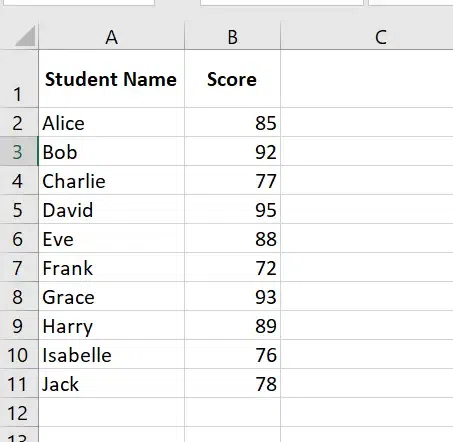
Suppose you have a list of student scores, and you want to count how many students scored greater than 80.
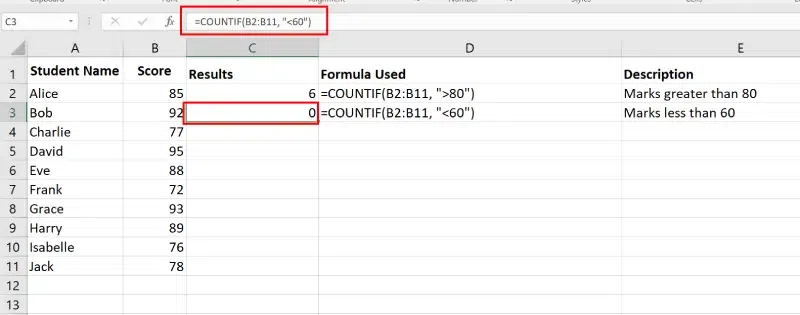
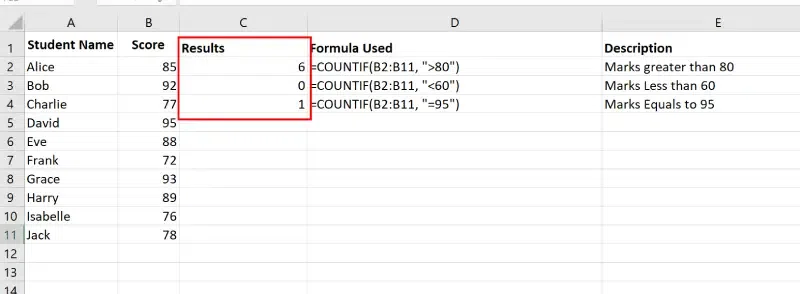
Open MS Excel and enter the data into the sheet. Here, we have a dataset of students' names along with their scores. Our goal is to calculate how many scores are greater than 80, less than 60, and equal to 95
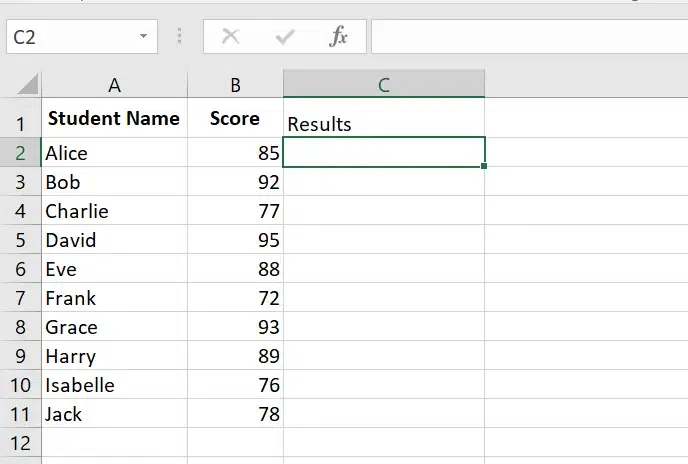
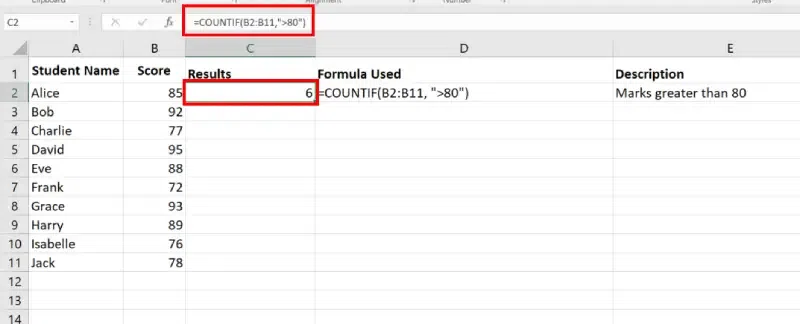
Select the cell where you want the result to appear (for example, C2), and enter the following formula:
=COUNTIF(B2:B11, ">80")After pressing Enter, the result will show the number of students who scored greater than 80.
If, for example, 6 students scored above 80, the result will be 6.
If you want to count how many students scored less than 60, you can follow these steps:
Select the cell where you want the result to appear (for example, C3), and enter the following formula:
=COUNTIF(B2:B11, "<60")After pressing Enter, the result will show the number of students who scored less than 60.
If no students scored less than 60, the result will be 0.
You can also count how many cells contain an exact value. Let’s say you want to count how many students scored exactly 95.
Select the cell where you want the result to appear (for example, C4), and enter the following formula:
=COUNTIF(B2:B11, "=95")After pressing Enter, the result will show how many students scored exactly 95.
If, for instance, one student scored exactly 95, the result will be 1.
Here are some tips to help you get the most out of the COUNTIF function when using greater than, less than, and equal to conditions:
">number"."<number"."=number".Example: To count cells greater than 100, you would use:
=COUNTIF(range, ">100")Instead of hardcoding numbers, you can reference other cells to set your criteria dynamically.
Example: If you want to count values greater than the value in cell C1, use:
=COUNTIF(A2:A10, ">" & C1)You can use COUNTIF with text as well as numbers. For example, to count cells greater than or equal to a specific text (e.g., a fruit name), you can use:
=COUNTIF(A2:A10, ">=Apple")To count dates greater than or equal to a specific date, place the date inside quotes and format it correctly.
Example: To count dates after January 1, 2022, use:
=COUNTIF(A2:A10, ">=01/01/2022")The COUNTIF function is an invaluable tool for anyone working with data in Excel. It allows you to quickly count cells that meet specific conditions, such as values being greater than, less than, or equal to a certain threshold. Whether you're analyzing sales data, reviewing test scores, or tracking inventory, mastering COUNTIF with logical operators will make your data analysis more efficient and insightful.
By using the greater than, less than, and equal to operators, you can perform more precise analysis and extract useful insights from your data, helping you make informed decisions and spot trends.