|
VOOZH | about |
|
VOOZH | about |
Accurate counting is essential when analysing spreadsheet data because different types of data require different counting methods. Numeric values, text entries, and empty cells all need to be handled differently during analysis. Spreadsheet tools provide specialised counting functions to help analyse datasets efficiently. Proper counting helps organisations and analysts:
Excel provides three primary counting functions based on data type.
COUNT counts only cells that contain numeric values.
Syntax:
=COUNT(range1, [range2], ...)
Use Cases:
COUNTA counts all non-empty cells including:
Syntax:
=COUNTA(range1, [range2], ...)
Use Cases:
COUNTBLANK counts cells that are completely empty within a specified range.
Syntax:
=COUNTBLANK(range)
Use Cases:
If student scores are stored in cells A2 to A10:
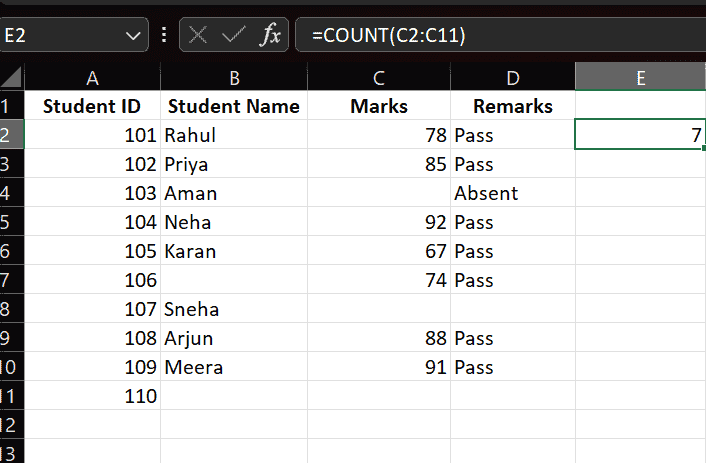
=COUNT(C2:C11)
This counts only cells containing numerical scores.
If employee names are stored in cells B2 to B20 (some may be blank):
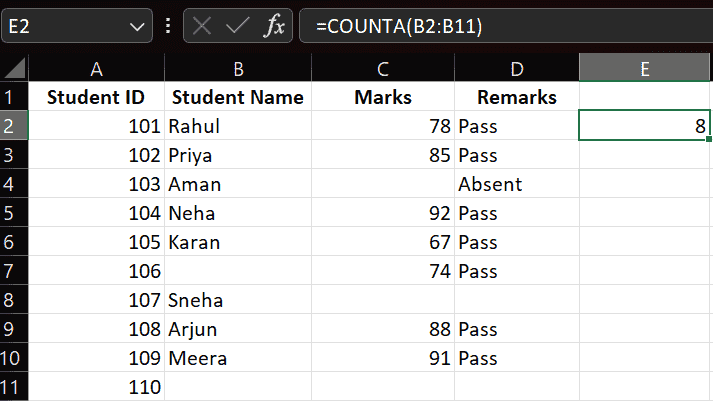
=COUNTA(B2:B20)
This counts all non-empty cells and returns total listed employees.
To count empty cells in range C1 to C100:
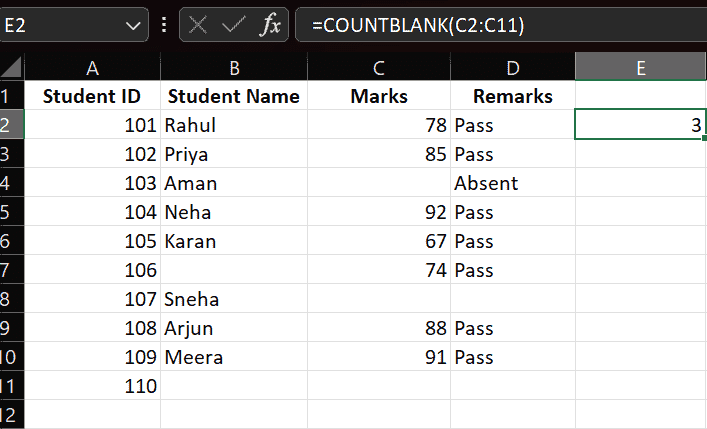
=COUNTBLANK(C2:C11)
This identifies how many cells contain no data.
| Function | Counts | Ignores |
|---|---|---|
| COUNT | Numbers only | Text, blanks |
| COUNTA | All non-empty cells | Blank cells |
| COUNTBLANK | Empty cells | Non-empty cells |
=COUNTA(A1:A10) - COUNT(A1:A10)
=IF(COUNT(A1:A10)>5, "More than five values", "Five or fewer values")
Helps automate decisions based on data volume.
COUNT, COUNTA, and COUNTBLANK include hidden filtered rows in their results.
To count only visible filtered data, use functions like:
These functions are widely used in: