|
VOOZH | about |
|
VOOZH | about |
Dark Mode refers to a display setting that changes the traditional light background into a darker theme, reducing screen glare and making it easier on the eyes, especially in low-light environments. Users can enable Dark Mode in Google Docs through browser extensions, Chrome flags, or by using system-wide dark mode settings.
There is an easy and quick way to enable dark mode in Google Docs while using the web version on a desktop or laptop device.
If you prefer more control over the dark mode experience, you can use browser extensions. One of the best extensions for this purpose is Dark Reader.
Open Google Doc in your web browser and open a document.
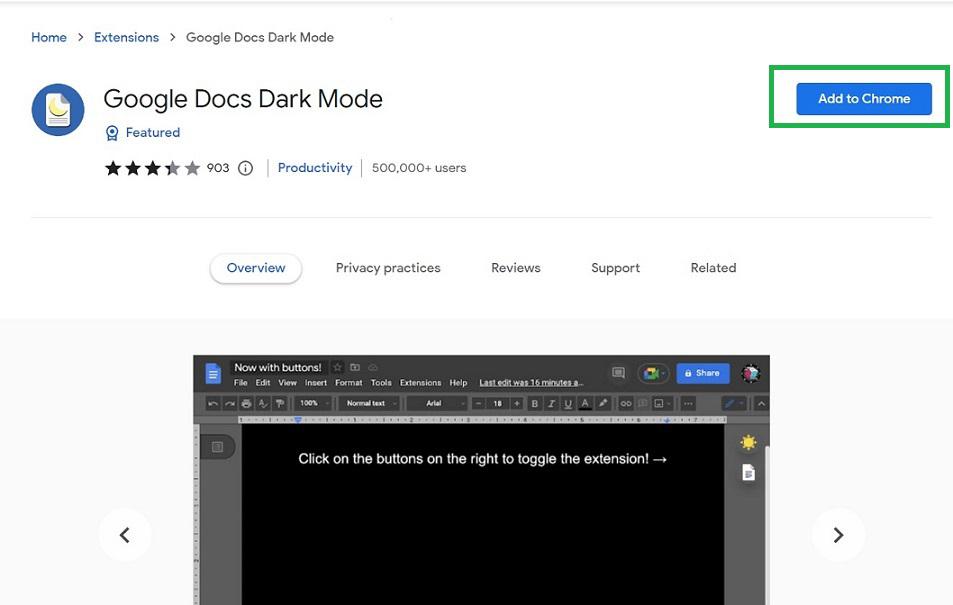
To enable dark mode, we have to install a browser extension called "Google Docs Dark Mode". To install this browser extension, Click Here and visit this link. Now a new tab opens in your web browser showing the extension mentioned above.
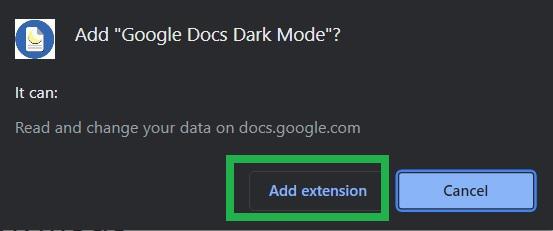
Now a popup opens from the browser. Click "Add extension" in it.
Now the extension has been installed in the browser. The extension shortcut will be displayed on the right side of the search bar in the browser.
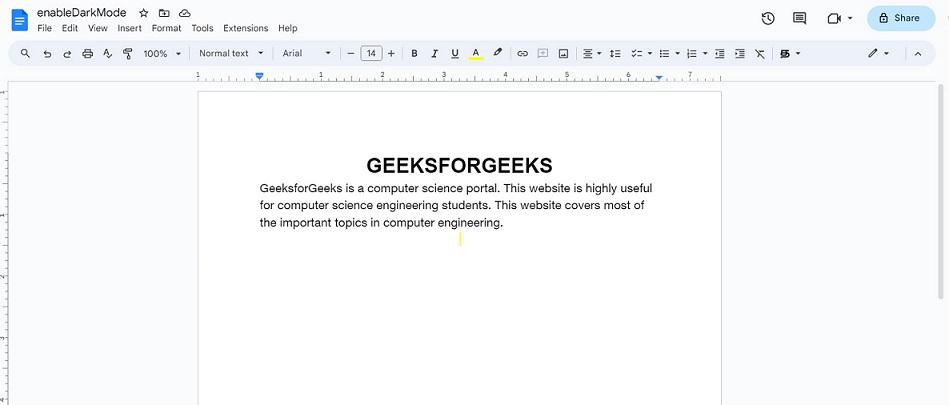
Now go back to the Google Docs page in the browser. As the extension was installed, it would not immediately change the screen to dark mode. We can see that it is still in white as before.
Click on the Refresh button to refresh the page.
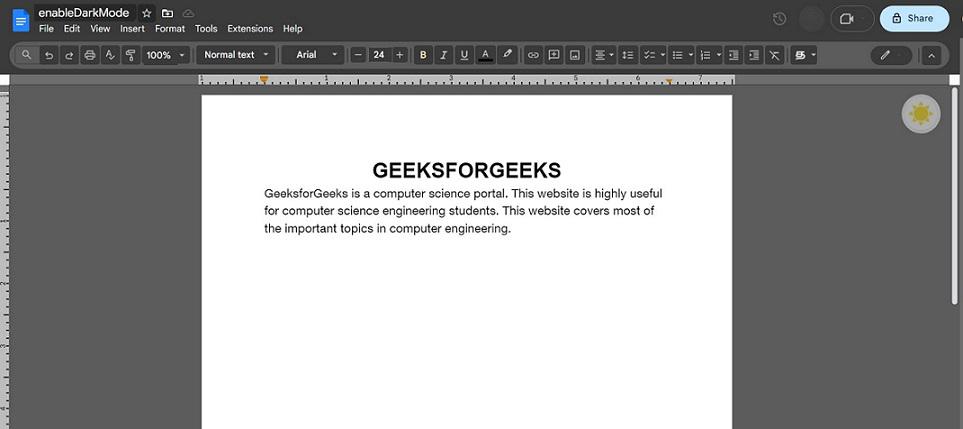
Now the screen changes to dark mode immediately. But the page color of the document in Google Doc is still white as before. Also, there is an icon with the sun on the right side of the page.
If you use Google Chrome, it’s easy to enable dark mode across your browser, including in Google Docs.
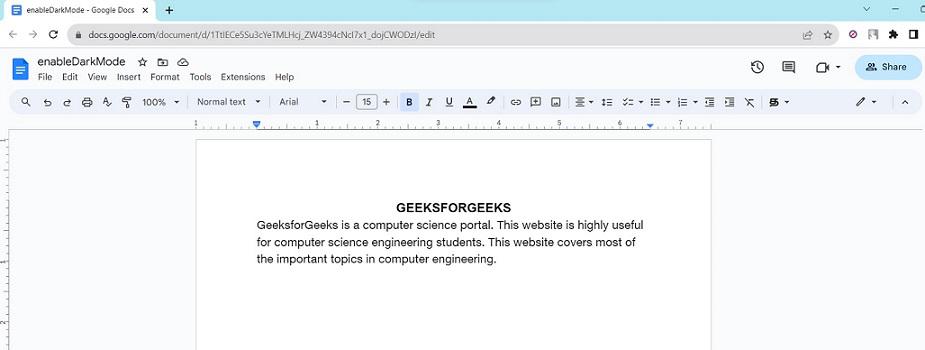
Open Chrome browser and open a document in Google Doc. Now by default, dark mode is not enabled.
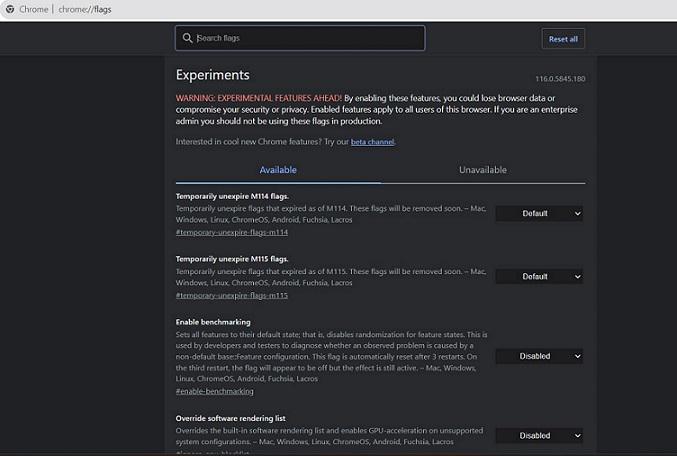
Open a new tab in the Chrome browser, and in the address bar of the Chrome browser, type " chrome://flags ". Press 'Enter'.
A long list of features that can be enabled in this browser is displayed.
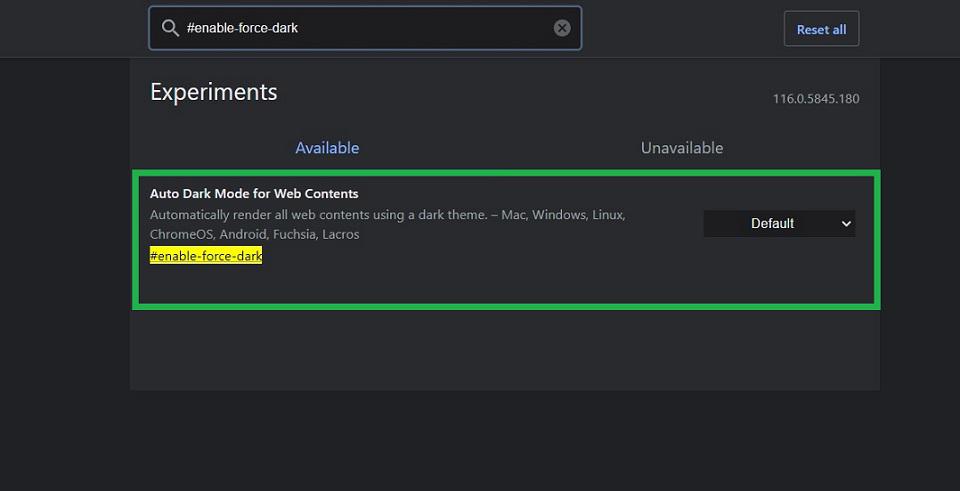
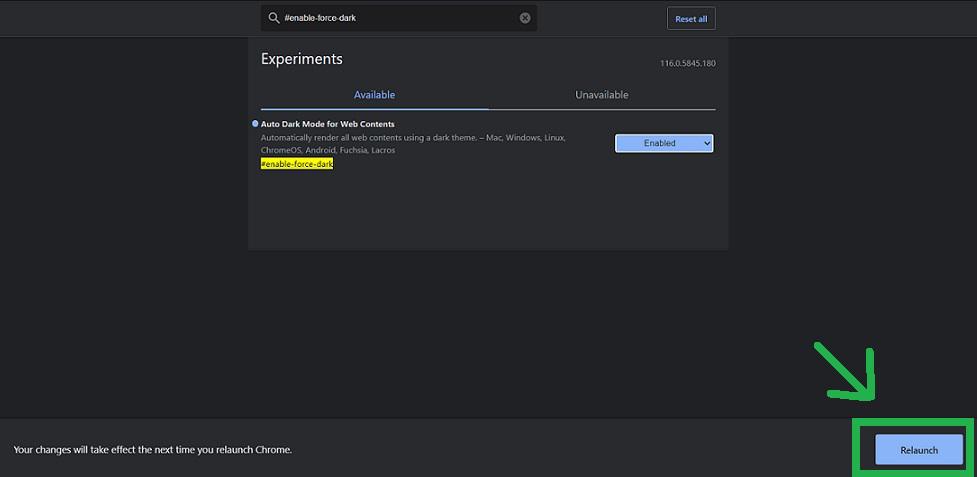
In the search bar of this page, search for "#enable-force-dark".
A feature named "Auto Dark mode for Web contents" is displayed on the browser page which is set as default.
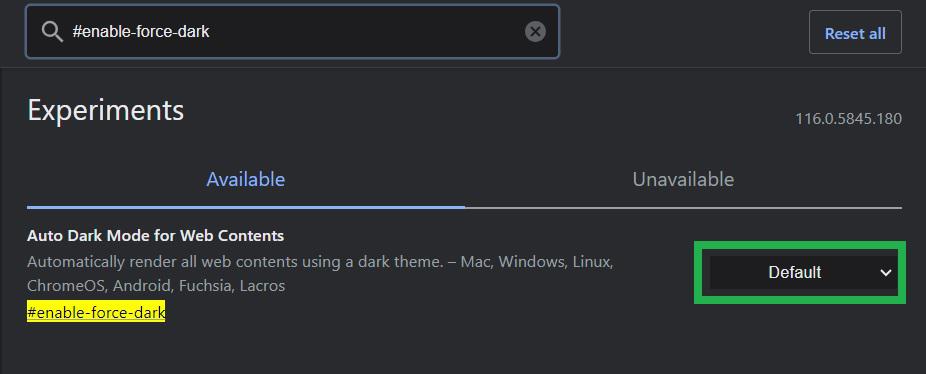
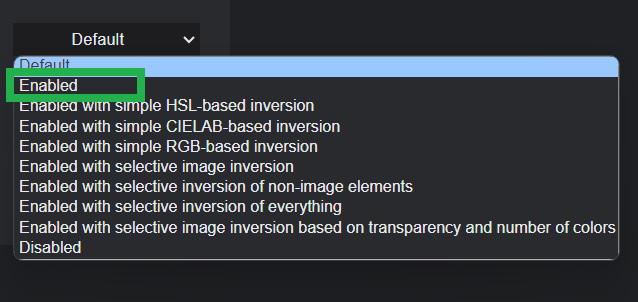
Click the 'Default' and a dropdown appears.
From the menu select Enabled.
Now dark mode has been enabled in Chrome browser. A popup is displayed at the bottom of the Chrome browser to Relaunch the browser. Click the Relaunch button. Now the browser gets closed and reopens automatically.
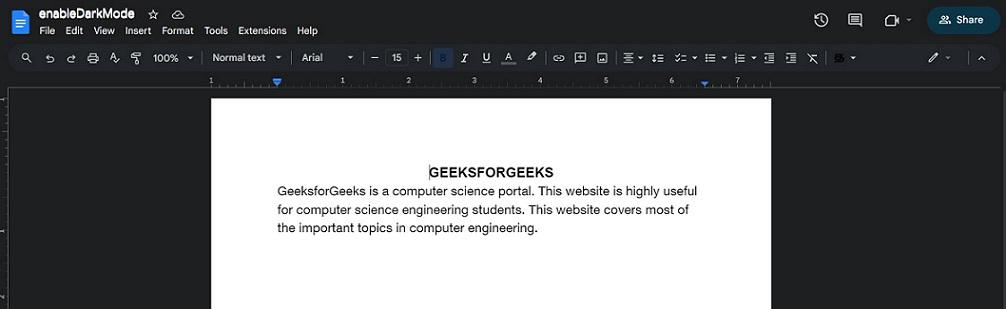
On relaunch of browser, the dark mode has been activated successfully in Chrome browser and also in Google Doc.
Follow the steps given below to make your Google Doc into Dark Mode:
Go to Google Doc in your browser and log in to your account.
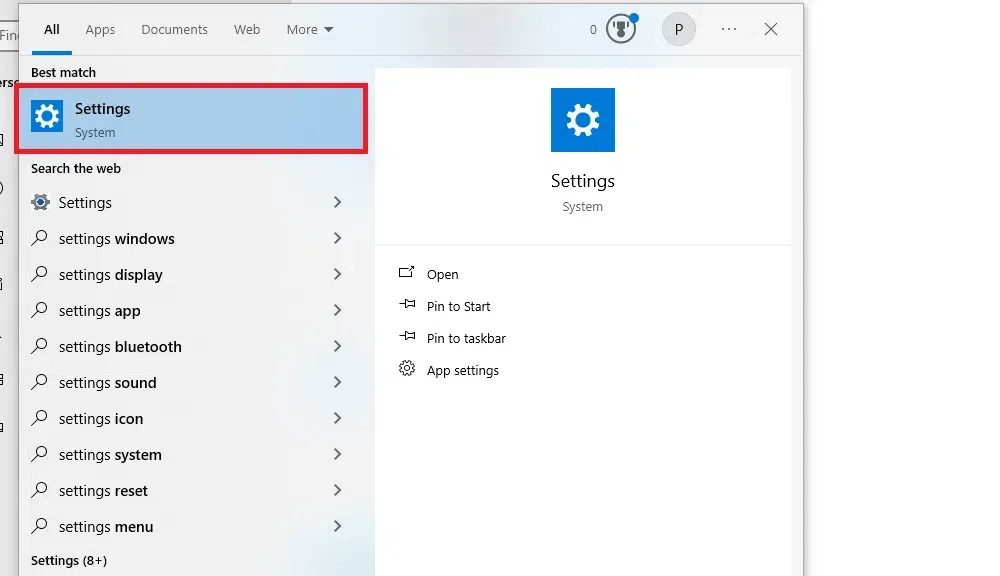
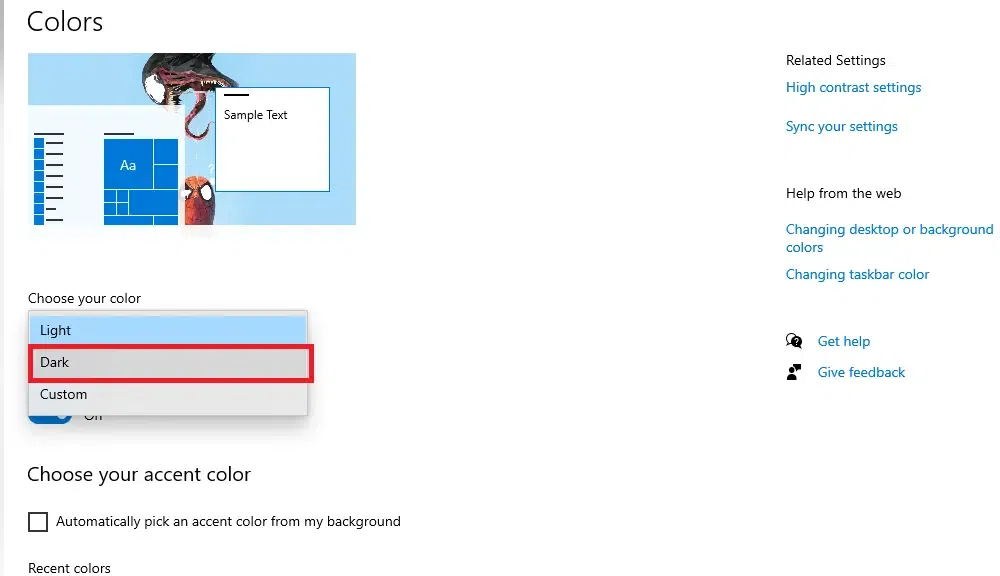
Open your computer's system settings and navigate to the Display or Theme section.
Set your system theme to Dark Mode. Google Doc will automatically match your system's appearance.