|
VOOZH | about |
|
VOOZH | about |
A Gantt chart is a visual timeline of a project that shows tasks and schedules. It helps track progress and manage deadlines, and you can create one in Google Sheets and add it to Google Docs.
Remember, Gantt charts help you visualize project timelines and progress. Let's get into creating a Gantt chart in Google Docs.
To make a Gantt Chart from Google Sheets, you need to have a chart prepared with your data in Google Sheets. To insert that existing Google Sheet chart into your Google Docs, follow the steps provided below for your reference.
Start by opening a new document in your Google Drive.
Click on Insert > Chart> From Sheets. Choose the spreadsheet containing your Gantt chart data.
Adjust the size, rotation, text wrapping, and other settings to make it visually appealing. Use the below tools to customize your chart:
Explore other tools like project timelines and mind mapping within Google Docs!
Discover how to create a Gantt chart using the Stacked Bar Chart feature in Google Sheets for a customized timeline.
Create a new document in your Google Drive.
Click on Insert > Chart > Bar. Select Edit in Sheets or Open Source.
Input task names, start dates, and end dates in Google Sheets.
Adjust colors, fonts, and axis titles.
Click UPDATE on the image to apply changes made in Google Sheets.
Save your customized Gantt chart as a template in Google Docs to streamline future project planning and management.
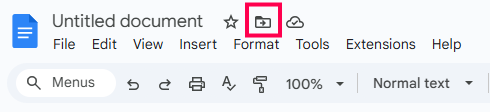
Click on the folder icon next to your document’s title, select New folder, name the folder, and click the check mark to save.
By saving your Gantt chart as a template, you can easily reuse it for future projects, saving you time and effort.



.webp)