|
VOOZH | about |
|
VOOZH | about |
How to Add another page in Google Docs - Quick Steps
- Open Google Docs >>Go to the Insert Tab
- Select Page Breaks>>New Page Added
Ever found yourself meticulously crafting a document in Google Docs, only to realize it needs more space? If you're drafting a thesis, compiling a report, or crafting the next bestseller, knowing how to add a page to Google Docs is crucial. In this article, you will learn the simple yet indispensable process of how to add a new page in Google Docs. If you need to insert a blank page in Google Docs just click where you want the break to occur and then press Ctrl + Enter (for Windows) or Command + Enter (for Mac). This action will immediately insert a new page. Let’s get into the essential steps to enhance your document’s structure and organization effortlessly with steps to add a page in Google Docs on Desktop, phone, iPad, iPhone.
👁 How to Add a Page in Google Docs
Table of Content
When working on long documents, knowing how to add another page to Google Docs becomes necessary. This section covers three effective methods to help you seamlessly insert pages into your document, whether you’re on a computer or a mobile device.
To implement these Approaches you can follow the step-by-step guide given below. But before jumping into the implementation of the approaches you have to follow these steps to set up the Docs.
Also Read : How to Use Google Docs
These are the steps that are the prerequisite for you to start working with Google Docs. Following these steps, you can initially set up your document to work.
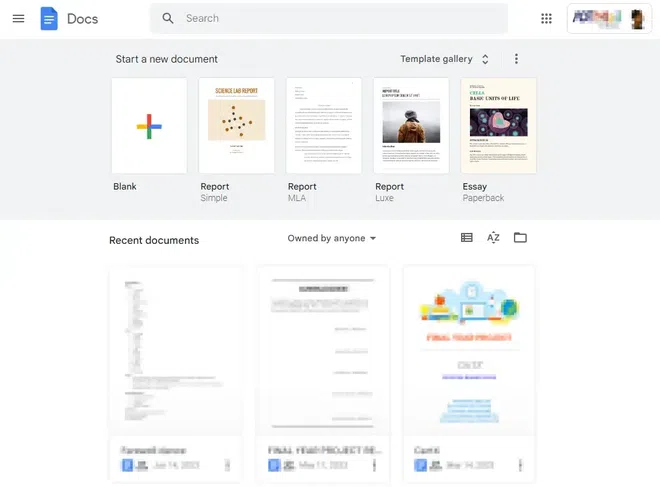
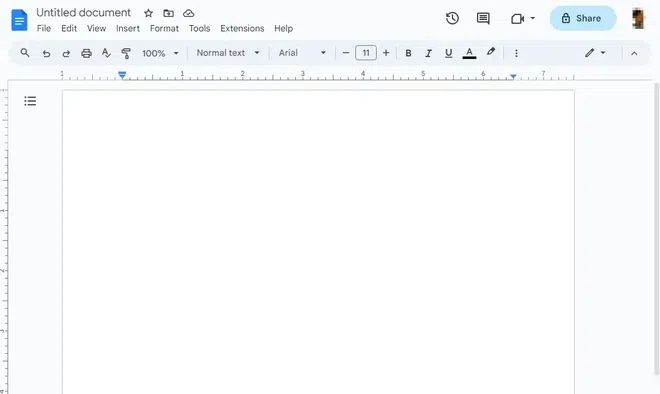
The first and obvious step is to open Google Docs on your Desktop.
This is the better-known and most used approach to add a Page because this is common among almost all word processors. When using this approach you need to position your cursor exactly in the page after which you want to add a Page. The contents on the current page don't matter it just adds a new page after the current one.
Place your cursor on the page after which you want to insert a new page.
Using Page Break we can insert the page break after the page where currently the cursor is.
From the drop down under the Insert menu click on "Break". A menu will open sideways and click on the "Page Break" option.
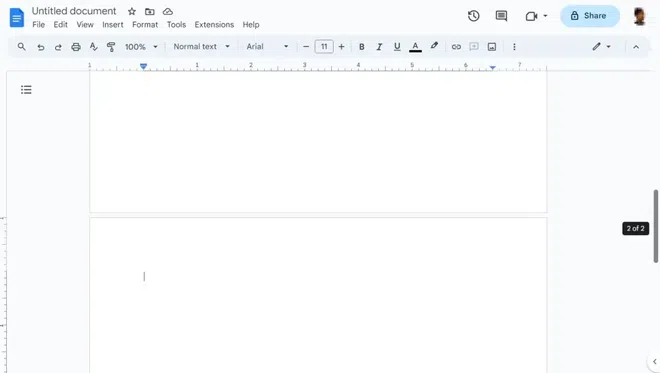
After doing all the steps that are given above, you will get an added page as a result. You can preview it.
Alternatively, after the Step 1 you can just hit
This one is a lesser-known approach to add a new page in Google Docs. This is preferred when the new page breaks a specific section of the document. But when using this approach make sure to click on Section Break(next page) not on Section Break(continuous). When using this approach you need to position your cursor exactly in the page after which you want to add a Page.
Open the page in the document where you want to insert a page and place the cursor in the Page after which we want to add another page to google docs.
After the cursor is set on the correct page, navigate to the top Navigation Bar and click on the "Insert" Menu. And now a dropdown will expand.
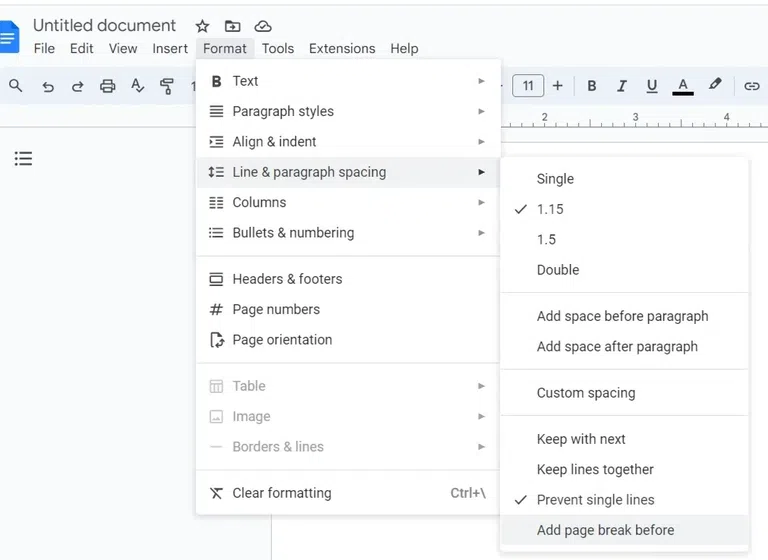
Using the format option to insert a page in Google Docs helps you structure your document effectively. This method allows for flexible document management, enabling you to create a clear outline of your content. Follow the below steps to Add another page in Google docs using Format Option:
Access your Google Docs document to insert a new page.
The mobile app offers the same robust functionality as the desktop version. Learning how to add a new page in Google Docs on Android ensures you can manage your documents efficiently while on the go.
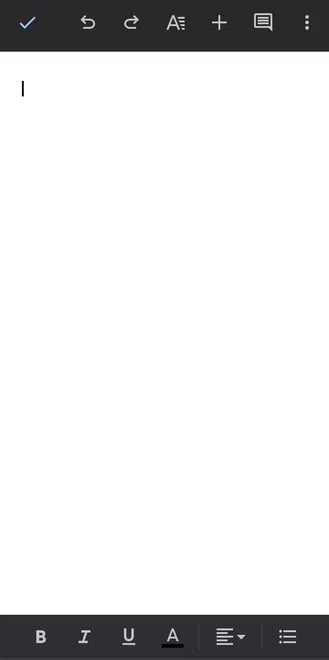
Open a new blank document or an already existing document and go to the page where you want to insert a new page.
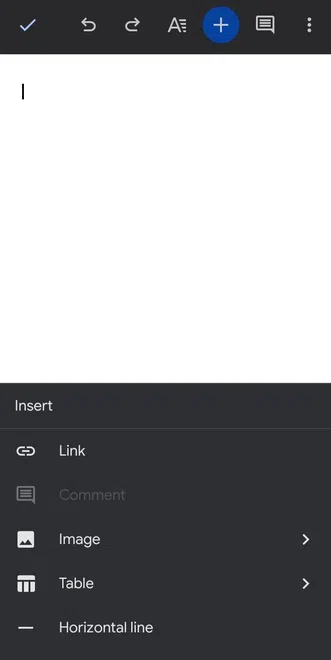
After the cursor is set in the correct position, Click on the Insert icon "+" at the top right corner of the window. This will open up the Insert menu at the bottom.
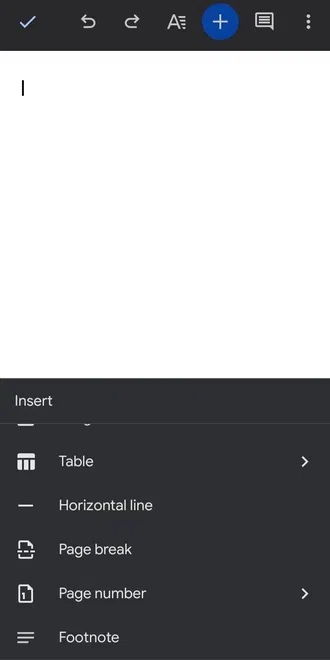
After the menu at the bottom opens up, scroll down to the options at the list until you find the "Page Break". Once you find the Page Break option, click on it.
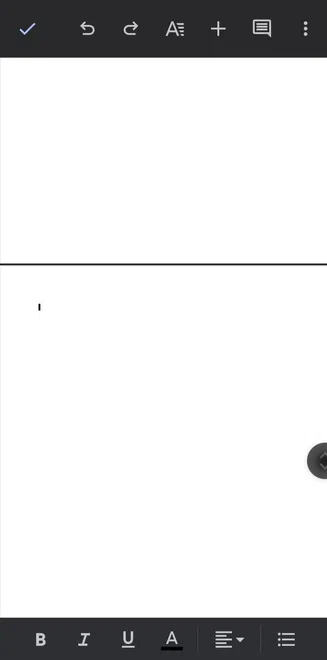
The page has been added after the current page, you can check it in the preview.
Follow the below steps to Insert a Page in Google Docs on iPhone:
All of these tools perform pretty well on iPad because Google Docs is also helpful and usable on iPad OS. The procedure is nearly identical to adding columns on an Android and is just as easy. Similarly, the Insert option is used to add the page here. Download the Google Docs app first, log in with your Google Account, and then open the desired document on your Android device. After that, to add a new page, follow the detailed instructions below.
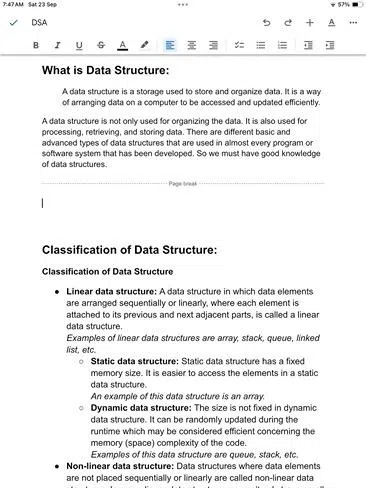
Click and open the document where you want to add a page, here I'm opening the "DSA" document.
After you've opened the document, go to the position where you want to insert a new page.
After the cursor is set in the correct position, Click on the Insert icon "+" at the top right corner of the window. This will open up the Insert menu at the bottom.
After the menu under the Insert will open up click on the Page Break option. Now a Page will be added which is displayed in the dotted line form.
Whether you're using a PC, or smartphone, Google Docs gives you access to the majority of word processing functions you'll probably ever need. So, if you need to, just use the preceding procedures to create a new page in Google docs and give your writing a break. In the above article we have learned the steps on how to add a page in Google Docs in almost all the devices such as iPhone, Android, iPad and many more. after adding a page in Google Docs you can also know how to add a page number in Google Docs.
This choice is crucial, regardless of whether you need two lines on one page or you need to begin a second page a few lines before the finish. The formatting has a significant impact on how a document is perceived overall.
Also Read : How to Delete a Page on Google Docs




.webp)
-(1).webp)
.webp)



.webp)