|
VOOZH | about |
|
VOOZH | about |
When writing technical documents, tutorials, or sharing code snippets in Google Docs, it is important to present code clearly so readers can understand it easily. Although Google Docs does not have a dedicated code block feature, you can use several simple methods to format code in an organized and professional way.
Follow these steps to install the code block extension in Google Docs:
Use this link to go to the Google Workspace Marketplace home page.
Note: Make sure to log in to your Google account if you are not already logged in.
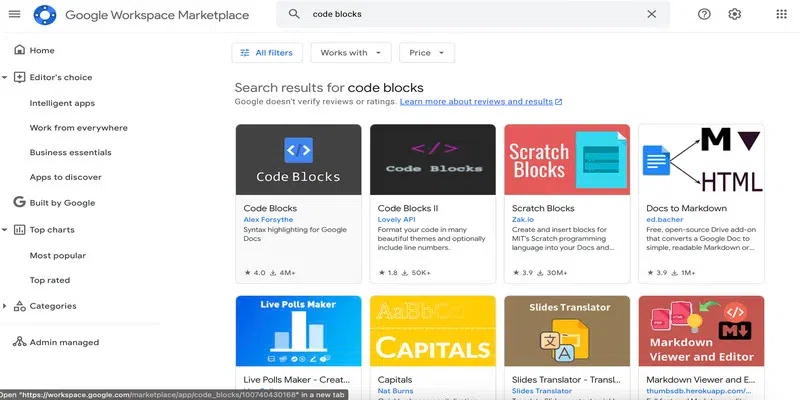
Type Code Block add-on in the search bar and press Enter. Select any of the first add-on.
Note: Here we will be selecting the first Code Block Add on for better demonstration.
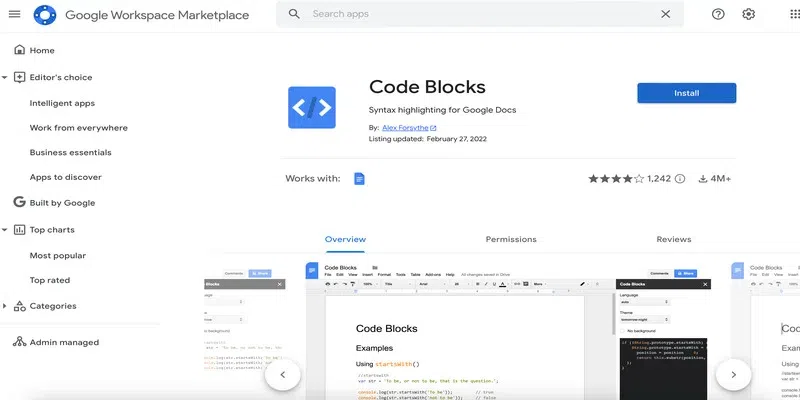
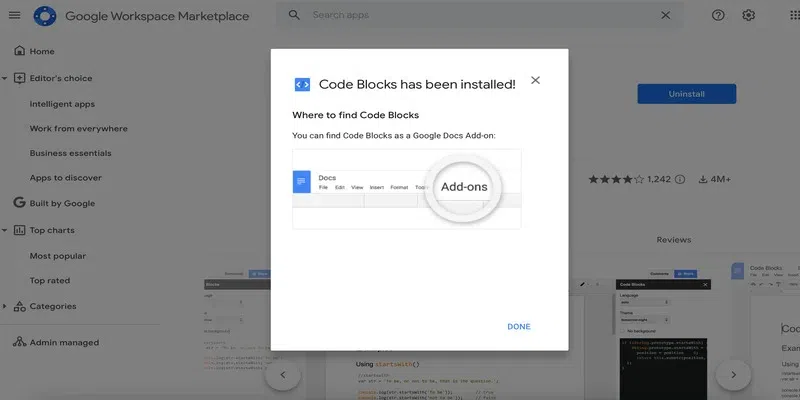
Click on the Install option to add the Code Blocks extension.
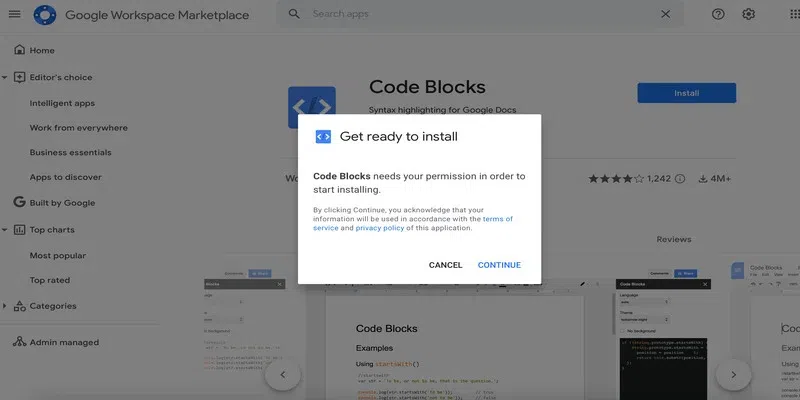
Give permissions to allow download by clicking on Continue.
Now select the existing Gmail account.
Click on Continue to sign in to your account.
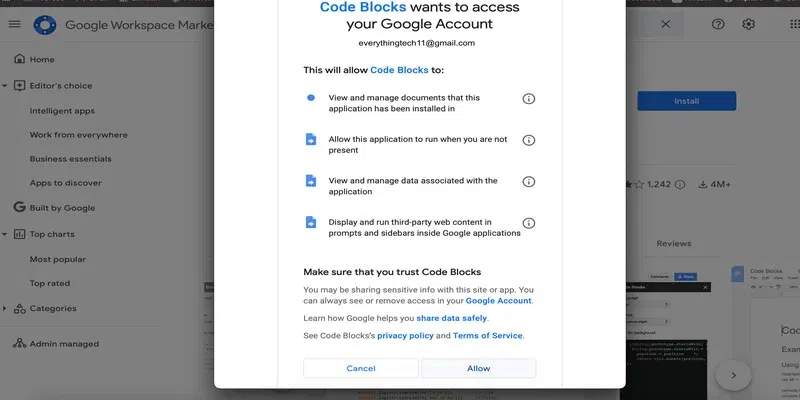
Once you are signed in, you will see the list of things Code Block can do with your data. Click Allow to proceed with the download.
Once installed, the Google Docs code block add-on will appear in your add-ons list, allowing you to easily insert code blocks in Google Docs whenever needed.
The Google Docs code block add-on allows users to format and highlight code with ease, improving the presentation of code snippets in technical documents. Follow these steps to add code in Google Docs using the Code Block add-on:
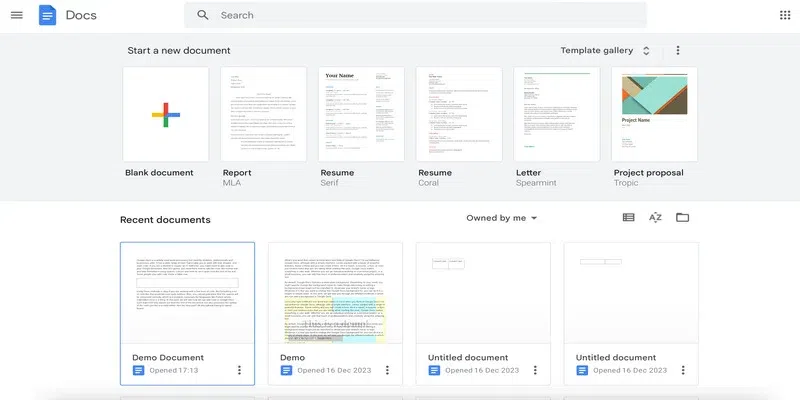
Open the desired document from the Google Docs home page.
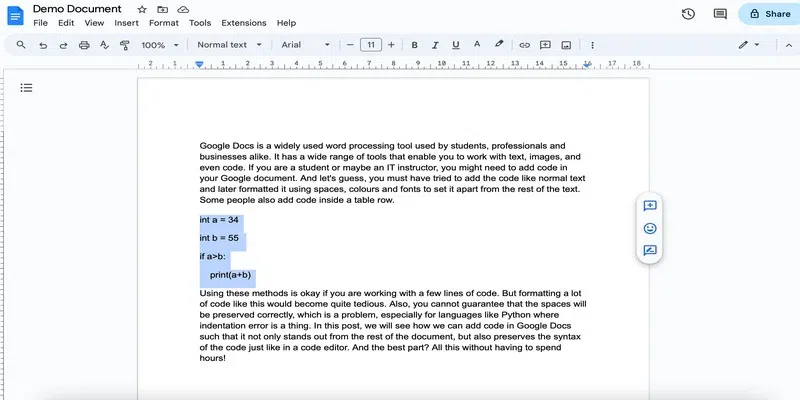
You can add the code by directly typing it or by simply copying and pasting it from a code editor.
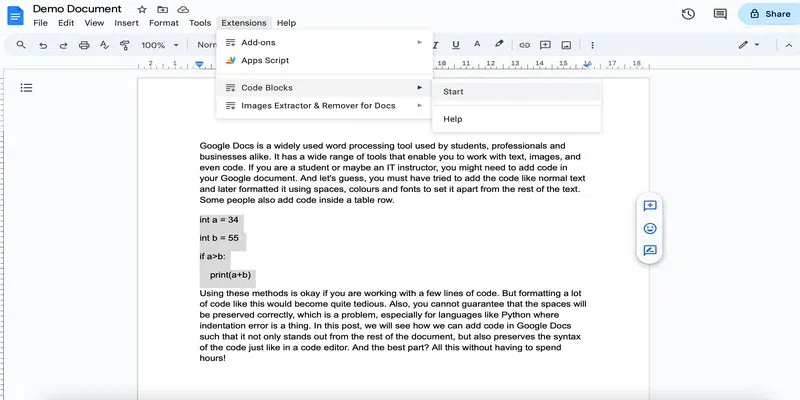
Go to the Extensions menu. You will see the added extensions in the list. Click on Code Blocks and select Start.
In the side pane that opens, select the desired language from the drop-down.
To change the colors, you can choose a different theme from the Theme drop-down. Turn on the preview option to see how a particular theme looks.
Note that you will have to click on the Preview button every time you select a theme.
Click on Format to add the code block to your document.
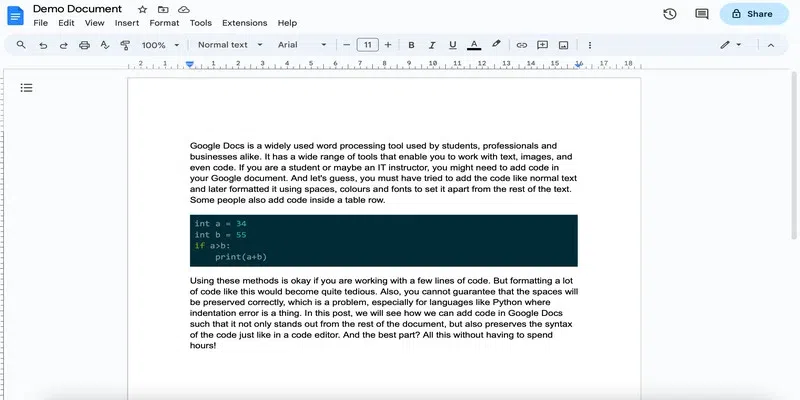
Here is what the code block looks like: