|
VOOZH | about |
|
VOOZH | about |
Adding fonts in Google Docs helps you customize text, improve readability, and create visually appealing documents. You can use built-in fonts, explore additional options using the “More Fonts” feature, or install third-party add-ons for a wider selection.
Follow these steps to add new fonts from Google Docs:
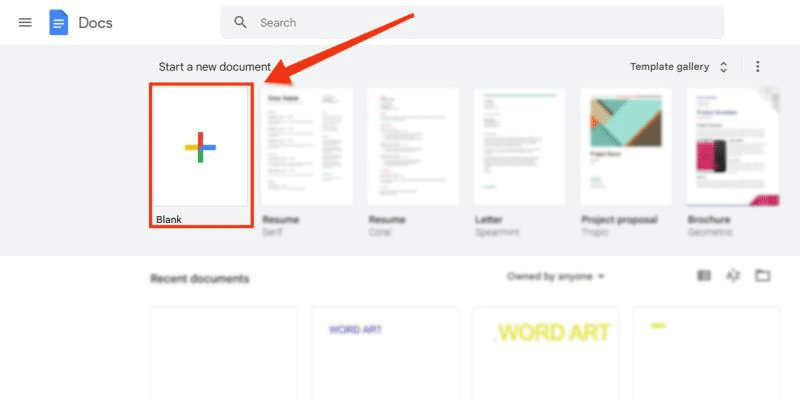
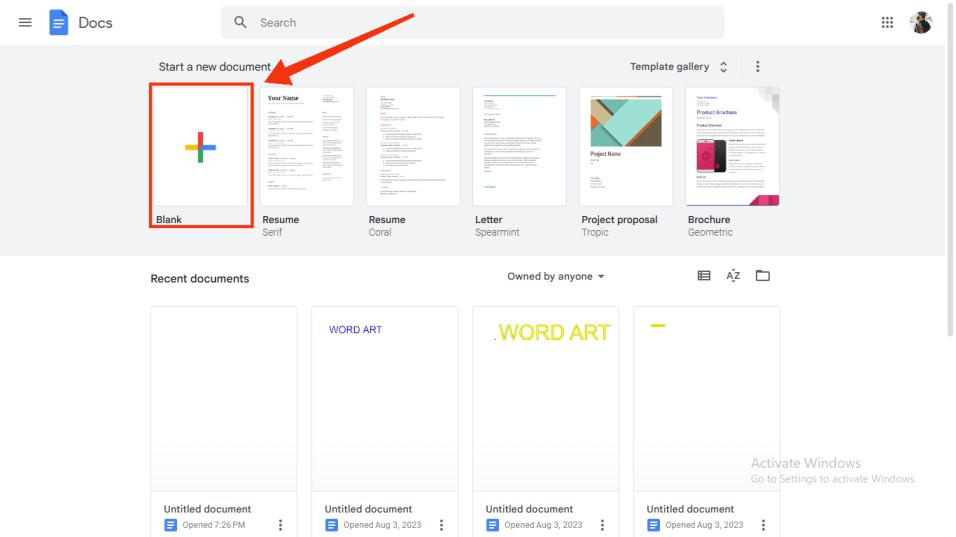
Start by launching Google Docs in your browser. Open a new document or select an existing document where you want to add a font in Google Docs. To open a Google document directly
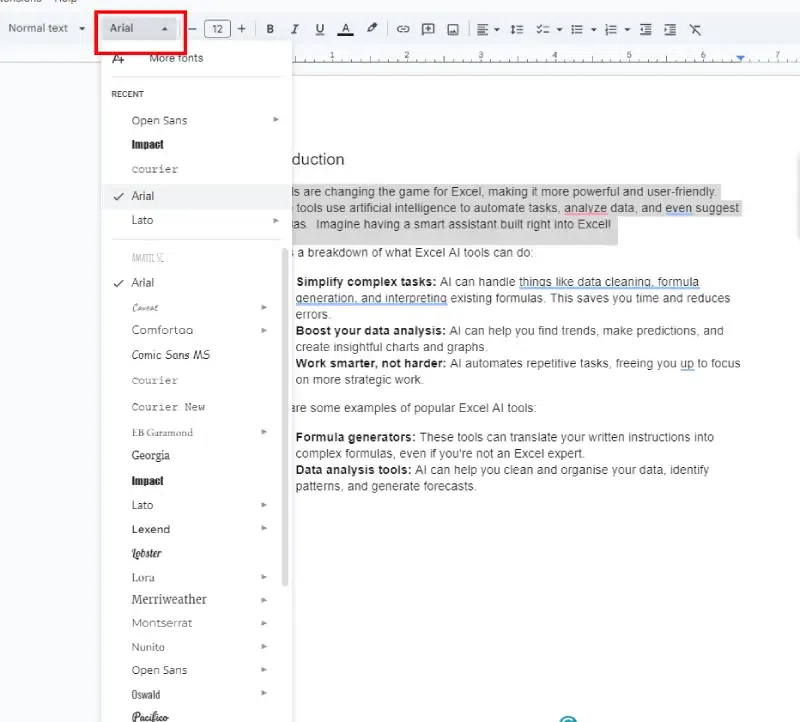
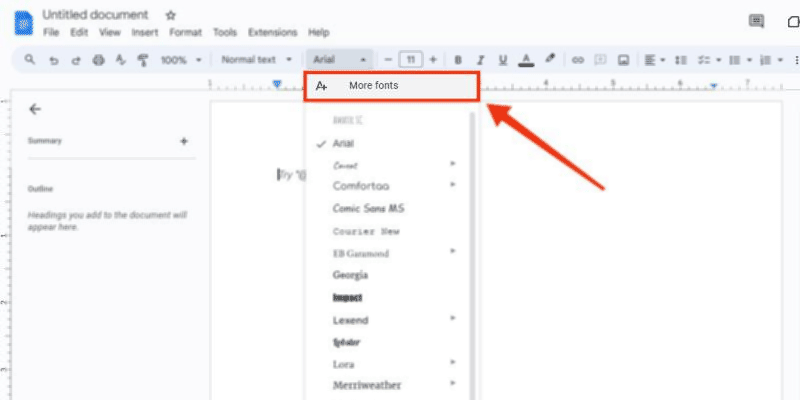
Navigate to the Google Doc tool bar and click the drop down button displayed next to font to access the fonts. This will show you the default fonts to Google Docs.
To add more fonts to Google Docs, click on the "More Fonts" option at the bottom of the font dropdown menu. This will open a new window with a vast collection of fonts to choose from.
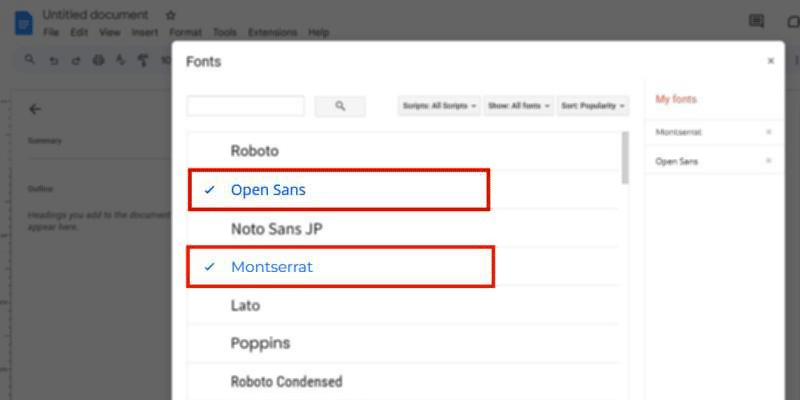
Going through the "More Fonts" option will open a Fonts section in which a vast collection of fonts will appear, now you need to select your desired font by just clicking on it and confirm it by clicking "Ok". This will add your selected fonts to your regular fonts option.
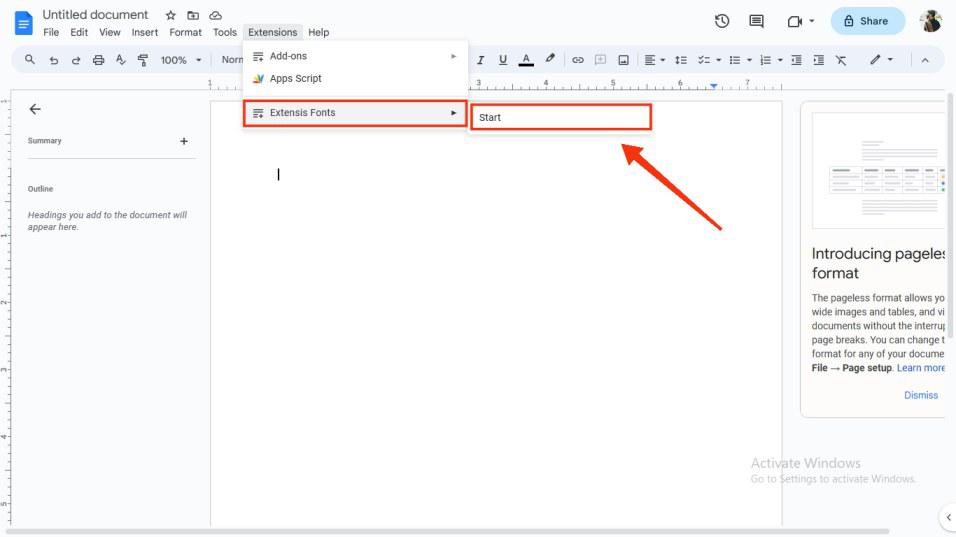
If you need more font options, you can use add-ons like Extensis Fonts.
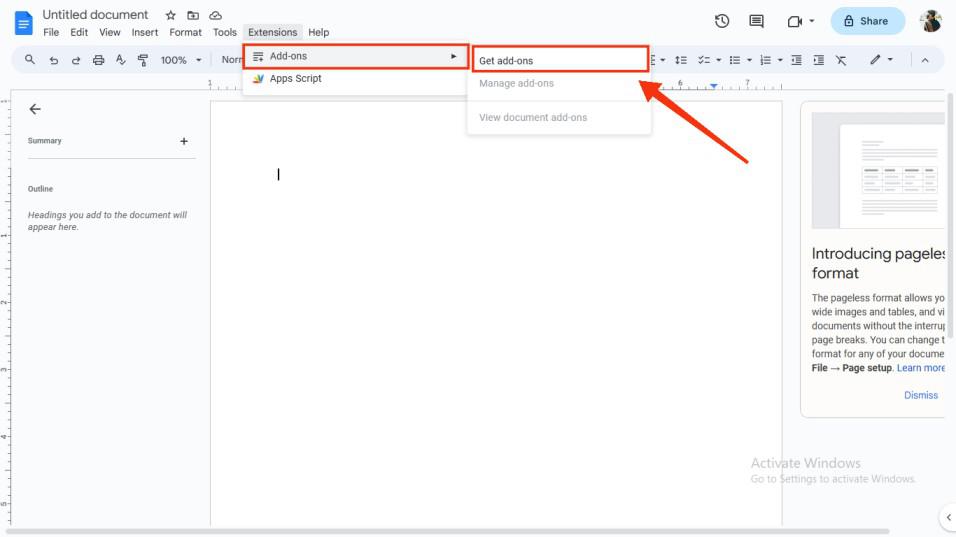
Start by opening your Google Docs document. At the top of the page, click on the Add-ons menu in the toolbar.
From the Add-ons menu, click on Get Add-ons. This will open the Google Workspace Marketplace where you can find various add-ons for Google Docs.
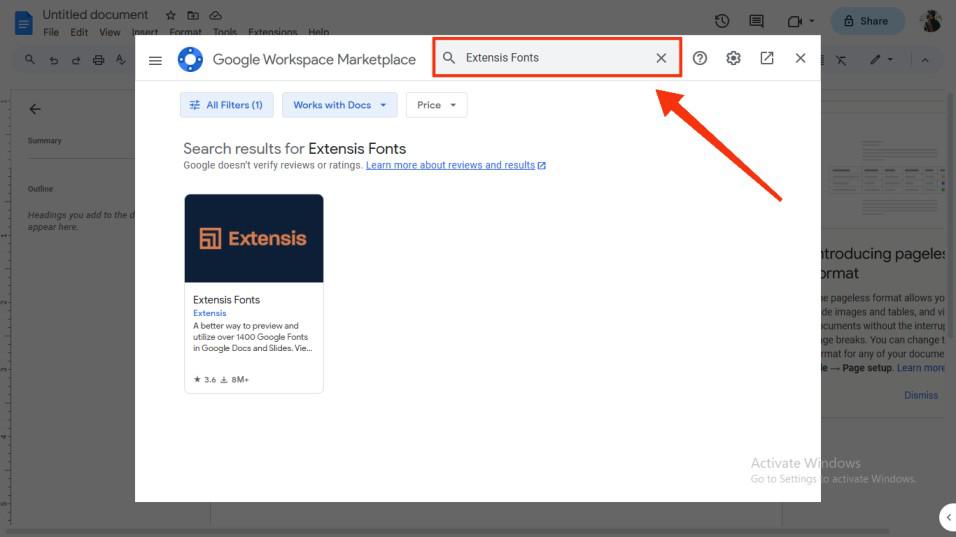
Search for "Extensis Fonts" in the search bar to find the extensions related to the extensive fonts. Select the Extensis font to install it in your Google Doc.
After clicking on the extension of your choice click the "Install" button to install it to your Google Docs, it will be installed to your Google Docs, and you can use the external fonts in your document.
After installation, return to your Google Docs document. Click on the Add-ons menu again, and you’ll see the newly installed font add-on listed.
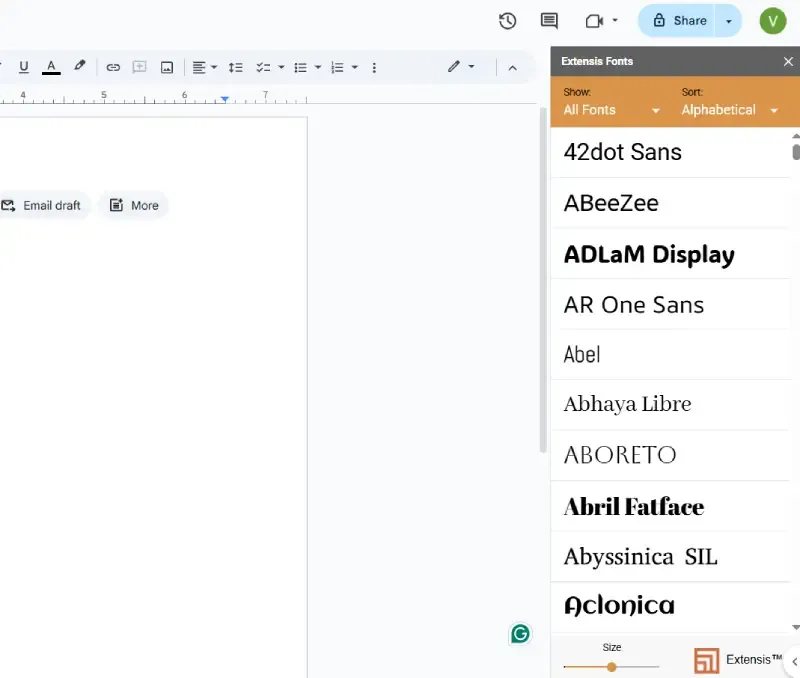
Click on the add-on to open it. Follow the instructions within the add-on to choose your desired font. Once selected, the font will automatically be applied to the text in your document.
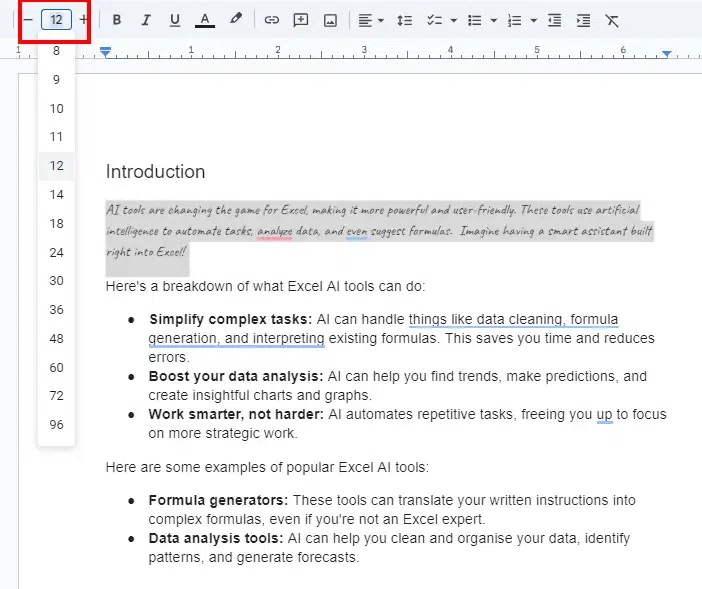
To change the font style and size in Google Docs, follow these steps:
Go to Google Docs and open the document you want to edit.
Select the text you want to change by clicking and dragging over it.
The selected text will automatically update to reflect your chosen font style and size.
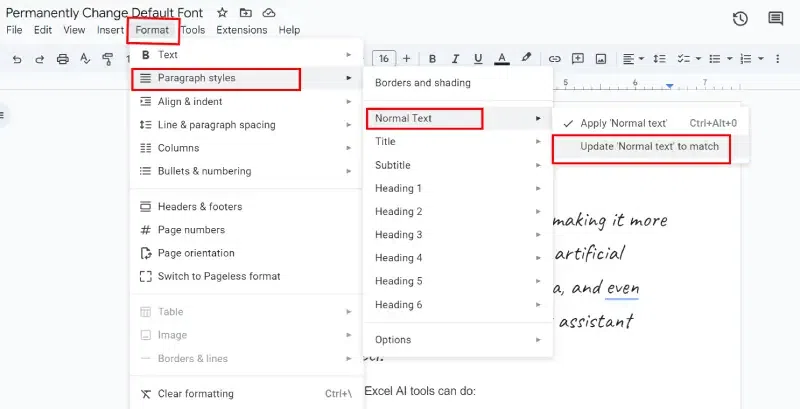
To permanently change the default font in Google Docs, follow these steps:

.png)
.jpg)