|
VOOZH | about |
|
VOOZH | about |
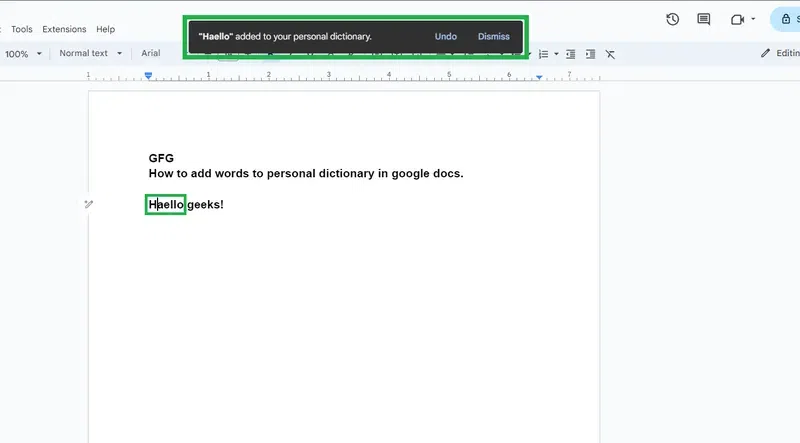
There are two ways to add words to a personal dictionary. One is by opening the personal dictionary and adding new words to it. Another way is by right-clicking on the red underlined words (marked by the Spell check tool) and adding them to the personal dictionary from there.
This method allows you to add multiple words to a personal dictionary one after another.
Open a new Google Doc or any existing one from your Google Drive. Type the content of your document.
Navigate to the top menu, click on “Tools”, then choose “Spelling and Grammar” from the drop-down menu. Next, select “Personal dictionary”.
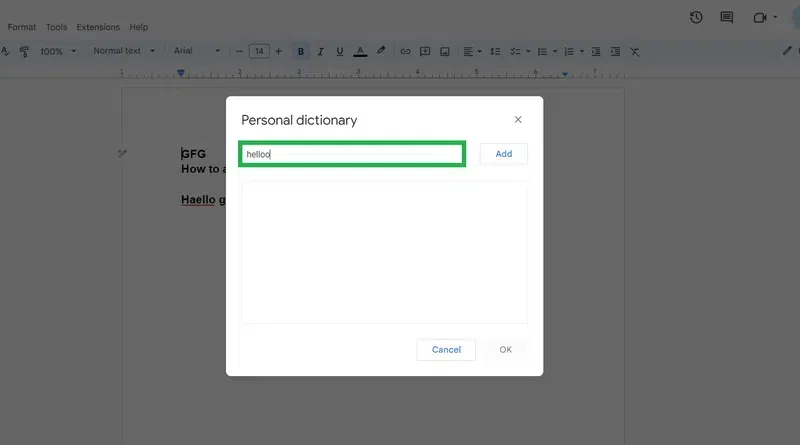
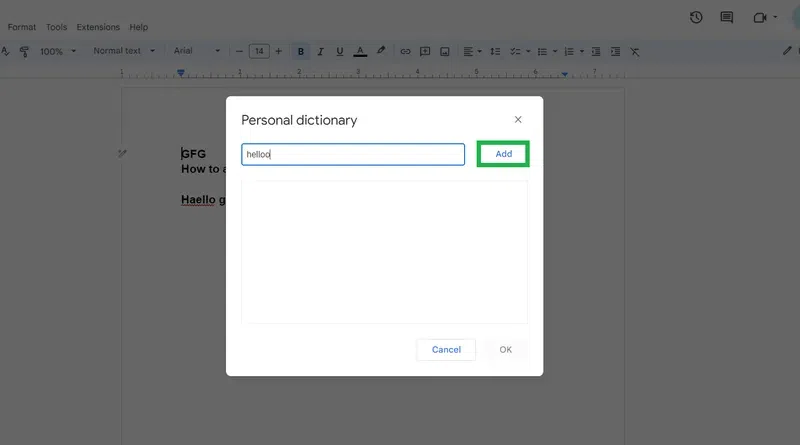
A dialog box will open. Type the word that you wish to add to your personal dictionary in the text box.
Click on the "Add" button.
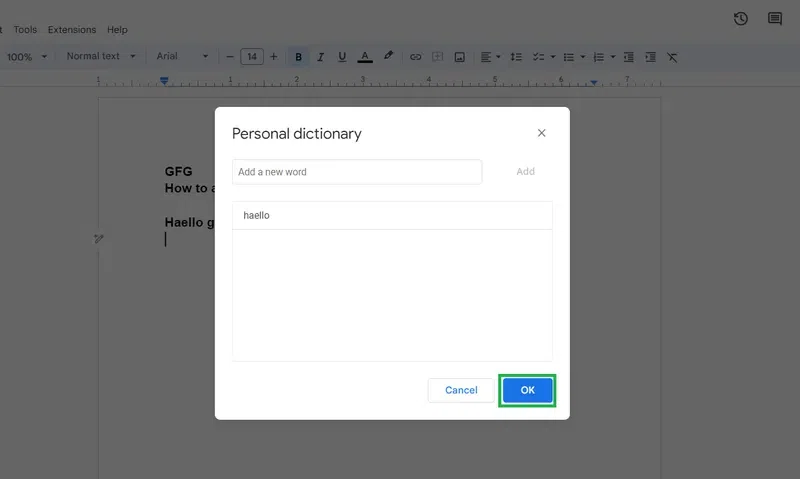
The word will get added to the personal dictionary.
You can further type and add more words to the dictionary.
Click on the ok button given at the bottom right.
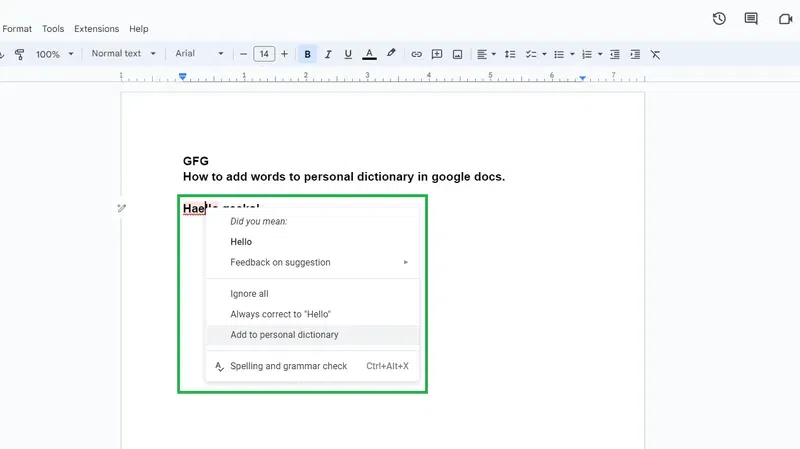
Open your Google document and go to the word that has red underline. Right-click on the word that is marked by the Spell checker with a red underline. A drop-down will open.
Click on the Add to Personal Dictionary option among the given options in the menu.
The word will get added to the personal dictionary and will no longer be underlined with red color.
If you mistakenly add some wrong word to the personal dictionary, you can remove it by following the below-mentioned steps:
Navigate to the top menu, click on “Tools”, then choose “Spelling and Grammar” from the drop-down menu. Next, select “Personal dictionary”.
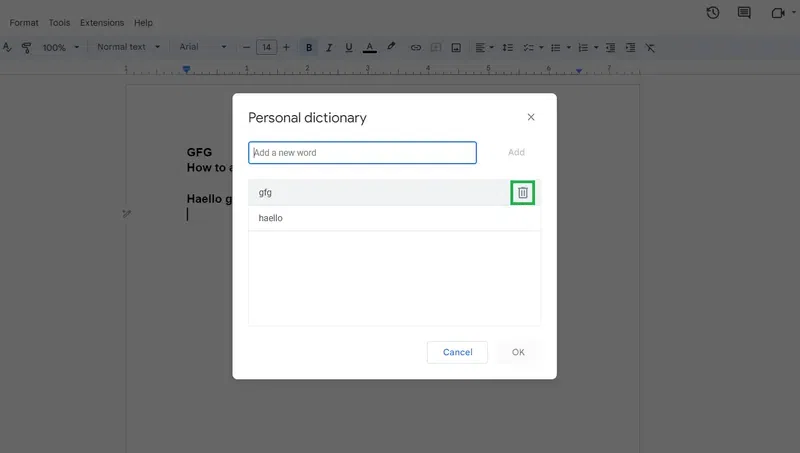
Find the word that you want to delete. Hover over the word and then click on the Delete icon corresponding to that word.
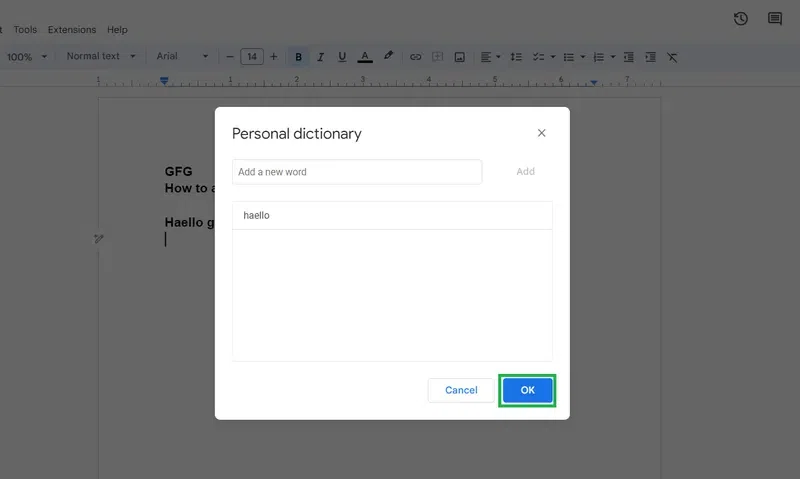
The word will get removed from the personal dictionary. Click on the OK button.

.webp)
.webp)
.webp)