|
VOOZH | about |
|
VOOZH | about |
The numbering feature of Google Docs lets you automate the task of adding page numbers to the entire document. Not just that, you can also format the page numbers to your liking in terms of their position, color, size, font, etc.
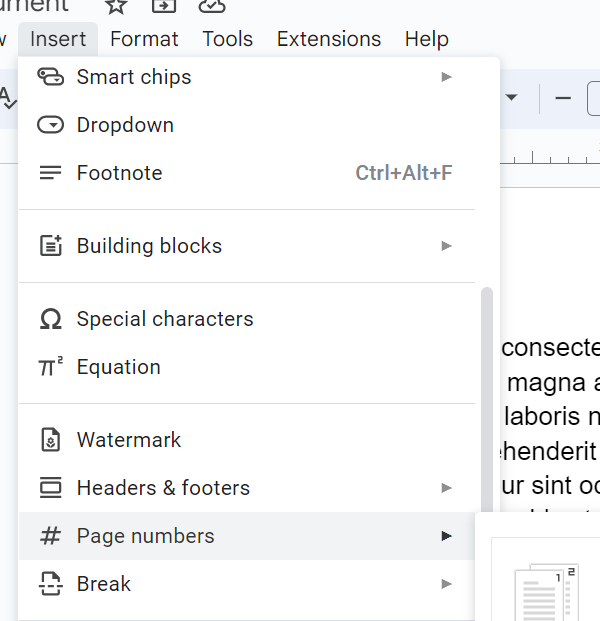
Visit Google Docs and open the Google Document in which you want to insert page numbers, and go over to the Insert tab, where you will find the option titled "Page numbers".
After opening Google Docs on device go to the Insert tab located at the top of your google doc.
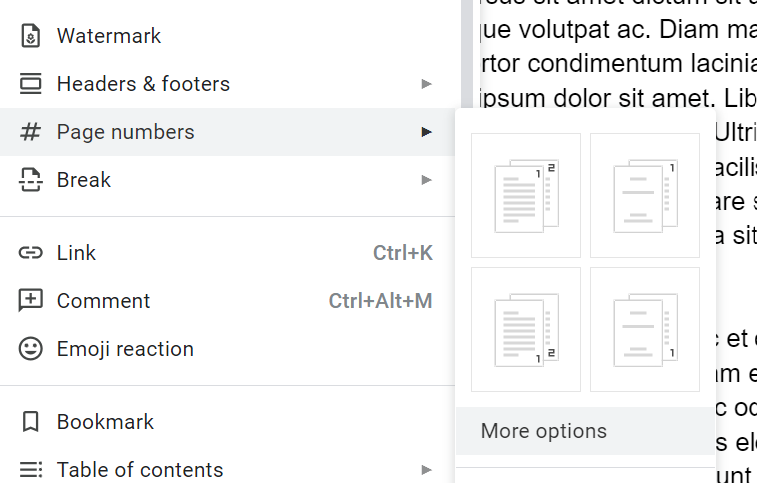
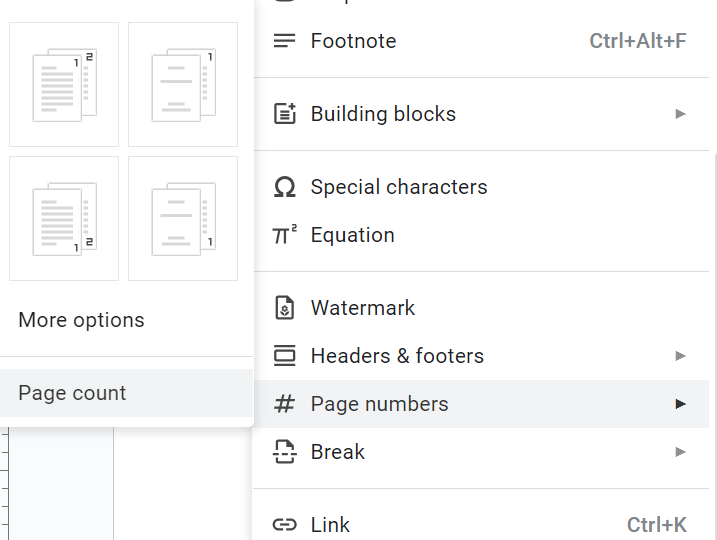
Click on the drop-down next to Page numbers and choose the layout you want. You can see that there are options to add the page numbers in the header or the footer and also to skip the numbering for the first page.
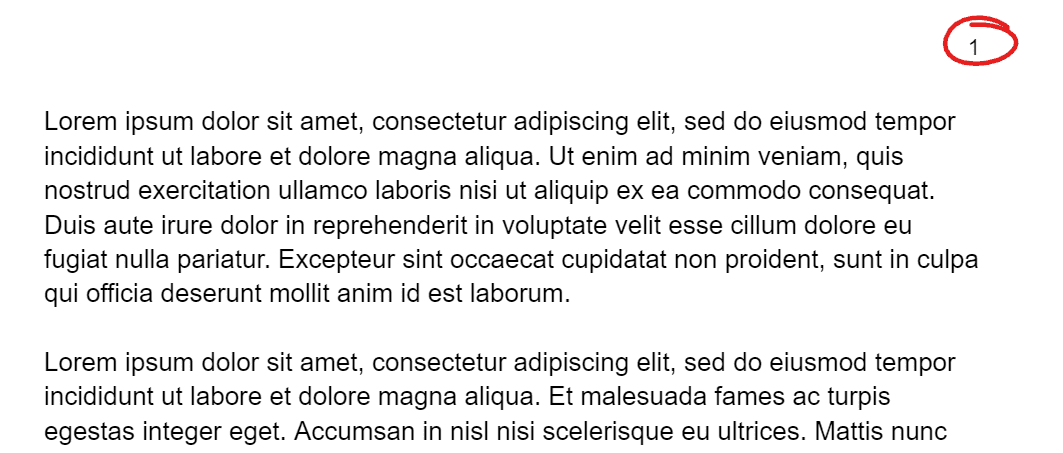
You will see that as you choose a layout, the page numbers will immediately appear all through the document. We chose the header option, therefore, the numbering appears in the top right corner.
There are various options to format the page numbering which includes changing the position, changing the layout in terms of text, font, size, color and alignment or if you are looking to put page number in google docs starting from a specific page. You can also apply skipping the page number from the first page and starting the numbering from 2 or 3 instead of 1.
Open the Google Document in which you want to insert page numbers and go over to the Insert tab where you will find the option titled "Page numbers".
In the drop-down, click on the "More options" section after going to the Insert tab and selecting Page Numbers.
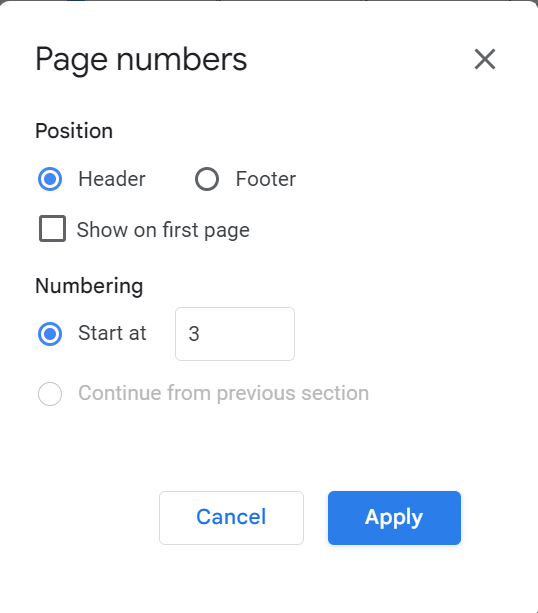
In a pop-up that opens, choose the position of page numbering. You can also deselect the "Show on first page" option and start the numbering from any number instead of 1. In this example, we will deselect the "Show on first page" option and start the numbering at "3" Click on Apply.
You can see that as you click on Apply, the changes will be made in the document instantly.
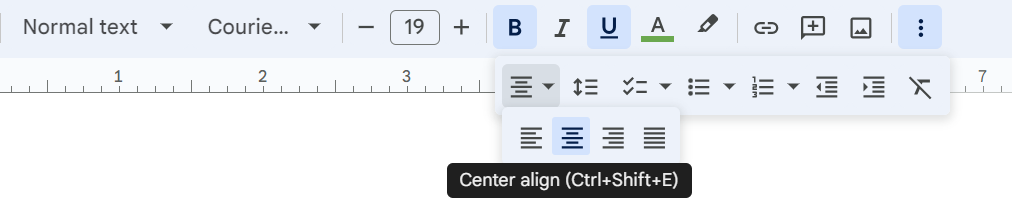
In this example, we have set the font size to 19, font family to Courier, and color to Green. We have also used the bold and underline options along with setting the alignment to centre. You will notice that these changes will be made to all the page numbers in the document.
In order to check the progress that one has made into the document with respect to the total number of pages, the option of Page Count can be set up in Google docs.
You will see that the word count would be added next to the page numbering. In order to separate the two, you can insert a "/" or write "of" in between. The same would apply to all other page numbers.