 |
VOOZH | about |
|
VOOZH | about |
Creating an invoice in Google Docs is a quick way to manage billing for business or freelance work. With customizable templates, you can create professional invoices for services, products, or recurring payments, ensuring accurate and organized billing.
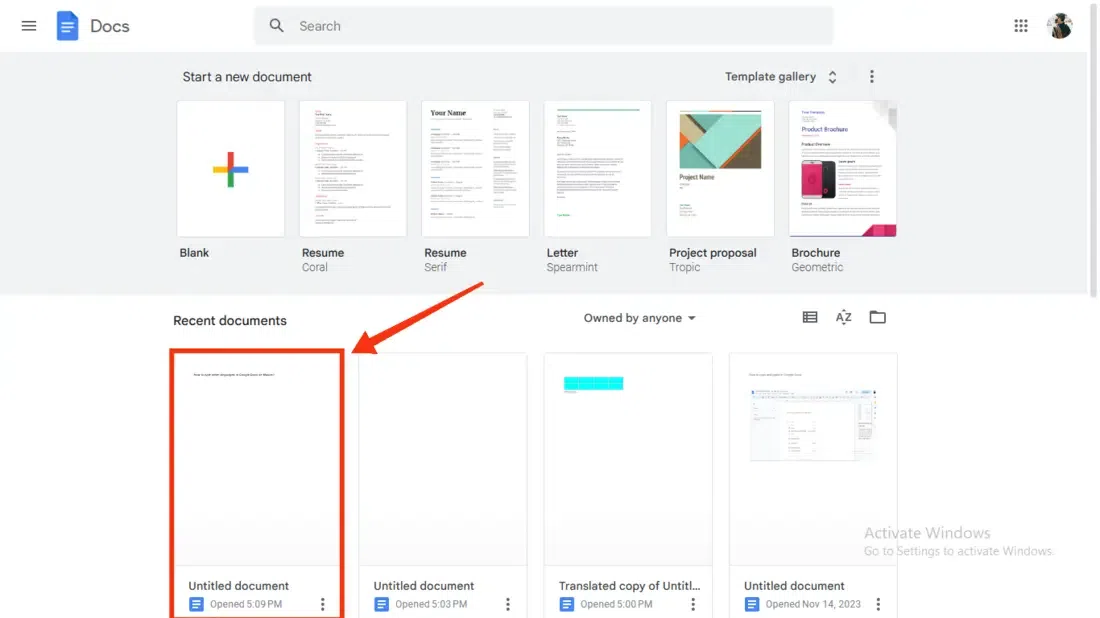
Open Google Docs on your Desktop and select a document for editing or you can go with the existing one.
In order to create an ebook you have to maintain a cover page to attract the viewers, in order to make a cover page click on the "Insert" tab and click on the "Drawing" >> "New" option to insert a new drawing. After going to the Drawing section start designing the page, use the shapes and other features of the Drawing tools of Google Docs.
A title page is also essential for an ebook so to do that make the essential changes and enter the title of the ebook. After entering the title of the ebook set it to the Title format by clicking on the Format tab located on the top.
After entering the title and making the first page you can align the text of the title page by clicking on the "Format" tab and going through the "Align & Incident" option.
It is also good to improve the page setup of your ebook in order to maintain the quality pages of your ebook, to do so click on the "File" tab and select the "Page Setup" from the drop-down menu.
After opening the page setup section you can change the orientation of your page and also select the page size and color of your page.
Add page numbers to your ebook by clicking on the "Insert" tab and selecting Page Number, after that select the format of the page number you want to apply to your ebook such as the page number should be on the right or left.
You can also add page numbers specifically on any side of your page such as the header or footer, all you have to do is click on the Format tab and select "Page Number" from the drop-down menu.
When your Page Number section is opened then select the position of the page number to set on the header or footer and you can also start from a specific page number.
To make your ebook's content table the feature of the table can be used and also can be made very easily by performing some steps, just click on the "Insert" Table and select a table from the drop-down menu.
After your table is inserted start inserting the content in your table.
Checking the Word Count of your ebook helps you in reviewing the ebook, just click on the "Tools" tab present at the toolbar and select "Word Count" from the drop-down menu.
When you click on the Word Count a window will appear containing all your word count just review the word count and click "OK".
You can also check the page count by clicking the Insert tab and selecting the "Page Number" >> Page Count, it will show you the page count of your ebook.
You can also download your ebook by going to the File tab and selecting the "Download" button from the drop-down menu, then a menu for downloading will appear just select the downloading format and store it offline.

.webp)
.webp)
.webp)
.webp)
.webp)
.webp)
.webp)
.webp)
.webp)
.webp)
.webp)
.webp)
.webp)
.webp)