|
VOOZH | about |
|
VOOZH | about |
Google Docs is a flexible platform for creating quizzes, surveys, and interactive documents. With simple editing and formatting tools, you can design clear and organized quizzes, add questions and answers, and easily share them with others.
Google Docs gives us a platform where we can perform the actions as per our needs. On this platform, you can create quizzes, surveys, or any other data you want. Here's a guide on creating a quiz using Google Docs:
Open your Google Docs and log in with your Gmail account. If you do not have an account on Gmail then create a Gmail account.
After creating an account and logging in to Google Docs, "Click on + Blank ” or Blank "document" in the top left of the screen.
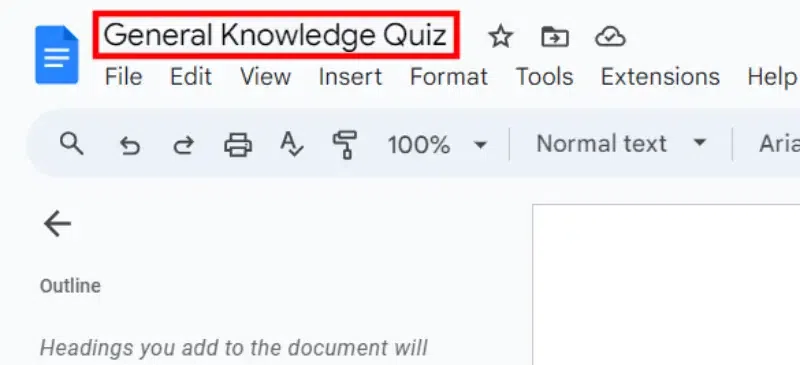
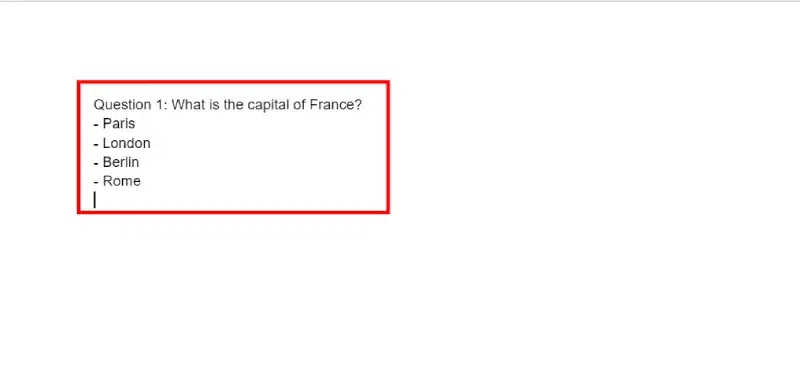
Next, give your quiz a name and add a variety of questions as per your need or as per the topic you have selected. You'll manually type and format your questions and option where you can change the matter to make others understand the questions.
Organize your document by creating sections for each question and its corresponding answer choices. You can do this by typing out the question followed by the answer choices.
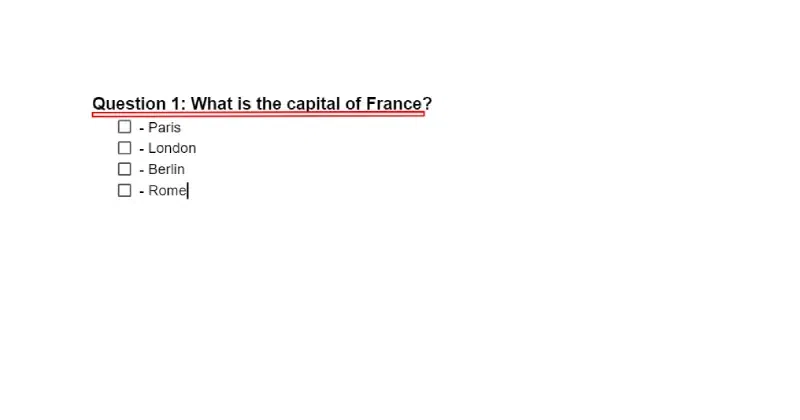
You can format your quiz to make it visually appealing and easy to read. Consider using bold or underline for the questions and list formatting for the answer choices. You can also use different font sizes or colors to differentiate between questions and answers.
Repeat step 4 to add as many questions as you need for your quiz. Make sure to leave enough space between each question to ensure clarity.
If necessary, include any instructions or guidelines for taking the quiz at the beginning of the document. This could include information about time limits, scoring, or any other relevant details.
Once you've completed your quiz, take some time to review and edit it for any errors or inconsistencies. Make sure all questions are clear and unambiguous, and double-check the accuracy of the answers.
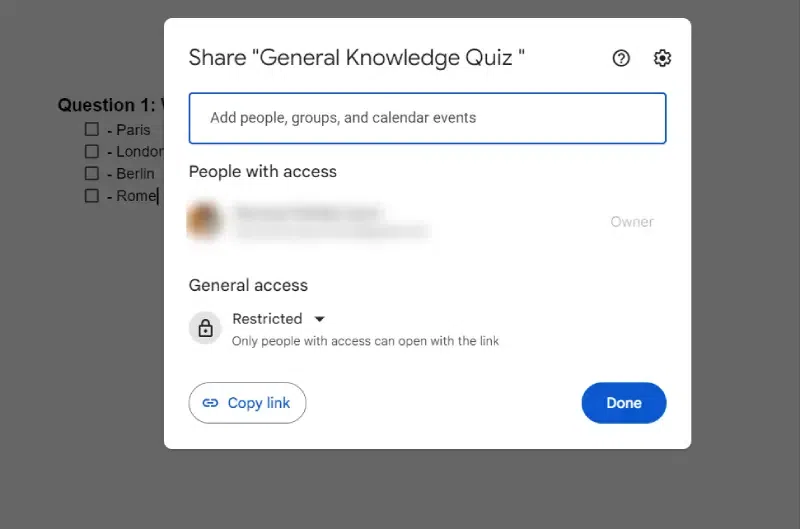
When you're satisfied with your quiz, you can share it with others by clicking the "Share" button in the top-right corner of the Google Docs window. You can choose to share it with specific people or make it accessible to anyone with the link.

.webp)