|
VOOZH | about |
|
VOOZH | about |
Subscript in Google Docs is a formatting feature that lowers text slightly below the baseline, commonly used in scientific formulas, chemical equations, and mathematical notations. It helps present content like chemical symbols (e.g., H₂O) or footnotes clearly, making documents more organized and professional.
There are three ways to write a subscript to a document in Google Docs.
This method allows you to easily format selected text as a subscript using the menu options. Follow the steps given below to know how to subscript in Google Docs:
Open Google Docs and open the document in which the subscript is to be added or changed.
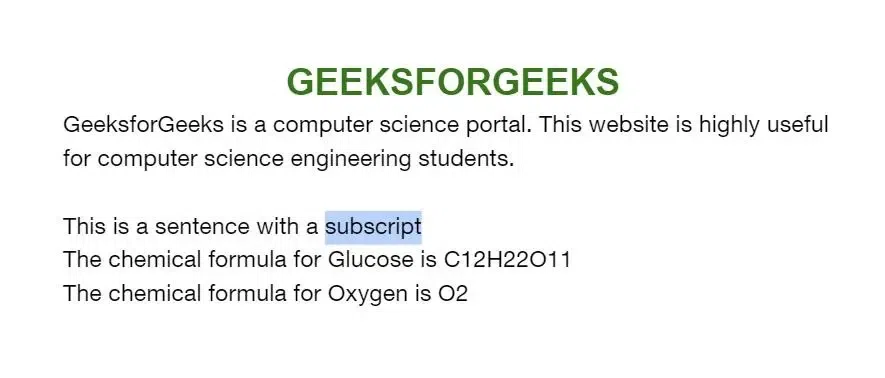
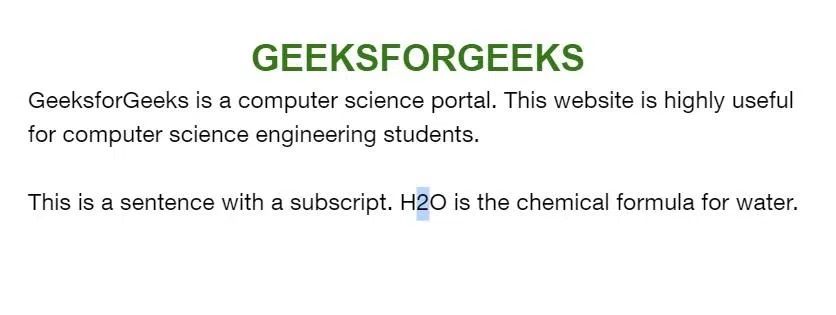
Select the text to change as a subscript in the document by highlighting it. In the example, we are changing a word subscript to subscript.
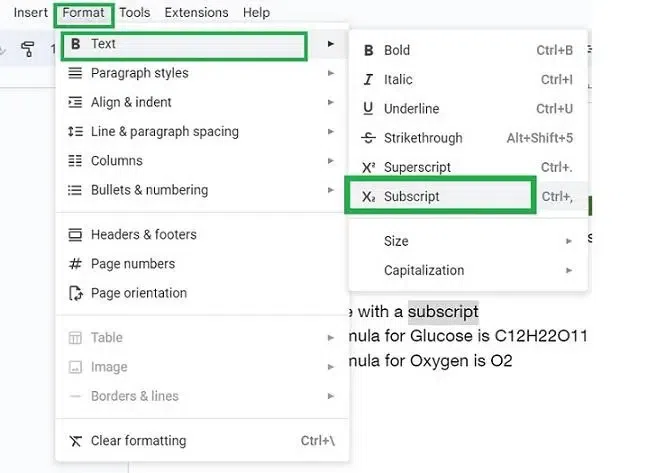
After highlighting the text to change as a subscript, click the 'Format' tab in the menu bar. A dropdown opens, select 'Text'. Another sub dropdown opens. Select 'Subscript' in it.
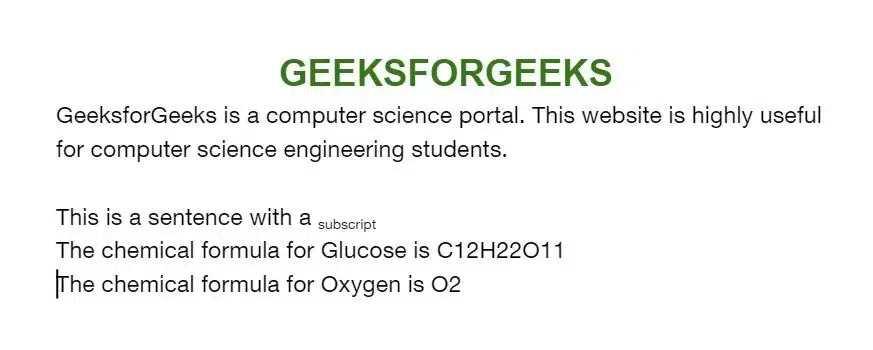
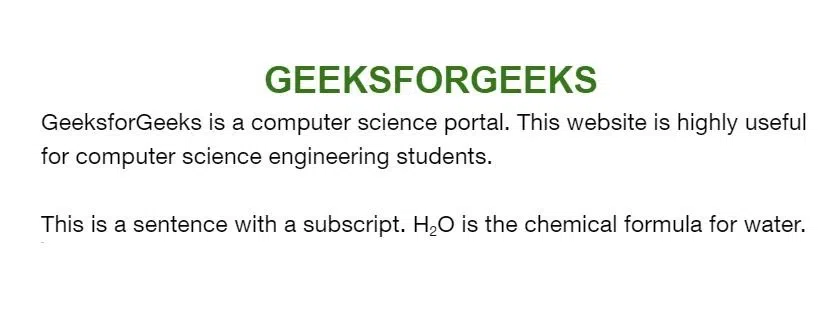
Now the selected text in the document has changed to subscript.
A quick way to subscript text using a keyboard combination. Follow the below steps to add subscript in google docs using shortcuts:
Open Google Docs and open the document in which the subscript is to be added or changed.
Select the text that you want to convert into subscript. This could be a number, letter, or symbol. For example, if you want to change "H2O" to "H₂O", highlight the "2".
For Windows: Press Ctrl + = on your keyboard
For Mac: Press Command + = on your keyboard.
Alternatively, you can also go to the Format menu at the top, select Text, and then choose Subscript from the dropdown.
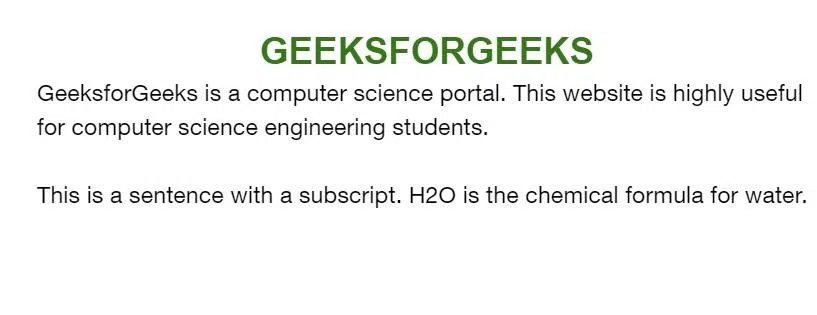
After pressing the shortcut or selecting from the menu, your text should now appear in subscript. For example, "H2O" will change to "H₂O".
Follow the below steps to add subscript in Google docs using special characters:
Open Google Docs and open the document in which the subscript will be added or changed.
Place the cursor in the document where you need to add a subscript character.
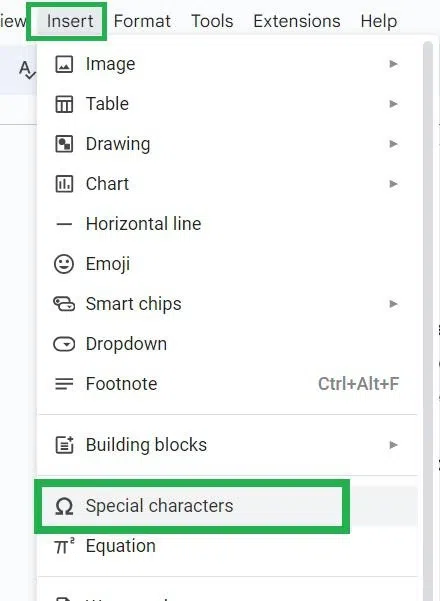
In the menu bar, select 'Insert'. A dropdown appears. Select 'Special characters' in it.
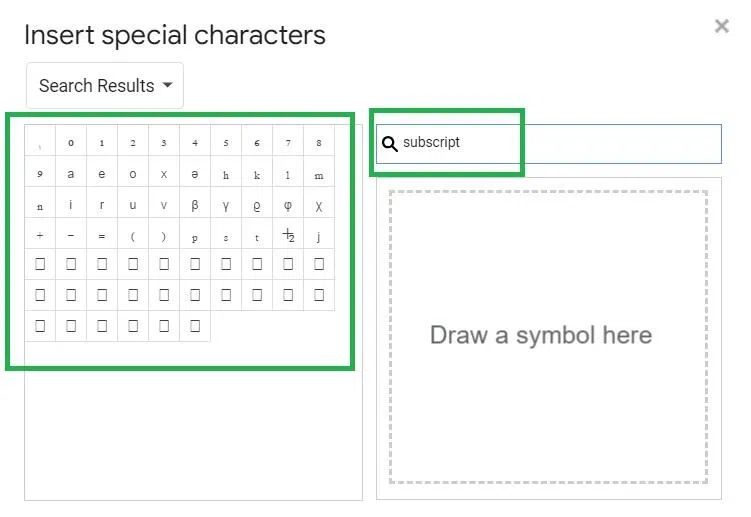
Type 'subscript' in the search bar. Once typed, a list of subscript special characters is displayed in the dialog box.
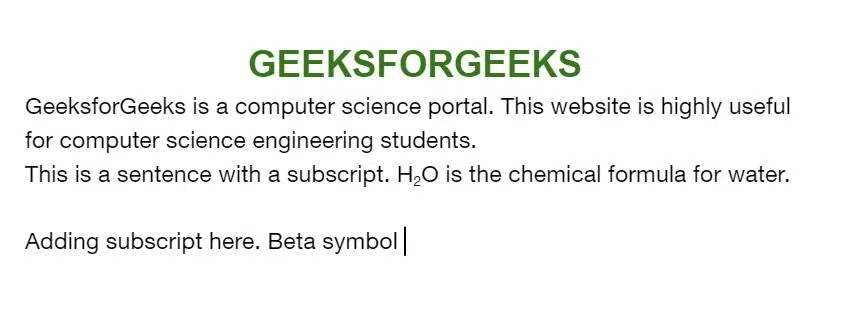
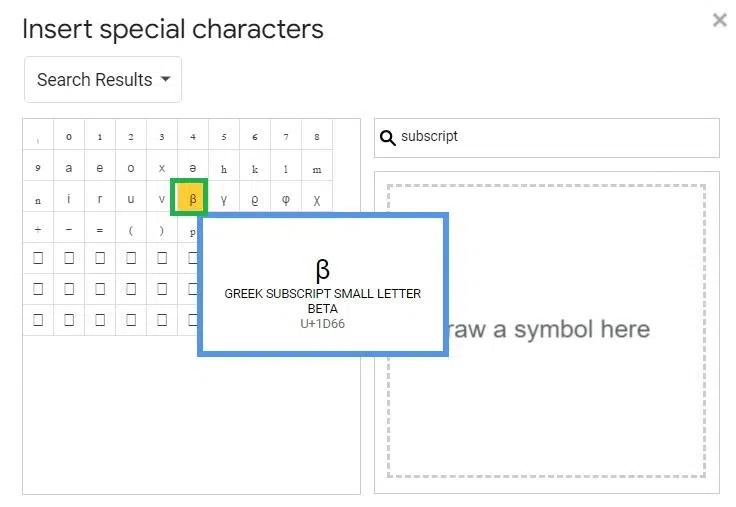
Select the special character you want to add to it by selecting them. Here we are selecting the 'beta' symbol from it.
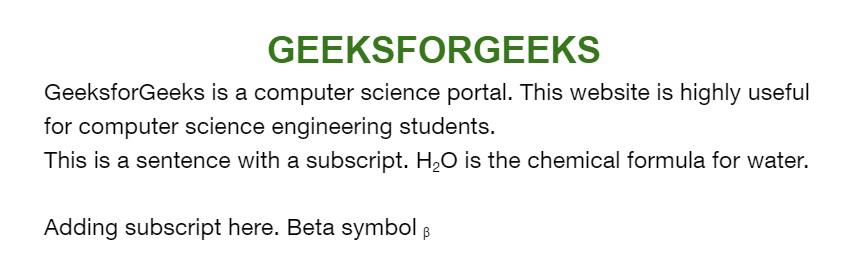
Now the selected special character is added as subscript in the place where the cursor is located.