|
VOOZH | about |
|
VOOZH | about |
Tally marks are part of the unary number system and help count and track numbers in a quick, visual way. They use four vertical lines for numbers up to four, with a fifth line crossing them, making them useful for tracking data.
Let us now look at the different methods of doing tally marks in Google Docs.
Note: There is no direct method of using a tally mark in Google Docs. However, by making the right use of various tools that Google Docs provides, we can achieve the desired results.
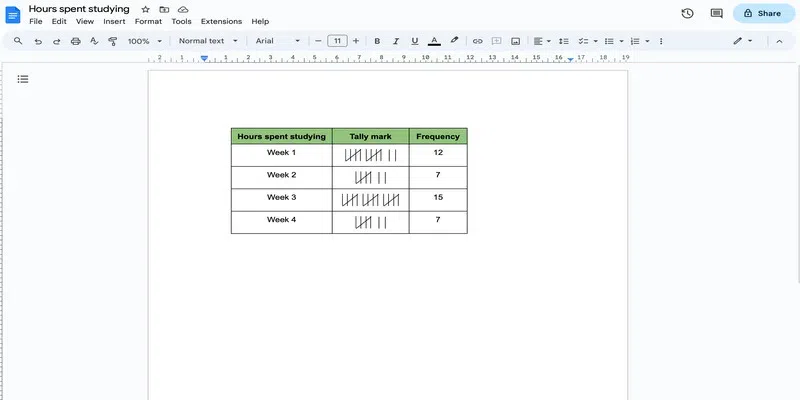
Also, we will be using a sample table throughout this post, but you can get similar results even if you want to use tally marks outside of a table (like in a paragraph or a sentence).
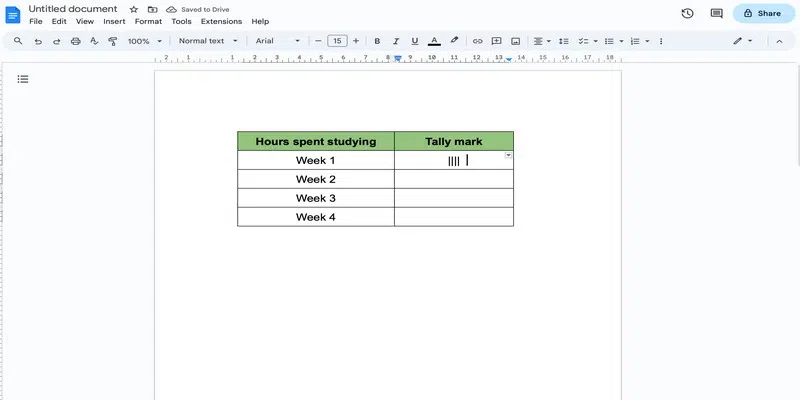
Press shift and click on the key with the backslash. This inserts one vertical line. Repeat to create up to four lines. In this example, we are adding four such vertical lines.
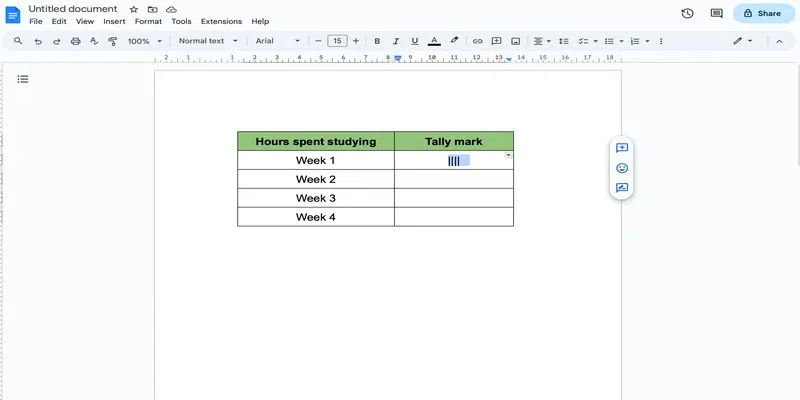
Select the vertical lines you created.
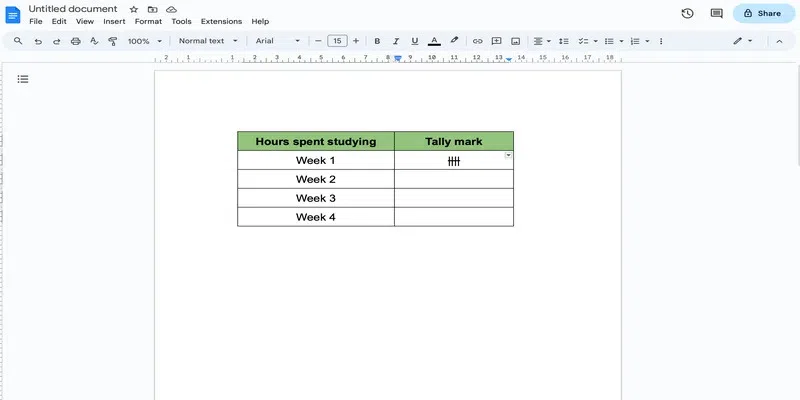
For inserting the fifth horizontal/diagonal bar, go to the format tab and click on the text option in the dropdown. Select Strikethrough in the further displayed dropdown.
This is the simplest method of doing tally marks in Google Docs, the only downside being, the line crossing out the vertical lines can only be horizontal and not exactly diagonal.
This method takes a bit more time but gives you the perfect tally marks.
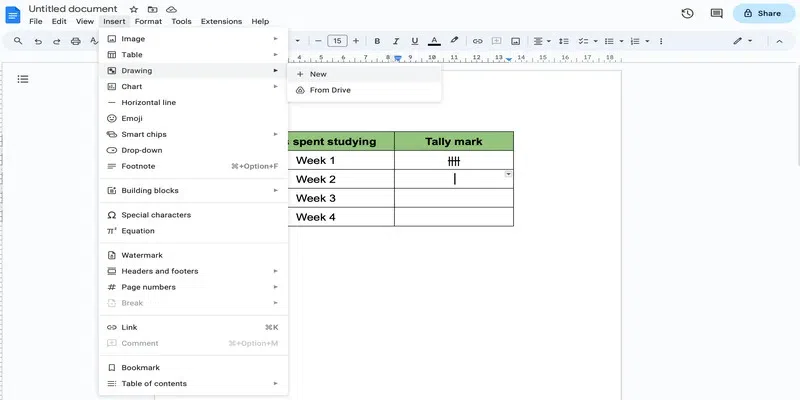
Go to the insert tab and select the drawing option from the displayed dropdown. Click on the '+ New' option.
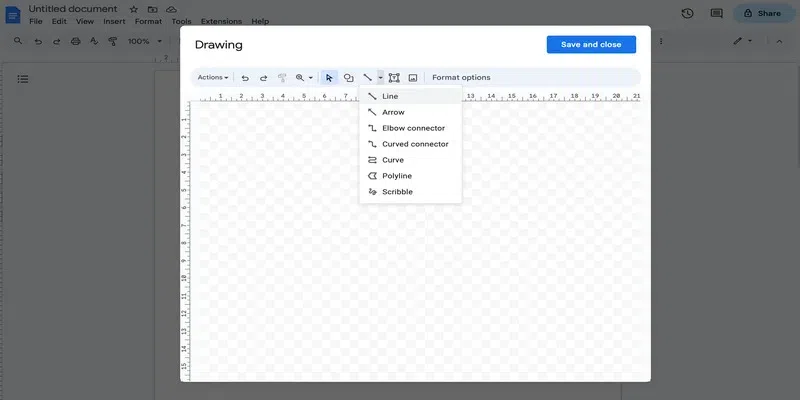
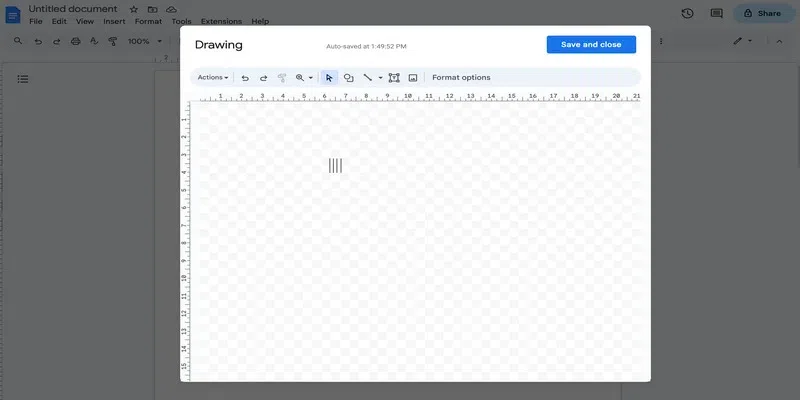
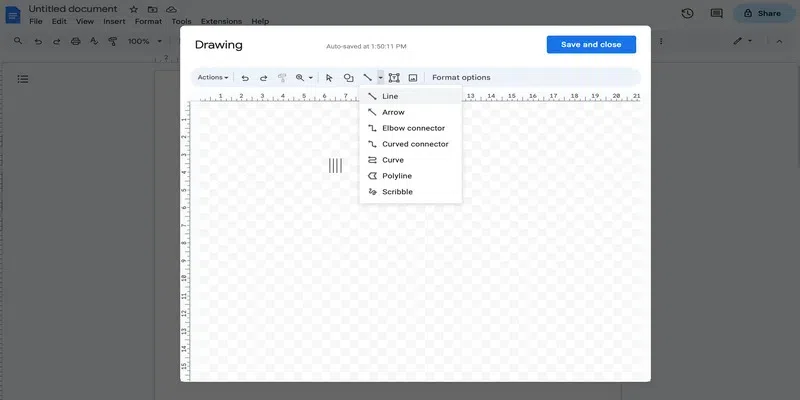
In the canvas dialog box that opens, choose the line tool from the line drop-down. This will change the cursor into a plus sign.
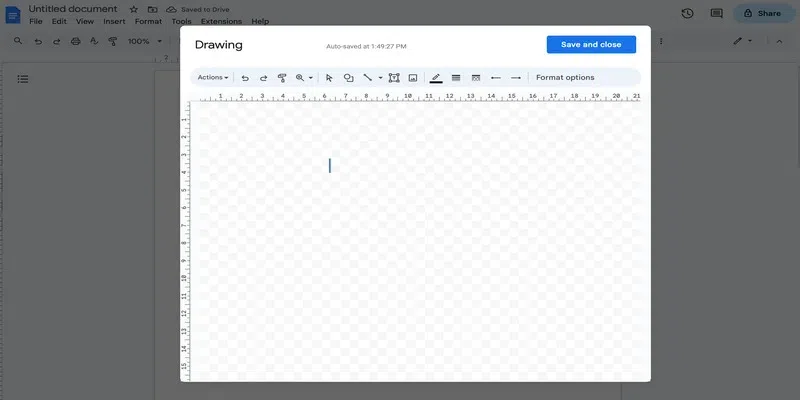
Draw a vertical line using the cursor. You can keep the size as desired.
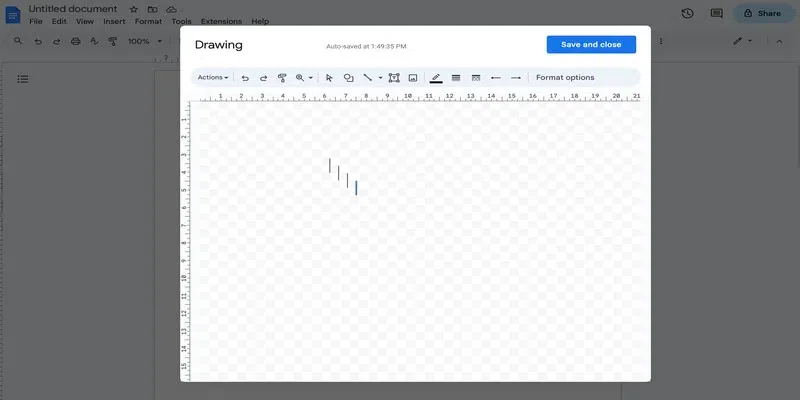
If you have to make a tally mark for any number up to four, you can simply copy the line you made in Step 3 and paste it the required number of times. For this example, we will paste 4 such lines.
Drag and drop the copied lines to place them next to each other.
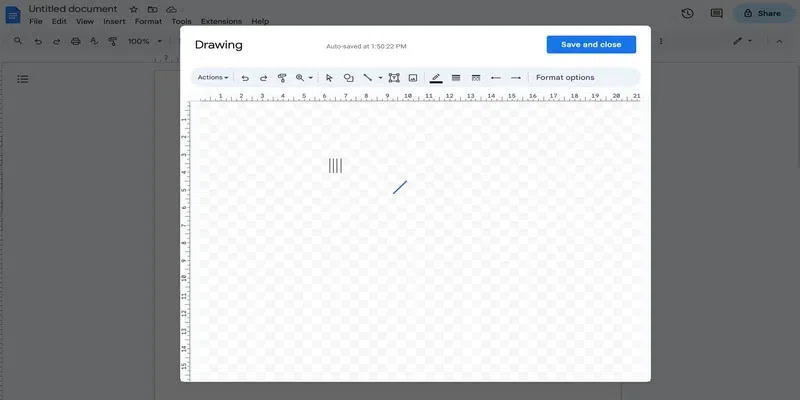
Now, again choose the line tool from the line drop down in the canvas ribbon.
Use the cursor to draw a diagonal line. Make sure the size is such that it covers the vertical bars properly.
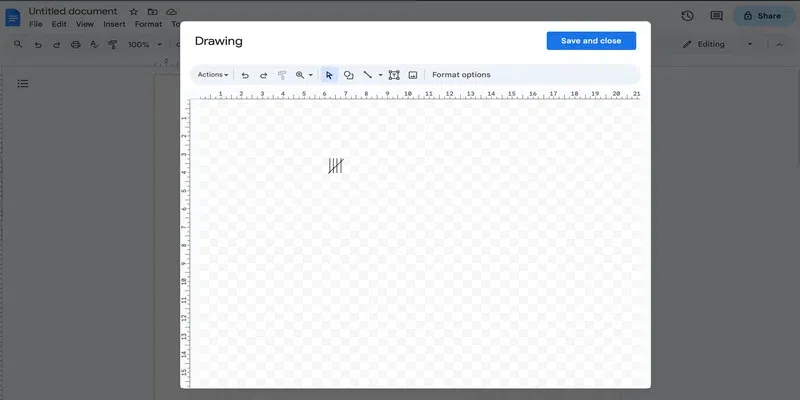
Drag and drop the diagonal line on top of the vertical lines to get the tally mark equivalent to five.
Click on the save and close option on the top to insert the resultant tally mark in Google Docs.
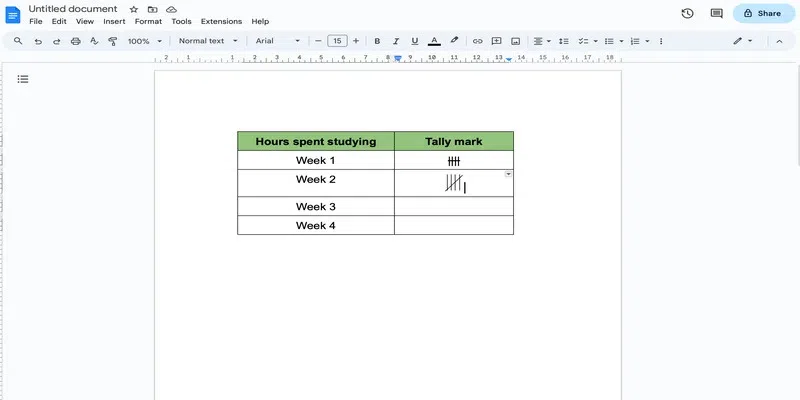
This is what the result looks like:
If you wish to copy this tally mark further, then simply follow these steps-
Simply click on the tally mark to select it and click ctrl+C (on Windows) or cmd+C (on Mac).
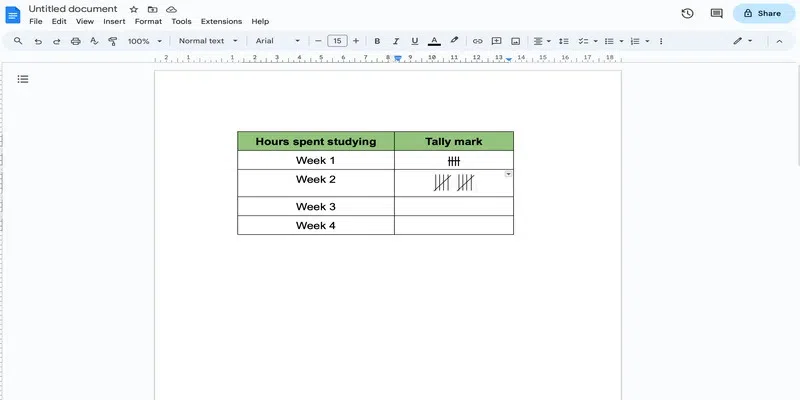
Now simply click ctrl+V (on Windows) or cmd+V (on Mac) to paste the tally mark.
You can add a tally mark in Google Docs as an image as well. Follow these steps to add a tally marks as an image-
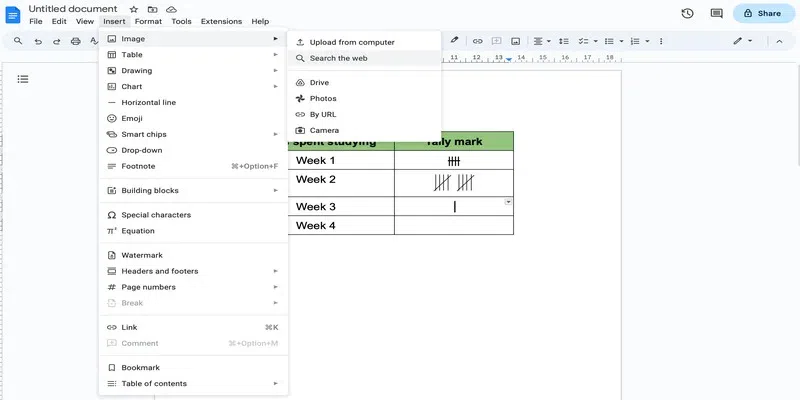
Go over to the insert tab and click on Image Drop Down from the appeared dropdown. A further dropdown will be displayed. Select the Search the Web option.
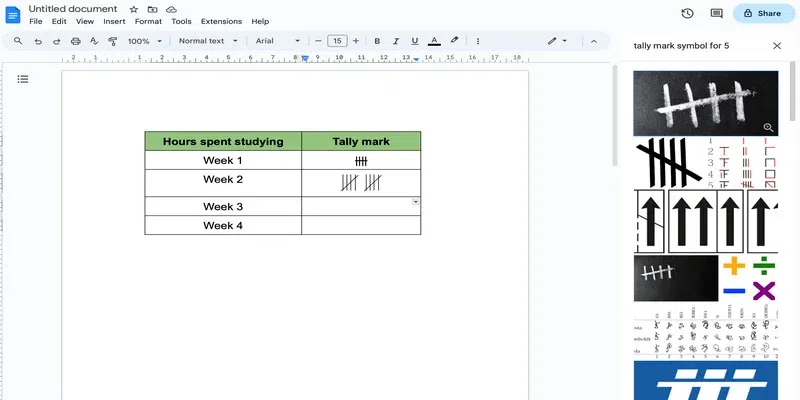
In the side panel that opens on the right, search for the tally mark in the search bar and hit enter. In this example, we are searching for the tally mark corresponding to 5.
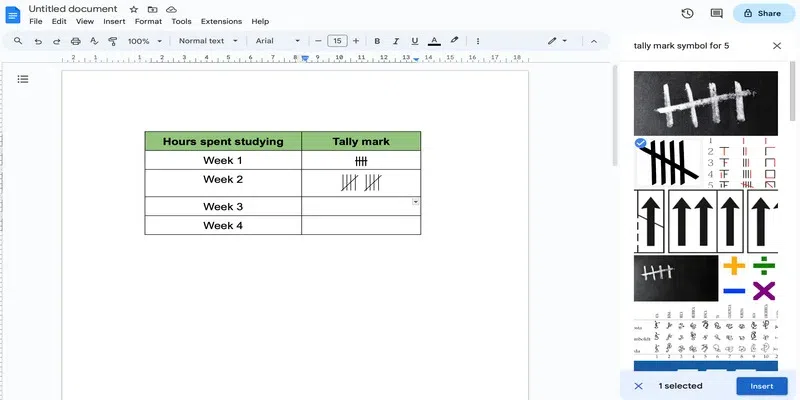
Choose the required image and click on the Insert button.
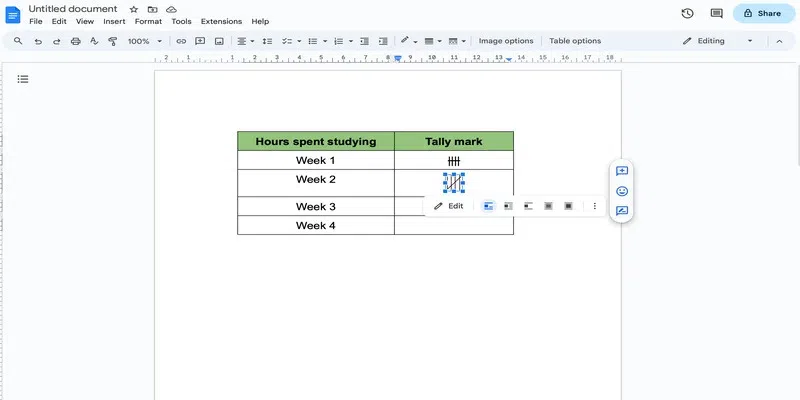
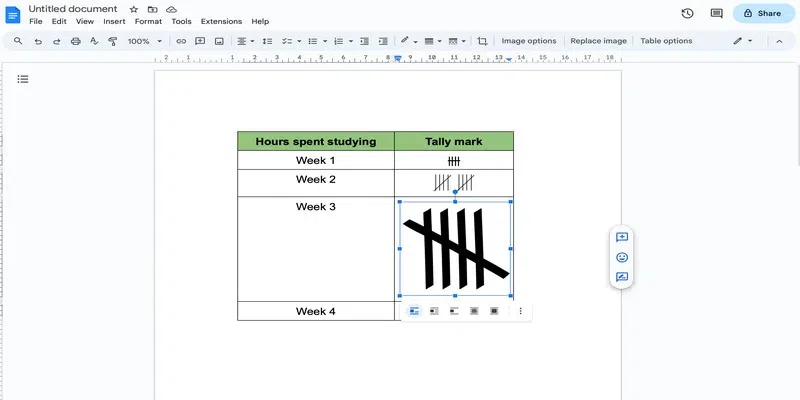
Naturally, the size of the inserted tally mark would be random. So, simply pinch the image from the edges to get the required size.
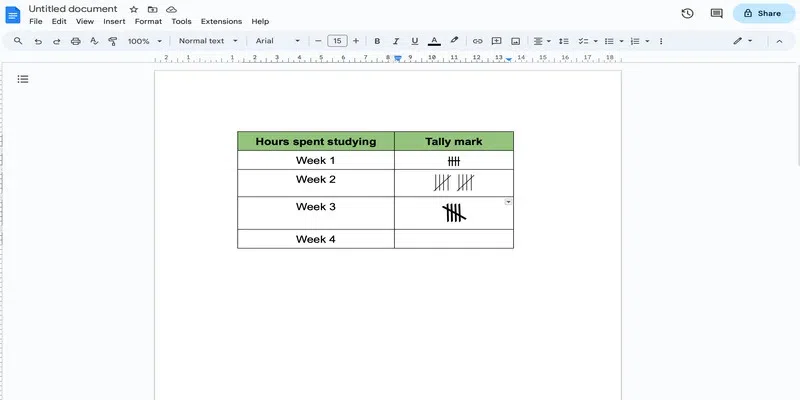
Here is what the resultant tally mark looks like:
This method is quite easy to follow but finding the right image for a tally mark might be a challenge. In that case, you can add your own image, which are, for example, taken from a book.
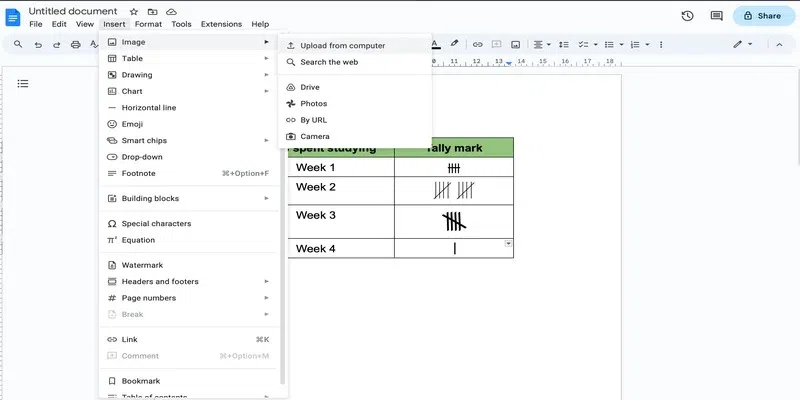
Go over to the Insert tab and Click on Image from the drop-down. In the further opened dropdown select the option of Upload from the computer.
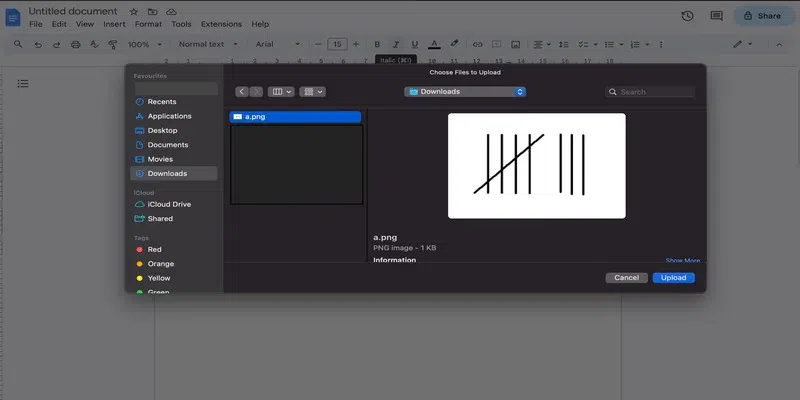
From the file explorer dialog box that opens, select the desired image and click on the upload button.
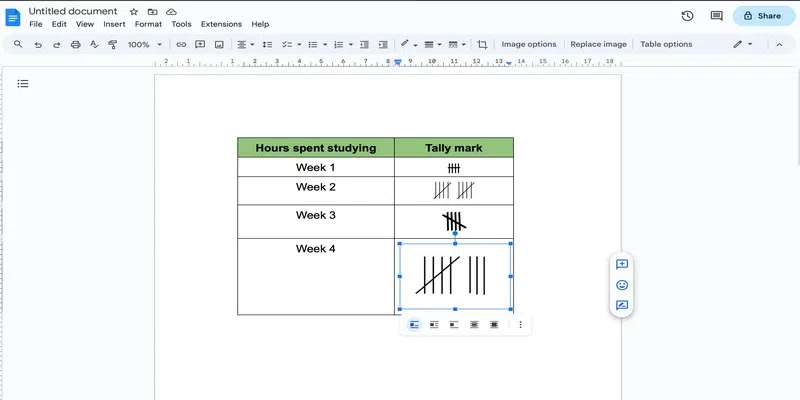
Re-adjust the size of the image as desired by dragging the image from the corners.
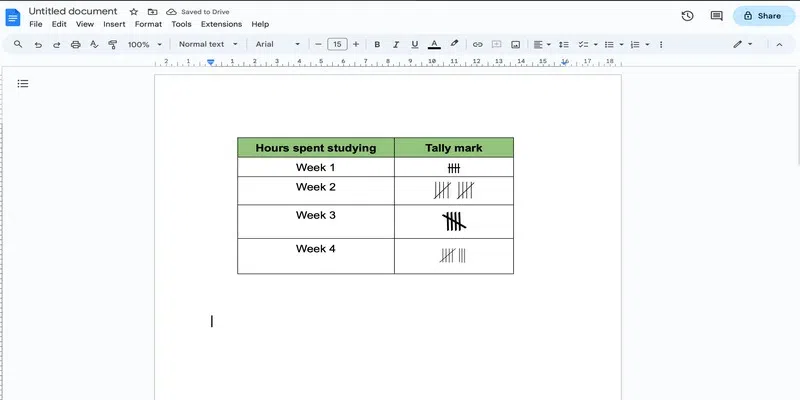
This is what the resultant tally mark looks like: