|
VOOZH | about |
|
VOOZH | about |
By integrating Grammarly with Google Docs, you can enhance your writing by receiving real-time suggestions to improve the quality of your documents. Below are the steps to add and use Grammarly on Google Docs effectively:
To use Grammarly with Google Docs, you first need to install the Grammarly browser extension for Google Chrome, Firefox, Safari, or Microsoft Edge. The extension works directly in your browser, making it easy to check your writing across websites, including Google Docs.
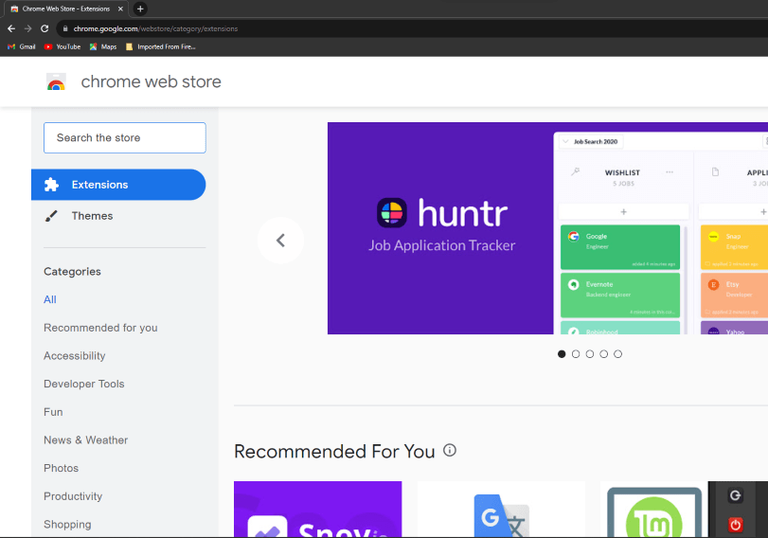
Note: Below in the image we have demonstrated how to install Grammarly on Chrome Browser.
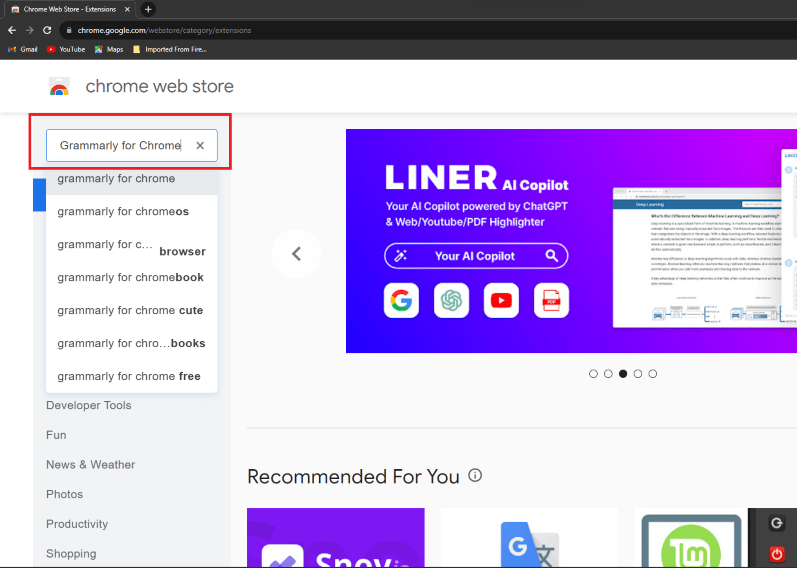
Now we need to Search for the Grammarly extension on Chrome Web Store. Go to Search box and type "Grammarly" in the search bar of the Web Store.
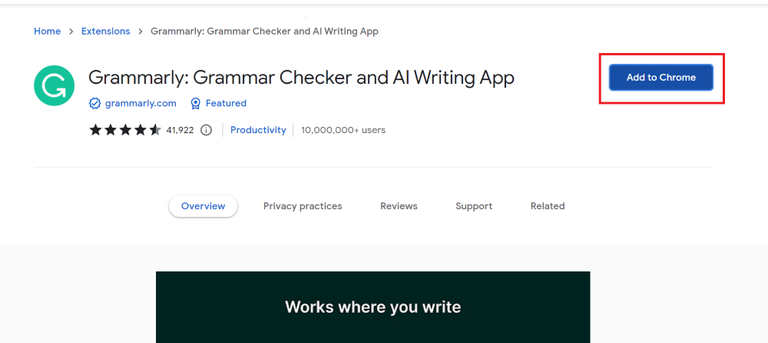
After viewing the results, we need to click on the correct extension and click on the "Add to Chrome" button which is shown in the below screenshot.
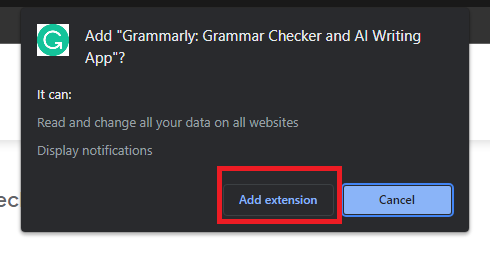
After clicking on the "Add to Chrome" button, the browser will once again ask for confirmation. So, we need to confirm it and click on the "Add Extension" option which will be displayed on the screen.
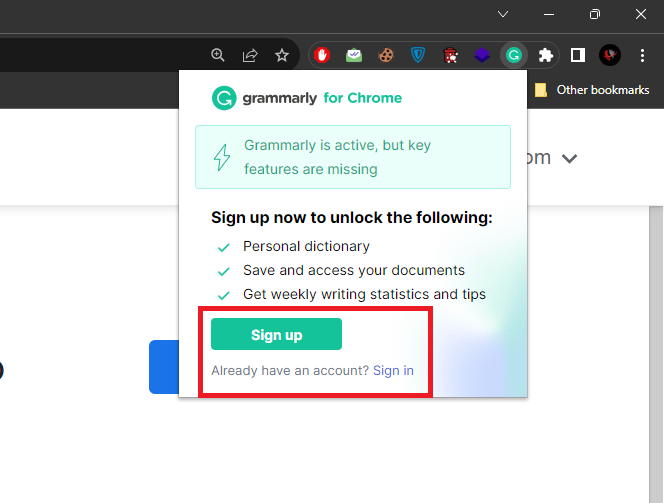
After the installation is completed, we need to log in or create a new account on Grammarly, so that we can use it in Google Docs without any problem.
After you’ve installed the extension and logged into Grammarly, it should automatically activate when you open Google Docs. However, in some cases, you may need to ensure that the extension is turned on. Here are the following steps to Enable Grammarly manually in Google Docs:
Once the Grammarly extension is installed and you're logged in to your account, you’re ready to use Grammarly in Google Docs.
Note:
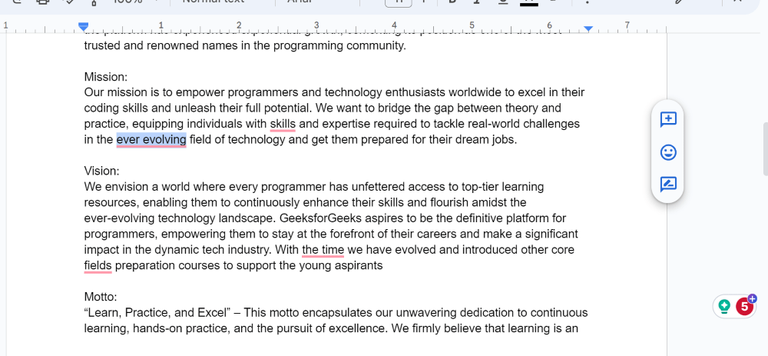
- Once you're in Google Docs, look for the Grammarly icon at the bottom-right corner of the screen (next to the Google Docs toolbar).
- If the icon is grayed out, click on it to turn it on.
- After activation, Grammarly will begin working in the background, providing suggestions as you write. A small pop-up will appear under any errors, offering suggestions for improvements.
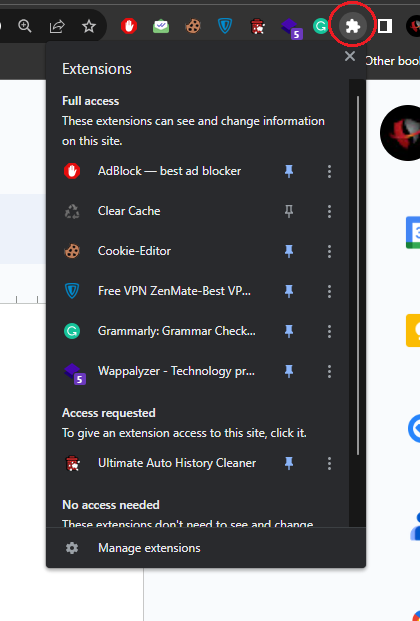
Sometimes if the Grammarly icon is displayed on the bottom right but not working then Go to the Extensions icon on your browser and Pin the Grammarly Extension.
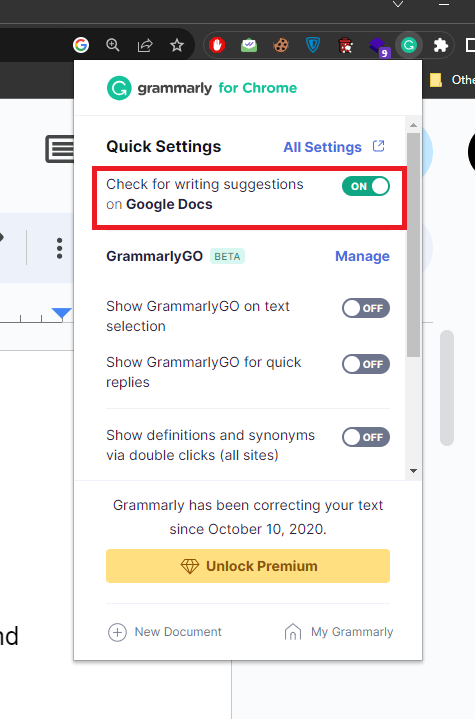
Upon accessing the Grammarly extension, don't forget to enable the "Check for writing suggestions on Google Docs" option. By doing so, you'll enable Grammarly for use in your Google Docs documents, ensuring it's prepared to enhance and improve your writing.
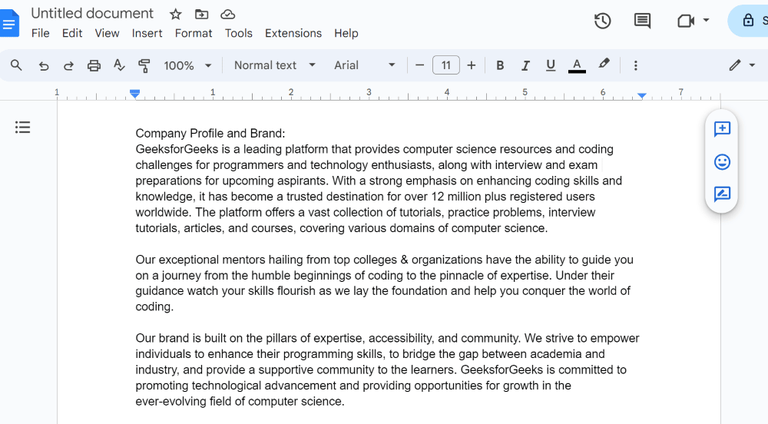
In this section, we will learn how we can use Grammarly in Google Docs to resolve grammatical and spelling mistakes.
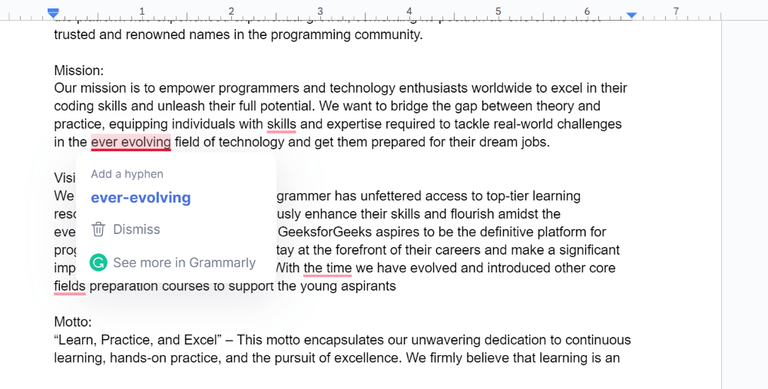
While typing the text, if the text or character becomes incorrect then it is been underlined in red color by Grammarly, so click on that character.
After clicking on the character, the Grammarly tool suggests the correct word, so that our mistake can be resolved, as per our need, we can correct the incorrect word or ignore by selecting Dismiss option.
As you type in your Google Docs document, you’ll notice colored underlines:
Hover over the underlined text to see the suggestion > To accept a suggestion, click on the suggestion in the pop-up menu. If you want to ignore it, click X next to the suggestion.