|
VOOZH | about |
|
VOOZH | about |
Em dashes help writers emphasize a point, set off information, or signal a sudden shift in thought—making text clearer and more engaging. In Google Docs, standard keyboards don’t have dedicated keys for special punctuation marks, such as an en or em dash. However, Google Docs provides a way to insert them into your documents.
Readers or users need to open their desired or Blank document in Google Docs.
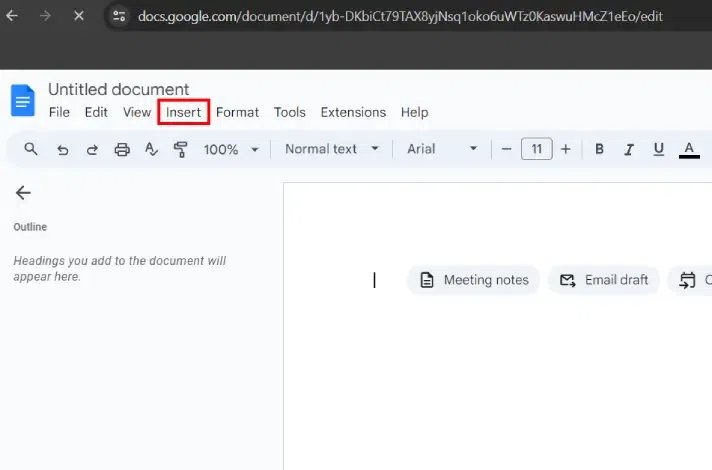
After opening a blank document, locate and click on the "Insert" menu at the top of the Google Docs window or toolbar.
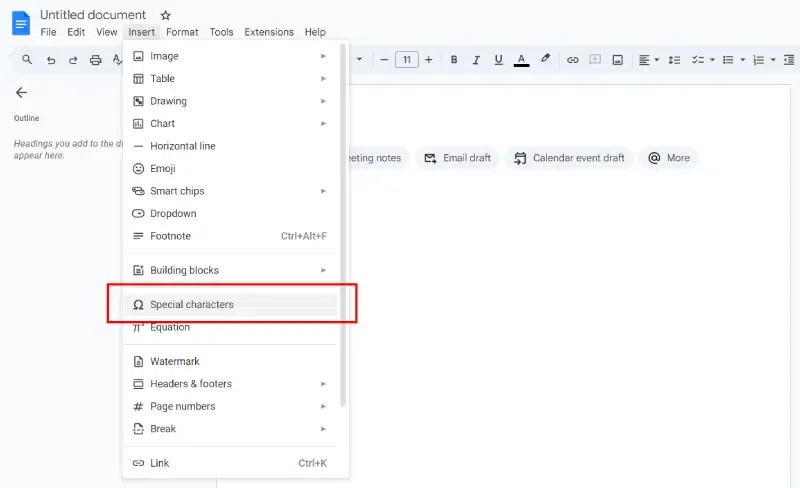
In the 'Insert' menu of the toolbar, select the "Special characters" option in the dropdown menu. This particular option will allow you to insert various special characters, including the em dash.
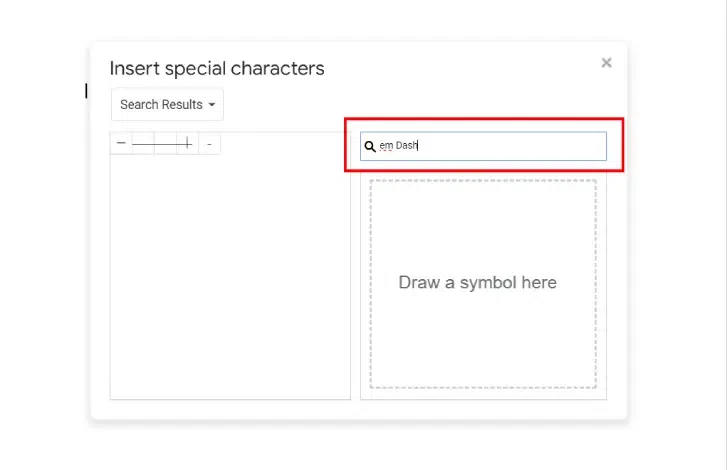
Type "em dash" or "— (em dash)" into the search bar of the "Special characters" window. This will filter the available characters to display the em dash.
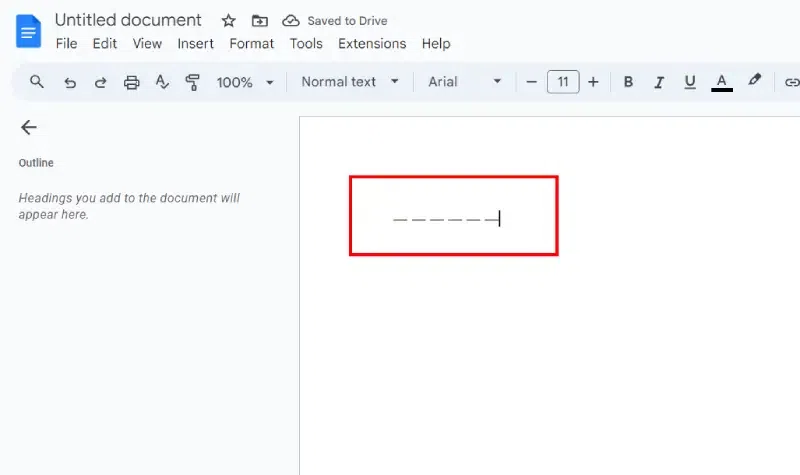
Click on the em dash character once it appears in the search results. This action will insert the em dash directly into their document at the cursor's location.
Alternative Method: Use the Keyboard Shortcut
An alternative method for inserting an em dash is by pressing the "Ctrl + Alt + -" keys simultaneously on Windows or "Option + Shift + -" on macOS.
Encourage readers to confirm that the em dash has been inserted correctly in their document.

.webp)