|
VOOZH | about |
|
VOOZH | about |
A hyperlink is a clickable element, such as text, image, or button, that redirects users to a specific location, such as a webpage, document, email address, or a specific part of the same document. Hyperlinks are essential for navigation and interlinking digital content, enhancing user experience and accessibility.
To know how to create a hyperlink in Google Docs, follow the steps given below:
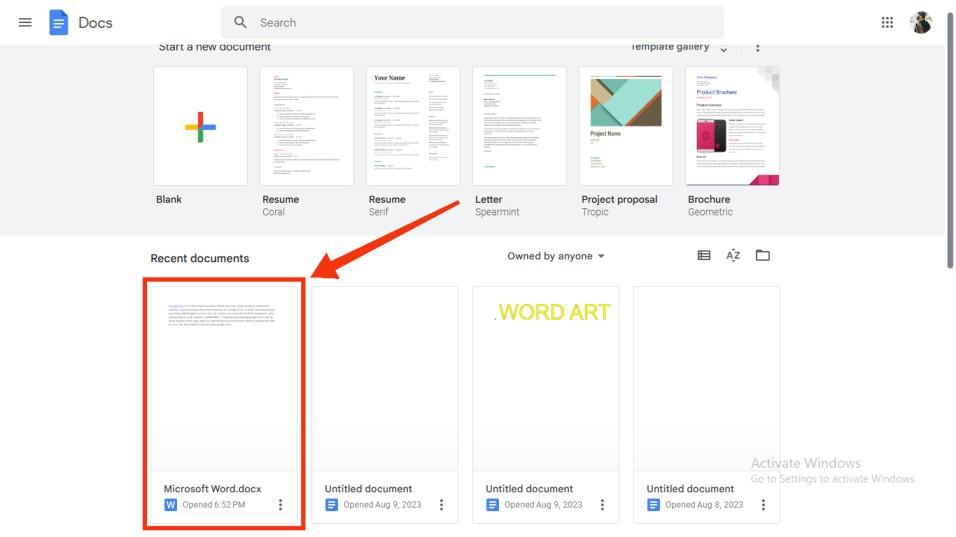
Open Google Docs on your web browser and then select an existing document to which you want to add a hyperlink.
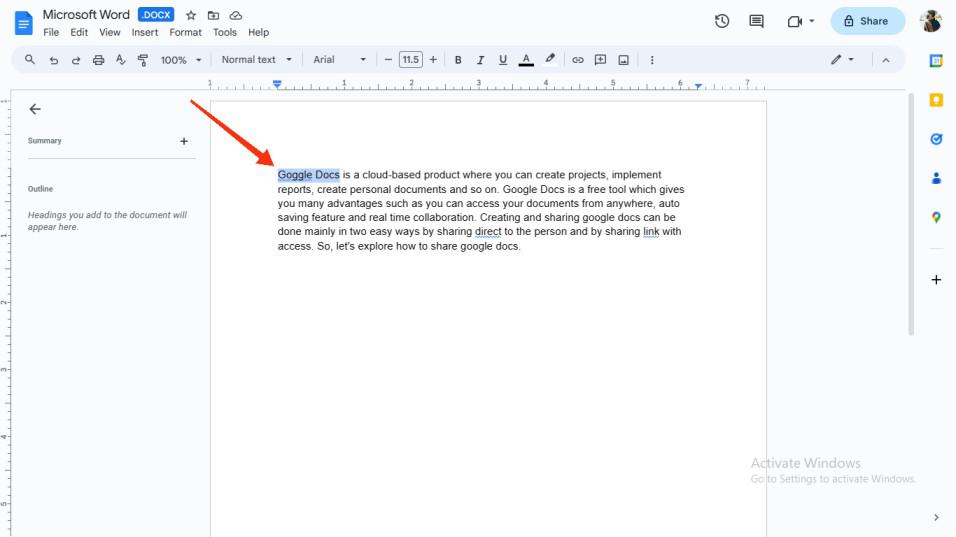
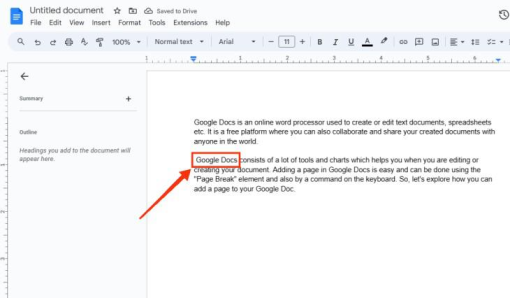
Next, choose the specific text where you intend to insert the hyperlink. It's worth noting that you can place a hyperlink at any point within the text, whether it's at the beginning, middle, or end. To select the text, you can use your mouse or press the Shift key in combination with the arrow keys.
After selecting a text, click on "Insert Link" located on the top toolbar of Google Docs.
Shortcut:
- Press Ctrl + K on your keyboard to insert link.
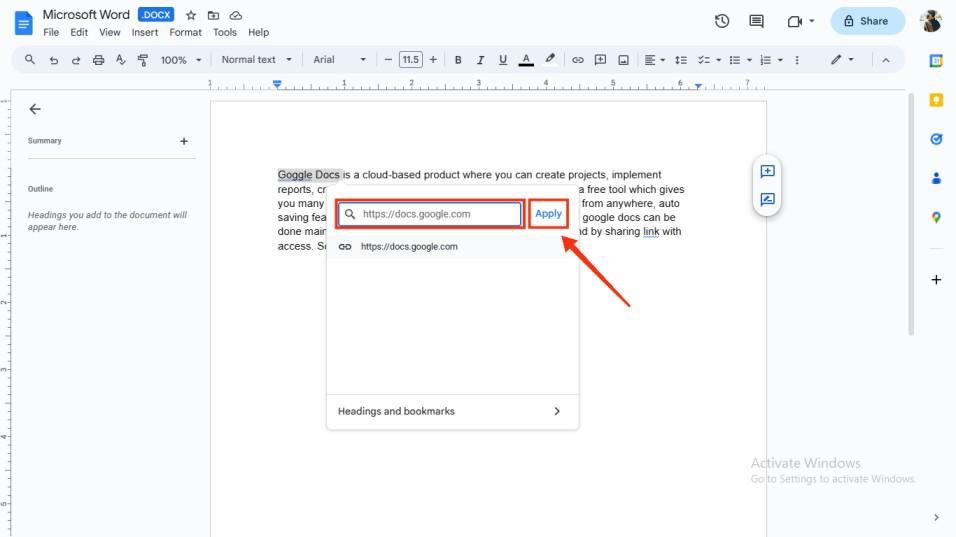
Now paste the link that you want to add as a hyperlink in the selected text and click on the apply button.
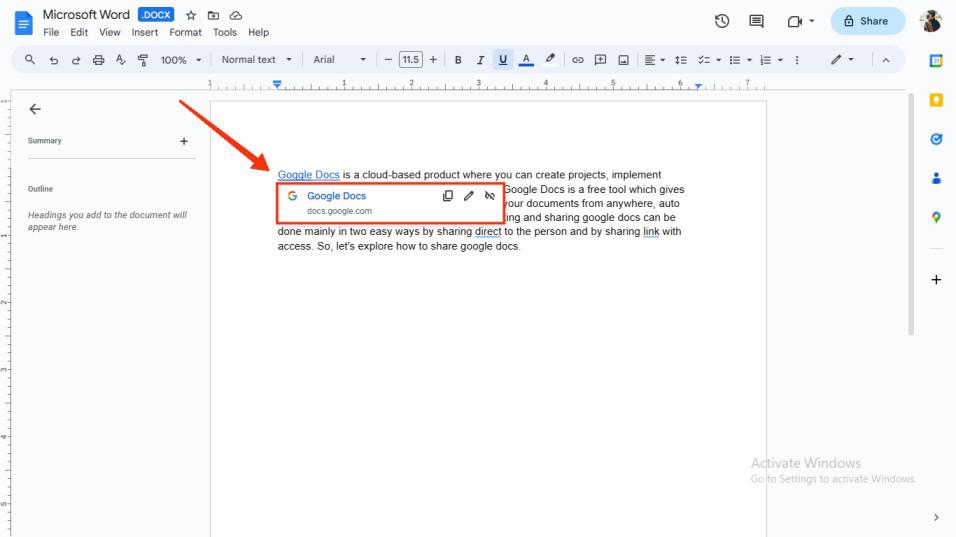
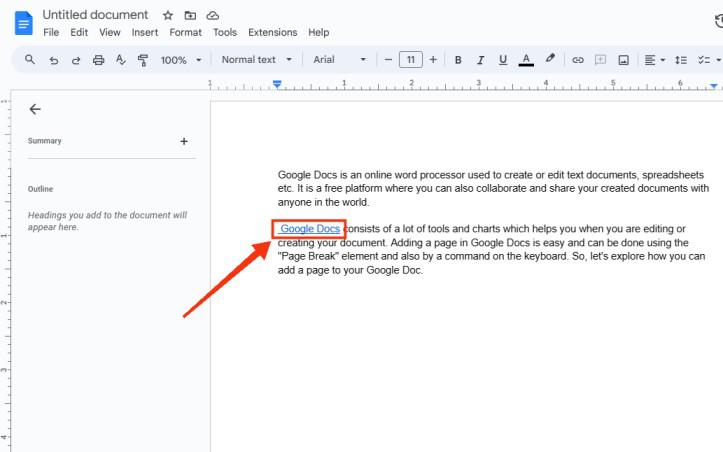
The hyperlink has now been successfully applied to your selected text, and clicking on it will direct you to the URL you've either pasted or entered in the hyperlink box. When you hover your cursor over the hyperlinked text, you will be presented with three options: copying the link, editing the link, or removing the hyperlink from it.
To remove hyperlink from a Google Document follow the steps given below:
Open the Document in which you want to remove hyperlinks.
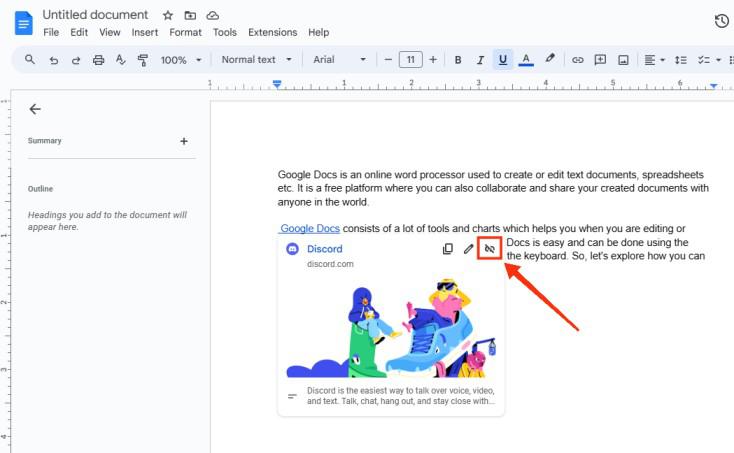
Now just hover your cursor to the highlighted text that has been hyperlinked and a menu option will appear. Select the Remove hyperlink icon from the menu to remove the hyperlink from the text.
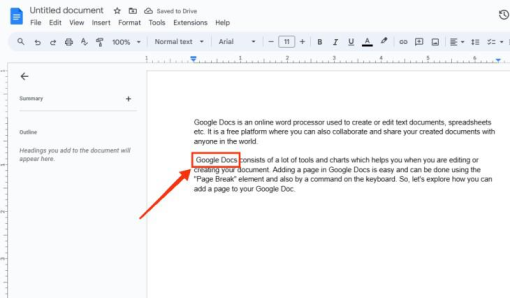
Your Hyperlink has been Removed, now the text will be displayed as normal text without any link.