|
VOOZH | about |
|
VOOZH | about |
Images make documents more engaging and clear. In Google Docs, you can insert pictures from your computer, the web, or Google services like Drive and Photos, with flexible options to place and format them as needed.
This is the simplest and quickest way to insert an image from your computer.
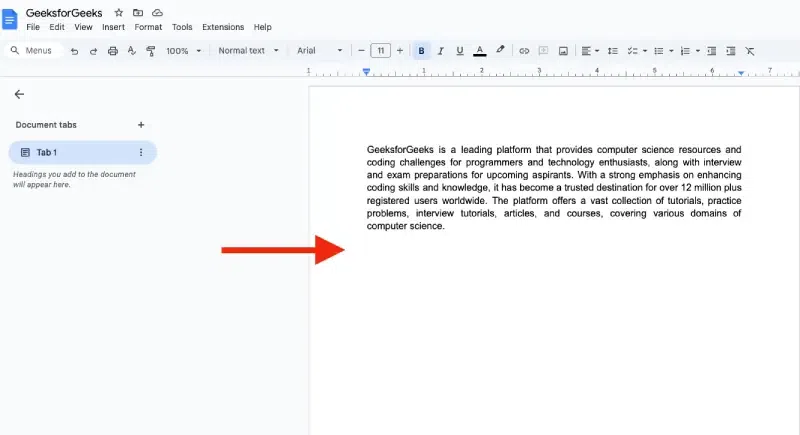
Open the Google Doc where you want to insert the image.
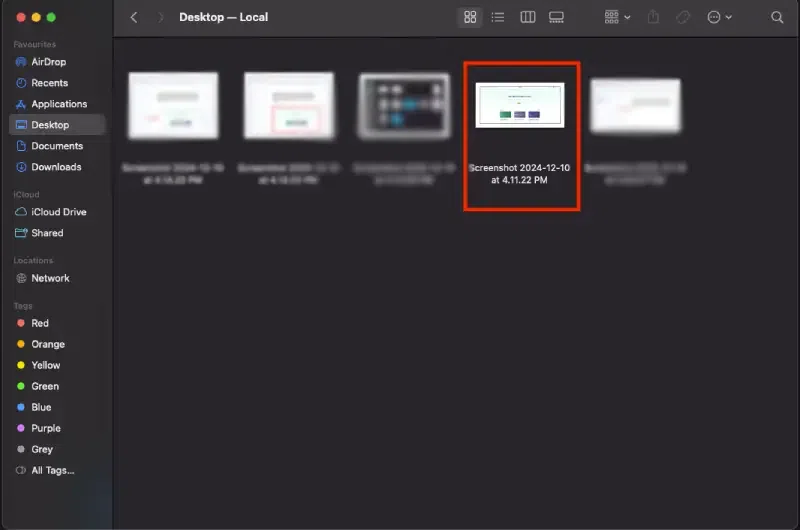
Open Finder (on Mac) or File Explorer (on Windows), locate the image file, and drag it into your Google Doc.
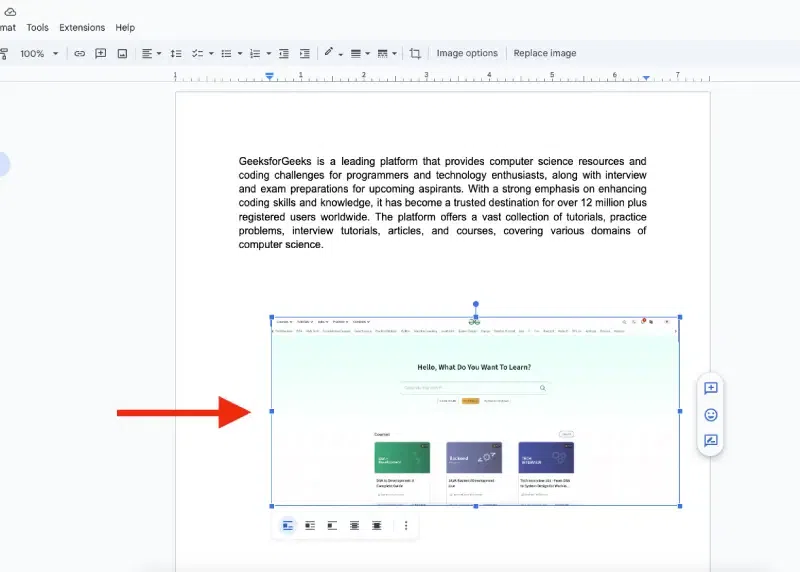
A blue vertical bar will appear, indicating the location where the image will be inserted. Release your cursor, and the image will appear in the document.
Resize or reposition the image as needed to fit your layout.
If you have an image saved on your device, adding it to Google Docs is a quick and straightforward process.
Visit Google Docs in a web browser on your desktop or laptop device. Go to the Google Docs website and either create a new document or open an existing one.
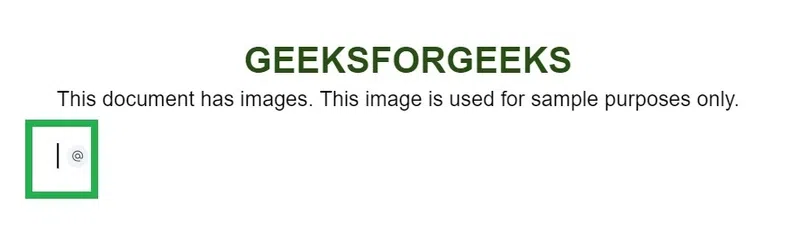
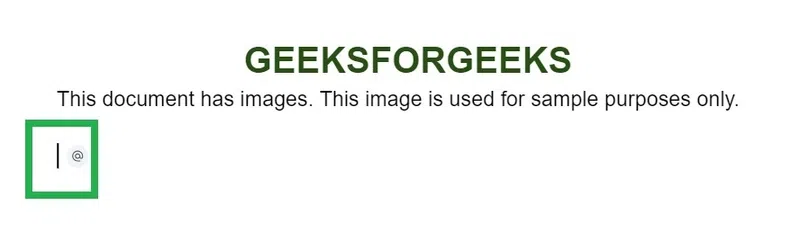
Click where you want the image to appear in your document. A blinking cursor will show you where the image will be inserted.
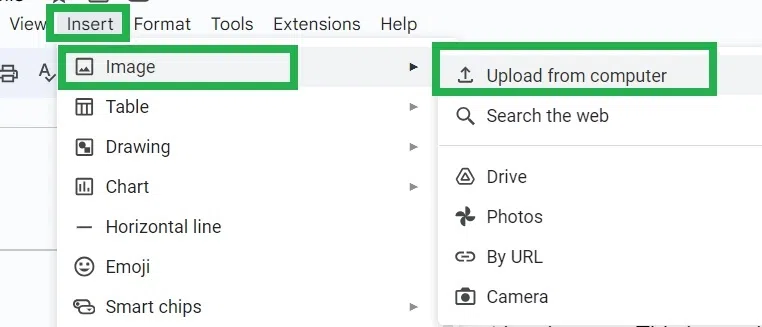
On the top menu, click on Insert, and a dropdown menu will appear and From the dropdown menu, click on Image, and then choose Upload from computer.
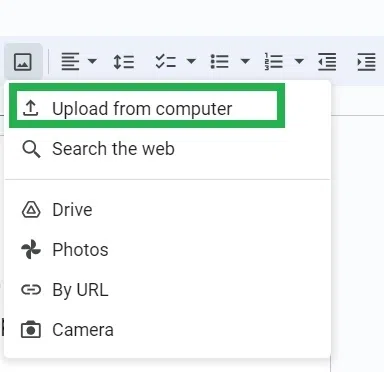
Click the Insert image icon in the toolbar. Then select "Upload from computer" to add an image from your device.
A dropdown opens. Click on 'Upload from computer' in the dropdown to upload a picture from your computer to Google Docs.
Note: Select one of the following options:
- Google Photos: Insert an image from your Google Photos.
- Google Drive: Add an image stored in your Drive.
- Camera: Use your device’s camera to take and insert a photo.
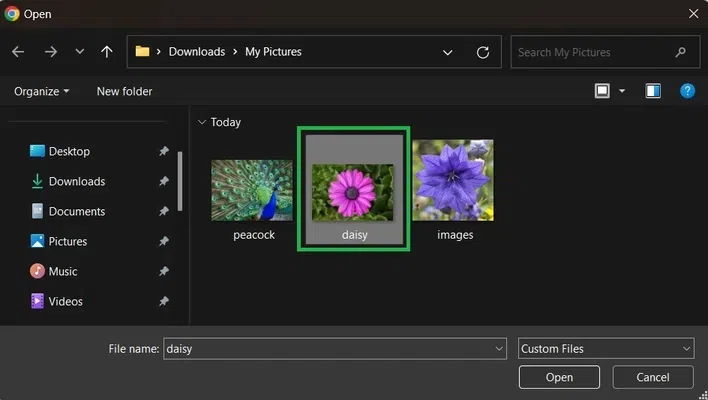
A file browser will pop up. Select the image you want to insert from your computer’s storage.
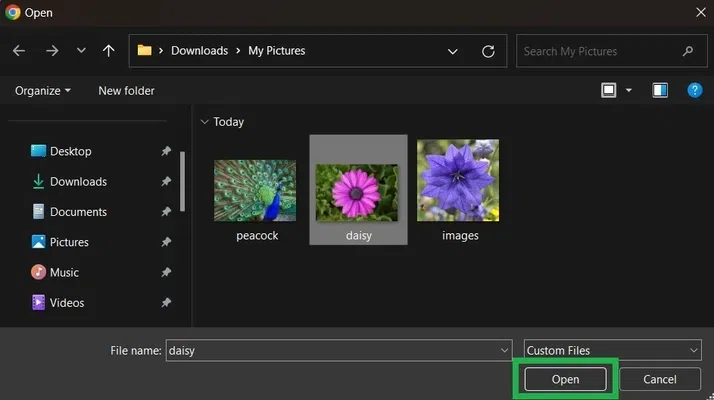
Click on the 'Open' button which is at the bottom corner of the window.
Once the image is inserted, you can click and drag to resize or move it around the page to fit your document’s layout.
Pro Tip: You can right-click the image to adjust its alignment (left, center, or right) and set text wrapping options for better integration with your content.
If you don’t have an image on your device but want to find one online, Google Docs allows you to search for images directly through its built-in search feature:
Visit Google Docs in a web browser on your desktop or laptop device. Open the document in which pictures are to be inserted.
Click where you want the image to be inserted
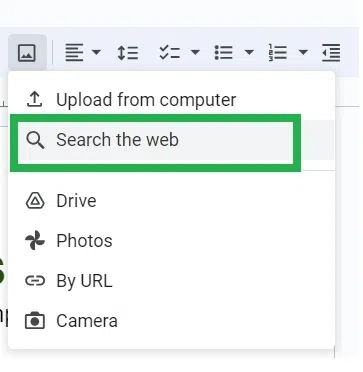
In the toolbar of Google Docs, click on the 'Insert image' icon.
A dropdown opens. Click on 'Search the web' in the dropdown to add an image from the web.
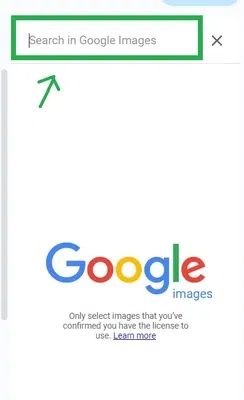
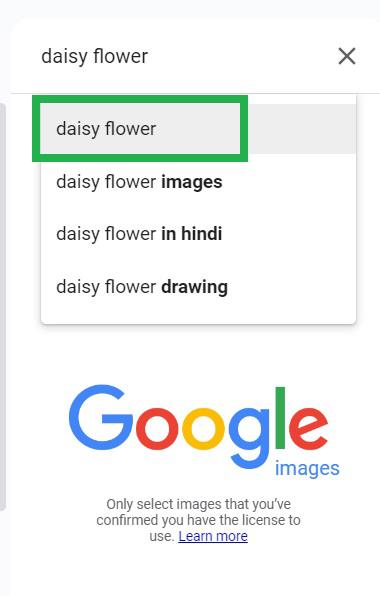
A sidebar will appear on the right side of your screen. Type the keywords for the image you're looking for (e.g., “dog”, “nature landscape”), and press Enter.
Here we are searching for "daisy flower" in the Google images search.
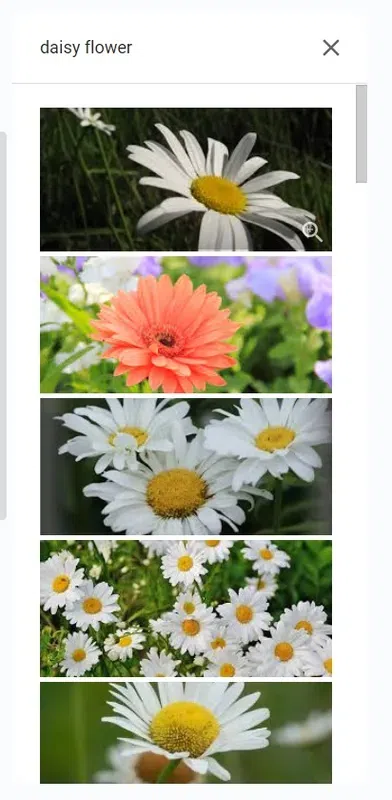
Browse through the search results and select the image you want to add.
The search results are now displayed and click you want to add to the search results.
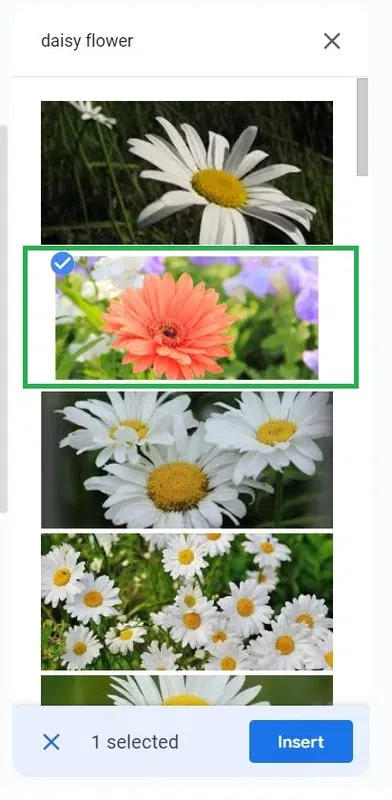
You can select 1 or more pictures from here. Select any picture you want by clicking on it once.
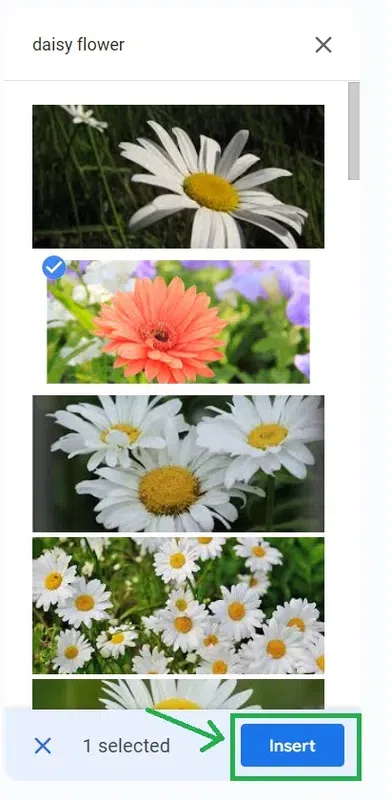
Click on the 'Insert' button which is at the bottom of the panel.
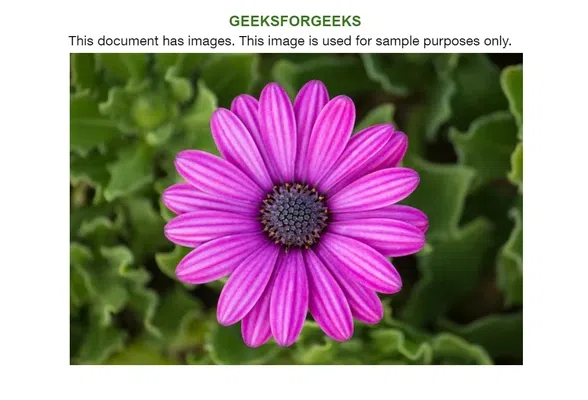
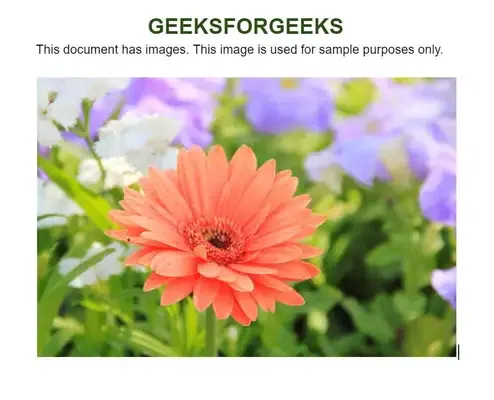
The picture gets added to the document now.
Note: This is a fast way to get high-quality images directly from the web, without needing to download them first.
Another option is to add an image directly from a web link. If you have the URL of an image, follow these steps:
Visit Google Docs in a web browser on your desktop or laptop device. Open the document in which pictures are to be inserted.
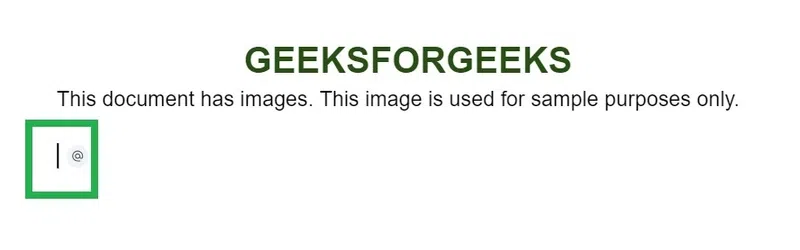
Click on the area where you want to insert the image.
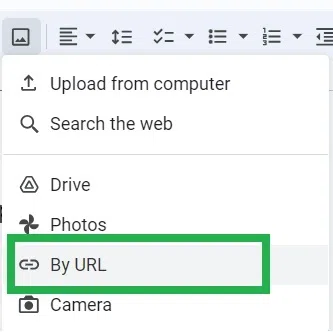
In the toolbar of Google Docs, click on the 'Insert image' icon.
A dropdown opens. Click on 'By URL' in the dropdown to add an image from the web by simply entering its specific URL.
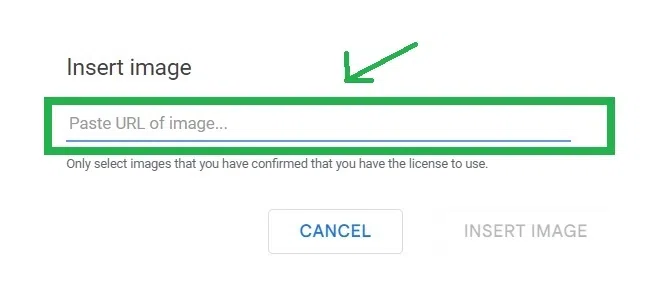
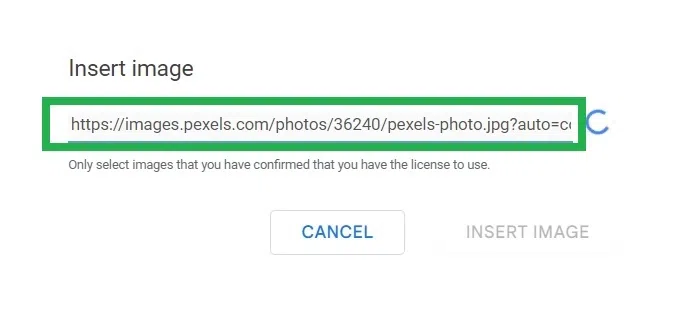
A pop-up will appear. Paste the image URL (the web address of the image) into the field.
Paste the URL of the image in the popup window.
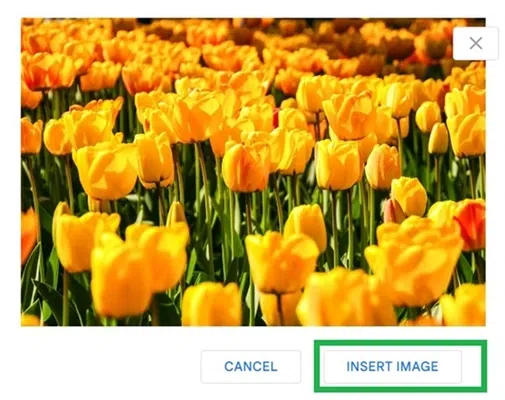
Once the image appears in the preview, click Insert. The image will now be added to your document.
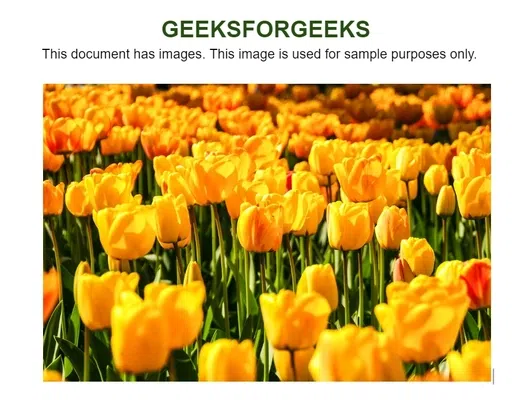
The picture gets added to the document in Google Docs successfully.