|
VOOZH | about |
|
VOOZH | about |
Writing and rendering LaTeX in Google Docs allows you to create professional mathematical and scientific equations directly within your document. Using add-ons like Auto-LaTeX Equations, you can insert single- or multi-line formulas with fractions, Greek letters, summations, and other symbols neatly and accurately.
There are some simple steps to be followed to write and render equations in Google Doc latex:
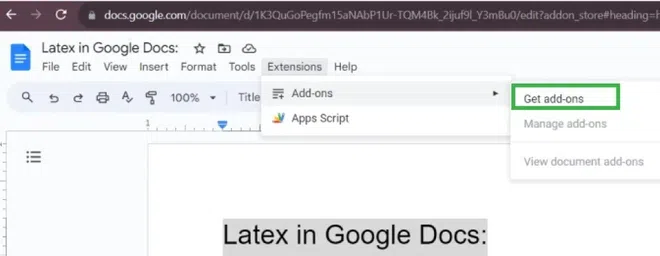
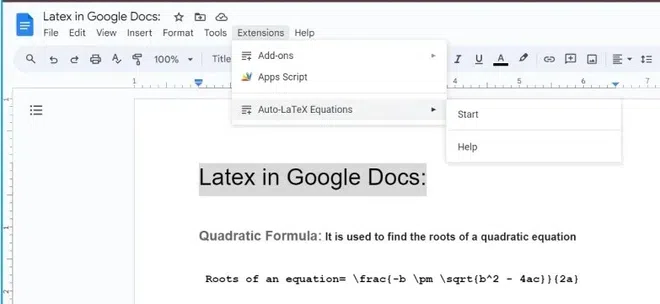
Open your document in Google Docs and click on the Extensions icon, which is present at the top of your document as shown in the image below.
Next, Click on Add-ons options from the displayed dropdown and select Get add-ons options.
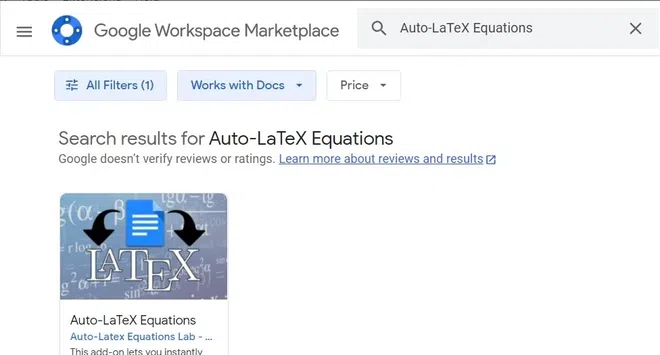
You can see Google Workspace Marketplace is opened by selecting the option Get add-ons. Now you need to search for the Auto-LaTeX Equations option in Google Workspace Marketplace.
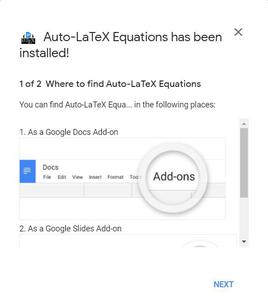
Next, select the Auto-LaTeX Equations option and click on the install option. After that, you can log into your Google account give permissions and click allow and save. After successful installation, you can see the message below.
Once installed you can go back to Add-ons and Select the Auto-LaTeX Equations from the Extensions Tab. After Selecting, click on Start.
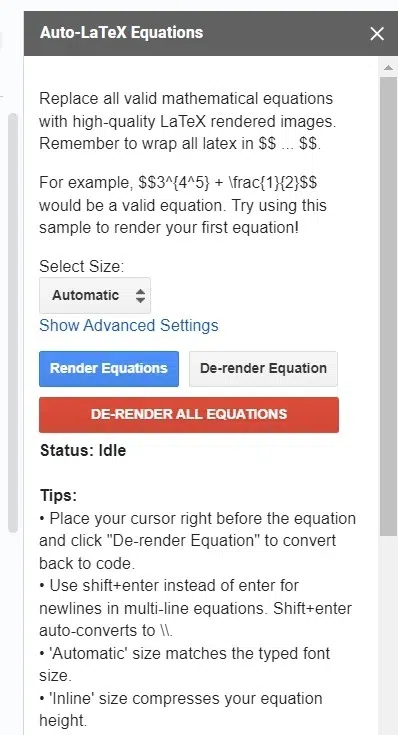
You can see an Auto-LaTeX Equations toolbar open on the right side of your screen.
Note: To Render Equations in Google Docs remember to wrap all latex in "$$ ... $$."
For example, $$3^{4^5} + \frac{1}{2}$$ would be a valid equation.
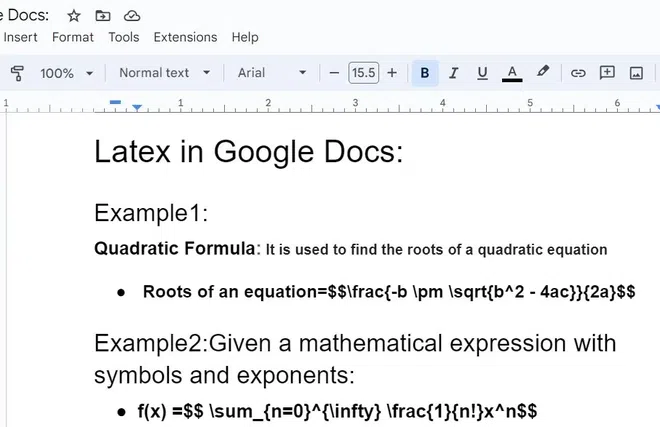
For using the "Render Equations" option, the document as an example is shown below:
For single-line equations we need to add the $$ symbol before the equation and again the $$ symbol after the equation completion as shown in the image below.
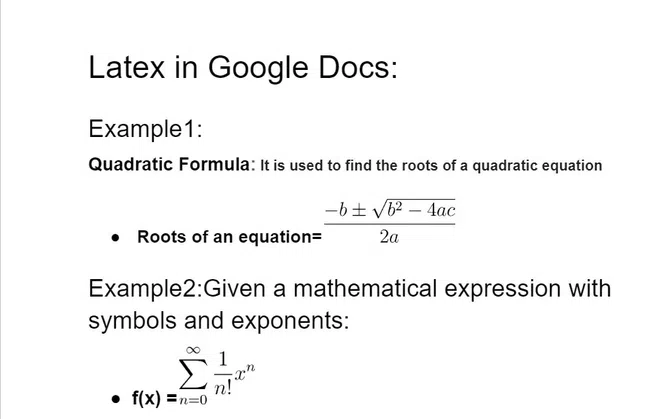
After wrapping the text between double dollar symbols click on the Render Equations. The mathematical equations are successfully formulated as shown in the below image.
Now here are the results of latex in Google docs.
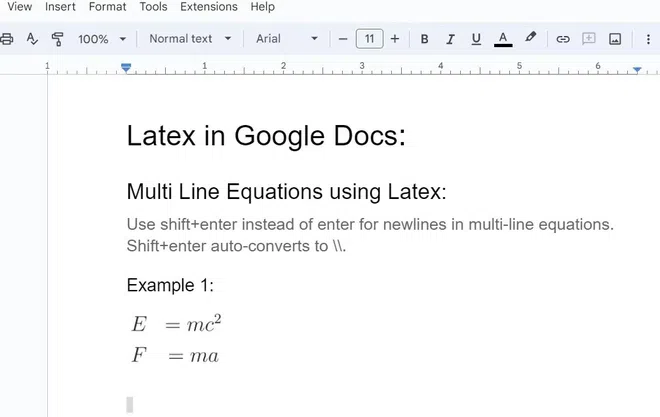
Follow the steps to write multi line equation in Google Docs:
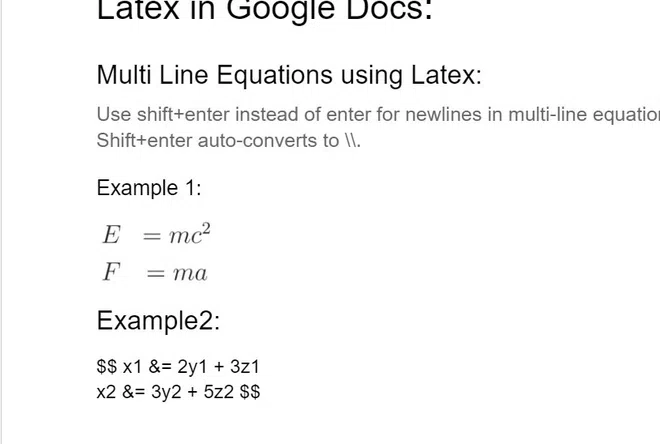
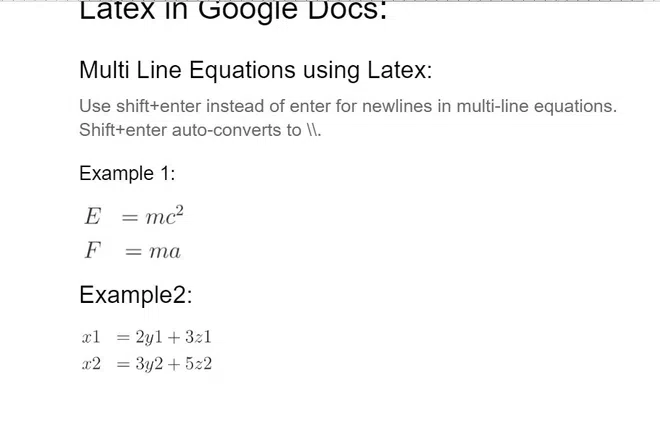
Start with the $$ symbol and enter the first equation. Instead of pressing Enter, Press Shift + Enter.
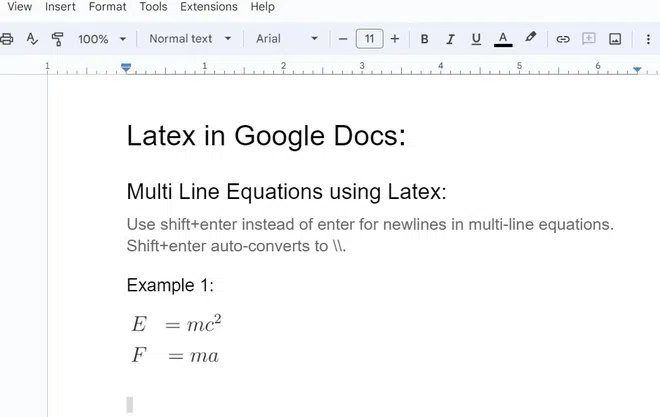
Wrap the text between $$ Symbols for n number of lines to render them and Press Render Equations.
TIP: surrounds:& =Ampersand symbol is surround the equals sign to provide alignment.
There are some mathematical symbols used to write mathematical equations using latex. The below symbols are some examples that help to write mathematical equations using Latex.
| Symbol Name | Latex Command |
|---|---|
| Operators like +,-,/,etc | $$ \div $$ |
| Infinity Symbol | $$\infty$$ |
| Fraction Symbol | $$ \frac{x}{y} $$ |
| Greek Letters like alpha, beta, etc | $$ \alpha $$ |
| Arrows | $$ \leftarrow $$ |
| Dots | $$ \cdot $$ |
| Accents | $$ \hat{x} $$ |
| Summation symbol | $$ \sum $$ |
| Infinity Symbol | $$ \int $$ |

-660.webp)
.webp)