|
VOOZH | about |
|
VOOZH | about |
Linking a video to Google Docs adds a multimedia dimension, making the content more engaging and appealing to readers. To link a video to Google Docs, follow the three methods:
By following these steps, you can easily create a hyperlink in Google Docs to direct viewers to the specified video:
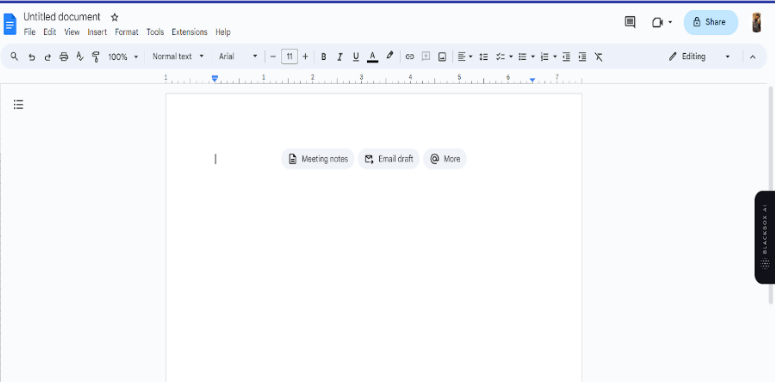
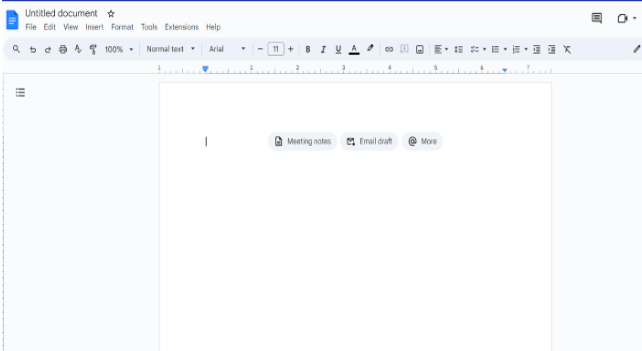
Open Google Docs in your preferred web browser or use the Google Docs app on your mobile device. Log in to your account.
👁 Screenshot-2023-12-26-230109
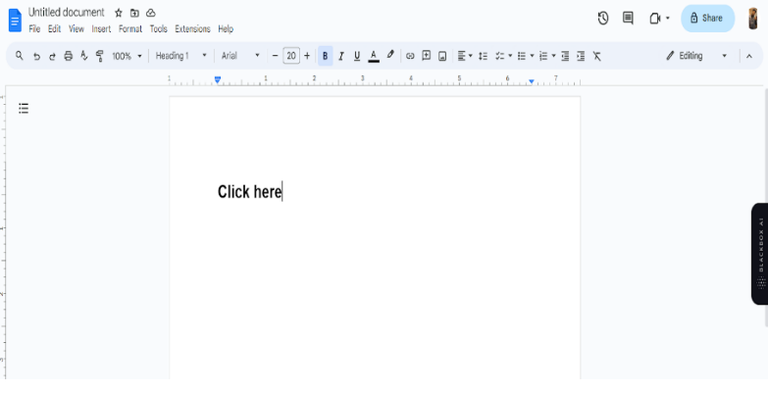
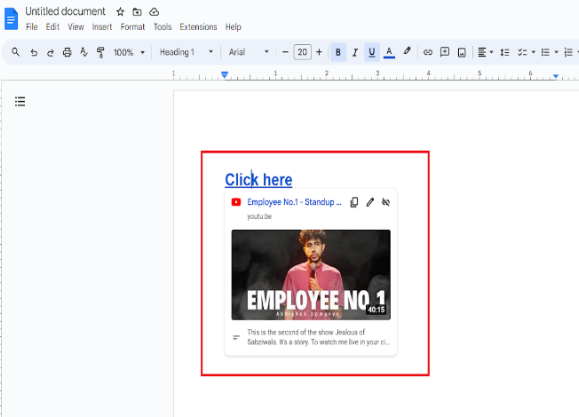
Type the text you want to hyperlink as anchor text in a new document, such as "Click here."
👁 Screenshot-2023-12-26-230142
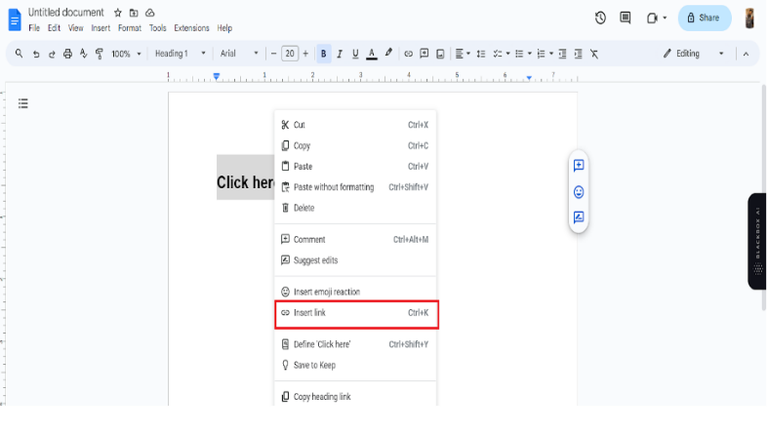
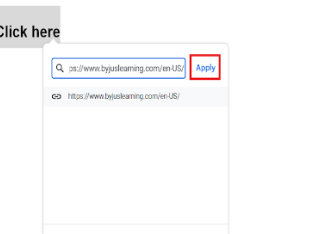
Select the anchor text, go to the "Insert" menu, and choose "Link." Enter the video's web address in the provided box and click "Apply."
👁 Screenshot-2023-12-26-230158
👁 Screenshot-2023-12-26-230225
Use Google Docs' preview link feature to hover over the link, click "Open Preview," and watch the video on a small screen with playback controls.
👁 Screenshot-2023-12-26-230339
By following these steps, you can successfully insert an embedded video into Google Docs using a Google drawing:
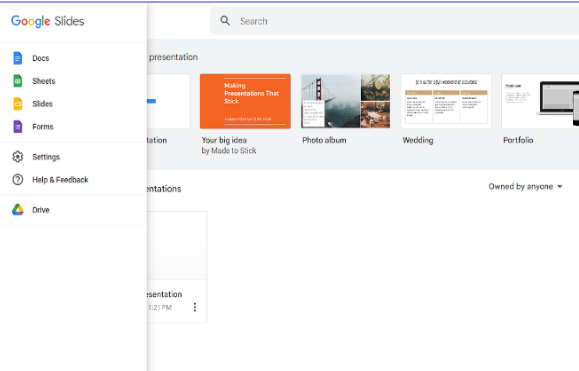
Open Google Drive and click on the hamburger menu in the top left-hand corner. Select "Slides" to open Google Slides. Create a new presentation by clicking the "+" icon.
👁 Screenshot-2023-12-26-230411
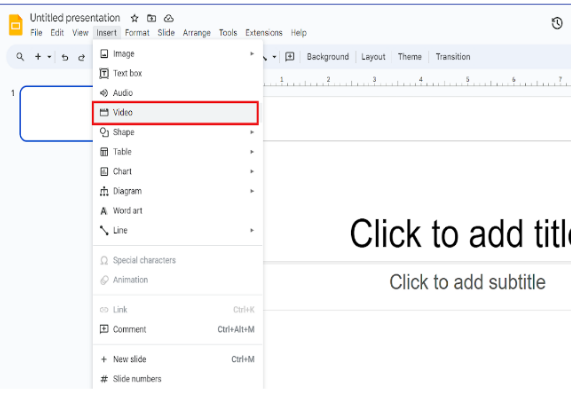
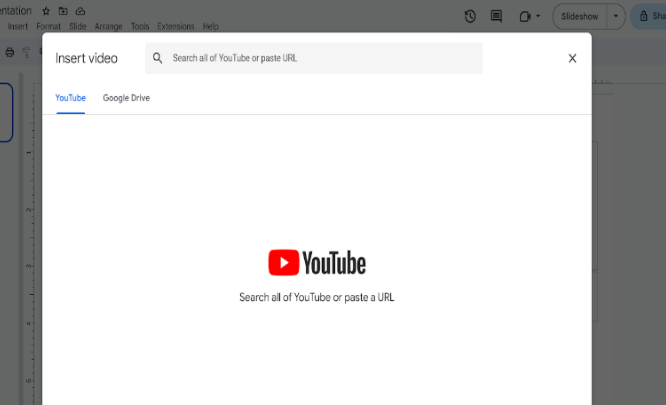
In your Google Slides presentation, go to the "Insert" menu, select "Video," and choose either "By URL" for online videos or "Google Drive" to locate a video in your drive. Select the video and click "Select" to place it on the slide.
👁 Screenshot-2023-12-26-230418
Modify the video play times to play a specific part. In the "Format options" menu, set the start and end times. Copy the slide containing the video for later use.
👁 Screenshot-2023-12-26-230425
Launch Google Docs and open the document where you want to add the video. If creating a new document, click the "+" icon at the top.
👁 Screenshot-2023-12-26-231012
In Google Docs, go to the "Insert" menu, select "Drawing," and choose "New." This opens a blank Google Drawing canvas.
Paste the copied video slide from Google Slides into the Google Drawing canvas using the "Paste" option under the "Actions" toolbar or keyboard shortcuts (Ctrl + V on Windows, Command + V on Mac). Adjust the video's position and format as needed, then click "Save & Close."
By following these steps, you can use to insert a video using the DocuTube Viewer add-on in Google Docs:
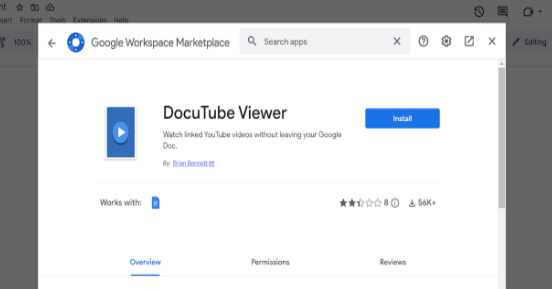
Get the DocuTube Viewer add-on from the Google Workspace Marketplace and install it to play videos directly within Google Docs.
Copy the link of the video you want to add and paste it directly into your Google Doc using the "Paste" function.
👁 Screenshot-2023-12-26-230921
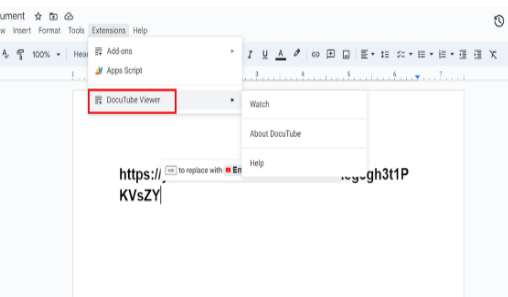
Go to the "Extensions" menu in Google Docs and select DocuTube Viewer.
👁 Screenshot-2023-12-26-230914
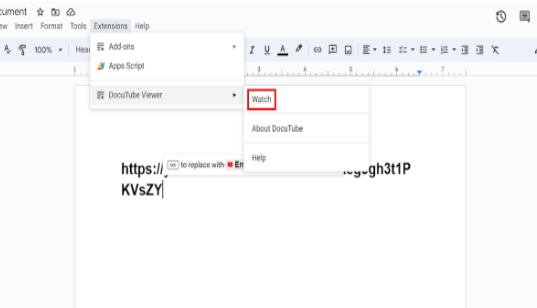
Use the DocuTube Viewer menu to choose "Watch," allowing you to access and operate videos directly from your document.
👁 Screenshot-2023-12-26-230851
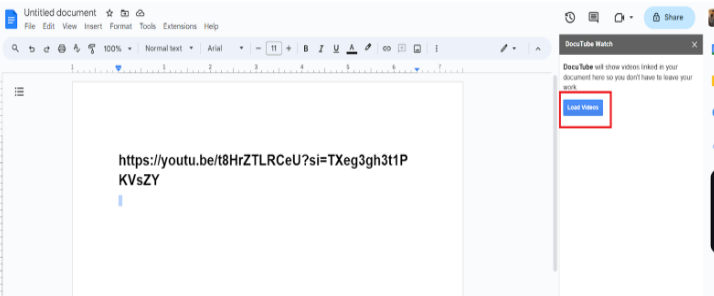
Within the DocuTube Viewer side panel, click "Load Videos" to let Google Docs and the add-on load the videos onto the page.
👁 Screenshot-2023-12-26-230821
Press the "Play" button on each video to start playback. Ensure all videos play correctly to avoid broken links or incomplete videos in your document.