|
VOOZH | about |
|
VOOZH | about |
Text Lock in Google Docs lets you protect specific text from edits. While it lacks a direct lock feature, you can use permissions, Suggesting mode, or add-ons to restrict changes. This is useful for safeguarding templates, legal documents, or other content needing strict control.
Learn how to freeze text in Google Docs to prevent edits. Remember, these steps help you control who can modify your document.
Launch Google Docs and open the document you want to work with.
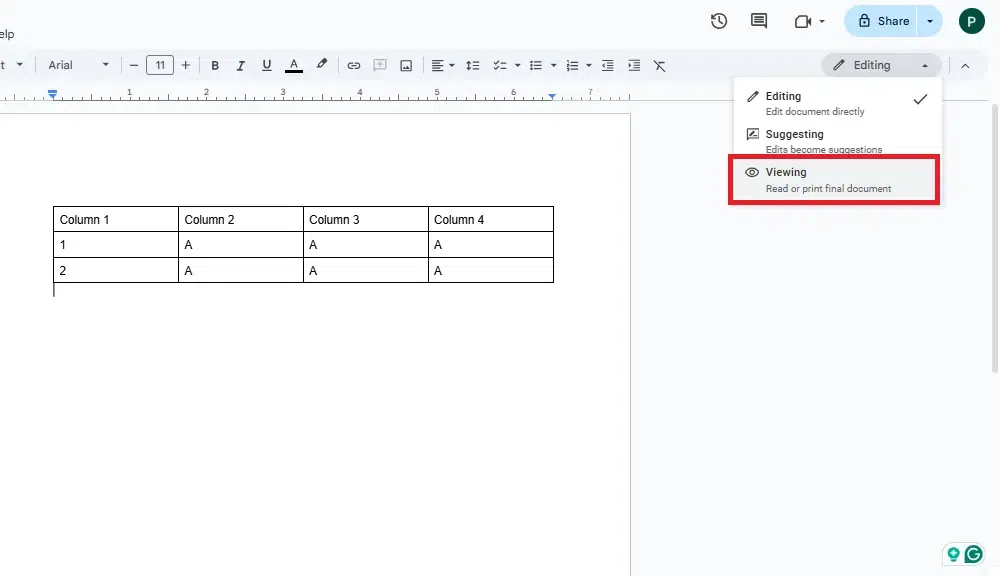
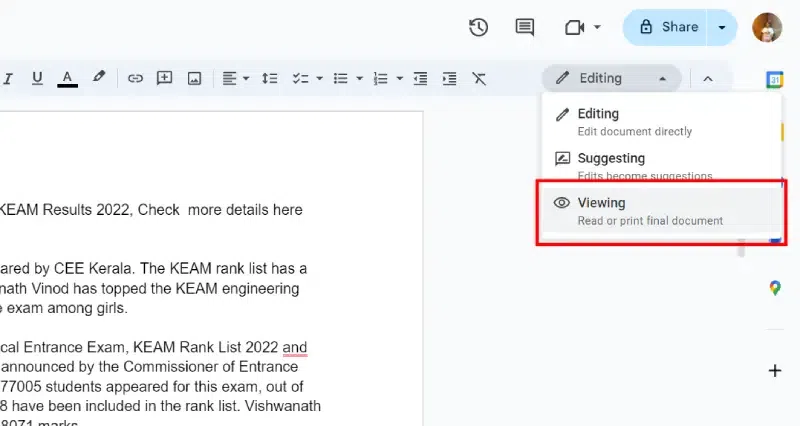
Click on the “Editing” dropdown menu at the top. Choose the “Viewing” option. This locks the entire document, preventing any edits.
If you want to allow comments or suggestions without full editing access, select “Suggesting” from the same dropdown menu. In this mode, others can propose changes, but the original text remains intact.
Remember, this ensures your image stays in place even if you edit the document. To lock images in Google Docs, follow these steps:
Click on the image to reveal the toolbar below it. Next, choose either the Wrap Text or Break Text icon, depending on your preference.
Use the toolbar options to adjust the image’s position. Click on “Fix Position on Page” to keep it constant.
Here we will discuss about how to lock a table in Google Docs:
You can create a separate version of your document with the table in a locked format.
Open the Google Docs document containing the table.
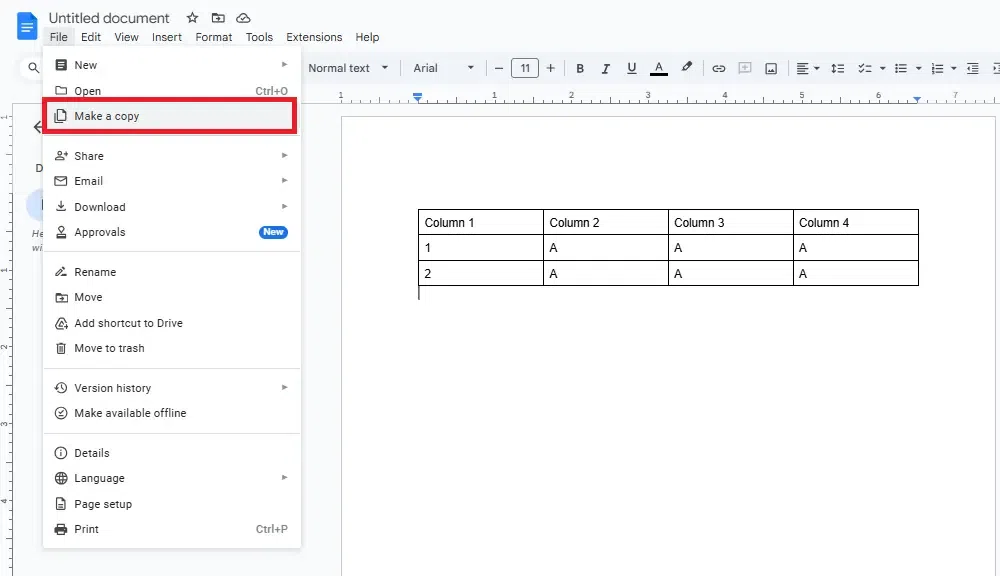
Click on “File” > “Make a copy.” Name the new document.
Share this copy with others but restrict their access to “View only.” This way, they can see the table without making changes.
Let's explore how to encrypt specific sections of a document in Google Docs using the DocSecrets add-on. This method allows you to protect sensitive content with a password. Here's how you can do the same.
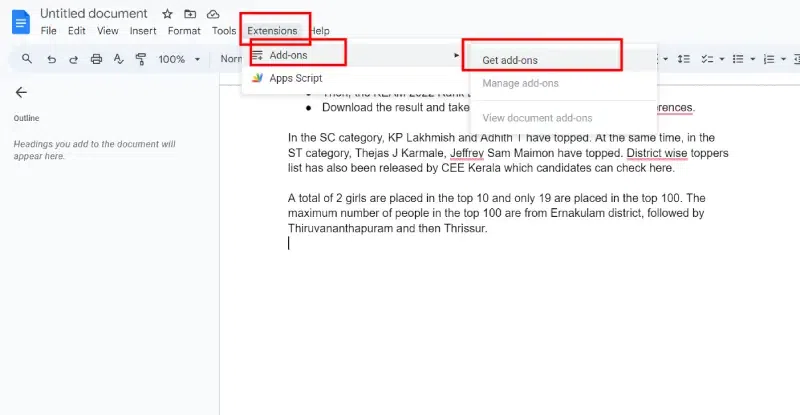
Click on "Add-ons" in the top menu. Select "DocSecrets" and choose "Open" from the sidebar.
In the DocSecrets sidebar, enter a password. Highlight the specific text you want to encrypt. Click the "Lock" button to secure the selected content.
To lock formatting in google Docs follow the steps given below:
Launch Google Docs and open the document where you want to lock formatting.
Highlight the text or content whose formatting you want to lock.
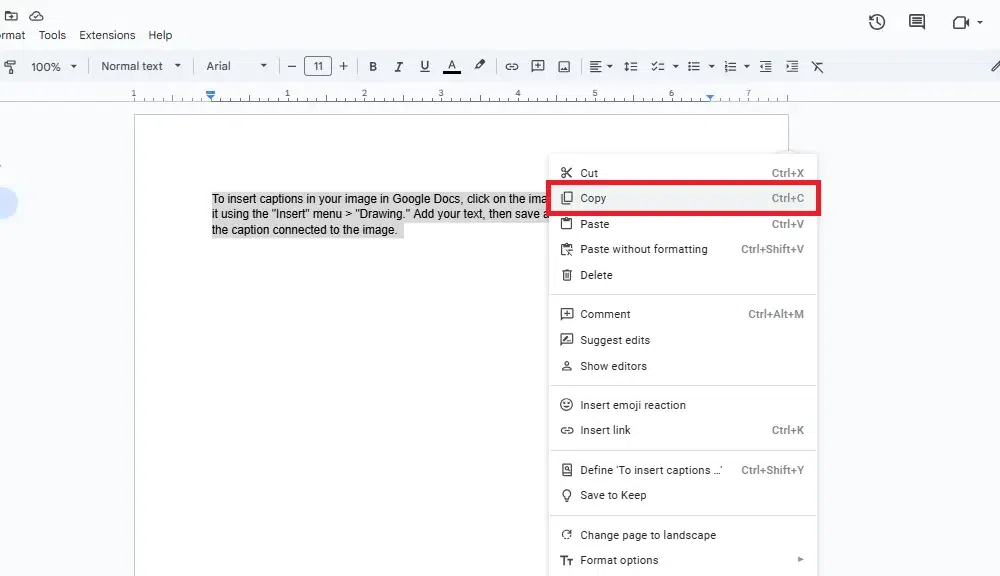
Right-click the highlighted text and select "Copy," or use the keyboard shortcut Ctrl + C (Windows) or Command + C (Mac).
Open a new Google Docs document by going to "File" > "New" > "Document."
In the new document, right-click and select "Paste without formatting" or use the keyboard shortcut Ctrl + Shift + V (Windows) or Command + Shift + V (Mac). This action will paste only the plain text without any formatting.
While Google Docs does not have a direct "lock formatting" feature, pasting as plain text ensures that any new formatting applied to the original document won't affect this pasted text.
Name and save your new document. This will act as your formatted template without risk of further formatting changes.


.webp)
.webp)