Mail merge in Google Docs can be done using add-ons allows you to create personalized documents by merging a template with a list of data. Mail merge is handy for creating personalized letters, certificates, labels, or any other mass communication.
Here’s how it works:
Template Creation: Create a Google Docs template containing placeholders (merge tags) like <<First Name>> for the data you want to insert.
Data Source: Prepare a Google Sheets document with your data, where each row represents a recipient, and each column corresponds to a merge tag.
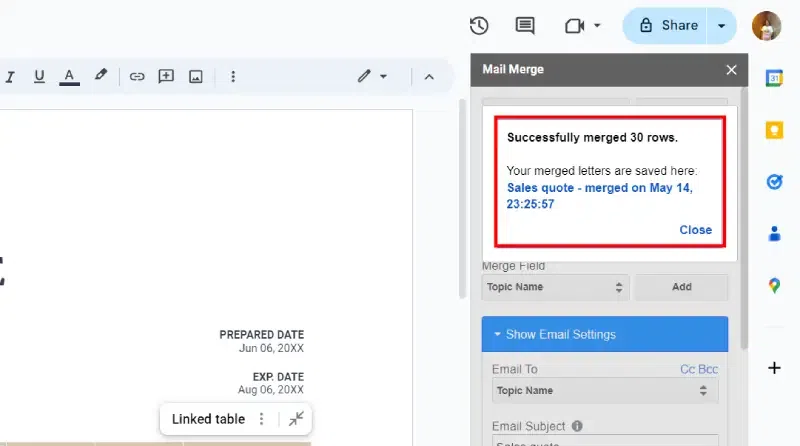
Personalized Output: Google Docs automatically generates personalized documents for each recipient, replacing merge tags with actual data. You can save these as individual files or send them directly via email.
Steps to Perform Mail Merge in Google Docs Using Google Sheets
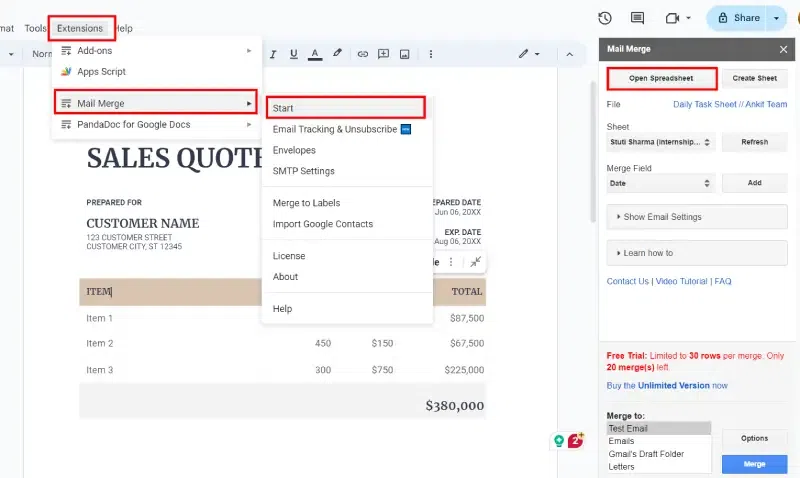
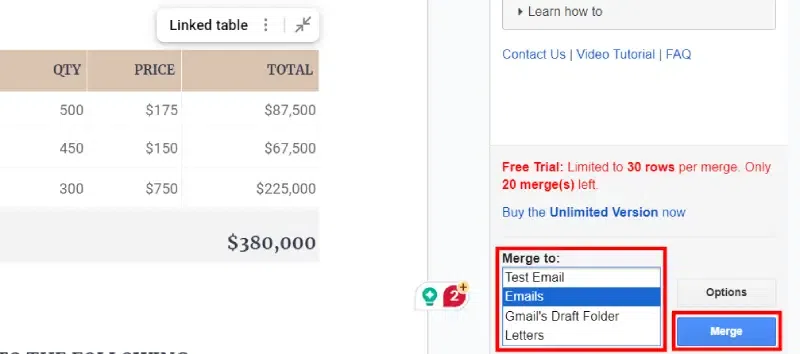
Google Docs doesn’t have a native mail merge feature, but using add-ons can simplify the process. Here’s a step-by-step guide to performing a mail merge:
Step 1: Create Your Template Document in Google Docs
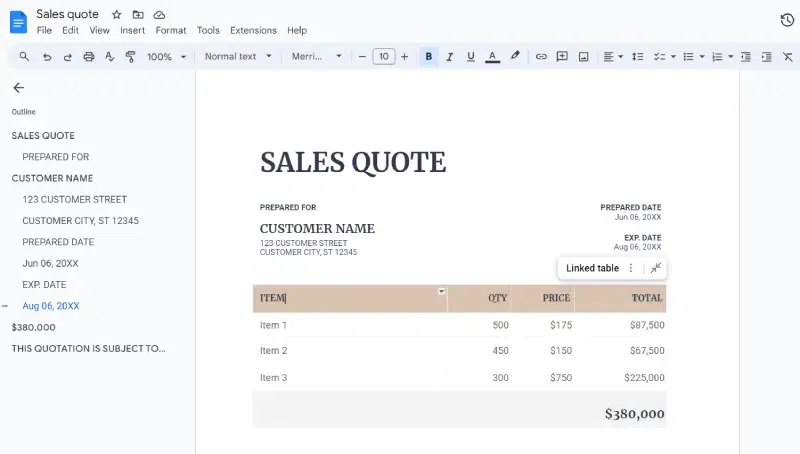
Open Google Docs and create a new template document (e.g., an invoice, letter, or student grade report).
Design the document with placeholders (merge fields) where personalized information will appear.