|
VOOZH | about |
|
VOOZH | about |
Printing a document from Google Docs is quick and straightforward, allowing you to get a physical copy of your work in just a few clicks. Whether you need a hard copy for submission, sharing, or record-keeping, Google Docs provides easy options to preview, adjust print settings, and print directly from your browser.
Here, we will see how to print a document in Google Docs. So follow the below steps to print a document in Google Docs in simple steps:
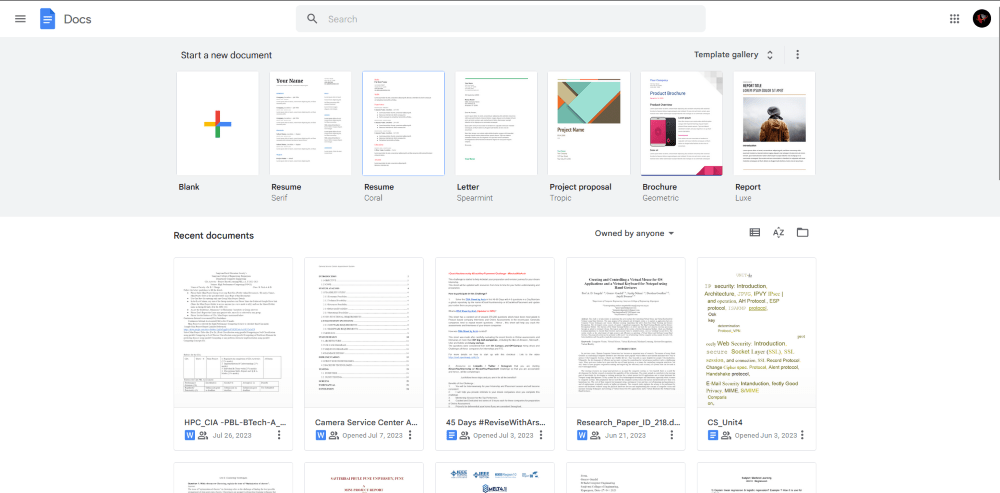
Open Google Docs in the Browser
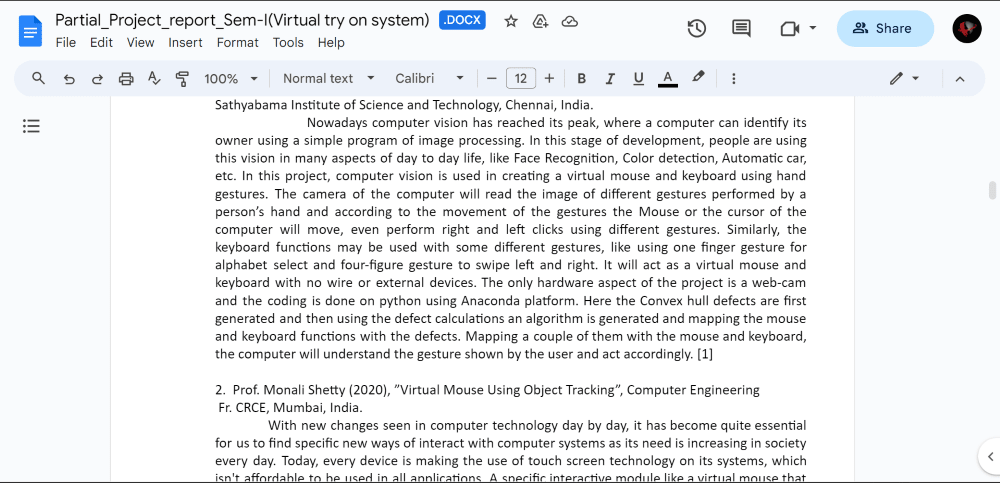
Locate and open the document you need to print.
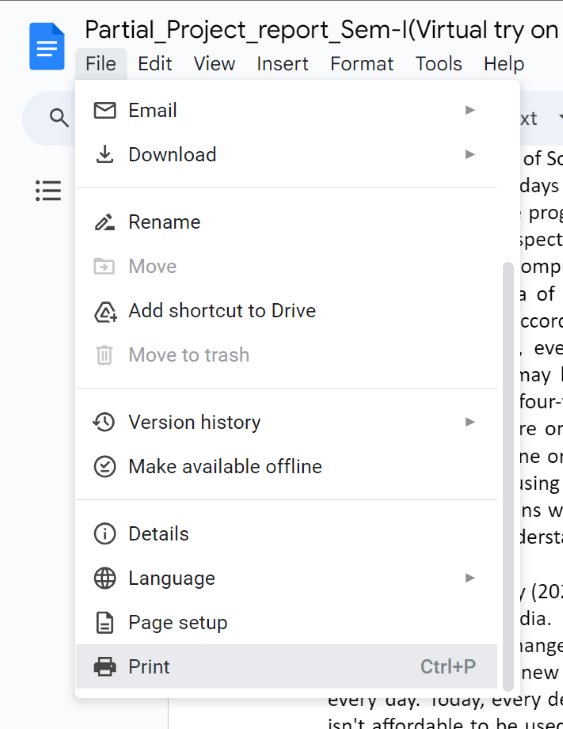
Click on the “File” menu in the top-left corner of the screen, then choose the "Print" option from the dropdown.
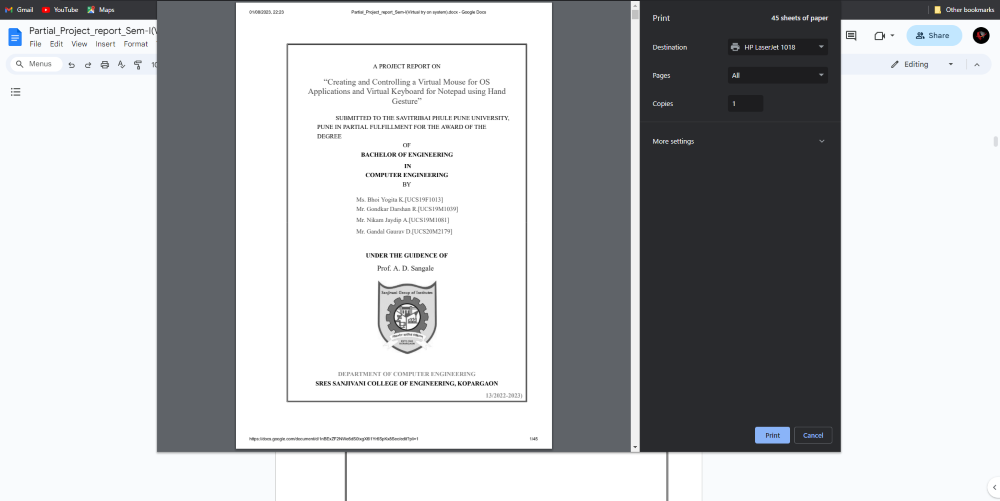
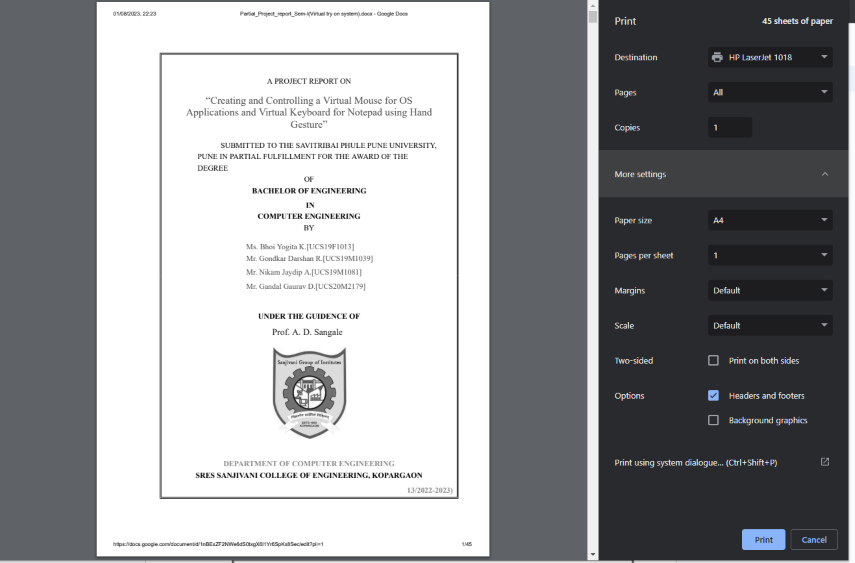
In the print dialog, select your preferred printer, set the number of copies, choose the page range, and adjust other settings like page orientation and paper size.
Before printing, preview appears automatically in the print dialog check how your document will look once printed. Ensure everything is formatted correctly.
Click ‘Print’ to print the document.