|
VOOZH | about |
|
VOOZH | about |
Comments in Google Docs help with collaboration by allowing feedback, suggestions, and questions. Even when marked as “resolved,” they can be easily viewed, recovered, or restored, so important feedback is not lost.
To recover resolved comments in Google Docs, follow these steps:
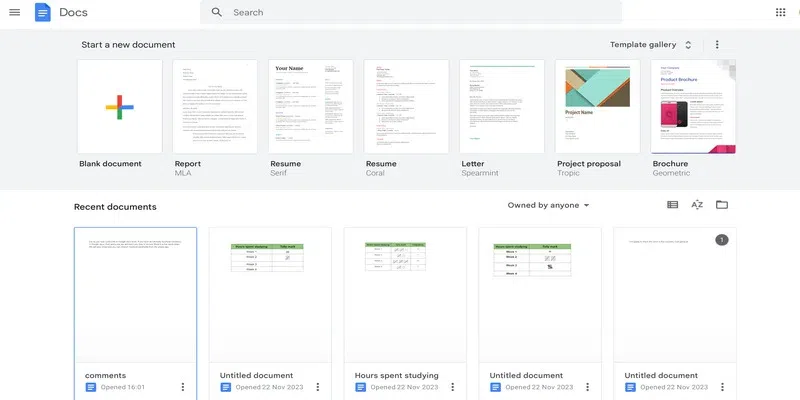
Go to the Google Docs home page and open the document whose comments you wish to recover.
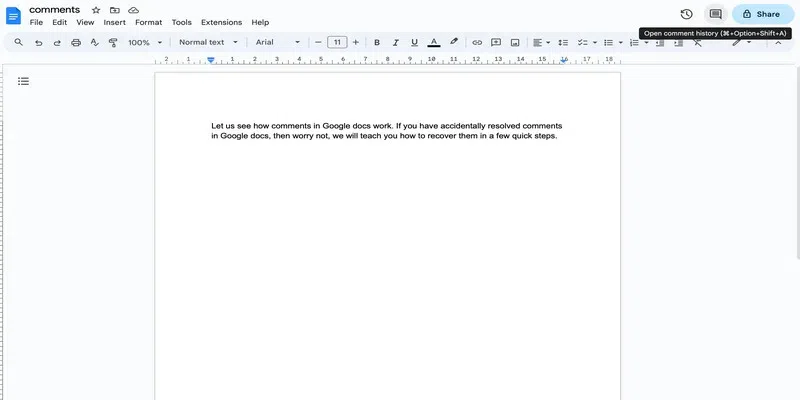
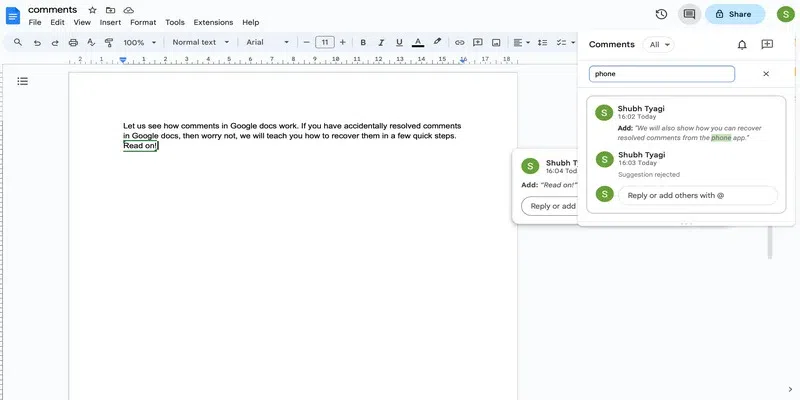
Click on the comment icon present in the top right corner to go to comment history.
Alternatively, use:
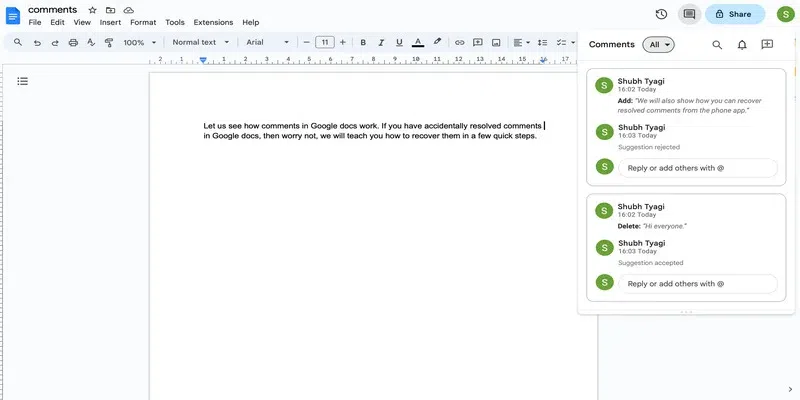
Ctrl + Alt + Shift + ACmd + Option + Shift + AYou will see a side panel displaying all comments (both resolved and unresolved). From here, you can scroll through the list or use filters to view only resolved comments.
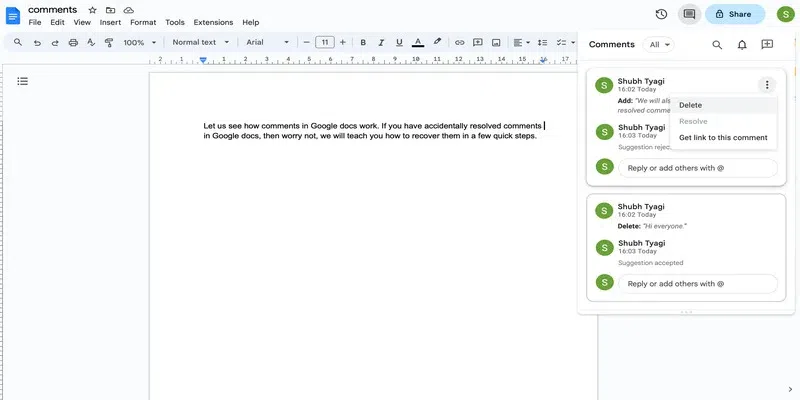
Note: There is no way of making the resolved comments work like normal comments from this panel. All you can do is delete the resolved comments by clicking on the three dots present in the top right corner of each comment.
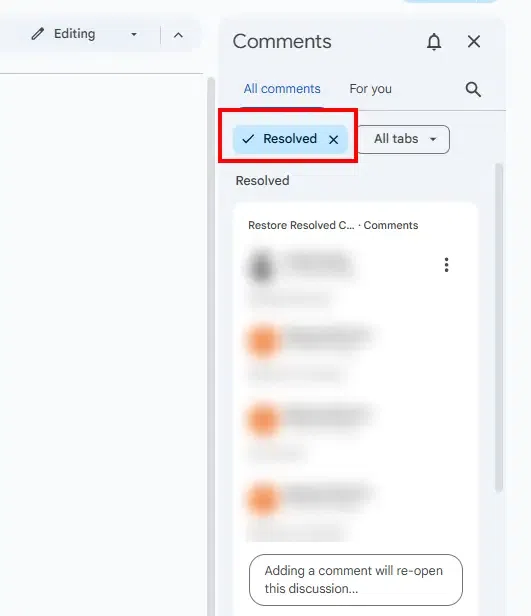
If your document has both resolved and unresolved comments and you are finding it hard to figure out which comment is which, then you can use the filter as follows:
Click on the drop-down present next to the Comment title set to All by default.
Click on Resolved in the drop-down list.
If you have a particular keyword in mind that you wish to use to find a particular resolved comment, then you can use the search bar as follows:
Click on the search icon present at the top of the comment panel.
Simply type the desired keyword in the search bar and you will see the corresponding results pop up simultaneously.
This is essentially how you can recover resolved comments in Google Docs.
To view and restore resolved comments in Google Docs, follow these steps:
Click on the comment icon (speech bubble) in the top-right corner of the toolbar.
A comment history panel will appear. Scroll through the list to see resolved comments. Resolved comments are typically marked as "Resolved."
Click on the "Reopen" button next to the resolved comment you want to restore. This will move the comment back to active status for further discussion or edits.