|
VOOZH | about |
|
VOOZH | about |
Saving in Google Docs means storing your document either automatically in Google Drive using the built-in Autosave feature or manually by downloading a copy to your computer in different formats. It ensures your work is not lost and also allows you to save or download documents for offline access.
Different Ways to Save in Google Docs:
Note: Google Docs automatically saves changes with its Autosave feature. Whenever you edit a document, it’s saved to Google Drive within seconds, which can be confirmed through the status icon above the menu bar. Manual saving is not required.
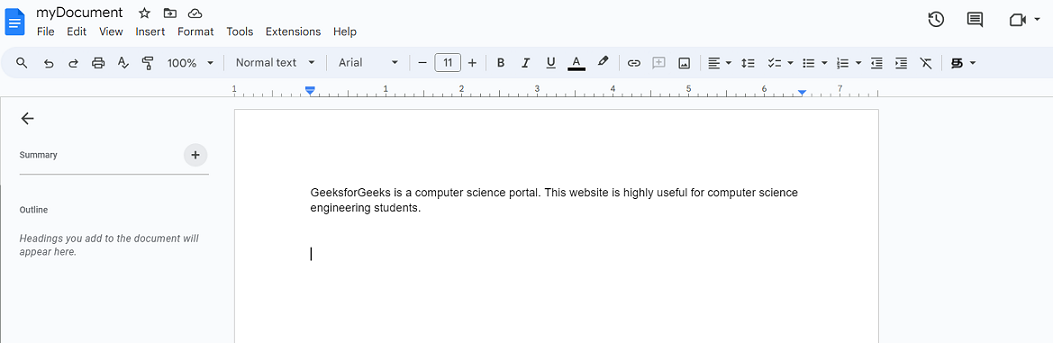
Open Google Docs and open a new document or an existing document.
Make additions or revisions as needed. While typing, you may see a 'saving' status with a refreshing icon, showing that Google Docs is auto-saving your work once you pause.
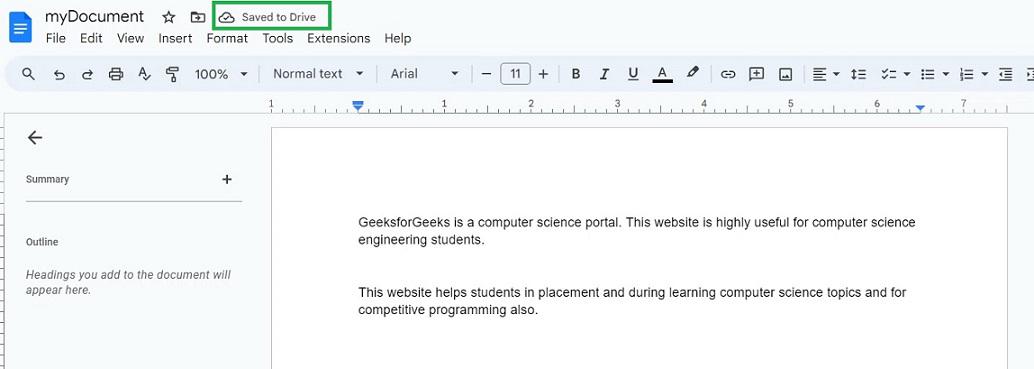
When you finish editing, the status icon changes to a cloud with a checkmark and the label 'Saved to Drive', confirming your document is securely saved to Google Drive.
By default, a document in Google Docs gets saved automatically in Google Drive. Suppose a copy of the document is needed to be saved on your computer or laptop, the document can be downloaded in many formats as needed from Google Docs. The copy of the document can be saved locally by downloading it in the below 7 formats.
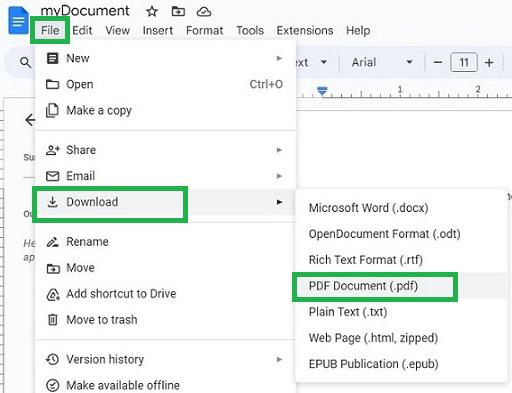
The formats which Google Docs support for downloading are:
Open Google Docs and open the document to which a copy needs to be saved locally on the device.
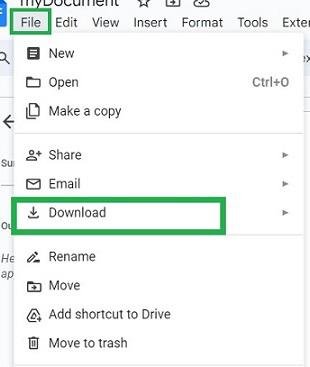
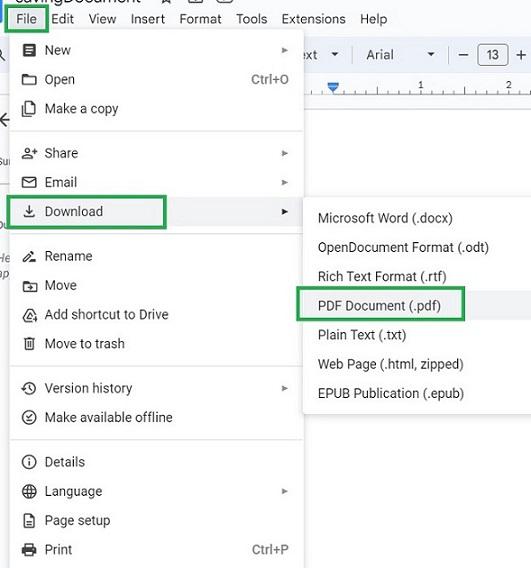
Click the 'File' tab from the menu bar in Google Docs. A dropdown appears, select "Download" in it.
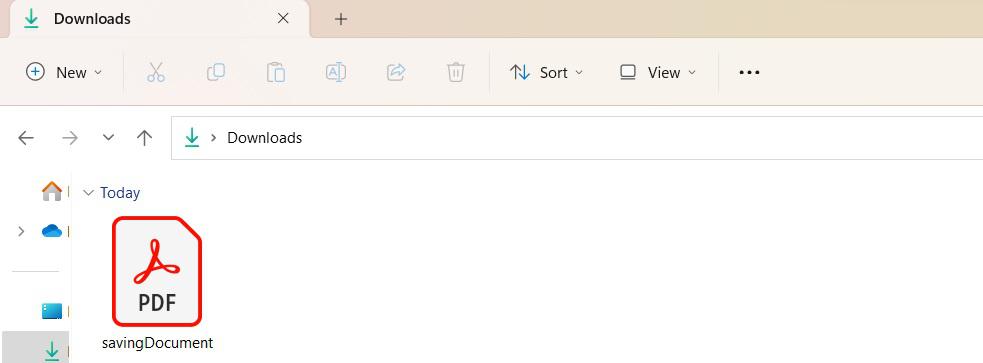
Your document will be downloaded and saved locally on your computer in the selected format.
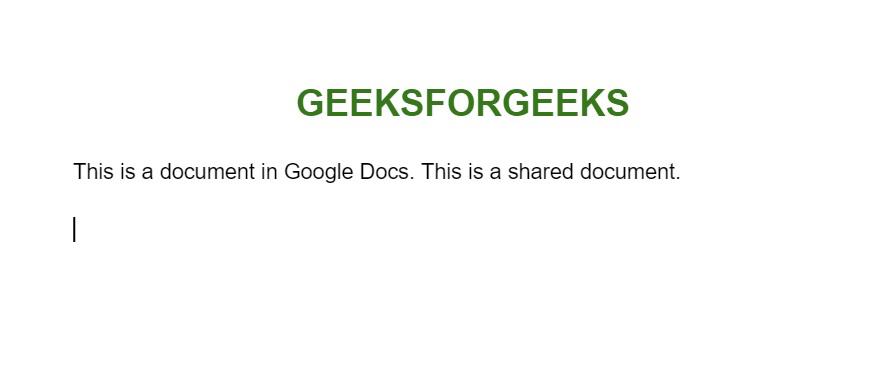
Open Google Docs and open the shared document in which a copy of it needs to be saved.
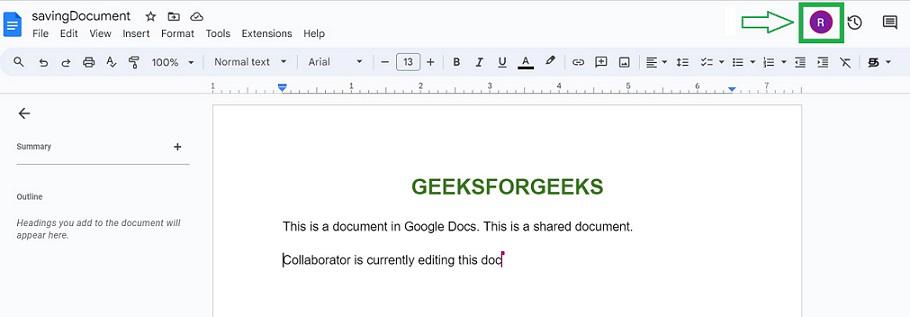
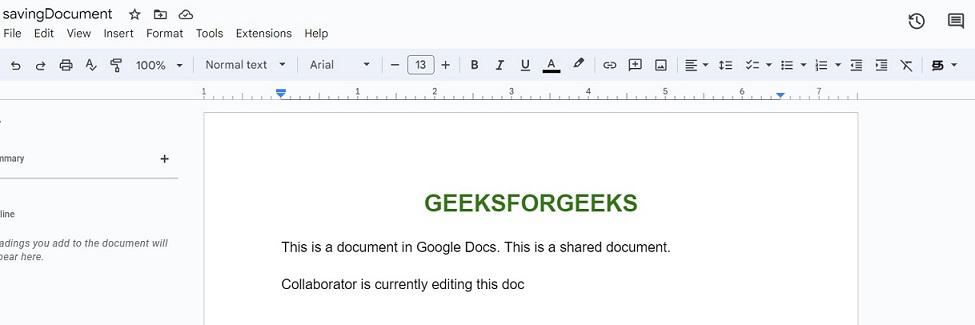
Look at the top-right corner of Google Docs to see if others are working on the document. If someone is actively editing, their profile icon will appear there.
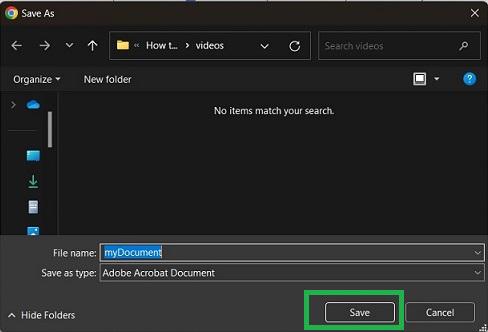
For example, select “PDF Document” to save the file as a PDF on your device.
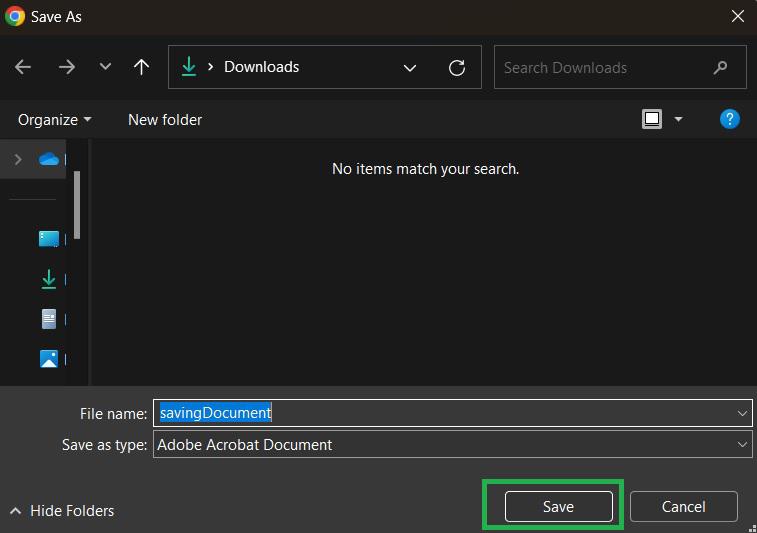
Now a dialog box appears with 'Save as'. Select a location to save this file in your local device, and click the 'Save' button in the dialog box.
Now a copy of this shared document and its data is saved to your local device in PDF format successfully.