|
VOOZH | about |
|
VOOZH | about |
Superscript in Google Docs is a formatting style where characters appear smaller and slightly above the regular line of text. It is commonly used in mathematical expressions, scientific notations, and footnotes to make documents clearer and more professional.
Superscript Example in Google Docs
This is the demonstration of Superscript GeeksforGeeks. Here GeeksforGeeks is Superscripted.
Follow the steps given below to know how to add a superscript in Google Docs:
Launch Google Docs in the web browser.
Now, open the document in which we need to add Superscript for the text. We can also create a new document and add text and then Superscript the content whichever we need.
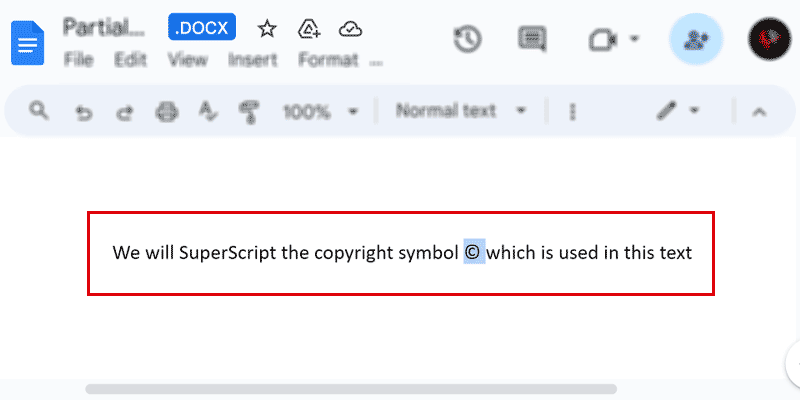
Now, select the text which you want to be superscript.
In the below example we have selected Copyright Symbol that we will Superscript in next step
Once you've chosen the content in the document where you want to apply Superscript, go to the Format tab on the top panel.
Following that, when you click on the Format tab, a dropdown menu will be revealed. Within this menu, select "Text." Once you've chosen the Text option, a subsequent dropdown menu will appear. In this secondary menu, opt for "Superscript."
Keyboard Shortcut for Superscript in Windows: Select the text to superscript and press "Ctrl" + "." (Period)
Upon selecting the "Superscript" option, the text you picked in Step 3 will be transformed into superscript, easily distinguishable in your document as it appears above the regular text.
Superscript is a powerful formatting tool in Google Docs, ideal for writing exponents, mathematical equations, or scientific notations. It adds a professional touch to your documents and ensures your text stands out when precision matters. Below, discover the keyboard shortcuts to quickly apply superscript formatting.
Open the document in which we need to use superscript with the keyboard shortcut.
Now, enter the character or Numerical value that will be the base of our exponent.
Applying exponent formatting is quick and easy with keyboard shortcuts. If you're using a Windows machine, press Ctrl + Period (Ctrl + .) to format the text as an exponent. On a Mac, use Cmd + Period (Cmd + .) for the same result. These shortcuts help you quickly create superscript text in documents or equations, saving time and effort.
By employing this shortcut, you can effortlessly input the exponent without the need for manual steps. To deactivate the superscript formatting, simply utilize the shortcut again to toggle off the superscript mode.
Follow the steps given below to know how to type superscript in Google docs:
Open the document in which you need to type exponents in Google Docs using Mathematical Equations.
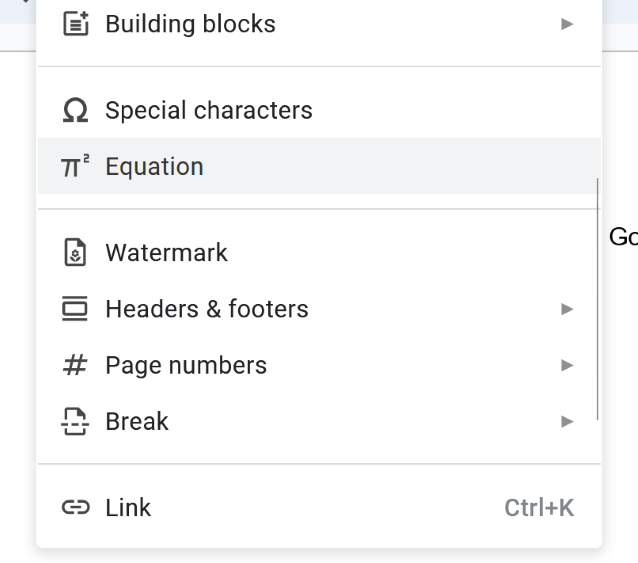
After opening the document, we ned to click on the Insert Tab which is placed on the top corner the editing space.
Within the options available in the Insert Tab, our objective is to locate and click on the "Equations" option.
Once you've clicked on "Equations," a panel will appear below the Insert Tab. From this panel, you should select the "Math Operations" option.
In the Math operations, there are different types of operations, so from this we need to select xb Equation.
Now, we need to enter the base text. In below screenshot, you can see that we have enetered the base text as "X".
Now, using the "Shift + ^" key on the keybard, we need to enter the superscript text. In the below screenshot, you can see that we have entered "a" as the superscript text.
Follow the steps given below to learn how to type superscript in Google Docs:
Open the document in which you need to type exponents in Google Docs using Special Characters.
Now, enter the character or numerical value that will be the base of our exponent.
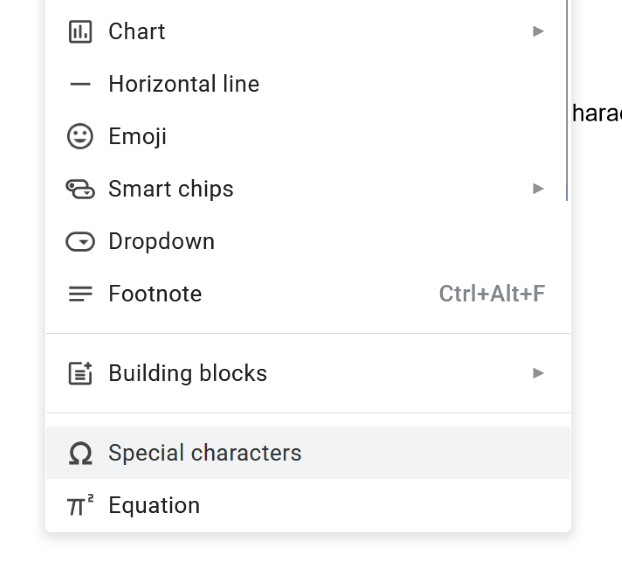
After entering the base text, click on the Insert tab that is on the top of the editing space.
From the list of sub-options, select the option as Special Characters.
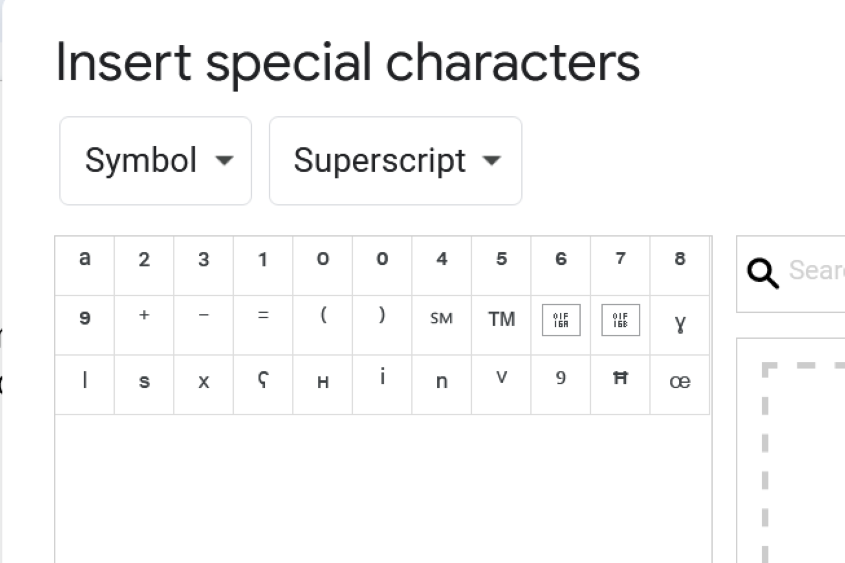
Now, from the drop-down list, we need to select the options Symbol and Superscript which are given in the below screenshot.
Among the various characters available, you can choose any one of the superscript characters to apply.
After selecting and clicking the character. It will get inserted into our text. In the below screenshot, you can see that, we have selected one of the special characters and it is applied in our document.