|
VOOZH | about |
|
VOOZH | about |
Google Docs is a great tool for collaboration, used by businesses to gather ideas. Multiple users can edit files, and the Track Changes feature helps monitor these edits, such as additions, deletions, or replacements. Suggesting mode lets users propose changes without altering the original text, showing revisions with strikethrough.
Using track changes in Google Docs is easy and helps you keep track of all edits made by your team. Follow the steps below to know how to enable track changes on Google Docs:
Open the Google Doc file in which you want to track changes.
Once your chart is added, you can begin editing the document. Users with editing access can make changes in real time while you’re working.
Google Docs automatically saves updates and keeps track of edits made by each collaborator, ensuring transparency and version control.
To view the version history, click on "See version history" or use the shortcut "Ctrl + Alt + Shift + H."
Review the changes made to see additions, deletions, and modifications.
Suggesting Mode allows users to make changes that appear as suggestions rather than permanent edits. Here’s how to use this feature:
Follow the below steps to start working with the suggesting mode in Google Docs.
Open the Google Docs file.
Click on the drop-down next to this pencil icon and choose the 'Suggesting' option.
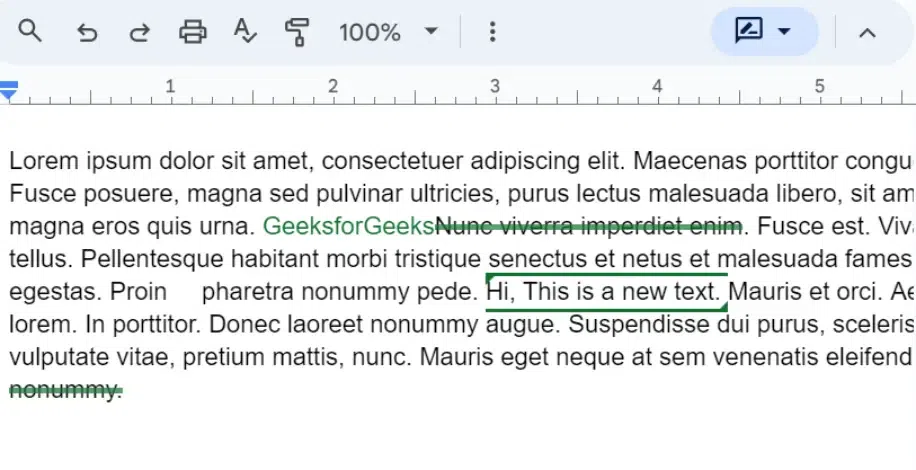
With Suggesting mode enabled, any modifications you make to the text—whether adding, deleting, or formatting—will appear as suggestions. These suggestions are highlighted and accompanied by a comment box in the margin.
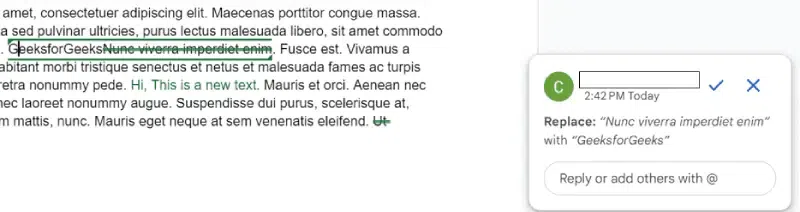
The text of your document where any suggestions are made, will be marked in green in some way. Go over to the first such place and click on it. You will notice that a comment in the right pane will pop up giving the details of the suggestion.
When someone makes a suggestion, it appears in a different color with the editor’s name. Click the suggestion to accept it, incorporating the change, or reject it, removing the change. This feature helps you manage and approve edits efficiently.
Look for highlighted text and associated comment boxes.
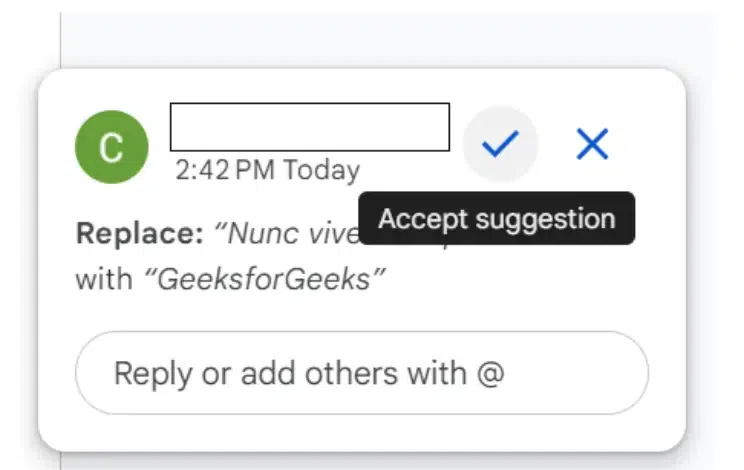
Click on the checkmark to accept a suggestion or the ‘X’ to reject it. If you would like to accept the suggestion, then click on the tick mark as shown in the picture and the change would be made in the actual text.
You can also reply to the comments for further discussion or clarification.
You can view the document in different modes:
- Editing mode: Shows the document as it would appear with all suggestions accepted.
- Suggesting mode: Displays the document with all suggestions and comments.
- Viewing mode: Shows the document as it is, without the suggestions highlighted.
Google Docs automatically saves a version history, allowing you to review changes over time. Here’s how to access it:
Go to the menu bar and select ‘File.’
Choose ‘See version history.’
Browse through different versions of your document to see the changes made over time.

.webp)
.webp)
.webp)
.webp)

.webp)