|
VOOZH | about |
|
VOOZH | about |
Typing in Hindi on Google Docs can be incredibly useful for users who need to write in Hindi for professional, educational, or personal purposes. Fortunately, Google Docs provides easy methods to type in Hindi without requiring additional software.
Here are the steps that you need to follow to be able to type in Hindi in Google Docs:
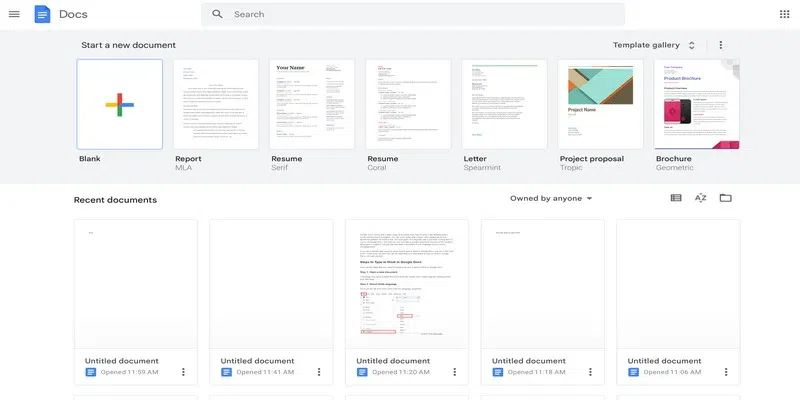
First things first, open a blank document from the Google Docs home page by clicking on the "plus (+) page".
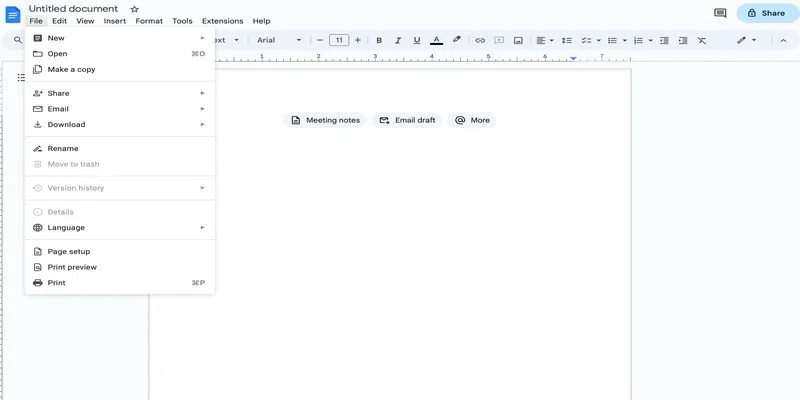
Click on the top menu.
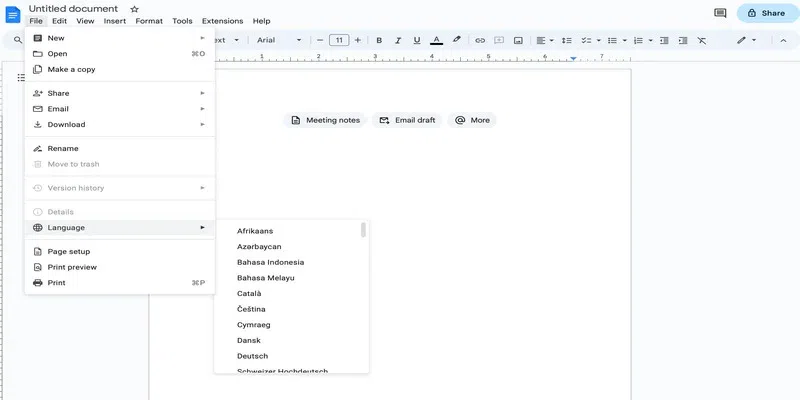
Click on the language drop-down from the list.
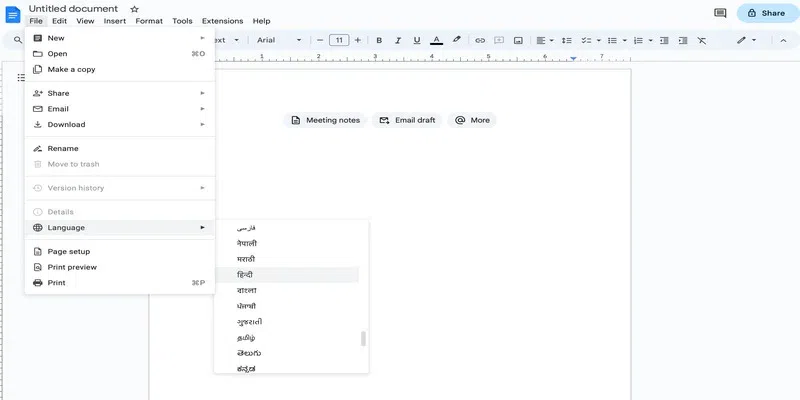
Select the language that you need, Hindi in this case.
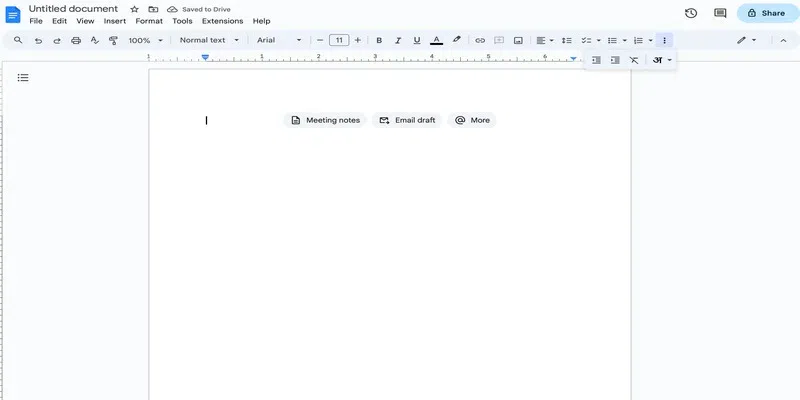
Click on the three dots present in the right side of the ribbon. This will open a number of other options present in the ribbon.
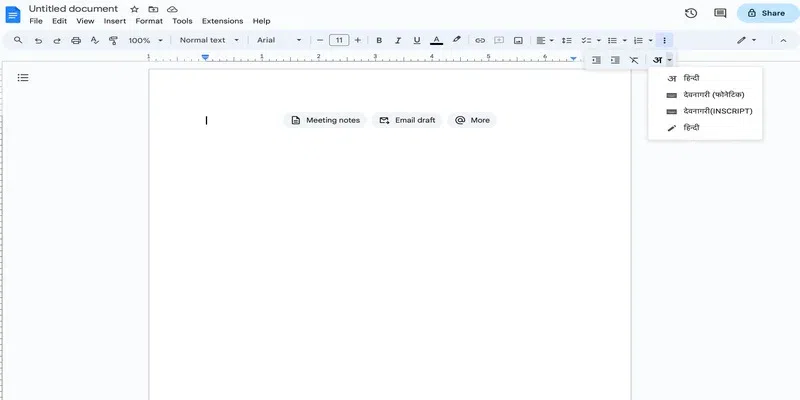
To the extreme right of the newly opened ribbon, you will see an icon with a Hindi alphabet. That is the input tools option. Simply click on the drop-down next to it.
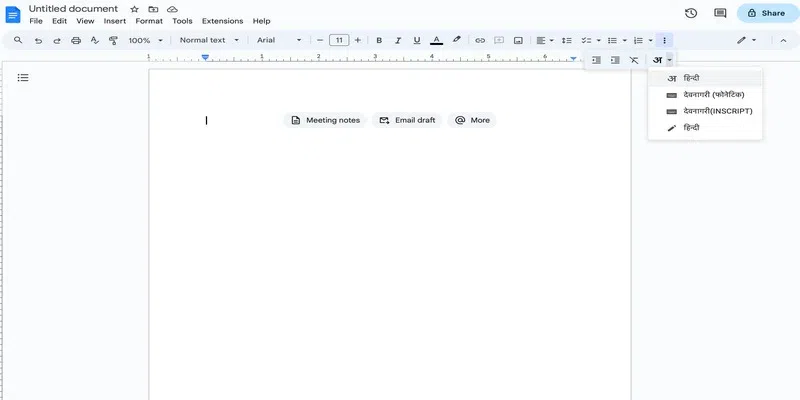
Depending on how you want to write, you can choose one of the following options from the drop-down:
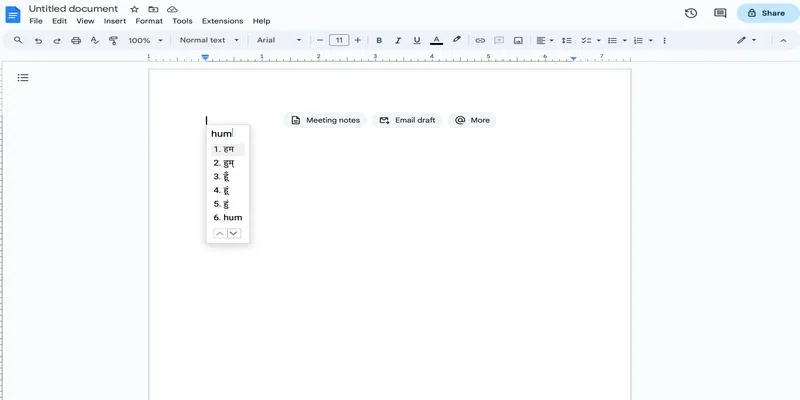
- Hindi(with the alphabet symbol)- This will let you type letters like you normally do in English and would provide a list of matching Hindi scripts based on the phonetics.
- Devanagari(phonetic) - This will open a keyboard at the bottom right corner from where you can select English letters and the corresponding phonetics based Hindi letter will be inserted in the document.
- Devanagari(INSCRIPT) - This is just like the above option except that it contains vowel/diacritical marks.
- Hindi(with the pen symbol) - This will let you write a Hindi letter on a white board and would then provide a list of possible matches that you can click on to insert in the document.
For the sake of this example, we are choosing the first option.
In order to type in Hindi, you should keep the following points in mind-
Here is a demonstration:
Now you are all set to start using this newly added shortcut. Here is how to do that-
Open a new google document.
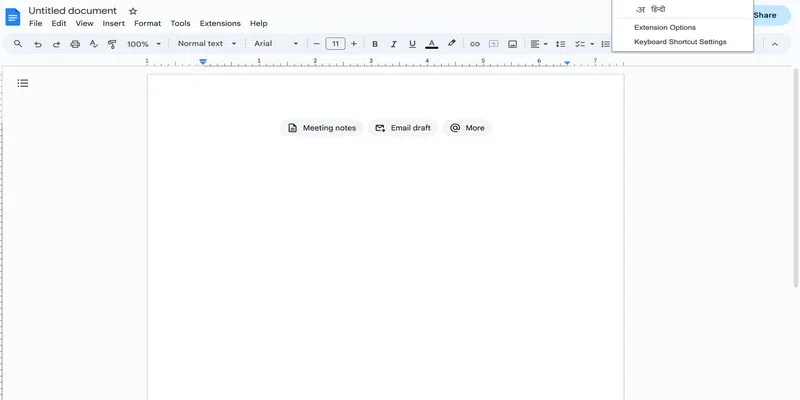
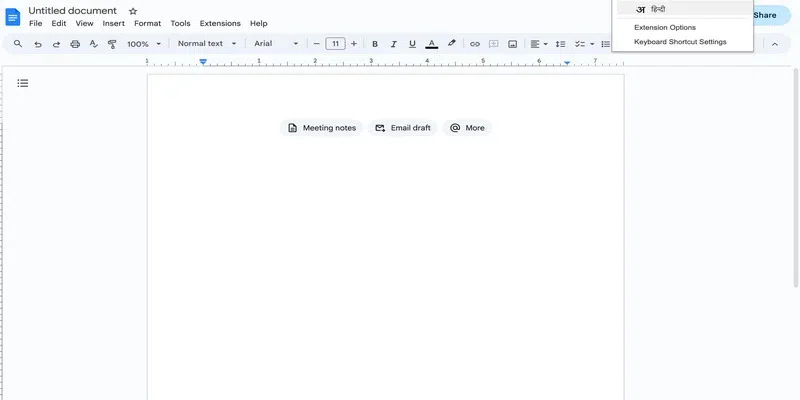
Press Ctrl+Shift+T (or whatever extension you have added in the above section). You will see a toggle in the top right corner.
Click on the first option(the one with a Hindi alphabet as the icon) in the toggle.
If you're looking for an easy way to write in Hindi using your voice, Google Docs offers a simple and effective tool called Voice Typing. This tool allows you to dictate text directly into Google Docs, and it supports Hindi as well as many other languages. Here’s how you can use Voice Typing to write in Hindi on Google Docs:
Open the Google Docs website on your preferred browser (Google Chrome is recommended). Click on "Blank" to create a new document or open an existing one where you want to use Voice Typing.
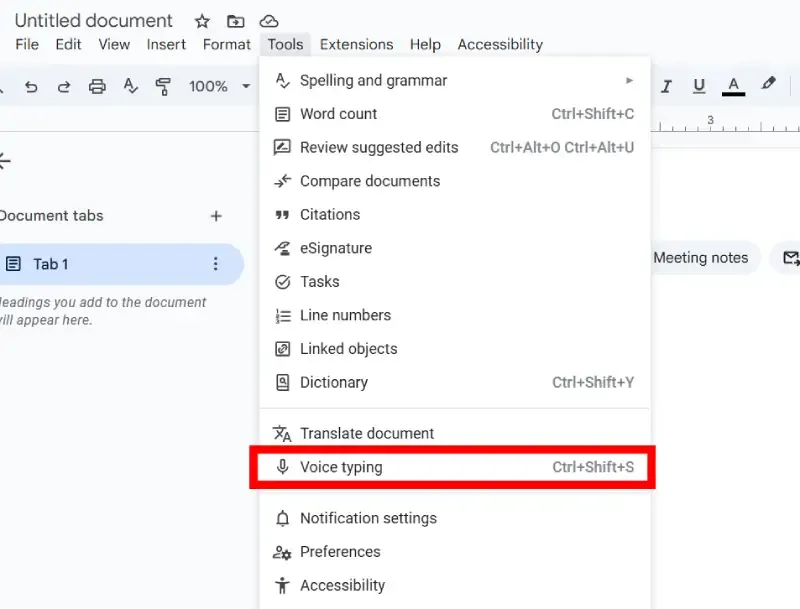
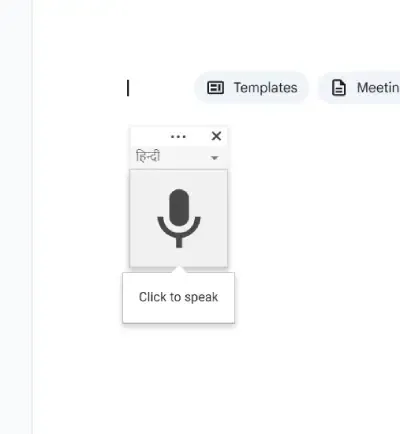
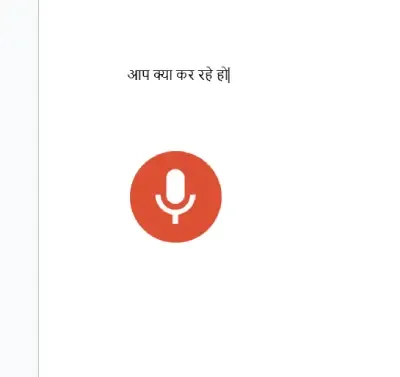
In the top menu, click on "Tools." From the dropdown menu, select "Voice typing...". A small microphone icon will appear on the left side of your document.
Once the language is set to Hindi, simply click on the microphone icon to begin typing. Speak clearly and slowly for better recognition. As you speak, Google Docs will convert your spoken words into Hindi text.
Once you're done typing, click the microphone icon to stop the Voice Typing feature.
Now you’ve successfully used Voice Typing to write in Hindi on Google Docs! This tool makes writing documents in Hindi much easier and faster without the need to manually type.