|
VOOZH | about |
|
VOOZH | about |
Add-ons in Google Docs are third-party tools that extend its features. They help with tasks like citations, formatting, mail merges, and diagrams, and are easy to install and use.
Before installing the Add-ons in Google docs you need to know how to find Add-ons in google docs. Here we will know how to enable Add-ons in Google Docs.
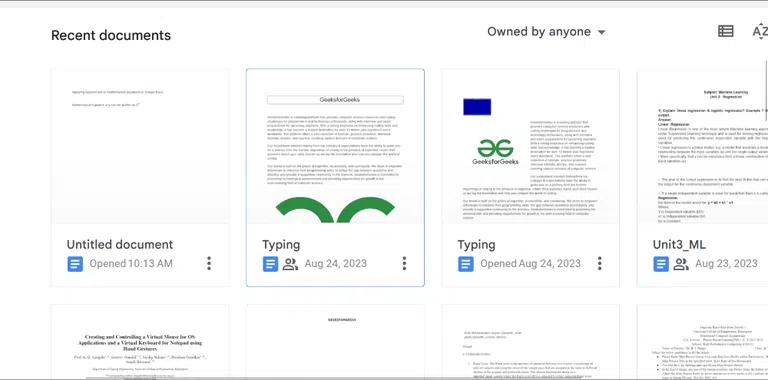
Launch Google Docs in your web browser.
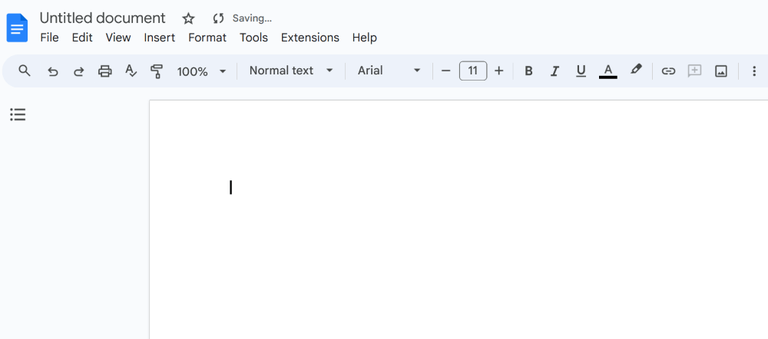
After launching the Google Docs, create a new Document or open an existing document.
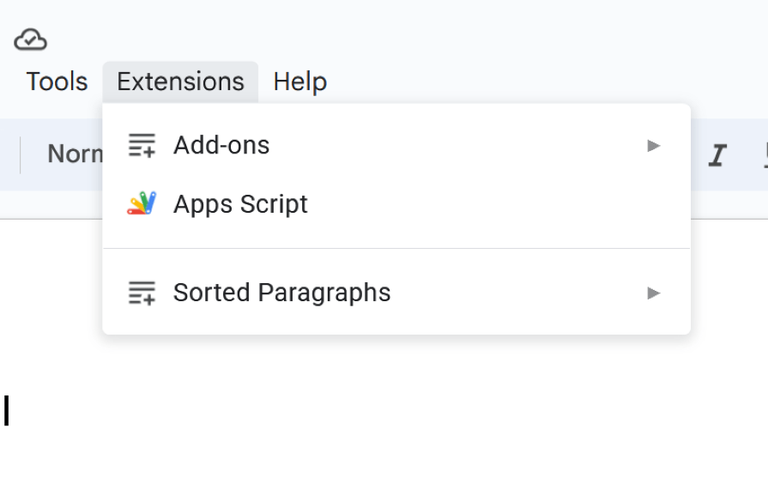
Navigate to the top menu bar of Google Docs and click on Extensions.
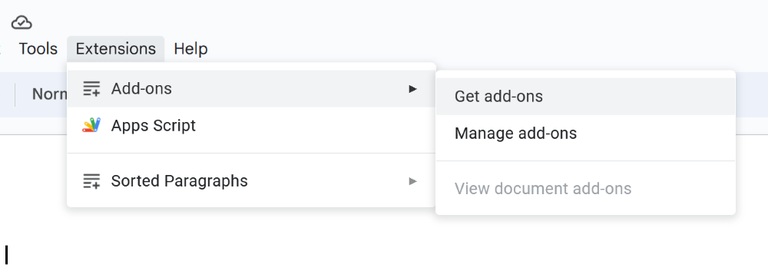
Now after Selecting Add-ons option, now simply click on Get dd-ons options from the drop down menu.
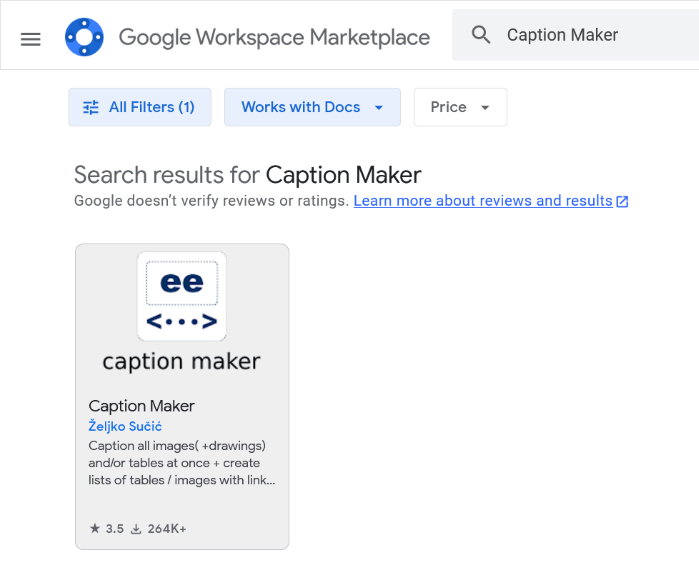
Once you select the "Get Add-ons" option, a list of pre-existing add-ons will be displayed on your screen. To locate a particular add-on, you can utilize the search bar. Simply type the name of your desired add-on into the search bar and then click on it.
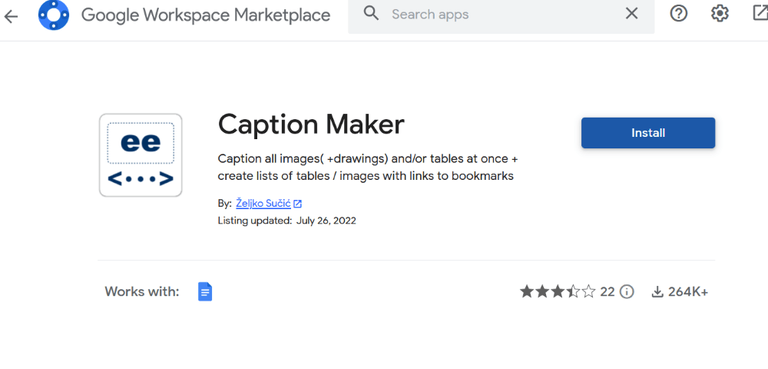
After selecting your preferred add-on, you will be directed to the page dedicated to the chosen extension. From there, simply click on the "Install" button to integrate it into your Google Docs or working spreadsheet. During this process, you may be prompted to grant some fundamental permissions, which you should approve to ensure uninterrupted and optimized usage.
Follow the steps on how to use Add On in Google Docs.
Create a new Document in Google Doc.
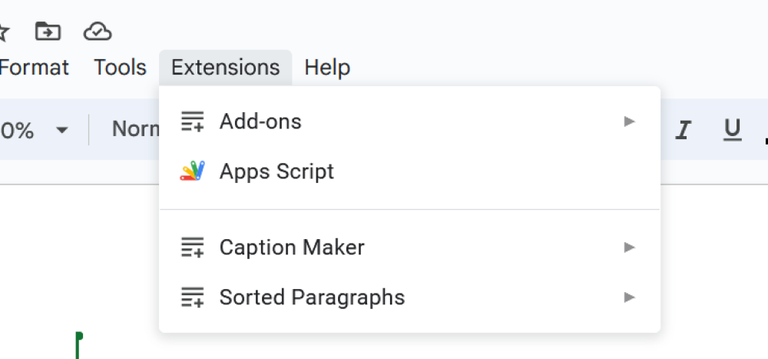
Now navigate to the top menu bar and click on Extensions.
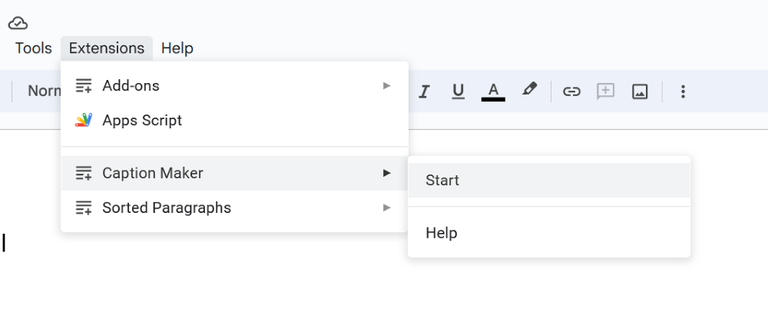
To access our installed add-ons in Google Docs, begin by clicking on "Add-ons" at the top of the screen. From there, locate the specific add-on you wish to utilize and select it. Finally, click on the "Start" button to activate the chosen add-on's functionalities.
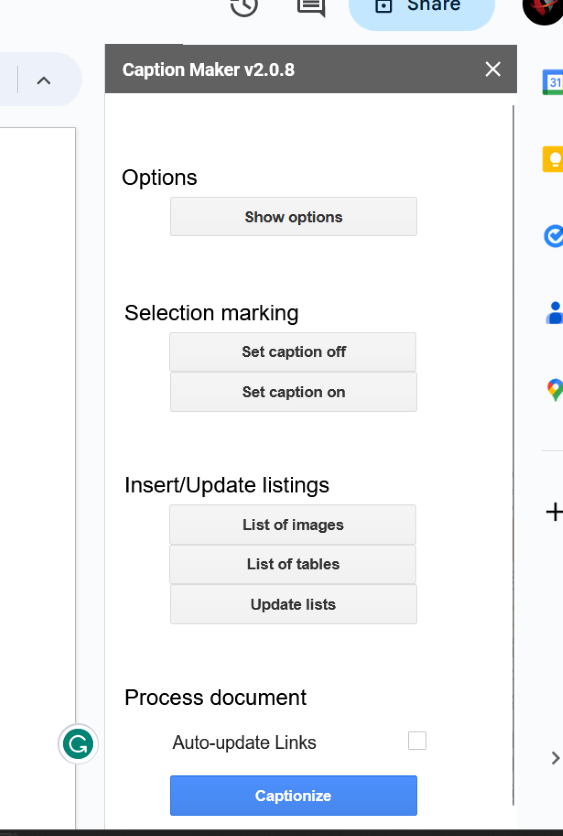
Once you've clicked the "Start" button, an add-on panel will appear on the right side of your window. This panel serves as the interface through which you can access and utilize the various features offered by your installed add-ons.
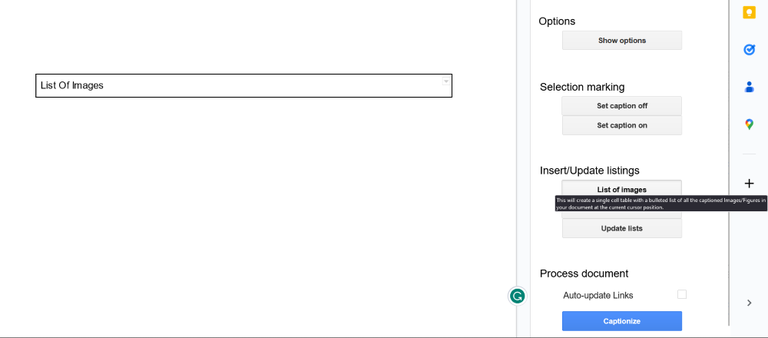
Note: In the below Image, we are inserting Caption for "List of Images" using newly installed Add-on.
Here are some suggestions of best Add-ons Google Docs in Google Docs.
We will begin the best Add-ons used for formatting in Google Docs.
Super Styles is a powerful Google Docs add-on designed to enhance document formatting by allowing users to apply customizable styles effortlessly. With a variety of pre-defined styles and the ability to create unique ones, it helps maintain consistency throughout the document. This tool is particularly beneficial for users aiming for a polished and professional look in their writing.
Screenplay Formatter is an intuitive Google Docs add-on tailored for screenwriters, providing essential tools to format scripts according to industry standards. It automates the formatting process, allowing writers to focus on their storytelling without worrying about structure. The add-on supports various screenplay styles and elements, ensuring that writers can produce professional-quality scripts.
Code Blocks is a versatile Google Docs add-on that simplifies the insertion of code snippets into documents, ensuring that they are properly formatted and easy to read. This tool is particularly useful for developers, educators, and technical writers who need to share code in their documentation or reports. With syntax highlighting for various programming languages, Code Blocks enhances the clarity and presentation of technical content.
TableMate is a highly effective Google Docs add-on that streamlines the process of creating, formatting, and managing tables within documents. This tool is essential for users who regularly work with data presentation, as it allows for easy adjustments and enhancements to table layouts. With features that support various styles and formats, TableMate ensures that tables are not only functional but also visually appealing.
Auto-LaTeX Equations is a Google Docs add-on that allows users to insert LaTeX equations seamlessly into their documents. This tool is particularly useful for academics, researchers, and students who need to include complex mathematical expressions in their writing. With the ability to convert LaTeX code into high-quality images, Auto-LaTeX ensures that equations are both clear and visually appealing.
Docs to Markdown is a convenient Google Docs add-on that converts Google Docs content into Markdown format effortlessly. This tool is particularly useful for developers, bloggers, and technical writers who need to export documents for use in web applications or content management systems. The add-on retains formatting and structure, ensuring a smooth transition from Google Docs to Markdown.
Here are the Add-ons for writing and generating content in Google Docs.
GPT Workspace is a Google Docs add-on that harnesses the power of OpenAI's GPT technology to enhance content generation and writing productivity. It allows users to generate high-quality text, automate repetitive tasks, and create engaging documents effortlessly. With its intuitive interface, GPT Workspace is suitable for various writing needs, from blog posts to formal reports.
Docs Paragraph Translate is a Google Docs add-on that facilitates translation of text within documents, allowing users to communicate effectively across language barriers. This tool supports multiple languages and ensures that translations maintain the context of the original content. With a simple interface, it streamlines the translation process, making it ideal for global collaboration.
OneLook Thesaurus is a Google Docs add-on that helps users find synonyms, antonyms, and related words quickly, enhancing their writing quality. It provides a comprehensive database of words, making it easier for users to find the perfect word to fit their writing style. This tool is invaluable for writers, students, and professionals looking to expand their vocabulary and improve their documents.
LanguageTool is a comprehensive writing assistant that checks grammar, style, and spelling in Google Docs. It provides real-time suggestions for improvements, making it an essential tool for writers who want to enhance their writing quality. With support for multiple languages, LanguageTool caters to a diverse range of users, ensuring that documents are polished and professional.
PlagiarismSearch is a Google Docs add-on that allows users to check their documents for potential plagiarism. It provides thorough scanning of texts against online sources, helping users ensure the originality of their work. This tool is essential for students, researchers, and writers who want to maintain academic integrity and avoid unintentional plagiarism.
Draw.io is a versatile diagramming tool that integrates with Google Docs, allowing users to create flowcharts, mind maps, and other diagrams directly within their documents. This add-on is ideal for visual thinkers and professionals who need to present complex information in an easily digestible format. With its intuitive interface, Draw.io makes it simple to create and edit diagrams collaboratively.
Now in the terms of email and communication below are the Add-ons which suits better.
Docs Creator is a Google Docs add-on that facilitates mail merging, allowing users to create personalized letters and documents from templates based on data in Google Sheets. This tool is particularly useful for sending bulk personalized correspondence, such as invitations, announcements, or thank-you letters. By streamlining the mail merge process, Docs Creator enhances efficiency and productivity.
Foxy Labels is a Google Docs add-on that helps users create and print labels directly from their Google Sheets data. This tool is perfect for businesses, schools, and individuals who need to produce labels for various purposes, such as mailing, organizing, or branding. With its intuitive interface, Foxy Labels simplifies the label creation process, ensuring a professional finish.
Fax.Plus is a Google Docs add-on that allows users to send and receive faxes directly from Google Docs, making it a convenient solution for individuals and businesses that need to transmit documents securely. This tool simplifies the faxing process, enabling users to manage their fax communications without needing a physical fax machine.