|
VOOZH | about |
|
VOOZH | about |
Google Docs variables, also called variable chips, help streamline document creation by handling repetitive information. They act as placeholders that let you insert dynamic data into your document.
Note: Google Docs variables are available only for eligible work or school accounts, might not for personal ones.
Note: Google Docs variables work for simple data like names, dates, and addresses, not for complex calculations or dynamic content.
Follow this step-by-step guide on creating and using variables in Google Docs to streamline your document editing. Creating variables in Google Docs is straightforward. You can transform repetitive text into variables, saving time and reducing the risk of errors.
Open your document in Google Docs. Here I am using a mock Legal document to settle a dispute.
Find an appropriate word in the document that is repetitive and you would want to convert it into a variable.
👁 How to Use Variables in Google Docs
Type @ to open the Smart Chips menu, then select Variable from the list.
👁 How to Use Variables in Google Docs
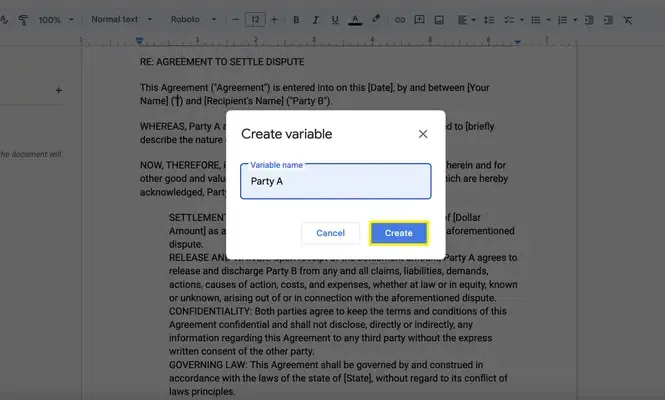
Enter a name for the variable (e.g., “Client Name” or “Party A”) and click Create. The variable will be inserted into the document.
👁 How to Use Variables in Google Docs
Find out how to insert variables into Google Docs for efficient document editing and management. You can insert variables into other parts of your document to keep all your instances consistent and easily updated.
Select all the other words that you wish to change in the same way. Here, 'Party A' is selected, and then on clicking 'Insert', it's also included in the same variable.
👁 How to Use Variables in Google Docs
Create new variables in Google Docs to handle multiple dynamic data points in your documents. To add more variables, simply click on "New Variable" in the Variable Panel and follow the same steps to integrate them into your document.
To add more variables to your documents, click on New Variable in the Variable Panel
👁 How to Use Variables in Google Docs
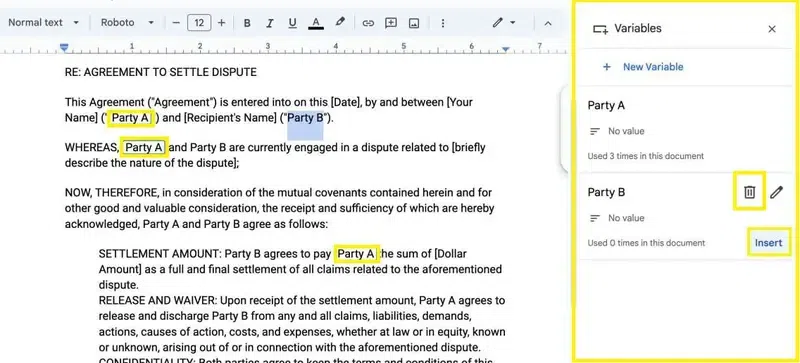
Give this new variable a relevant name from the document that is repetitive. Here I am using 'Party B' as the name of the new variable.
👁 How to Use Variables in Google Docs
Select the text you want to include and press Insert (from the variable panel) in this new variable same as we did previously for 'Party A'.
👁 How to Use Variables in Google Docs
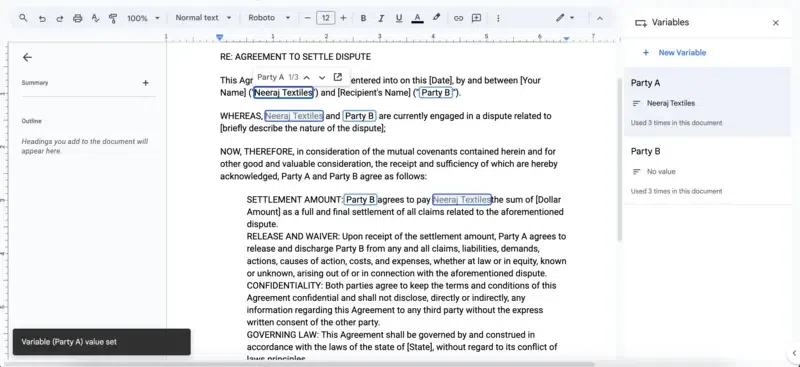
Click on the variable in the document, type the value, and press Enter. The variable will update across the document with the assigned value.
👁 How to Use Variables in Google Docs
Modify existing variables in Google Docs to quickly update information throughout your document. You can update the values of your variables at any time, and all instances of that variable will automatically reflect the changes, ensuring consistency.
👁 How to Use Variables in Google Docs