Google Docs offline mode enables you to access and edit your documents without an active internet connection. This feature is essential for maintaining productivity in various scenarios, from long flights to remote areas with unreliable internet.
How to Turn on Offline Access in Google Docs
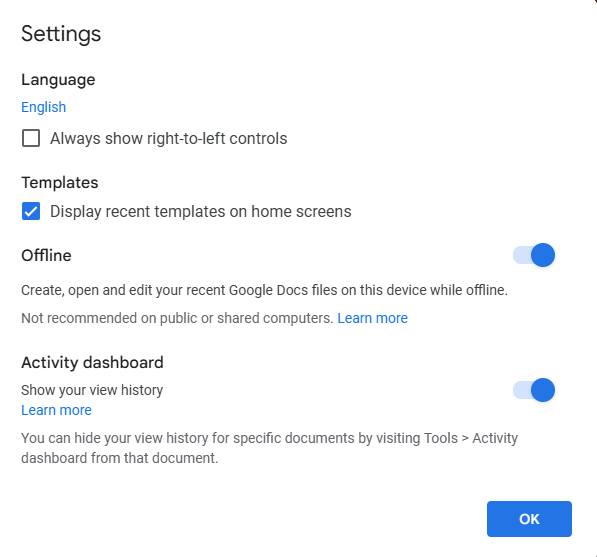
Turning on offline access ensures that you can view and edit your documents without needing an internet connection. Follow these quick steps:
Step 1: Open Google Chrome
Ensure you're using the latest version of Google Chrome for optimal offline performance.
Step 2: Sign in to Your Google Account
Access Google Docs by logging into your Google account.
Step 3: Navigate to Google Docs
Type "docs.google.com" into the address bar and hit "Enter."
Step 4: Access Settings
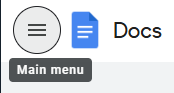
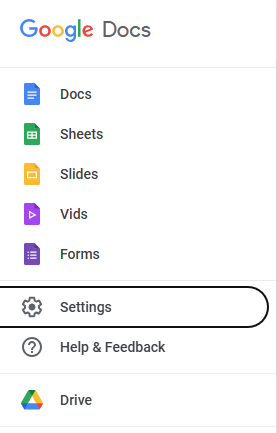
Click the three horizontal lines in the upper left to open the menu.
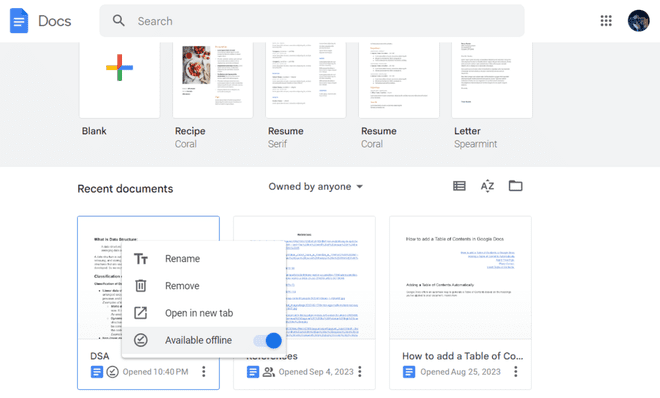
Google Docs will begin syncing your recent files for offline use.
How to Enable Google Docs Offline Access via Google Drive
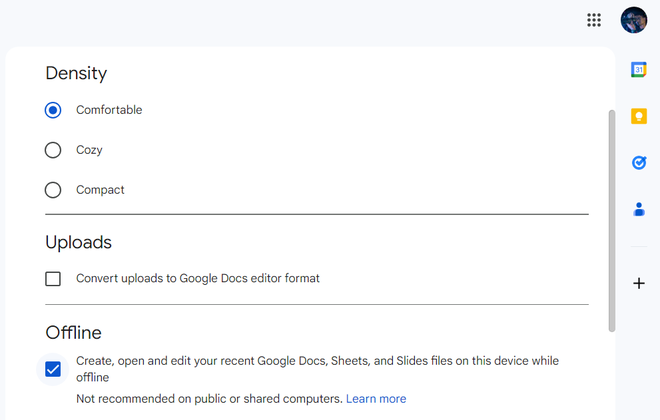
Follow these steps to enable Google Docs offline access:
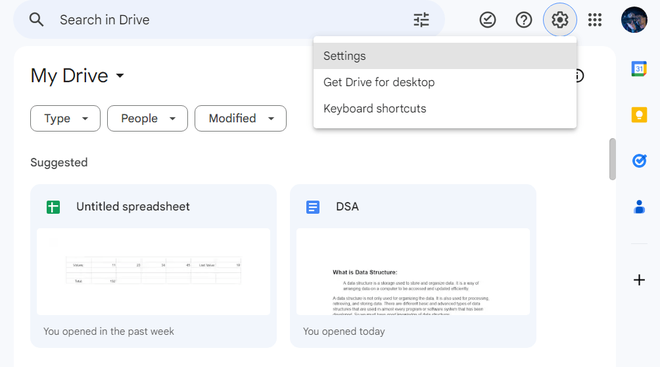
Step 1: Open Google Drive and Click Settings
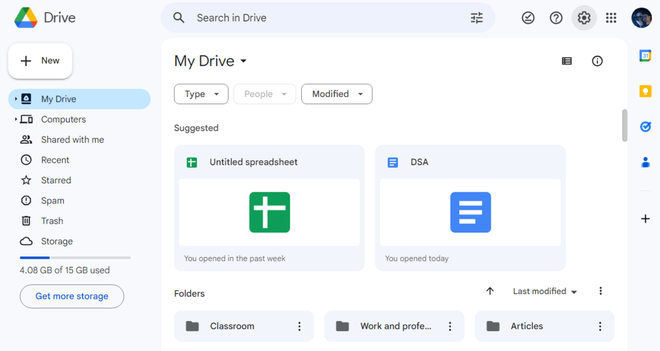
Open your drive and make sure it is signed into the Google Account on which you want to work offline in Google Docs. Now on the top right corner click on the "Setting" icon which looks like a Gear.