 |
VOOZH | about |
|
VOOZH | about |
Google Docs offers a powerful solution with its Voice Typing feature, which allows you to convert your speech into text effortlessly. This tool not only speeds up document creation but also makes editing and formatting easier using simple voice commands.
Here are some steps that can help you transform your speech to text in Google Docs with the exciting feature of Google Voice Typing.
Here, we will use the Voice Type feature of the Google Docs Service. This will convert your speech to text so you do not have to type anything. Follow the steps below to use Voice Type in Google Docs in simple steps:
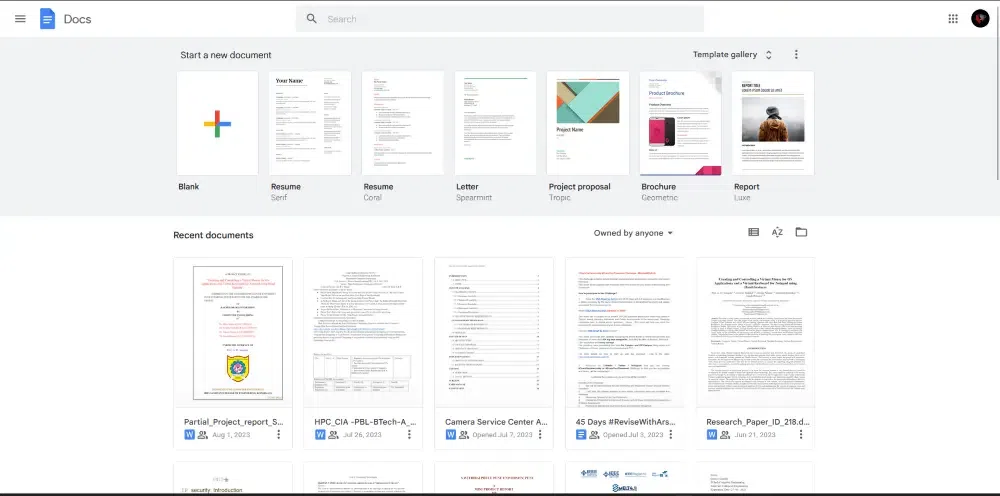
In the very first step, we need to visit the Google Docs official website, from which we are provisioned to create and edit the documents.
Visit the Google Docs website, and use the URL below to visit the official Google Docs website.
Now, after opening the Google Docs website, we need to create a new document or we can choose our existing document for editing. We can upload the document using Google Drive or other sources. So as we are doing Voice Type, we will choose the Blank Document.
Now, our task is to enable voice typing in Google Docs, so to enable that, go to the "Tools" menu which is on the top of the main screen. A drop down menu will appear as you click on Tools Tab. From that drop-down menu, we need to select the option of "Voice Typing...".
After selecting the "Voice typing" option, a permission popup will get opened by the web browser, which will be the microphone icon on the left side of our document. It will ask for our permission to start voice typing. We have to grant access to our microphone so that it will be used in Google Docs.
We will now begin speaking into the microphone, which will allow Google Docs to translate our speech to text, and simultaneously add to the Google Document. The speech we provided as input will be converted into text and added to the document.
Once our voice typing is completed, we once again need to click on the microphone icon and stop the voice typing. The color will change to grey once it is stopped.
We can add punctuation by saying different commands like "Comma" or "Period" when it is necessary.
In the Google Docs, we can also add new paragraph by using Voice command, we just need to say "New Paragraph" in the microphone.
We can also specify the new line by using the "New Line" command in the microphone.
Voice Typing also allows us to select the specific part of the content. We just need to say " Select [text that should be selected]".
Select the text using the "Select [text that should be selected]" voice command.
For making the text Bold we can use the command as "bold". This will make the selected text bold.
We can also underline the selected text. We just need to say as "Underline".
We can also make the selected text as italic. We just need to say as "Italics".
We can create the bulleted list by saying the command as "Create bulleted list".
Apply H1 to the selected text by saying as "Apply Heading 1".

.webp)
.webp)
.webp)
.webp)
.webp)
.webp)
.webp)
.webp)
.webp)
.webp)
.webp)
.webp)
.webp)
.webp)
.webp)