|
VOOZH | about |
|
VOOZH | about |
The QUERY function in Google Sheets is a versatile tool that lets you filter, sort, and analyze data using simple SQL-like commands. It helps you quickly extract meaningful insights from large datasets by combining multiple operations into a single formula.
The QUERY function in Google Sheets is a powerful tool that allows you to filter, sort, and analyze large datasets with ease. It uses SQL-like syntax to help you retrieve specific data from a selected range, making it ideal for data analysis and reporting tasks.
The QUERY function works by retrieving data from a specified range and applying SQL-like operations, such as sorting, filtering, and aggregating.
The syntax of the Google Sheets QUERY statement is:
=QUERY(data, query, [headers])Parameters:
To use Query function Google Sheets follow the steps given below:
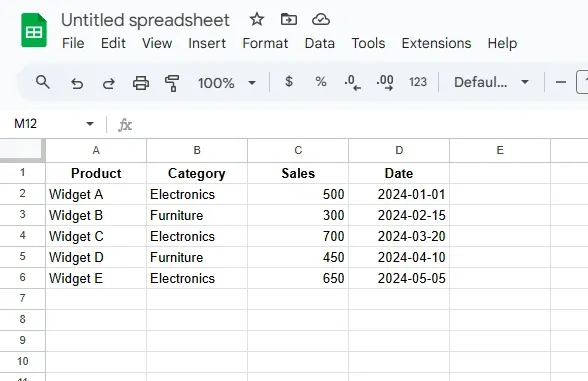
Make sure your data is organized in a tabular format with clear column headers.
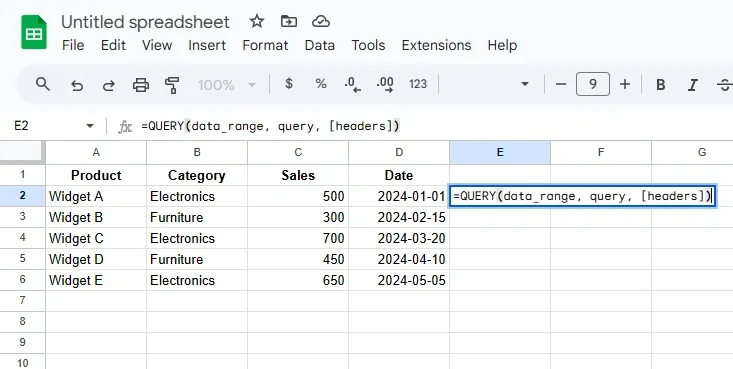
=QUERY(data_range, query, [headers])where:
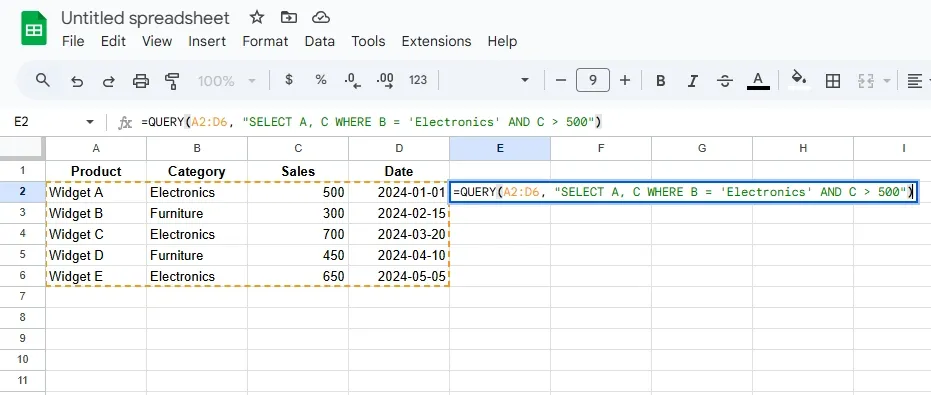
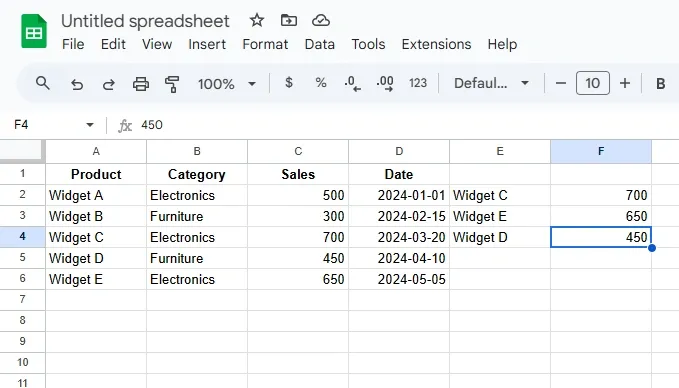
=QUERY(A2:D6, "SELECT A, C WHERE B = 'Electronics' AND C > 500")This query:
After entering the query formula, press Enter. Google Sheets will display the results in the selected cell. The data will be filtered, sorted, or aggregated based on the conditions you specified.
Here’s how to use the QUERY function with SELECT, WHERE, GROUP BY, ORDER BY, LIMIT, and LABEL based on the data provided:
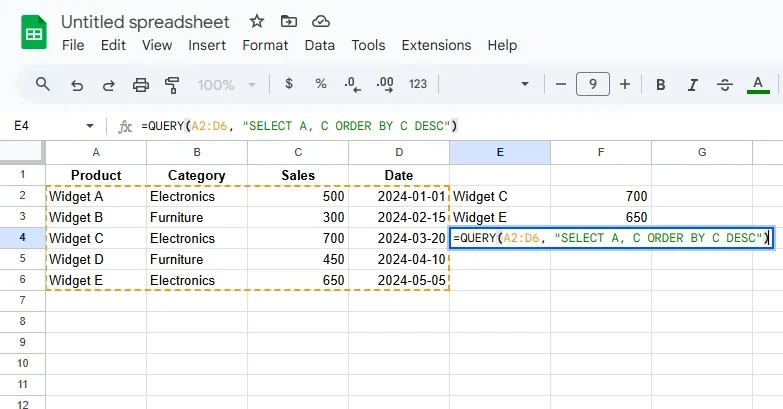
=QUERY(A2:D6, "SELECT A, C ORDER BY C DESC")This will select columns A and C, and sort them in descending order based on Sales.
=QUERY(A2:D6, "SELECT B, SUM(C) GROUP BY B")This will sum the sales in column C, grouped by product category in column B.
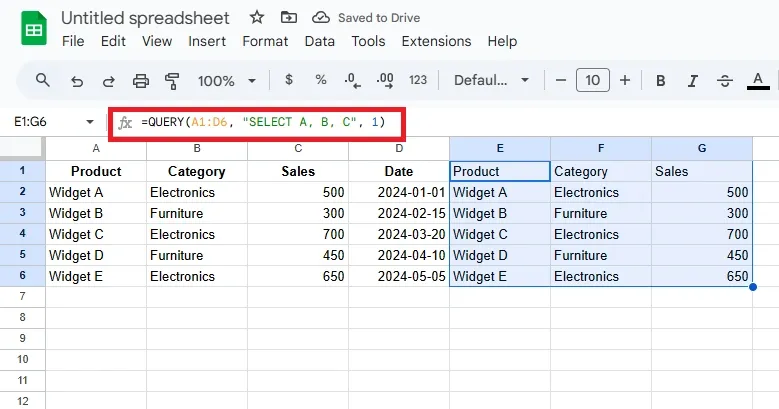
The SELECT clause lets you choose specific columns from the dataset.
Example: Display only the Product, Category, and Sales columns:
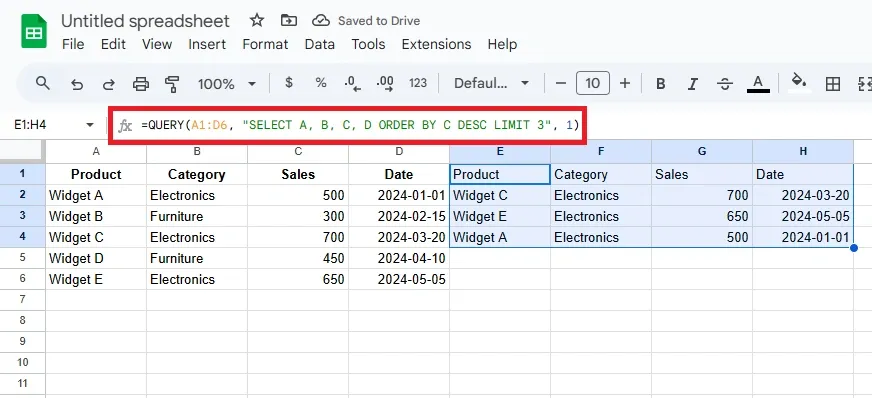
=QUERY(A1:D6, "SELECT A, B, C", 1)The LIMIT clause restricts the number of rows returned.
Example: Display only the top 3 rows with the highest sales:
=QUERY(A1:D6, "SELECT A, B, C, D ORDER BY C DESC LIMIT 3", 1)The LABEL clause renames column headers in the output.
Example: Rename SUM as "Total Sales":
=QUERY(A1:D6, "SELECT B, SUM(C) GROUP BY B LABEL SUM(C) 'Total Sales'", 1)You can combine multiple clauses for more complex queries.
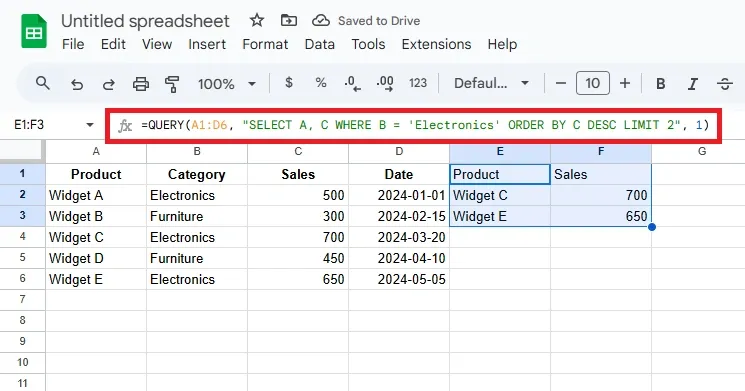
Example: Display the top 2 products in "Electronics" with the highest sales:
=QUERY(A1:D6, "SELECT A, C WHERE B = 'Electronics' ORDER BY C DESC LIMIT 2", 1)