 |
VOOZH | about |
|
VOOZH | about |
Searching through large datasets in Google Sheets doesn't need to be a challenge. Whether you're handling financial records, tracking projects, or organizing data, efficient searching is key. In this article, you will learn how to search effectively in Google Sheets using various methods, including shortcuts, Find and Replace, and advanced functions. Master these techniques to streamline your workflow and enhance data management
There are two methods to search in Google Sheets. One is to use keyboard Shortcuts for Google Sheets learn and the other one is "Find and Replace" in Google Sheets. Read Below to learn the the both methods to search in Google Sheets.
This shortcut is incredibly useful for locating specific data, especially in large spreadsheets. Learn 'how to search in Google sheet shortcut' below
Press CTRL + F (Windows) or CMD + F (Mac) together.
A search box will appear in the top-right corner of your Google Sheets.
Type the text you want to find within your spreadsheet.
Google Sheets will highlight the first occurrence of that text. Use the “Next” button to navigate through other instances of the same text.
Keyboard Shortcut to search in Google Sheet: CTRL + F (Windows) or CMD + F (Mac)
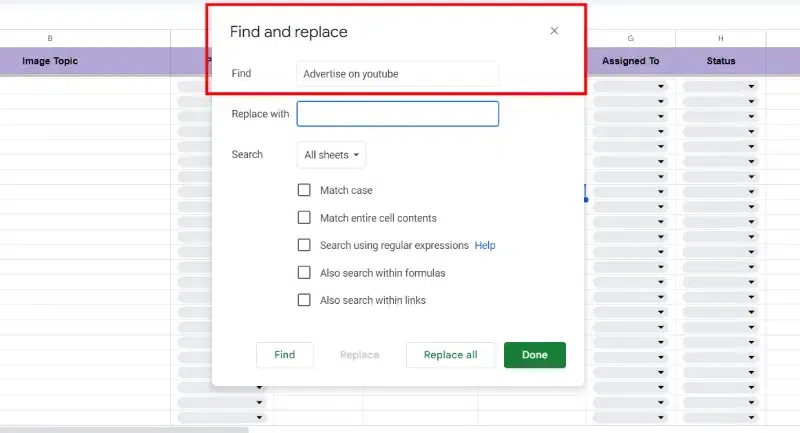
The “Find and Replace” feature is simple yet effective for locating and modifying data within your spreadsheet. Let’s explore how to use the “Find and Replace” feature in Google Sheets:
Choose the 'Find and Replace' option from the pop-up options.
In the search box that appears, type the text you want to find within your spreadsheet. Google Sheets will locate the first occurrence of that text.
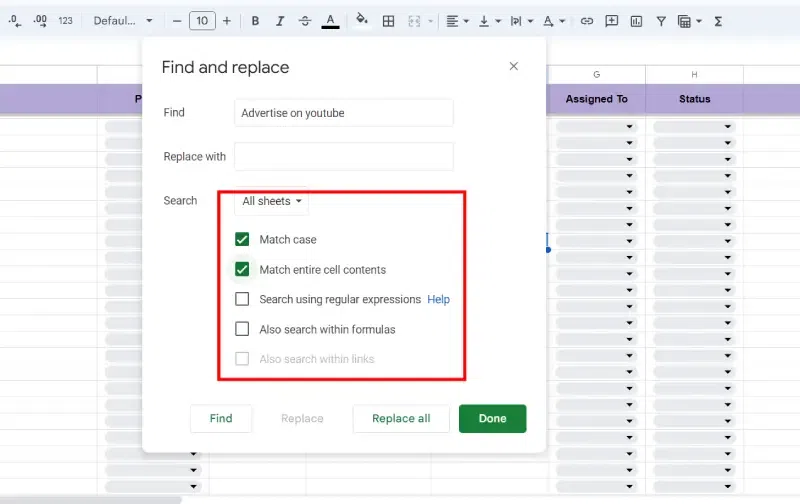
If you want to narrow down your search, click on the “Options” button. Here, you can specify additional criteria such as matching cases, whole words, or using regular expressions.
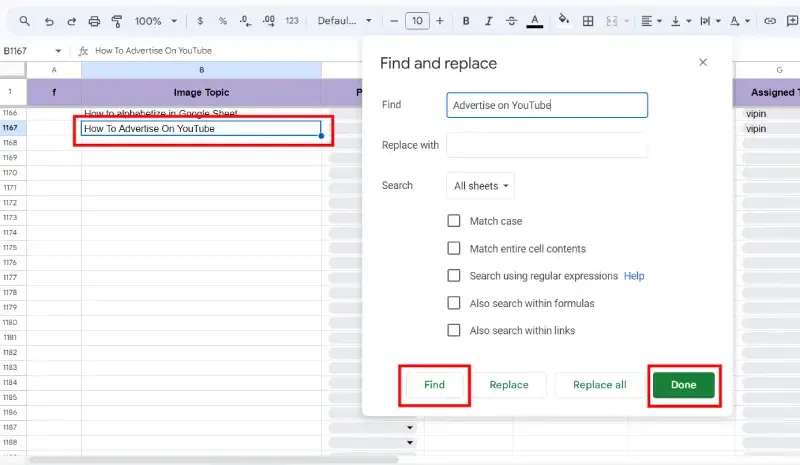
Click the “Find” button to navigate through other instances of the same text. Google Sheets will highlight each occurrence as you proceed.
Conditional formatting can help highlight cells that meet certain criteria:
Input your data into the sheet.
Drag to select the range of cells you want to format.
Navigate to Format and choose Conditional Formatting from the menu.
In the "Conditional format rules" sidebar that appears on the right, click the dropdown menu under "Format cells if" and select "Custom formula is" from the list of options.
Set your conditions and apply formatting to highlight the results.


.webp)
.webp)
.webp)
.webp)
.webp)