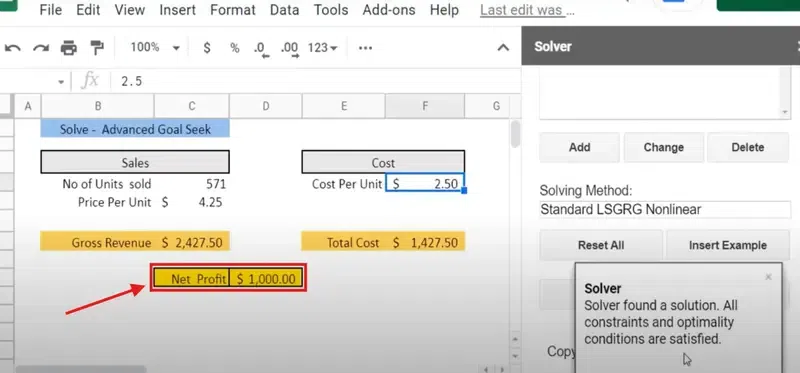
Google Sheets is a versatile tool that offers a range of features to help users analyze data, make decisions, and optimize outcomes. One such feature is Solver, a powerful tool used for solving optimization problems in spreadsheets. Solver in Google Sheets allows you to find the best solution for a variety of scenarios by adjusting variables to meet a specific set of constraints. Whether you’re optimizing finances, scheduling, or resource allocation, Solver helps you arrive at the optimal solution efficiently.
In this guide, we’ll walk you through the steps to use Solver in Google Sheets, from setting up your problem to applying constraints and finding the optimal solution. With Solver, you can solve complex decision-making problems and gain valuable insights from your data.
How to Install the Solver Add-On in Google Sheets
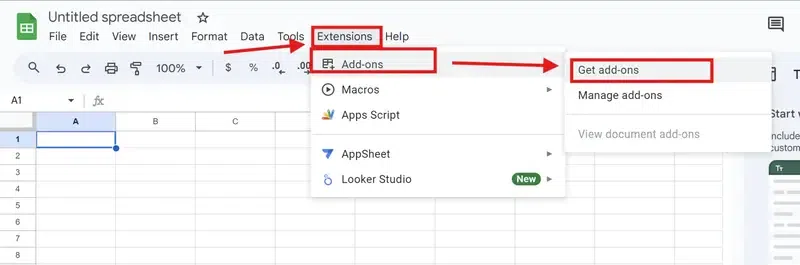
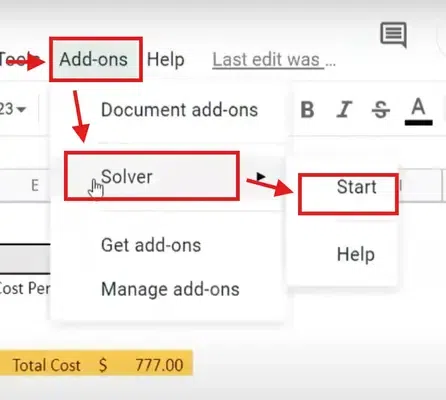
Follow these steps to install Solver in Google Sheets:
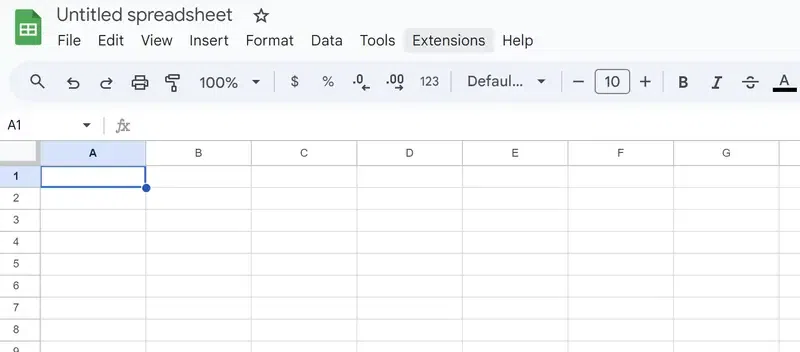
Step 1: Open Google Sheets
Open the spreadsheet where you want to use Solver.
In this section you will learn how to Run solver and analyze the results in Google Sheets:
Step 1: Run Solver
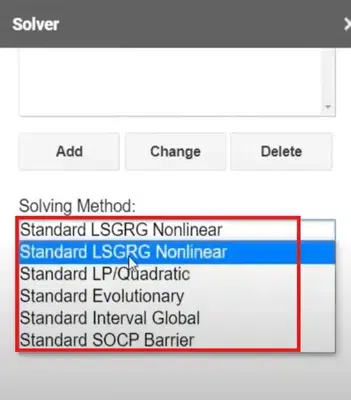
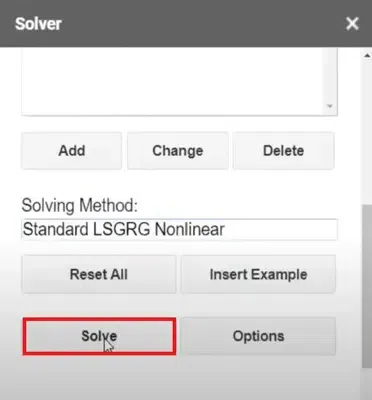
Click the Solve button once you’ve defined all inputs (objective, decision variables, constraints, and solving method). Solver will calculate the optimal solution based on your setup.
Keep Solver Solution: Retain the changes Solver has made in your spreadsheet.
Restore Original Values: Reject the solution and revert to your original setup.
Business Application Example: Maximizing Profit (Solver Example)
Scenario
You sell two products, Product A and Product B, and want to maximize profit under specific constraints.
Inputs
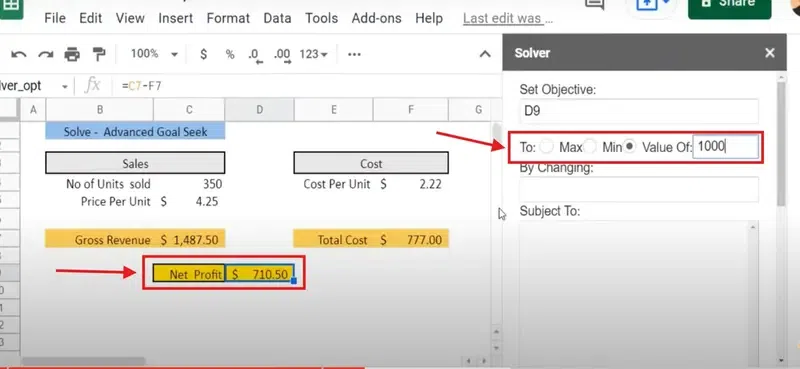
Objective: Maximize profit (Cell E1).
Formula: =B1*C1 + B2*C2
Here, B1 and B2 represent units sold, and C1 and C2 represent profit per unit.
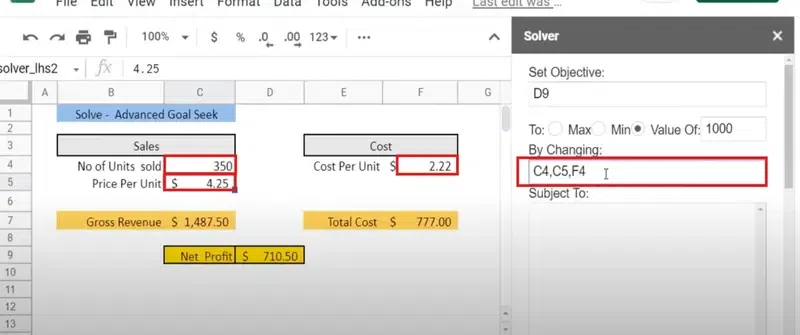
Decision Variables: Cells B1 and B2 (units sold for Products A and B).
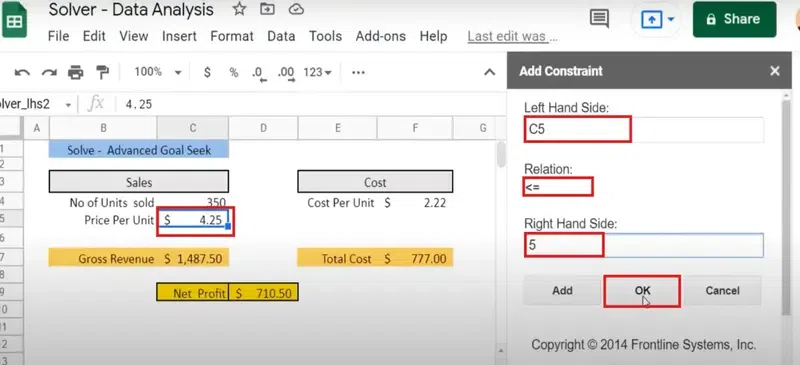
Constraints:
B1 ≤ 100 (Product A cannot exceed 100 units).
B2 ≤ 80 (Product B cannot exceed 80 units).
Total production cost must not exceed $10,000.
Steps
Set E1 as the Objective Cell.
Use B1 and B2 as Decision Variables.
Define the constraints.
Run Solver to determine the optimal number of units for each product.
Output
Solver calculates the optimal units to produce for Product A and Product B to maximize profit while staying within the constraints.
Tips for Using Solver Effectively
Define Clear Constraints: Clearly define constraints that reflect the real-world limits of your problem.
Simplify the Problem: If Solver fails to find a solution, try reducing the number of variables or constraints.
Run Multiple Scenarios: Experiment with different constraints or variables to find alternative solutions.
Understand Solver Limitations: Solver may struggle with highly complex, non-linear problems. In such cases, use the Evolutionary Algorithm for approximate solutions.
Conclusion
Using Solver in Google Sheets is a valuable tool for solving optimization problems and making data-driven decisions. Whether you’re optimizing for profits, resources, or time, Solver helps simplify complex calculations. By setting up objectives, defining constraints, and running the solver function, you can find optimal solutions with ease. With the right setup and proper use, Solver can enhance your analysis and help you make more informed decisions in various business and personal scenarios. Don't hesitate to explore its potential and take full advantage of its features for your data-solving needs!