|
VOOZH | about |
|
VOOZH | about |
Managing data from Google Forms can be a tedious task, especially when you want to make sense of all the responses you've gathered. Fortunately, linking Google Forms to Google Sheets makes this process much simpler and more organized.
You can directly link your Google Form to a Google Sheets document so that every response is automatically transferred. This method ensures that you don’t have to manually copy and paste form submissions.
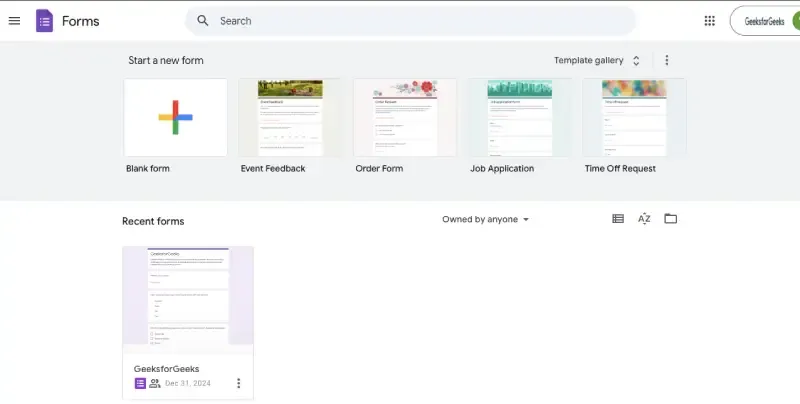
To get started, make sure you have a Google Form. If you don’t have one, create it by visiting Google Forms. Once you're done, add all the necessary questions and form fields.
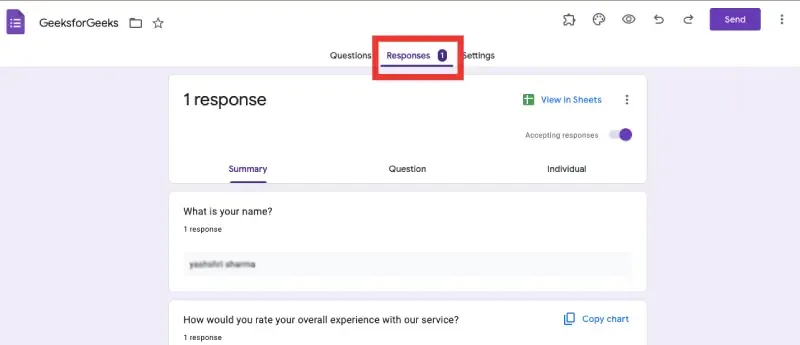
Once you’ve created your form, navigate to the Responses tab, which can be found at the top of the form editor.
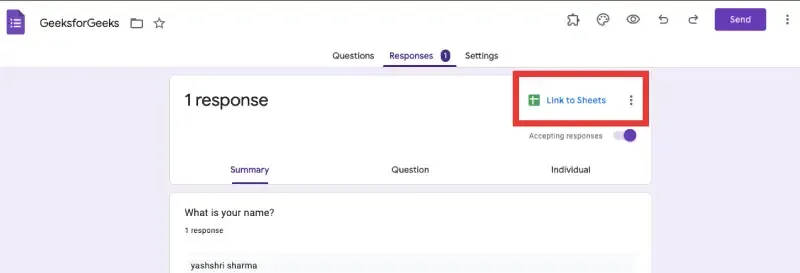
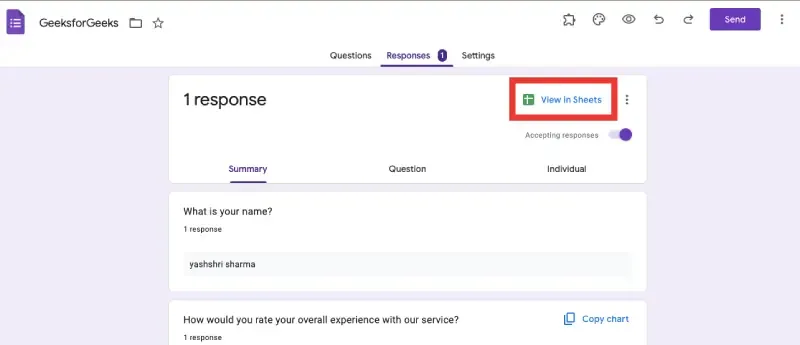
In the Responses tab, click the Google Sheets icon (a green spreadsheet symbol) at the top-right corner. This will automatically open a new Google Sheets document or link the responses to an existing one.
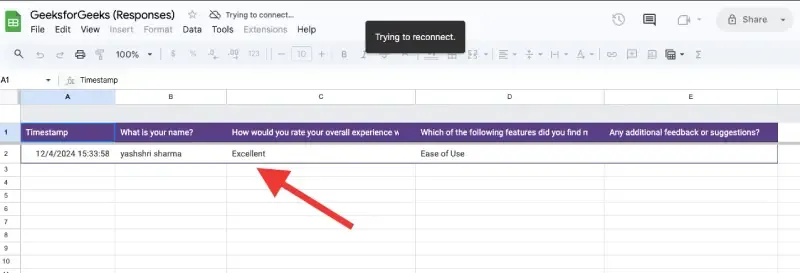
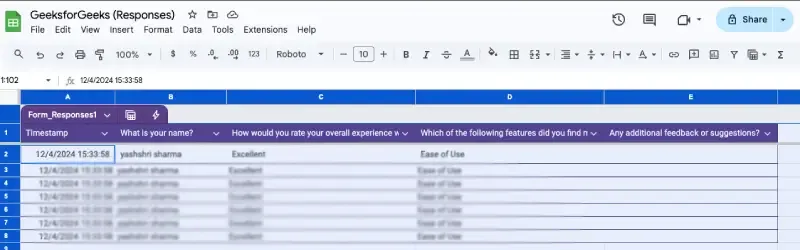
Once linked, every new form submission will automatically appear in the Google Sheets document. Each new response will be added as a new row, and each question will be represented as a separate column.
Important Note:
You can now use Google Sheets to analyze, organize, or perform any operations on the responses you receive from the form.
If you haven’t linked your Google Form to Google Sheets initially, or if you prefer to manually import responses, you can follow the steps below to do so.
Go to your Google Form that contains the data you wish to import into Google Sheets.
Click on the Responses tab at the top of the Form editor. This tab displays the responses your form has collected so far.
In the Responses tab, click the Google Sheets icon (the green spreadsheet symbol) located at the top-right of the page.
A window will appear prompting you to either create a new spreadsheet or select an existing one to store the responses.
Important Note:
After clicking the Sheets icon, any future responses will automatically appear in the chosen sheet. You don't need to manually update the data.
If you don’t want to use automatic linking or manual import methods, you can always copy responses from the Google Forms Responses tab and paste them into a Google Sheets file.
Navigate to the Google Form you want to extract data from. Go to the Responses tab to view all submitted answers.
Select all the responses you wish to copy. You can either drag your cursor over the cells or use the keyboard shortcut Ctrl + A (Windows) or Command + A (Mac) to select all data. Right-click and select Copy or use Ctrl + C (Windows) / Command + C (Mac).
Open a new or existing Google Sheets document where you want to paste the data.
In your Google Sheets document, click on the cell where you want to start pasting the data. Right-click and select Paste or use the keyboard shortcut Ctrl + V (Windows) / Command + V (Mac) to paste the copied form responses.
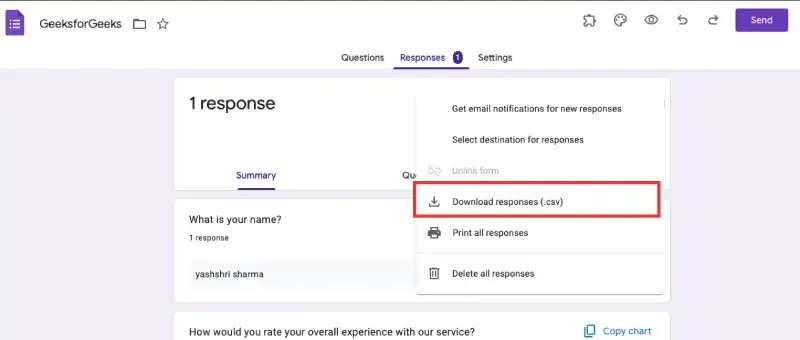
If you prefer, you can periodically copy the latest responses from Google Forms and manually paste them into your Google Sheets, allowing you to update your data as needed and you can also download all data.
Pro Tip:
For more control over the data, you can use Google Sheets functions likeIMPORTRANGE()to pull data from your Google Forms response spreadsheet into other sheets.
Here are some advanced techniques to optimize and enhance the integration between Google Forms and Google Sheets: