|
VOOZH | about |
|
VOOZH | about |
D3coder extension enables us to encode and decode selected text via the context menu. It reduces the time we spend looking up values and gives us more time to concentrate on the important things of development. One can even choose how to display the result, like whether to display the result using alert(), use the selection and replace the selected text in place, etc.
Table of Content
d3coder is your on-the-fly encoding and decoding assistant conveniently embedded in your browser. This robust extension supports numerous methods, including:
The current version of d3coder has implemented the following encoding/decoding functions:
It is very easy to install any browser extension.
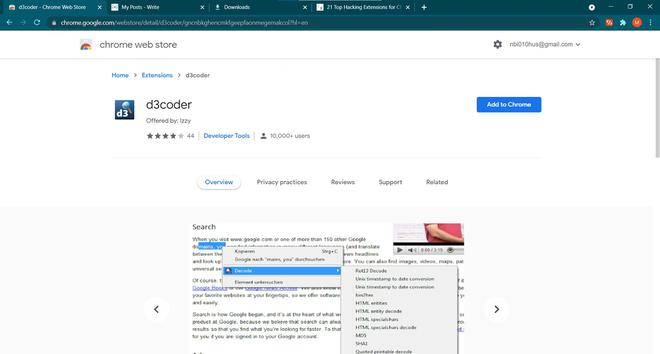
Step 1: Visit d3coder in chrome web store if you are using chrome.
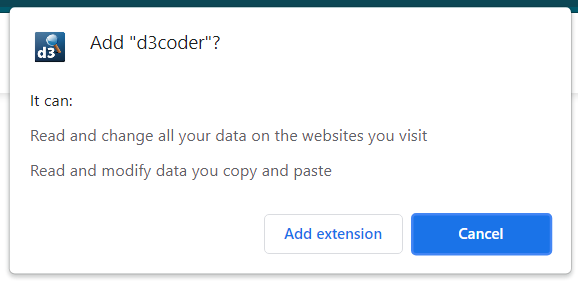
👁 d3coder extensionStep 2: Click on add extension.
👁 ass extensionAnd there you have your d3coder installed.
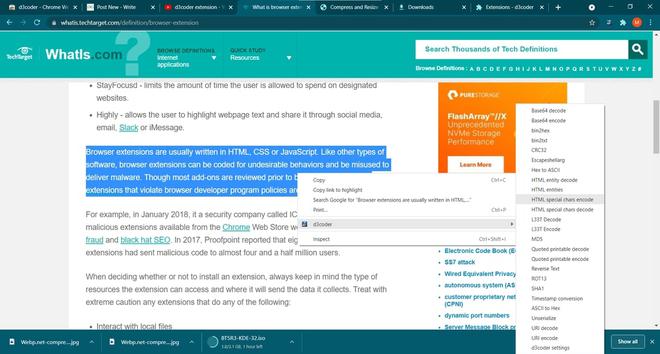
Using any browser extension is easy, simply select the text you want to encode/decode, right-click and select d3coder -> to choose between numerous encoding/decoding techniques given.
Example 1:
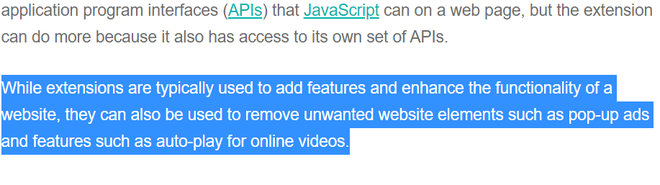
In this example, one can highlight the text and replace it with the encoded message on the page itself.
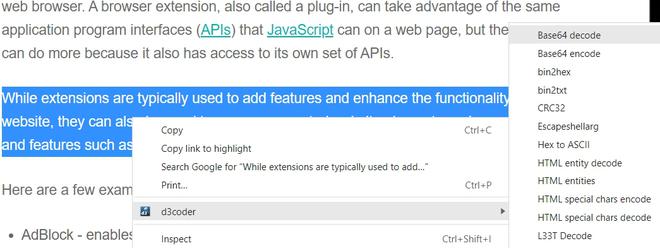
Select the text and right-click select the base 64 encode option.
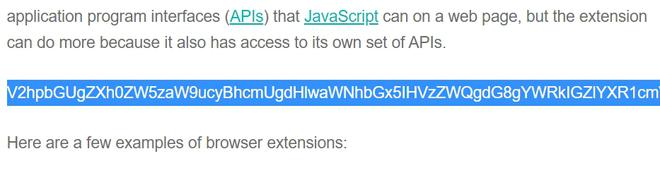
👁 Select the text and select the base 64 encode option.This is the encoded text of the above-highlighted text.
👁 encoded textYou can even decode this text back to see the original message.
👁 decode the text back to see the original message.Example 2:
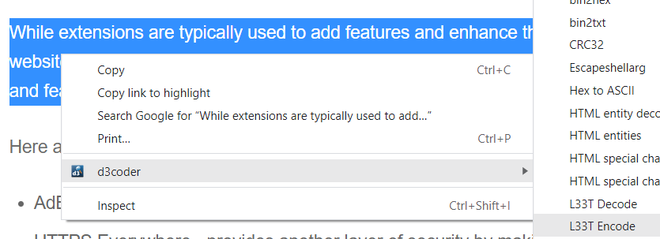
Let's use another encoding technique which is the L33t technique.
👁 L33t technique encode option.Encoded text of highlighted text.
👁 encoded textDecoded text is shown below,
👁 Decoded textExample 1:
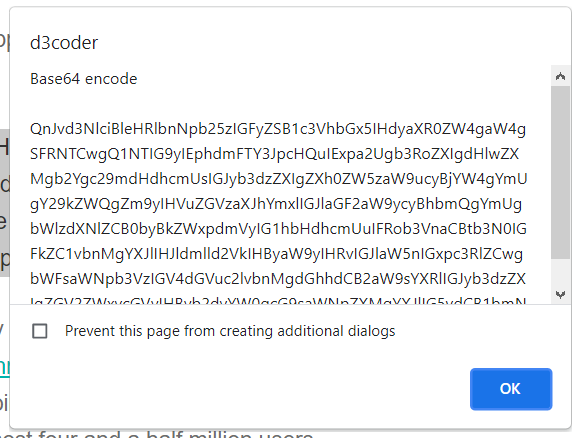
In this technique, one can get the encoded text using an alert pop-up.
👁 encoding text using an alert pop upWe can see in the below screenshot, the popup is shown with encoded text.
👁 the popup is shown with encoded textExample 1:
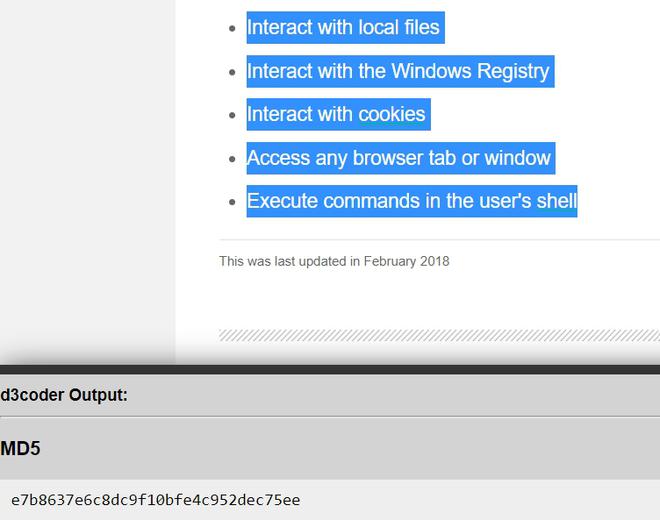
In this, the encoded text is shown at the bottom. Let's take a look, first highlight the text you want to encode, then right-click and select any of the encoding options.
👁 encoded text is shown at the bottomExample 2:
Here's another example to clear your concept. Highlight the text you want to encode -> right-click, select d3coder -> Select any encoding option.
👁 Decoded text at bottomIn conclusion, d3coder saves time by providing the facility to encode/decode on the push of a click also avoiding the user to go another site to encode/decode the text. It is fast, efficient and very useful. Not only it is easy to install but also easy to use.