|
VOOZH | about |
|
VOOZH | about |
An application called PuTTY, a terminal emulator, may serve as a client for the SSH, Telnet, rlogin, and raw TCP computer protocols. Although the phrase "PuTTY" is meaningless, the abbreviation "tty"—which stands for "teletype"—is occasionally used to refer to Unix terminals. PuTTY was originally created for Microsoft Windows, but it has since been ported to other operating systems, including several Unix-like ones. Unofficial ports have been made to the Symbian and Windows Mobile operating systems while official versions for Mac OS and Mac OS X are currently being developed. t is free software with an open-source license, the MIT License.
Let's see the installation steps of PuTTY on windows:
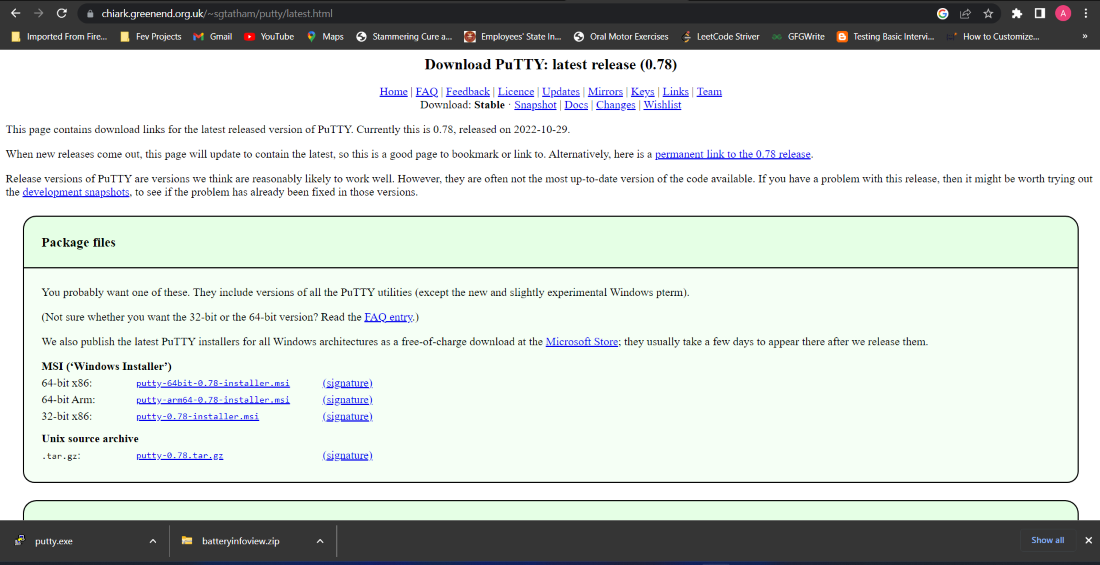
Step 1: Download PuTTY Installer from its official website.
https://www.chiark.greenend.org.uk/~sgtatham/putty/latest.html
Step 2: Execute the Installer. To execute it Double Click on it and press Next.
Step 3: Select your destination folder to install the PuTTY application, Click on Next if you don't want to change the path.
Step 4: Select the Product Features which you want to install with the PuTTY application and then Click on Install.
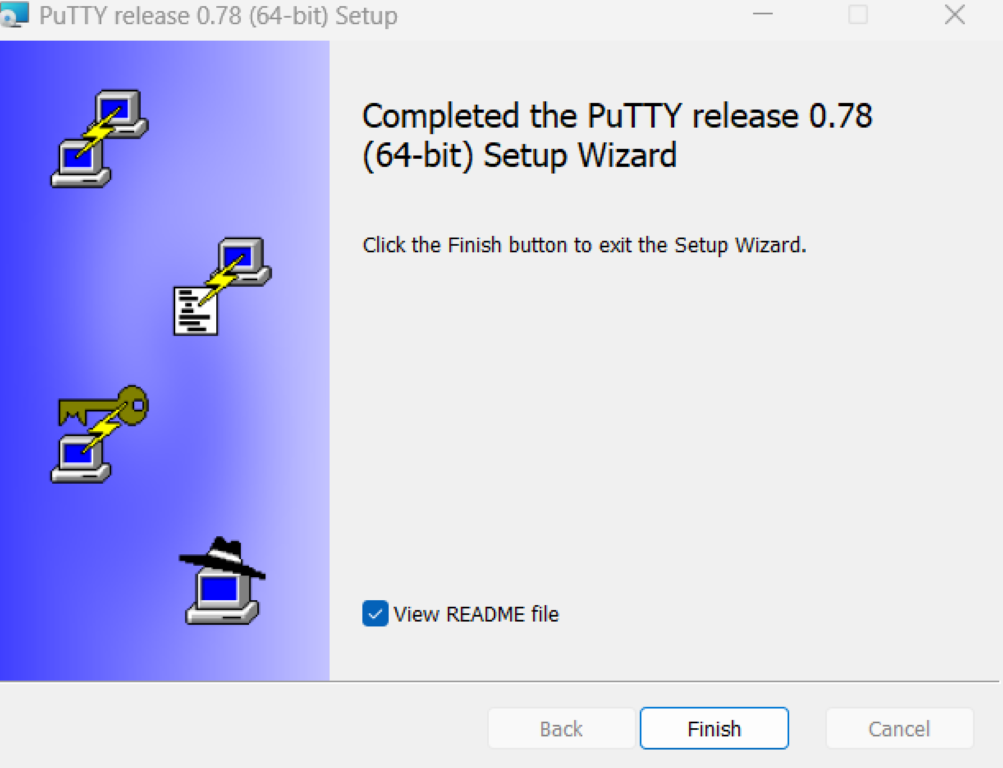
Step 5: Now the installation process of PuTTY get finished. Click on Finish to complete the wizard.
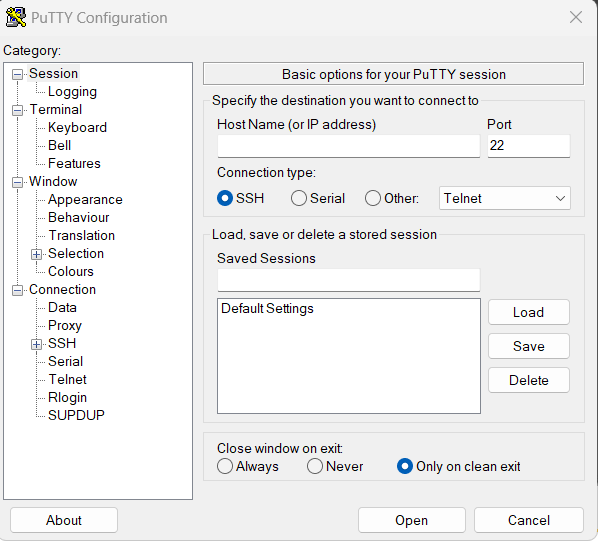
Step 6: Now you can open PuTTY from the start window for that click on the windows key or the howe icon and search PuTTY.
Now the application is successfully installed.