|
VOOZH | about |
|
VOOZH | about |
Add-ons in Google Sheets are third-party tools that extend the platform’s built-in capabilities, enabling users to perform advanced tasks such as automation, data analysis, and integrations. Available through the Google Workspace Marketplace, these add-ons help customize and enhance your spreadsheet experience.
Add-ons are easy to find and install directly from the Google Workspace Marketplace. Follow these simple steps:
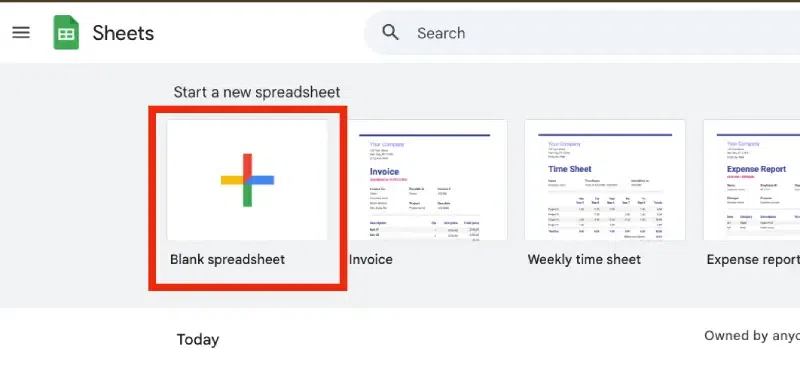
Launch Google Sheets and open any spreadsheet. You can also create a new blank spreadsheet.
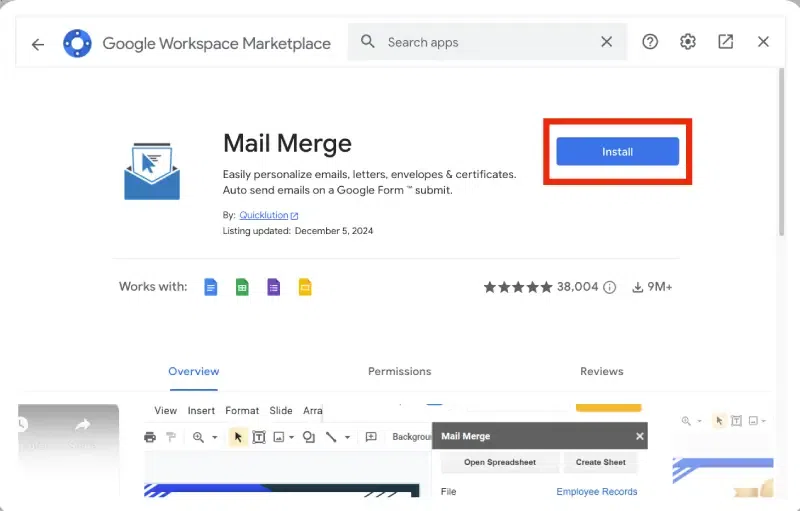
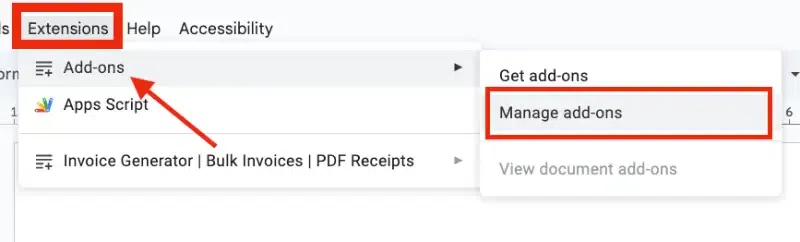
From the top menu bar, click on Extensions, then select Add-ons and click Get add-ons. This will open the Google Workspace Marketplace in a pop-up window.
In the search bar at the top of the Google Workspace Marketplace, type the name or function of the add-on you’re looking for (e.g., "Mail Merge" or "Data Cleanup").
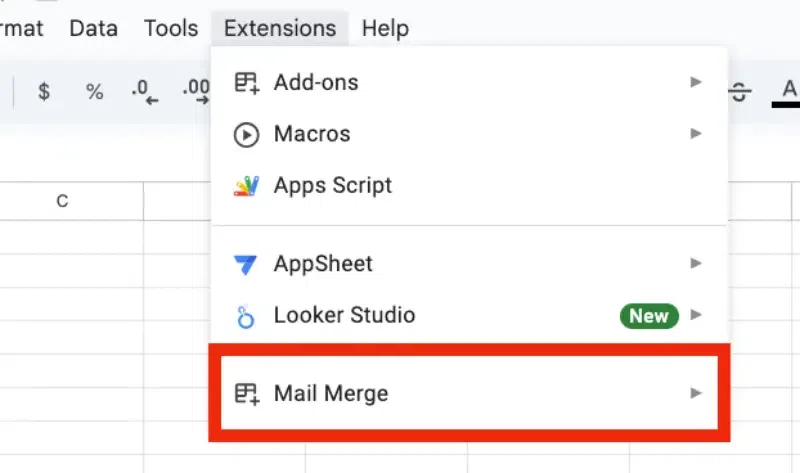
Go back to the Extensions menu, where you’ll now see the installed add-on listed. Select it to start using its features.
To learn how to manage add-ons in Google Sheets, follow these simple steps. Add-ons from the Google Workspace Marketplace can enhance your spreadsheets with extra features. This Google Sheets add-ons guide will help you get started:
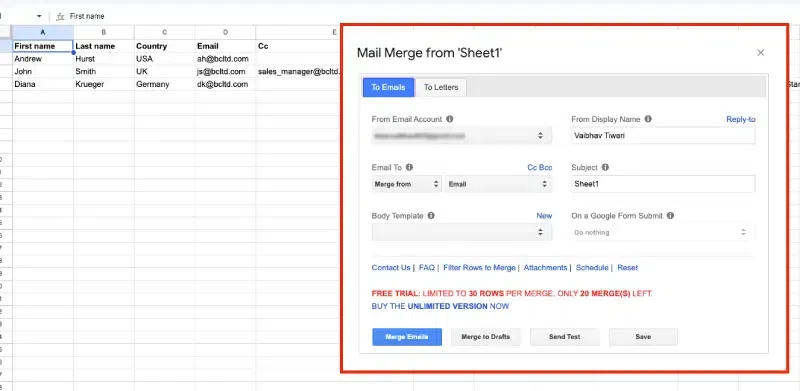
Navigate to the Extensions menu and select the installed add-on from the list. Some add-ons will launch a side panel or a pop-up window.
Follow the on-screen instructions to configure the add-on. For example, you might select a range of data, set preferences, or integrate with other tools.
Once configured, click the relevant action button in the add-on interface (e.g., "Run," "Start," or "Generate") to perform the task.
Using the best Google Sheets add-ons can help you manage data and automate tasks efficiently. Here are some popular options:
If you no longer need an add-on, follow these steps to remove add-ons from Google Sheets:
Open the Google Sheets document from which you want to remove an add-on.
Click on Add-ons in the top menu to open the dropdown.
Select Manage add-ons from the dropdown menu to view your installed add-ons.
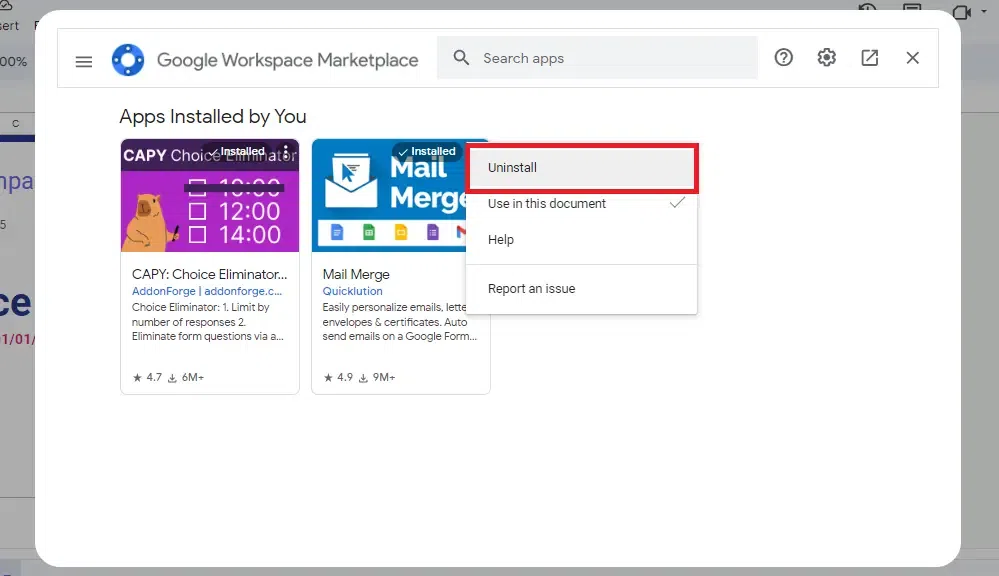
Find the add-on you wish to remove, click on the three vertical dots next to it, and select Remove. Confirm the removal when prompted.
Also Read: