|
VOOZH | about |
|
VOOZH | about |
Here, we will see how to install and run the VMware Tools in the Ubuntu Linux system. Virtualization means you can use the guest operating system on your main operating system. Sometimes they help you to do some tasks that are not performable to your current operating system, so you also use a virtual operating system, with the help of VMWare.
Prerequisite:
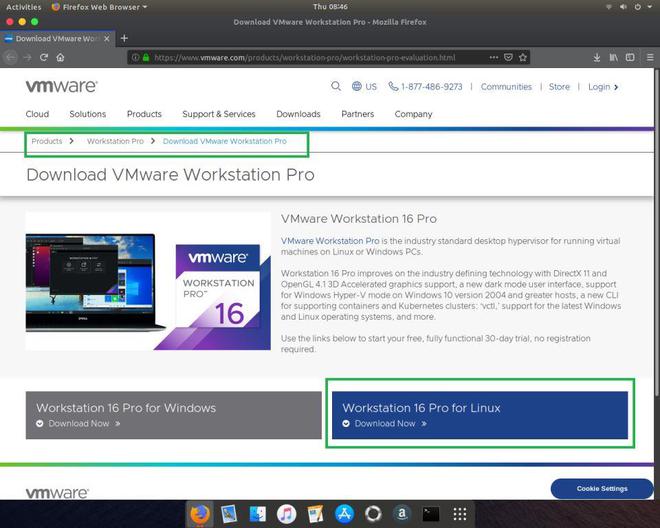
Step 1: Download The VMWare WorkStation. First, go to the official VMWare site.
Navigate To : Products -> Workstation Pro -> Workstation Pro
👁 How to Run VMware Tools in Linux SystemsStep 2: Install Some Prerequisite tools.
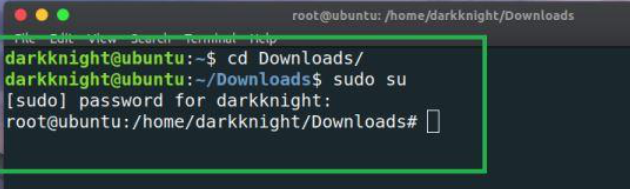
Some tools are dependencies of the VMWare Workstation, so we want to install them, follow the below steps.
sudo su👁 Image
Step 3: Update packages.
apt update
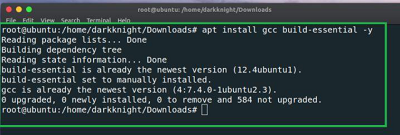
Step 4: Install GNU Compiler and Build Essential tool to help with the installation process.
apt install gcc build-essential -y👁 Image
Step 5: Extract The Downloaded VMWare File & Install
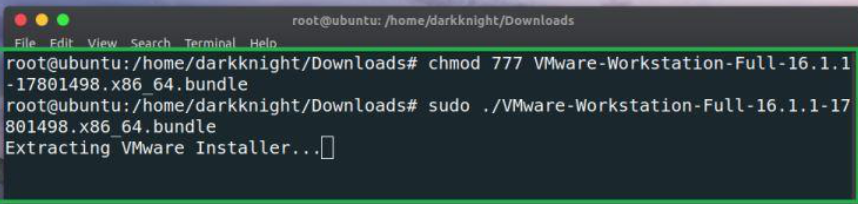
After doing the upper task, extract the download file. Open the terminal and type the below command And give permission and execute it.
chmod 777 [download_file_name]👁 Image
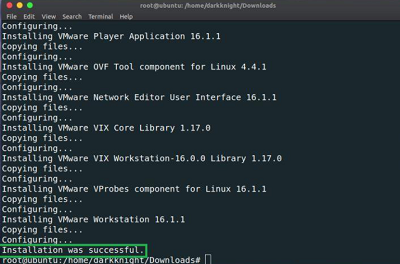
sudo ./[download_file_name]👁 Image
Wait until the installation process is done.
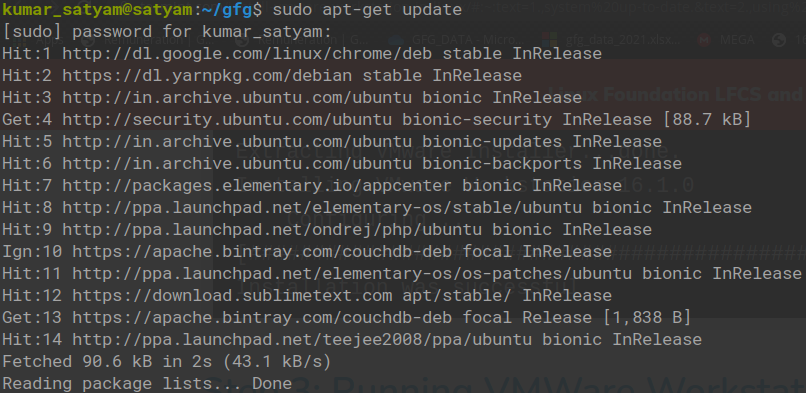
👁 ImageStep 1: Update your system with super admin.
sudo apt-get update👁 Image
Step 2: Now download the Vmware file from the websites.
wget https://download3.vmware.com/software/wkst/file/VMware-Workstation-Full-16.1.0-17198959.x86_64.bundle👁 Image
Step 3: Assign the permission for execution.
chmod a+x VMware-Workstation-Full-16.1.0-17198959.x86_64.bundle👁 Image
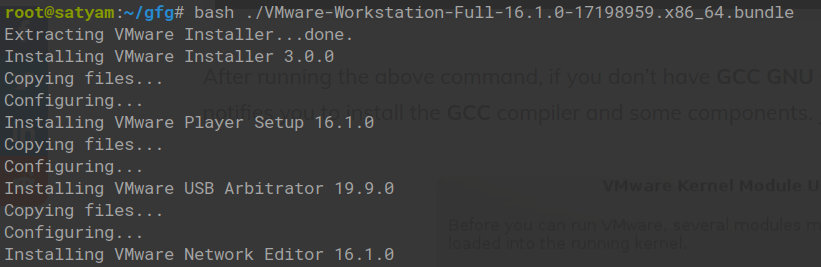
Step 4: Now to the downloaded directory and execute the file.
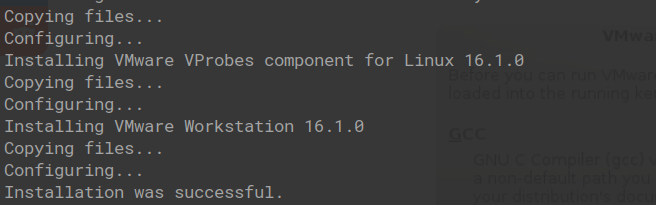
bash ./VMware-Workstation-Full-16.1.0-17198959.x86_64.bundle👁 Image
Step 5: Run the VMWare.
# vmware
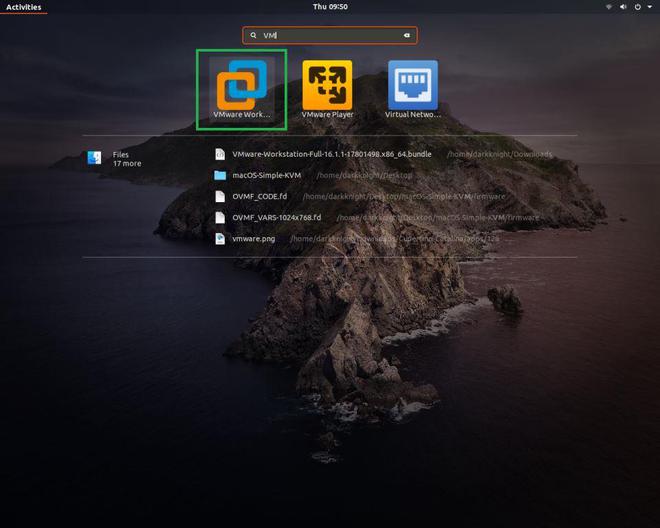
After installation is complete, search the VMWare icons and click them.
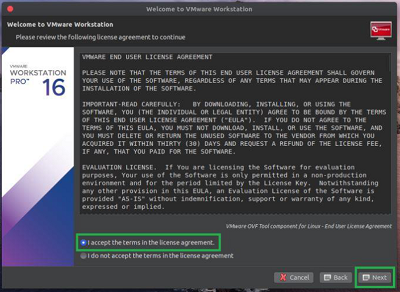
👁 How to Run VMware Tools in Linux SystemsAgree with all agreements and click to next.
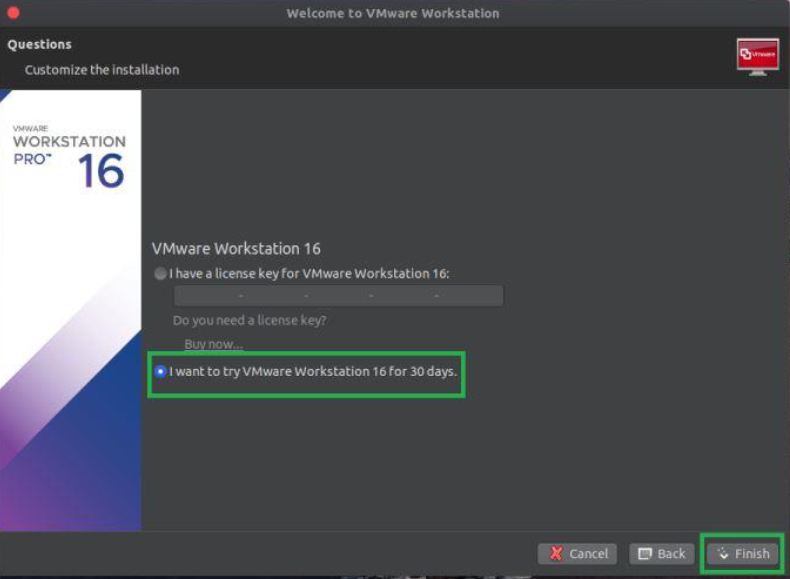
👁 ImageThey have to ask you to key, click to trial and click to next.
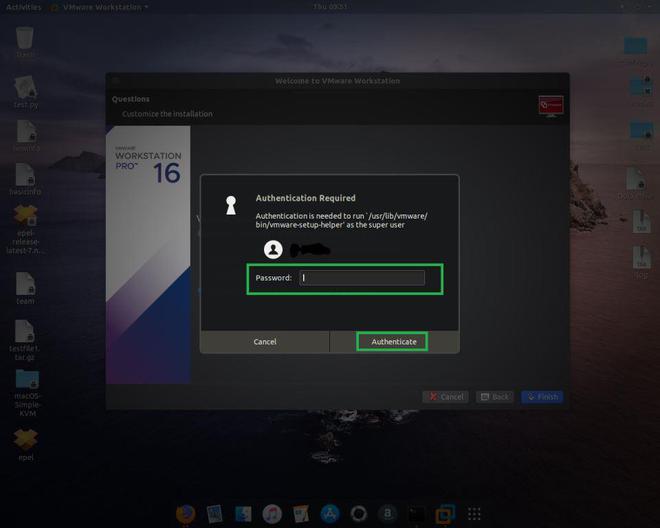
👁 ImageLastly, they ask you to enter your root password.
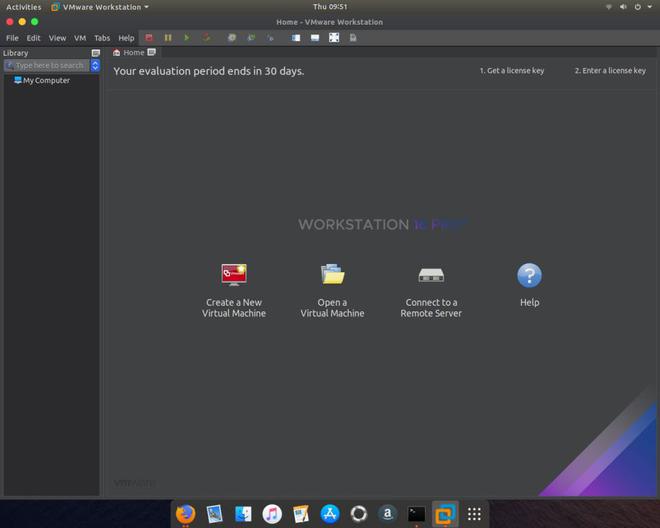
👁 How to Run VMware Tools in Linux SystemsYou have successfully done VMWare Tools on your Ubuntu Linux operating system, now you can use it
👁 Image