|
VOOZH | about |
|
VOOZH | about |
Integrating ChatGPT into Visual Studio Code (VSCode) can supercharge your coding workflow, offering AI-driven assistance right within your favorite code editor. With ChatGPT, you can access code suggestions, debugging help, and contextual explanations, enhancing your productivity and making complex tasks more manageable. In this guide, we'll walk you through how to install ChatGPT in VSCode, ensuring seamless integration for smarter coding, faster problem-solving, and improved development efficiency.
Table of Content
Using ChatGPT in VSCode can make coding faster and easier. It helps developers improve their coding speed and quality by providing smart code suggestions and helpful answers. With features like instant code snippets, AI-powered code completion, and debugging assistance, ChatGPT in VSCode becomes like a smart partner. It gives you quick solutions to coding issues, and makes writing and fixing code much more efficient. Whether you’re working on a big project or just need help with a small piece of code, ChatGPT can make your work smoother and boost your productivity.
Before we focus on the steps to use ChatGPT in VSCode, let us look into the requirements for installing the ChatGPT extension in VS Code.
Your device must have VSCode installed. It is an open-source source code editor with versions available for Linux, Windows, and Mac OS.
You will need a stable internet connection to download the ChatGPT extension and to connect the ChatGPT API with the VSCode platform.
An API key from Open AI is required to connect and install ChatGPT in VSCode. This key will allow you to make connection requests to ChatGPT and receive responses.
You will also need a ChatGPT extension to install on the VSCode platform. It is available in the VSCode marketplace. Follow the simple instructions to install an extension.
Works on Windows, macOS, and Linux.
Launch the Visual Studio Code application on your computer.
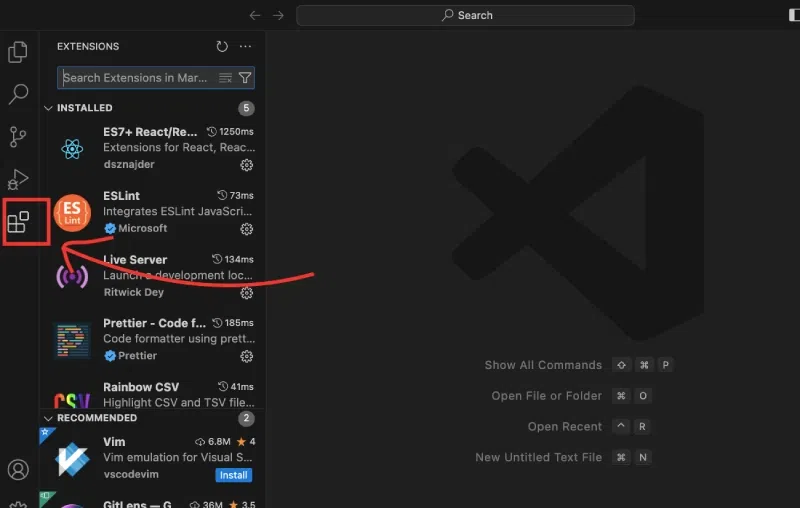
Navigate to the View menu on the top bar and select Extensions. Alternatively, you can use the shortcut:
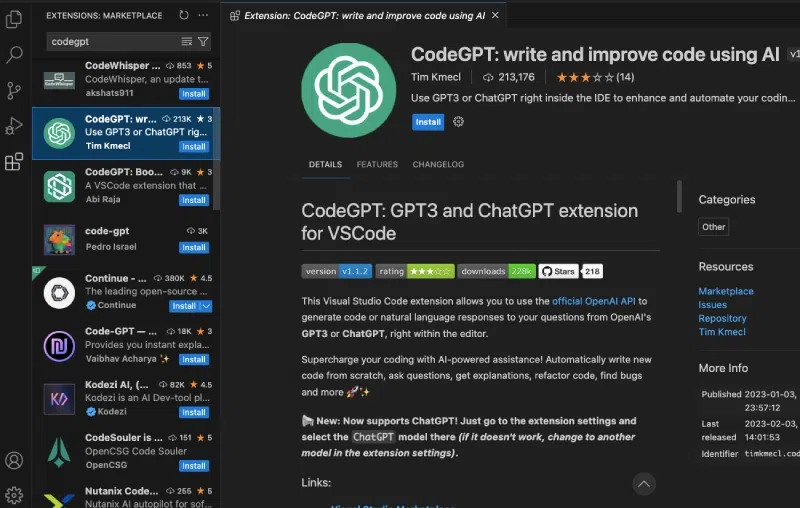
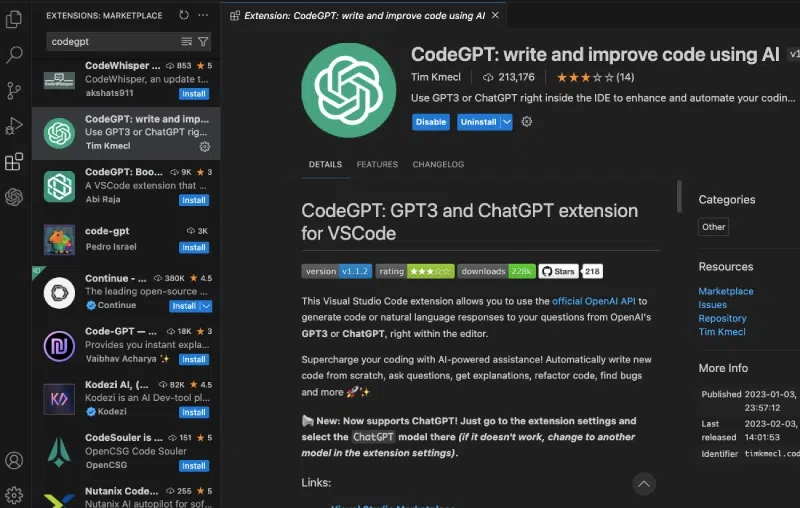
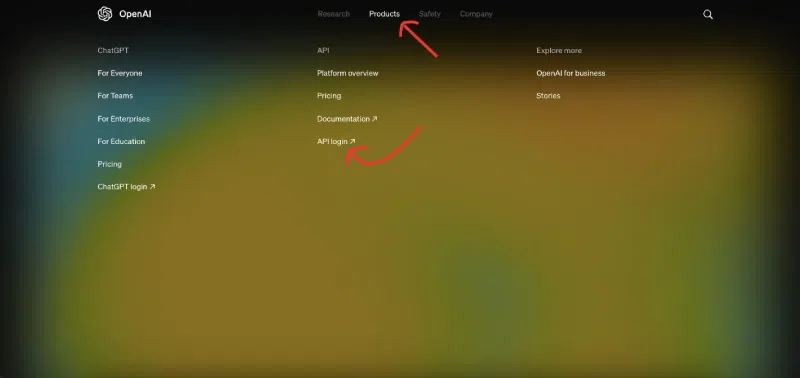
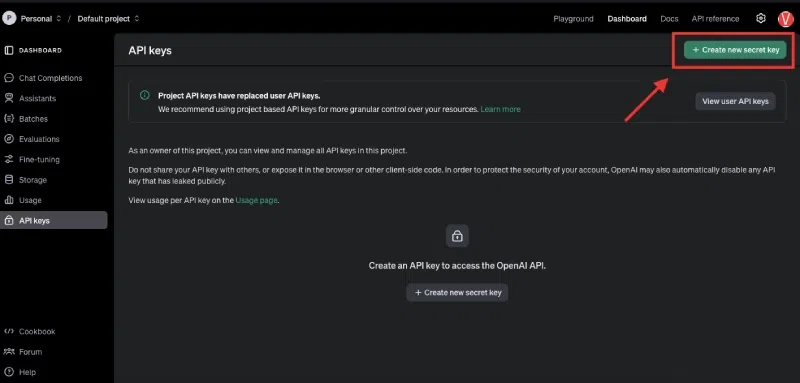
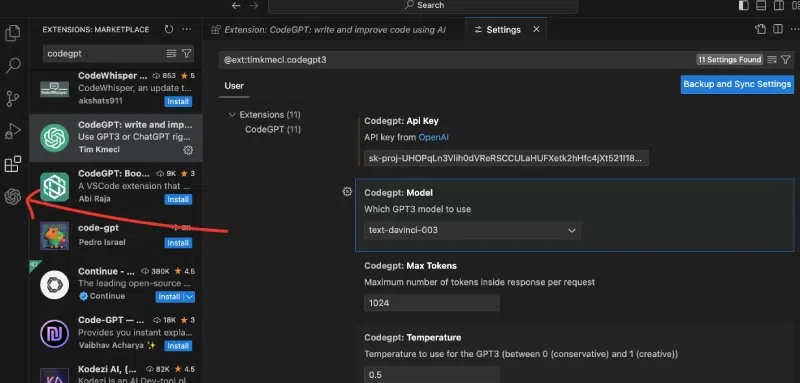
CTRL + Shift + XCmd + Shift + XCodeGPT into the search bar. This will bring up a list of extensions, including the ChatGPT extension named CodeGPT.CodeGPT in the search results and click the Install button. Developers in the menu bar at the top of the OpenAI homepage. From the drop-down list, select API reference. View API keys.Create new secret key. Copy the newly generated secret API key. This key will be used in VSCode. CreateSettings by navigating to File > Preferences > Settings (or Code > Preferences > Settings on MacOS).CodeGPT to find the extension's settings.CodeGPT: API Key setting and paste your copied OpenAI secret API key into the text field. Press Enter to save. By following these steps, you have successfully installed and configured the ChatGPT extension in VSCode, enabling you to leverage its capabilities for coding assistance.
To get the most out of using ChatGPT in VSCode, here are some simple yet effective tips:
Implementing these tips will streamline your coding workflow and help you fully leverage the capabilities of ChatGPT and VSCode.
To conclude, integrating ChatGPT into your VSCode setup is a fantastic way to elevate your productivity. With ChatGPT-4's capabilities, you can streamline coding tasks, debug more efficiently, and even find creative solutions faster. The steps are simple, and once installed, you’ll see how it can make your development workflow smoother and more effective.
Give it a try, and start experiencing a boost in your coding productivity today!