|
VOOZH | about |
|
VOOZH | about |
In this article, we will look into the process of installing code blocks for C++ on windows.
Follow the below steps to install Code Blocks for C++ on windows:
Step 1: Open Your Web Browser
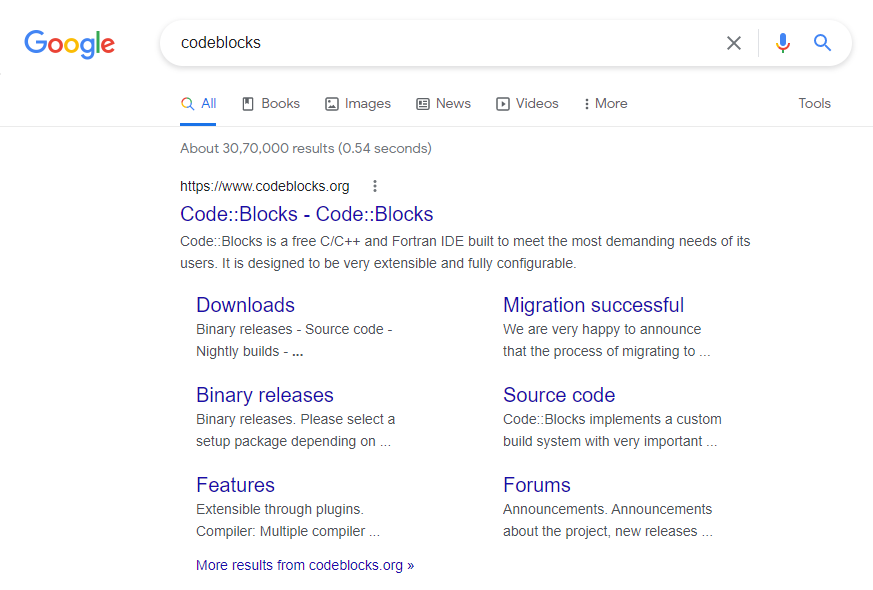
Step 2: Go to the Search Panel and Search for "Code Blocks"
Step 3: Click on the First Result shown on the Search Engine or click on this link.
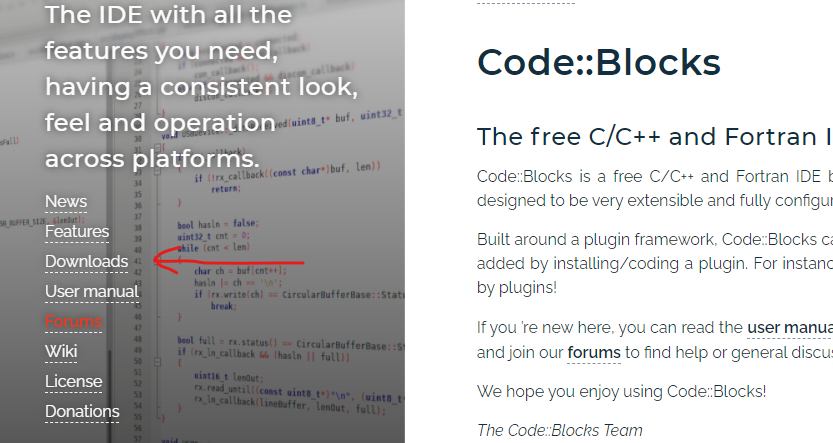
👁 ImageStep 4: Click on the "Downloads" Section.
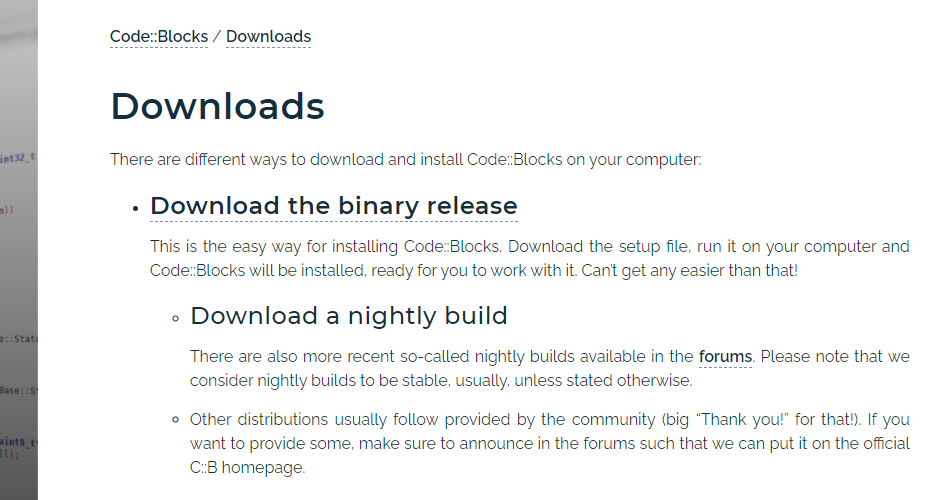
👁 ImageStep 5: Click On "Download the binary release".
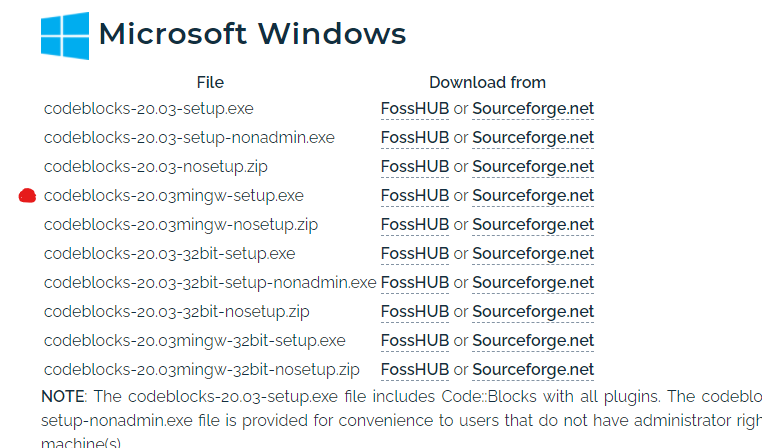
👁 ImageStep 6: As per this Date, the Latest Version of Code Blocks is 20.03. Now here you'll find several download options
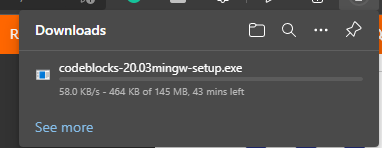
I'll suggest you download the file with MinGW written on it ("codeblocks-20.03mingw-setup.exe") as MinGW is a Compiler that is needed to run the Program. If you download the normal setup file then you have to download The compiler separately.
👁 ImageStep 7: Click on Sourceforge.net under the Download Section of your desired file.
Step 8: then Download should begin within some seconds.
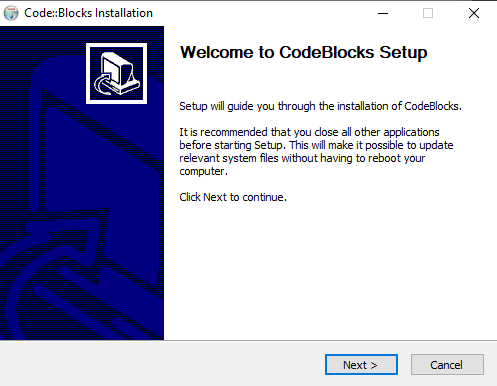
👁 ImageStep 9: When the download is completed, Open Your Code Blocks Setup File.
Step 10: Click on Next.
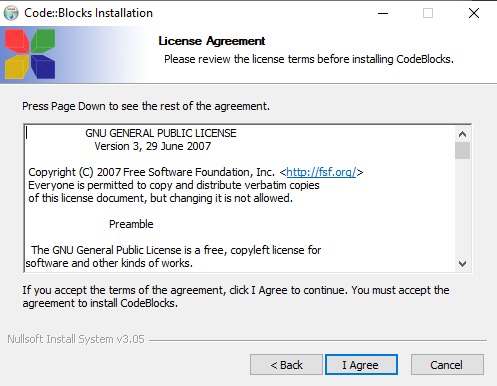
👁 ImageStep 11: Click on I agree.
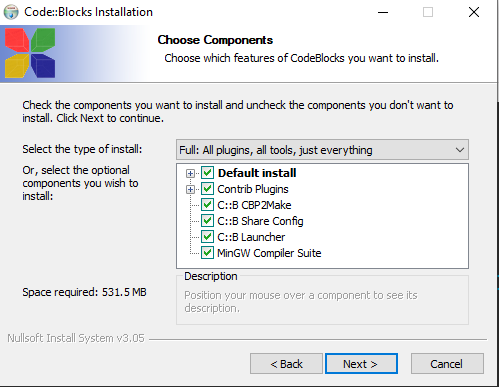
👁 ImageStep 12: Click On Next ( you need to have at least 600 MB free storage on your drive for the installation).
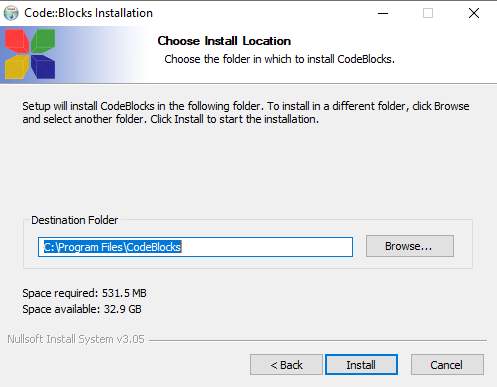
👁 ImageStep 13: Select your Destination and Click on Install
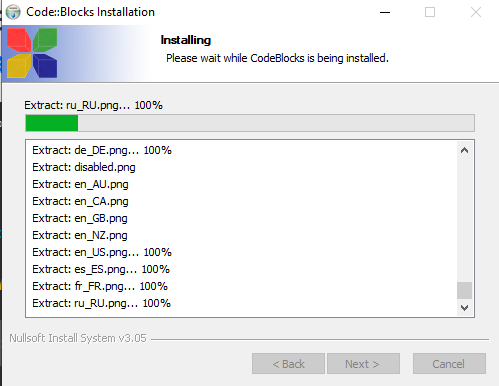
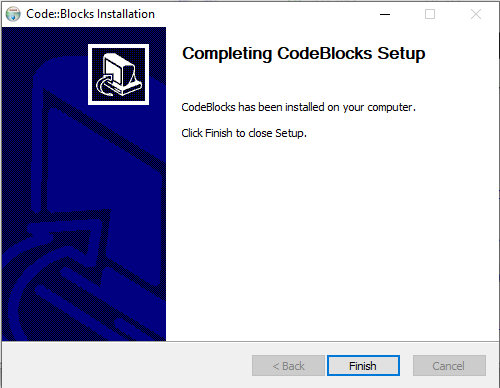
👁 ImageStep 14: Once Installation gets completed, click on Next and then Click on Finish
👁 ImageNow You Code Blocks have been installed.
To Set the Environment Path of GCC compiler
Step 1: Go to your Code Blocks MinGW installation folder location ( For me it is C:\Program Files\CodeBlocks\MinGW\bin) and copy the address
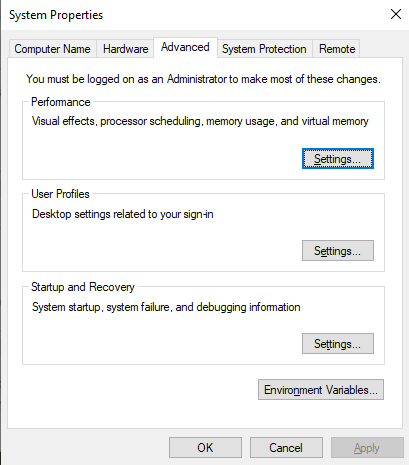
Step 2: Go to Search Panel and type "Edit System environment variables"
Step 3: Click On Environment Variables
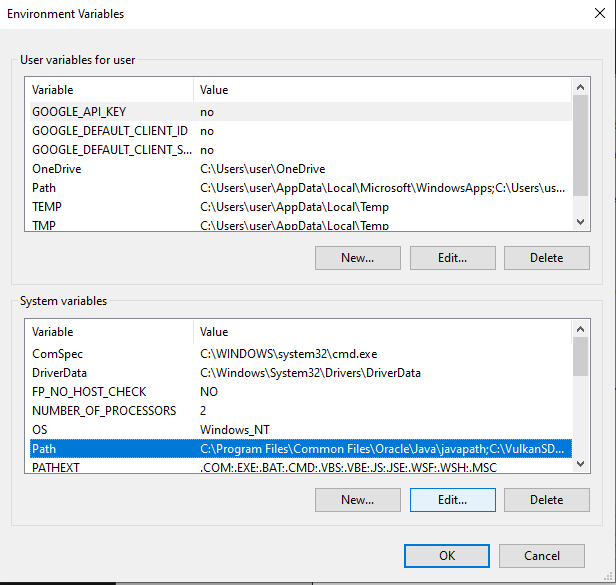
👁 ImageStep 4: Under System variables, Click on Path and Select Edit
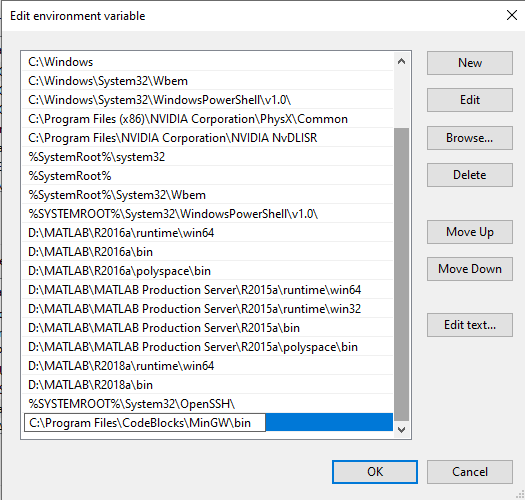
👁 ImageStep 5: Click on New and Paste the Address into it and click on OK
👁 ImageNow Code Blocks will automatically detect GCC Compiler.