|
VOOZH | about |
|
VOOZH | about |
In this article, we will discuss how to install GoLang (Go Programming Language) in Linux. But at first let's know a brief about GoLang.
GoLang is a procedural programming language. It was developed in 2007 by Robert Griesemer, Rob Pike, and Ken Thompson at Google but launched in 2009 as an open-source programming language. Programs are assembled using packages, for efficient management of dependencies. This language also supports the environment adopting patterns alike to dynamic languages.
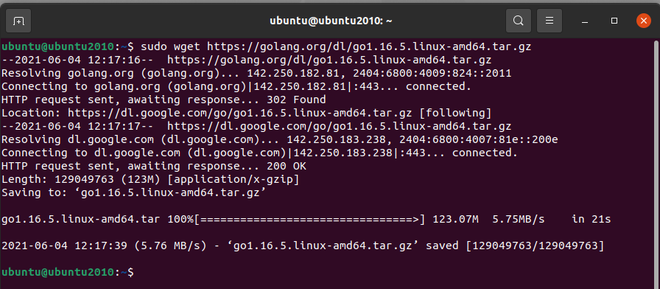
Download GoLang using this link and choose the latest version of GoLang in an archive and install using the below command:
$ sudo wget https://dl.google.com/go/go1.16.5.linux-amd64.tar.gz
Verify the downloaded tarball version by verifying the SHA256 checksum of the downloaded file using the command below :
$ sha256sum go1.16.5.linux-amd64.tar.gz👁 Image
Extract the 'go1.16.5.linux-amd64.tar.gz' Go tarball file to the '/usr/local' directory next.
$ sudo tar -C /usr/local -xzf go1.16.5.linux-amd64.tar.gz👁 Image
In the /usr/local directory, you'll find a directory called go. Change the owner and group of this directory to root recursively:
$ sudo chown -R root:root /usr/local/go👁 Image
To construct the directory structure for your Go workspace, run the following command:
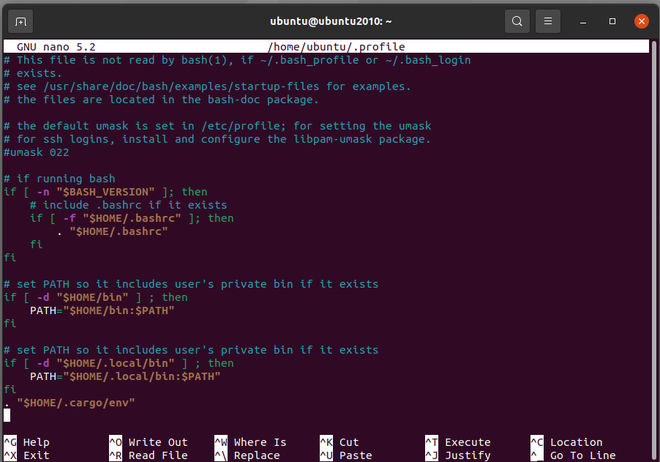
$ mkdir -p $HOME/go/{bin,src}👁 ImageBy adding global variables to your /.profile, you can set your $GOPATH. To begin, open /.profile in nano or another text editor:
$ nano ~/.profile👁 Image
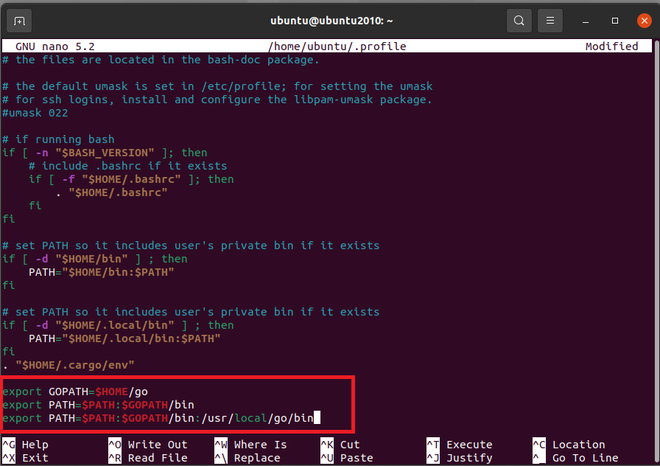
Now Append the following lines then save and close:
export GOPATH=$HOME/go
export PATH=$PATH:$GOPATH/bin
export PATH=$PATH:$GOPATH/bin:/usr/local/go/bin
👁 Image
To load the global variables, run the following command to update your shell:
$ . ~/.profile👁 Image
Using the echo command and analyzing the result, you can check that your $PATH has been updated:
$ echo $PATH👁 Image
Verify the installation by looking at the current Go version:
$ go version👁 Image
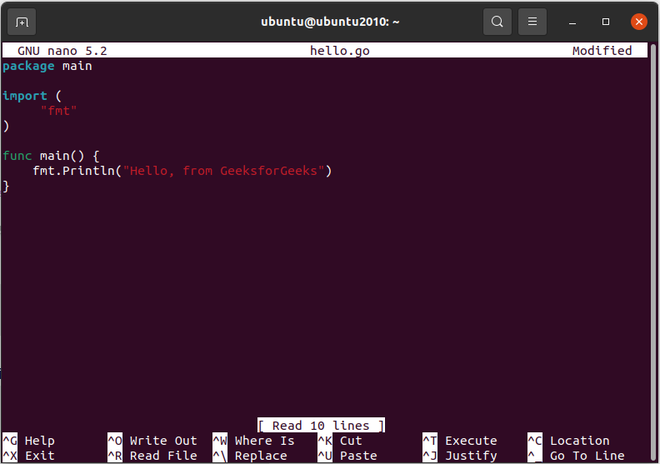
Write a simple Go Hello World program to see if your Go installation is operating properly. Create a new file called hello.go then save and close:
$ nano hello.go👁 Image
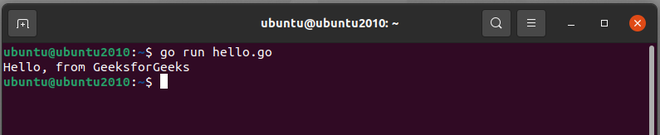
Now compile and run the go program:
$ go run hello.go👁 Image