|
VOOZH | about |
|
VOOZH | about |
GO is a compiled programming language developed by Robert Griesemer, Rob Pike, and Ken Thompson at Google. It was introduced in 2009 and is also known as golang. In this article, we are going to see how you can set up Visual Code Studio for Go language Development. We are going to install the necessary tools for it.
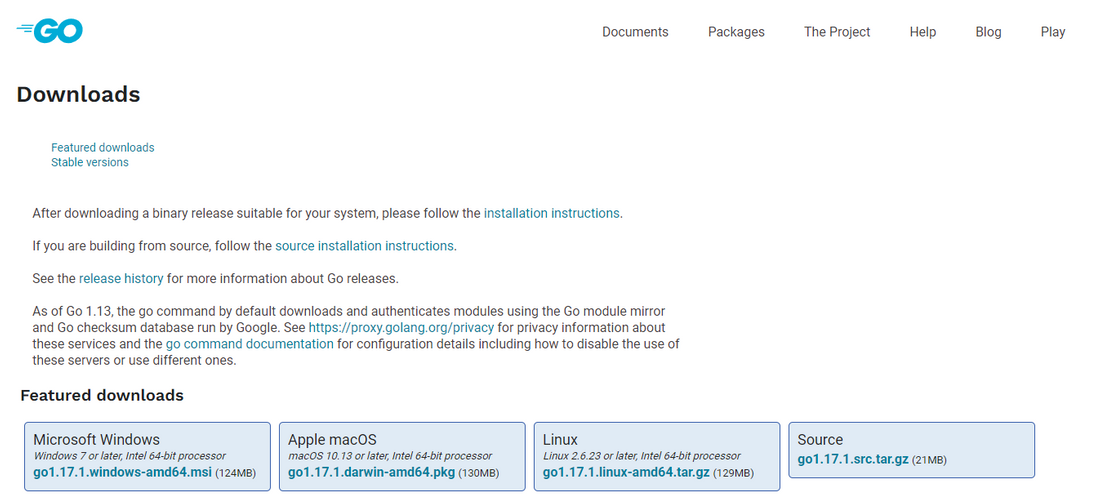
First Navigate to this link, it will redirect you to the official download page of GO Language.
Click the Download button to download the installer for Windows.
👁 ImageAfter downloading the installer, start the installation. It will install GO language in your Windows system easily. You can check the version of the language by typing the following command in the terminal.
go version
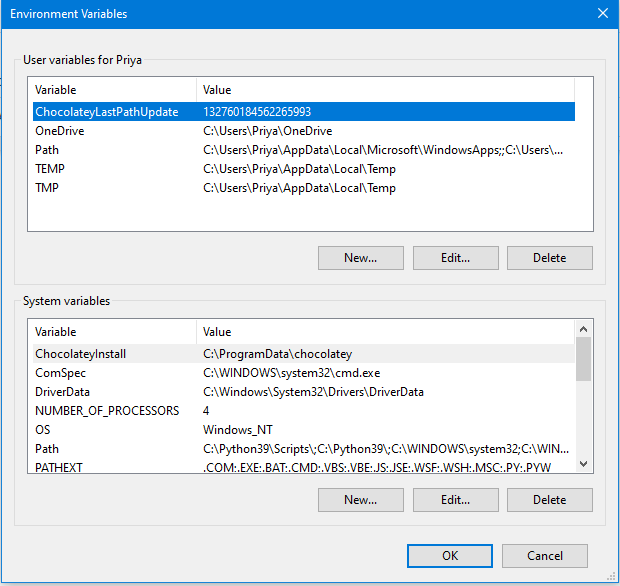
GOPATH is an Environment variable and it specifies the root of your Go Workspace. By default, the workspace is located at %USERPROFILE%/go for Windows.
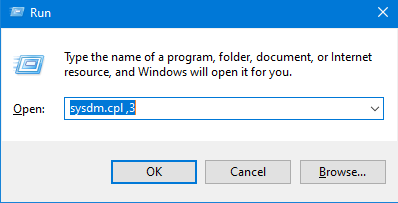
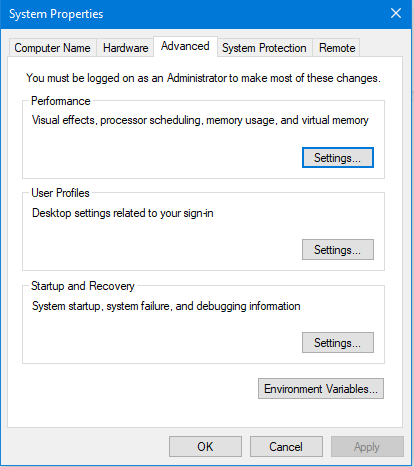
Configure GOPATH:
Now you have successfully configured GOPATH for your Windows system. If you want to check, just open the run dialog by pressing win + r and type %GOPATH%, if it takes you to the root directory that we have set(C:\Projects\Go) then the configuration was successful.
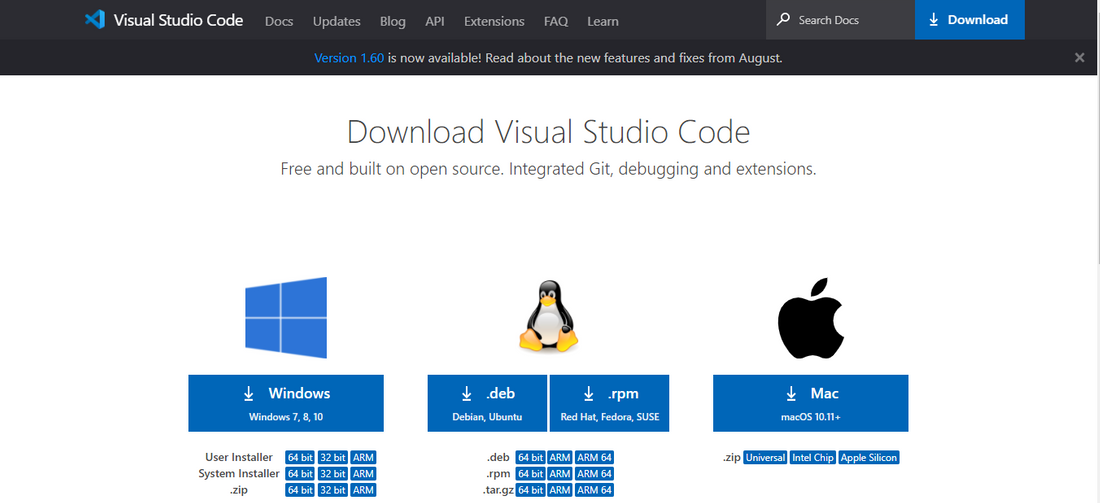
Visual Studio Code is a lightweight but Powerful IDE & Code editor for Windows, macOS, and Linux. Follow these steps to install Visual Studio Code;
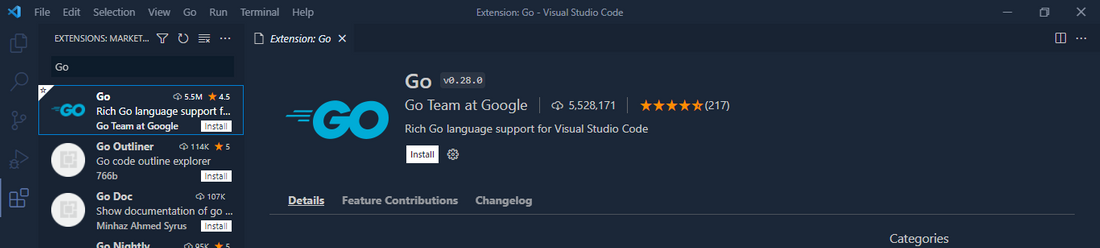
Go: Install/Update Tools
Now you can start developing in Golang.