|
VOOZH | about |
|
VOOZH | about |
JetBrains developed IntelliJ IDEA, used for Java and Kotlin development. It provides smart code completion, debugging tools, version control support, and many advanced features that make application development faster and easier.
But first of all, let us see the system requirements for installing it.
| RAM | 2 GB | 8 GB of Free RAM |
|---|---|---|
| Requirements | Minimum | Recommended |
| CPU | Modern CPU | Multi-core CPU (Quad-core or greater) |
| Monitor Resolution | 1024×768 | 1920×1080 |
| OS | Microsoft Windows Server 2019 and Windows 10 or later | Latest 64-bit Windows versions |
| Disk Space | 3.5 GB Free Space | At least 5 GB of Free Space |
Follow these steps to install the IntelliJ IDEA to run our Application.
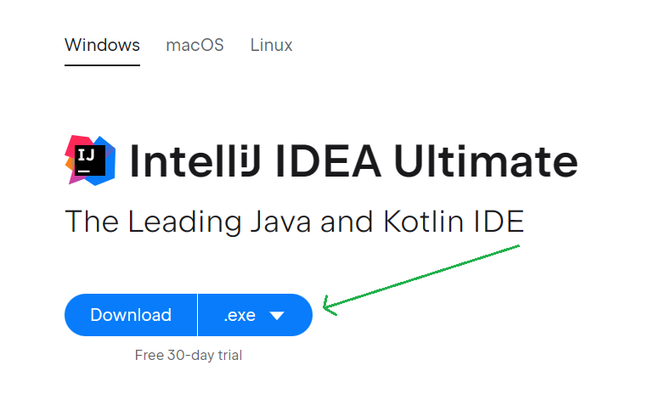
To Download and Install IntelliJ IDEA, First Go to the official website of IntelliJ IDEA or download it from here.
Click on the Windows .exe download button to start downloading the IntelliJ IDEA setup file.
👁 downloading-intellij-idea
Open the Downloads folder and check whether the IntelliJ IDEA setup file has been downloaded successfully.
👁 downloading-the-latest-version
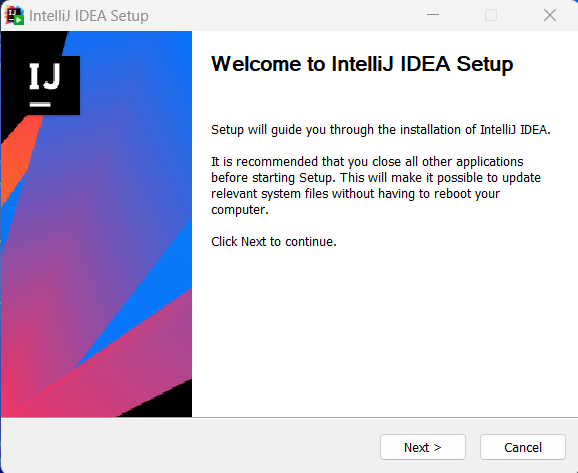
Double-click the downloaded .exe file. The IntelliJ IDEA Setup Wizard will appear on the screen. Click on Next to continue.
👁 installing-intellij
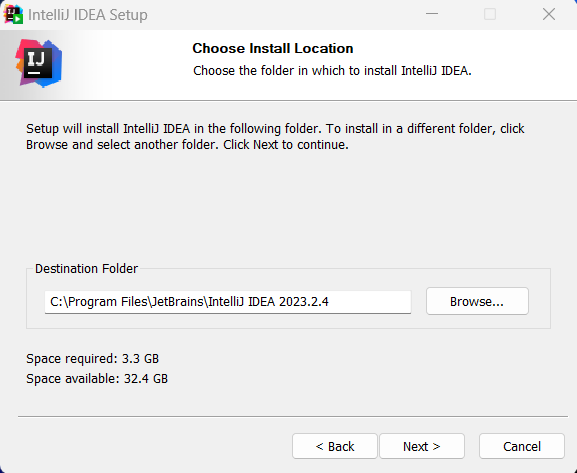
Select the folder where you want to install IntelliJ IDEA. You can keep the default location or click on Browse to change it. Then click on Next.
👁 choosing-the-folder-to-install-intellij
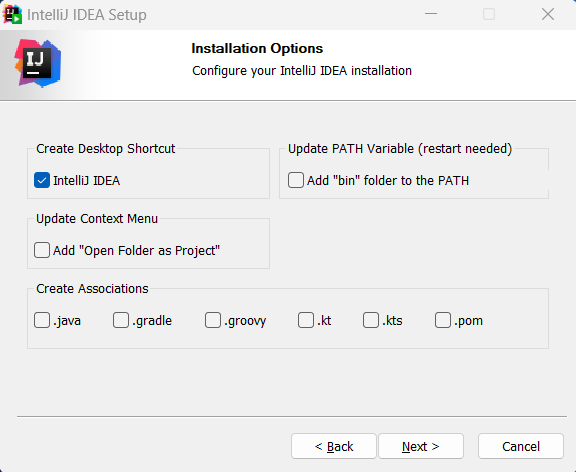
Choose additional options such as creating a desktop shortcut, adding PATH variable support, or associating Java files with IntelliJ IDEA. After selecting the required options, click on Next.
👁 choosing-the-folder-to-install-intellij
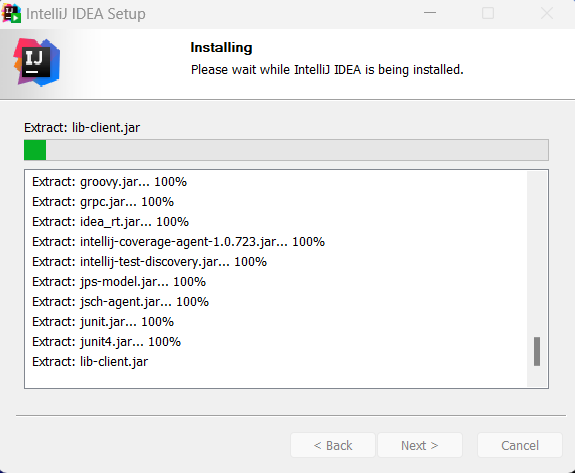
Click on next, and then IntelliJ will start to install, The below screen will appear:
👁 click-on-next
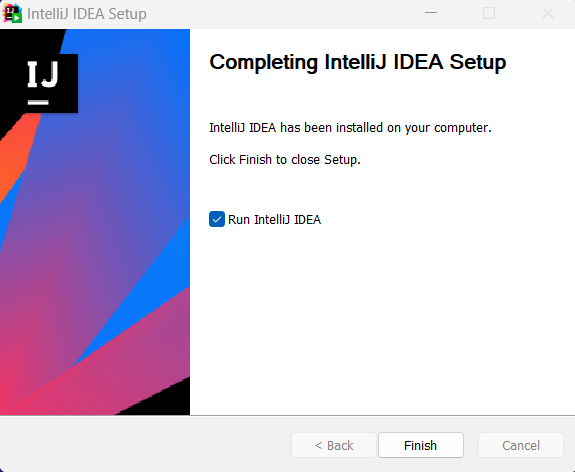
After the installation process finishes successfully, click on Run IntelliJ IDEA and then click Finish.
👁 click-on-run-intellij-idea
Running IntelliJ IDEA, You will see the splash screen of IntelliJ IDEA.
👁 running-intelliJ
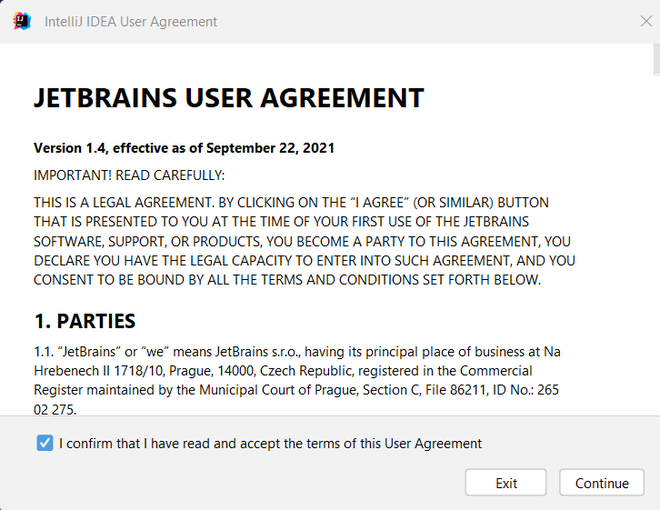
Read the terms and conditions carefully and click on Confirm to continue using IntelliJ IDEA.
👁 accept-the-agreementThe activation of IntelliJ can be done in 3 ways. Which are listed below.
Follow these steps to set up our free activation plan to use Intellij IDEA.
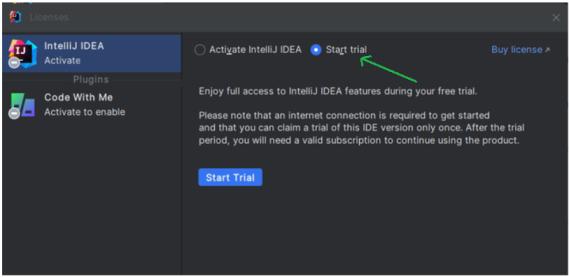
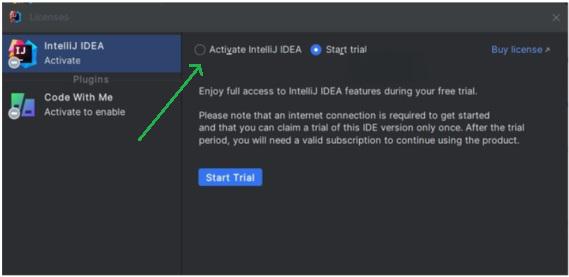
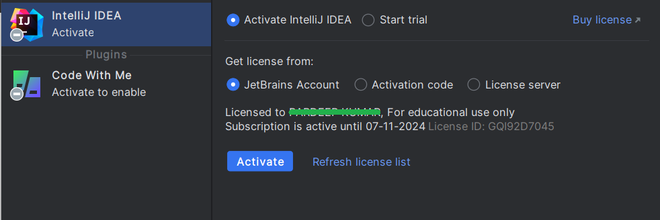
After step 10, the below screen will pop out in front of you. There will be two options Activate IntelliJ IDEA and Start Trial. The start trial provides 30 days of free usage of IntelliJ IDE.
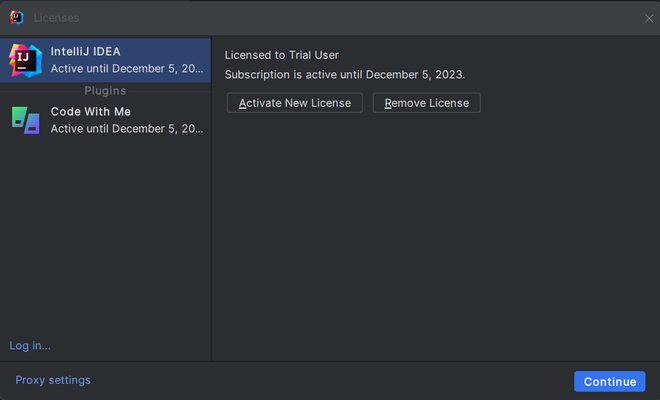
👁 activating-trial-periodAfter that the trial period will be activated.
👁 trial-license-activatedClick on Activate IntelliJ IDEA and select New Registration if you do not already have a JetBrains account.
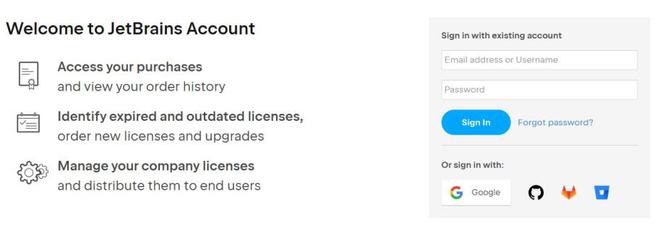
👁 activation-of-intellij-ideaYou will be redirected to the JetBrains login and registration page where you can sign in or create a new account.
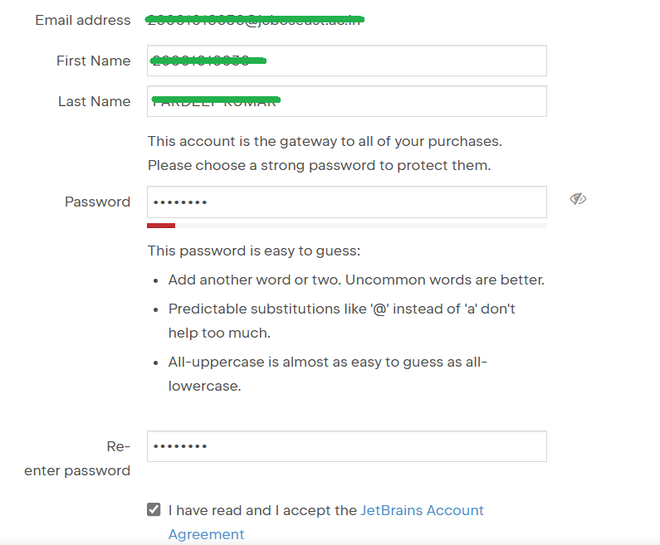
👁 registration-page-of-intellijSign in using Google, GitHub, or another available method. You can also create a new account by entering your details such as name, email, and password.
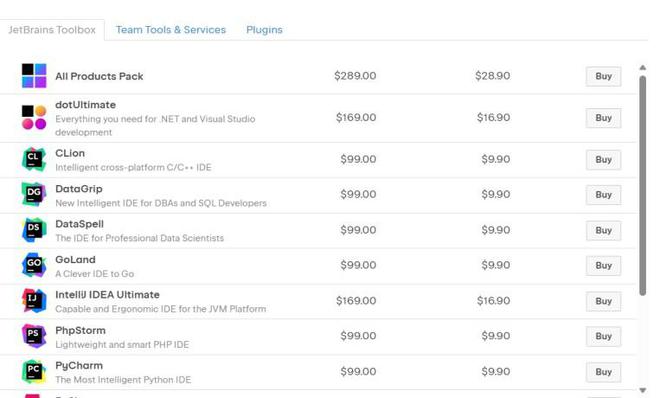
👁 filling-detailsAfter logging in, you will be able to see the available premium subscription plans and choose one according to your needs.
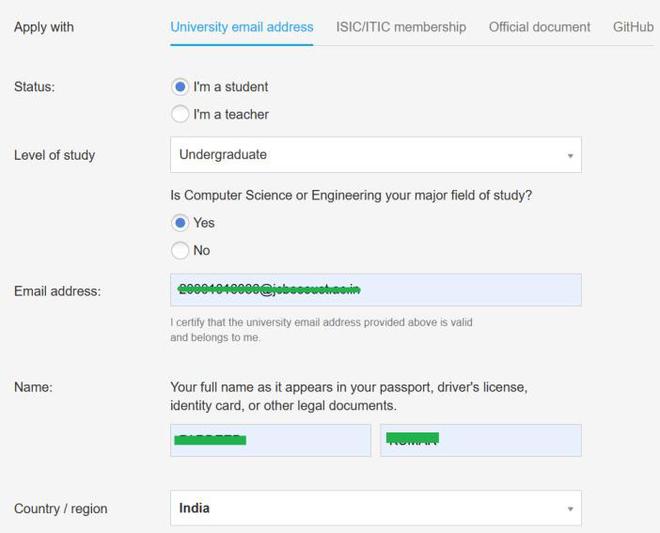
👁 premium-packages-of-intellij👁 filling-details-of-intellij-educational-subscriptionNOTE: The email must be provided by the college or an institution
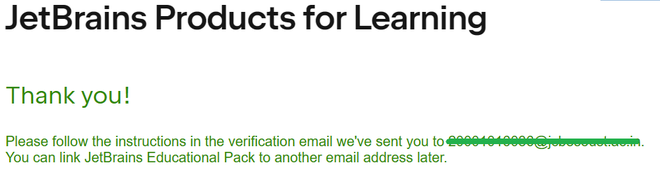
After that a confirmation mail will come at registered mail, Click on the link provided in the mail and accept the terms and conditions.
👁 verification-on-a-registered-accountAfter accepting the terms and conditions, the student license will be activated successfully on your account.
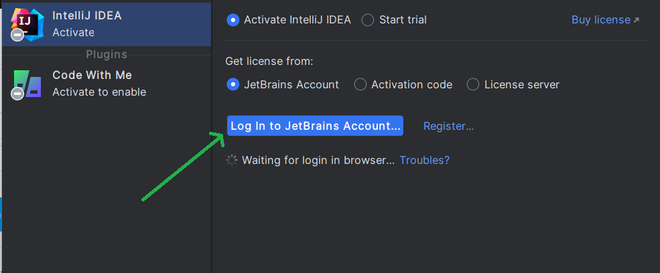
👁 accepting-terms-and-conditionsNow, just as usual login from the same webpage with student credentials, where you create an account.
👁 waiting-for-loginWhen you successfully log into account, IntelliJ will automatically detect it in the background, If you log in from the same student credentials. Now, just click on Accept to start the Student License
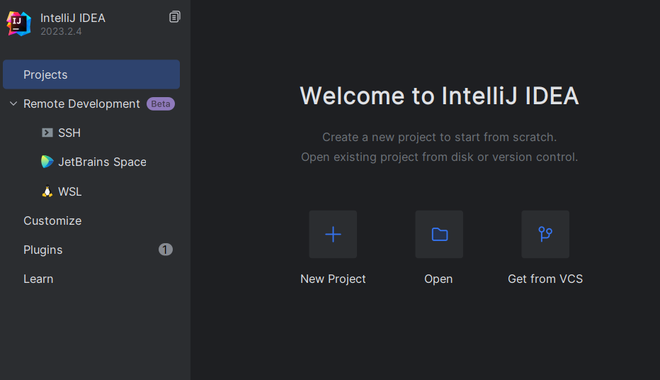
👁 activating-student-licenseNow start using IntelliJ at you convenience.
👁 welcom-windowNote: Free renew available using Educational Subscription again after expiry.