|
VOOZH | about |
|
VOOZH | about |
Want to set up Microsoft Edge on a Linux system? Linux users may now access Microsoft Edge, which was previously only available on Windows. Microsoft Edge for Linux is simple to download and use as your daily browser, regardless of the distribution you're using—Ubuntu, Debian, or another. Regardless of your level of knowledge, this article will show you how to install Edge on Linux in a clear and easy-to-understand manner.
Table of Content
Microsoft Edge can only be installed on Windows computers. But with time, this browser is now available on nearly every operating system. This browser is now open on Android too. This browser can easily be downloadable on a Linux machine.
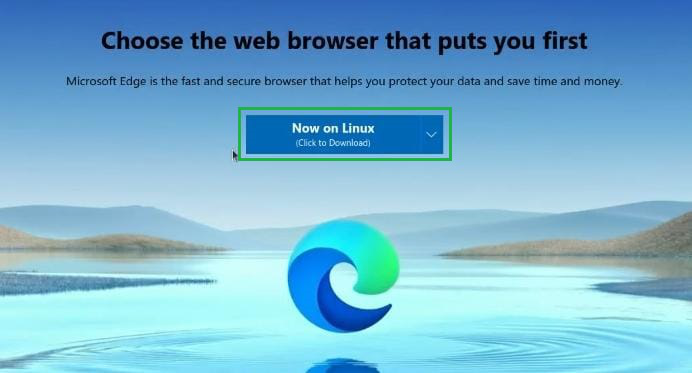
Step 1: First, we need to open the Official Webpage of Microsoft Edge. There we will find a button. This will help us to download Edge on the Linux machine. But for that, we need to access all these things from the Linux machine. We have to click on the button.
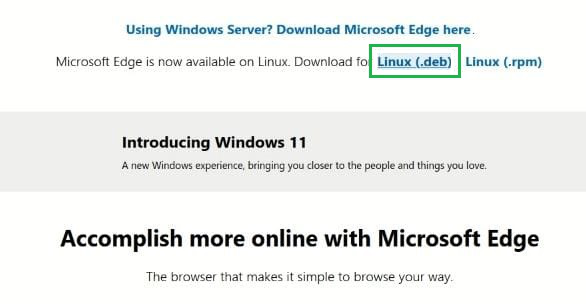
Step 2: Then on the next page, we have to choose the version. Here, we have to decide on the Linux (.deb) option. You have to click on it. This will help us download the software to our machine.
Step 3: Now, a small tab will open. There, all the terms related to Microsoft Terms are listed. We have to click on the Accept & Download button. This will help you download Edge on the machine.
Note: If a user clicks on the button, he is giving consent to the Terms. Clicking on the button will show you how to accept the terms. It is always advisable to read the terms carefully before proceedings. This can save you from further problems.
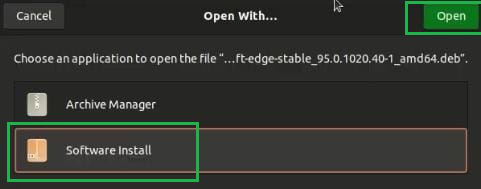
Step 4: After successfully downloading the file, you have to open it. As soon as we open it, there will be a small window in front of us. From there, you need to first click on the Software Install button. After that, on the right-hand side, there is an Open button. You have to click on it to install Edge on the machine.
Step 5: A new window will open. From there, we just need to click on the Installation button. This will start installing Edge on the machine.
Step 6: Edge will now start installing. We have to wait till the process is completed. It will take some time to finish.
Step 7: Now, as soon as the installation is finished, a new window will open. This is the Edge that we have installed. So, the Edge will start running on the machine.
Hence, we have successfully installed Microsoft Edge On Linux.
Prefer to install software from the command line? We have your insurance. Simply copy/paste the following commands into a terminal emulator of your choice.
Step 1: The setup script. This adds the Microsoft Edge repository to your system and imports the Microsoft GPG key to confirm the packages (so you can be sure they are what they claim to be):
curl https://packages.microsoft.com/keys/
/microsoft.asc | gpg --dearmor > microsoft.gpg
Step 2: Type the following command:
sudo install -o root -g root -m 644 microsoft.gpg /etc/apt/trusted.gpg.d/Step 3: Type the following command
sudo sh -c 'echo "deb [arch=amd64] https://packages.microsoft.com/
/repos/edge stable main" > /etc/apt/sources.list.d/microsoft-edge-dev.list'
Step 4: Type the following command
sudo rm microsoft.gpgStep 5: Final Step: Type the command given below:
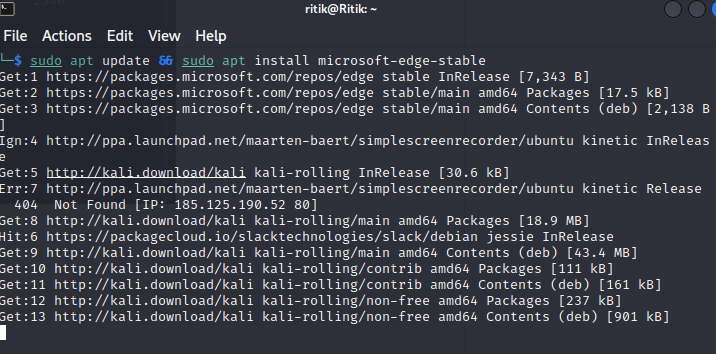
sudo apt update && sudo apt install microsoft-edge-stableYou can easily install Microsoft Edge on Linux and take advantage of all of its cutting-edge features on your Linux computer. You may guarantee you have access to the newest online browsing technologies by following our instruction on Microsoft Edge Linux installation, regardless of the distribution you use—Ubuntu, Debian, or another one. You can quickly experience the capability and speed of the Edge browser on Linux with simple-to-follow instructions.